Learning how to clear Snapchat cache is one of the quickest fixes when the app feels slow, takes forever to load, or starts behaving oddly. Snapchat normally works well, but when it does not, the issue is often related to cached data building up over time. Clearing that data can fix the problem in under a minute.
In this guide, you will learn what cache data actually is, why it can become a problem, when you should clear it, and the exact steps for both Android and iPhone.
What is Cache on Snapchat?
Cache is temporary storage used by apps to load content faster. When you open filters, stories, lenses, or chats, the Snapchat app saves small files on your phone so it does not need to download them again every time. This improves the speed of the app.
However, if the cache grows too large or becomes outdated, it can create problems like lag, freezing, crashes, or storage warnings.
Why Does Snapchat Cache Become a Problem?
You might wonder why cache becomes a problem when it is meant to help. The reason is simple: it accumulates over time.
- Temporary files pile up in large amounts.
- Old data may conflict with new app updates.
- Corrupted cache files can cause crashes or glitches.
- Storage space gets unnecessarily filled.
That is why clearing cache data occasionally helps keep the Snapchat app clean, fast, and stable.
When Should You Clear Snapchat Cache?
You should clear the cache if you notice any of the following.
- Snapchat opening very slowly.
- The app freezing or crashing.
- Filters or lenses not loading properly.
- Stories showing a blank screen or taking too long to load.
- Phone storage becoming too full.
- The app behaving buggy after an update.
In many cases, clearing the cache fixes these issues without needing to reinstall the app. If your privacy settings could use a check while you are already in the app, 10 Snapchat privacy settings you should change right now is worth a look.
Steps to Clear Snapchat Cache on iPhone
Snapchat has a built-in option that lets you clear cache directly from within the app.
- Open the Snapchat app on your iPhone.
- Tap your Bitmoji (profile icon) in the top-left corner.
- Tap the Settings icon in the top-right corner.
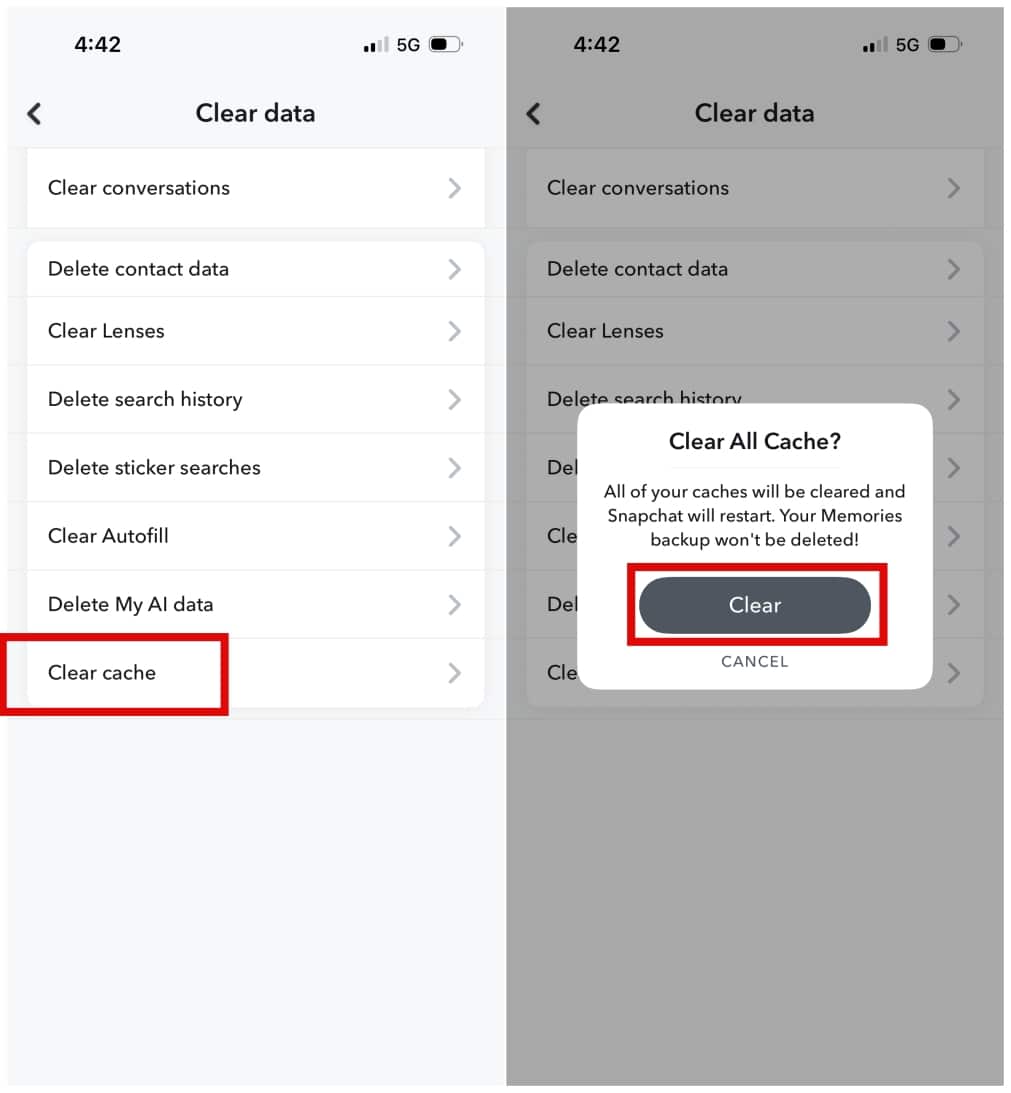
- Tap My privacy & data under App & privacy > tap Clear data.
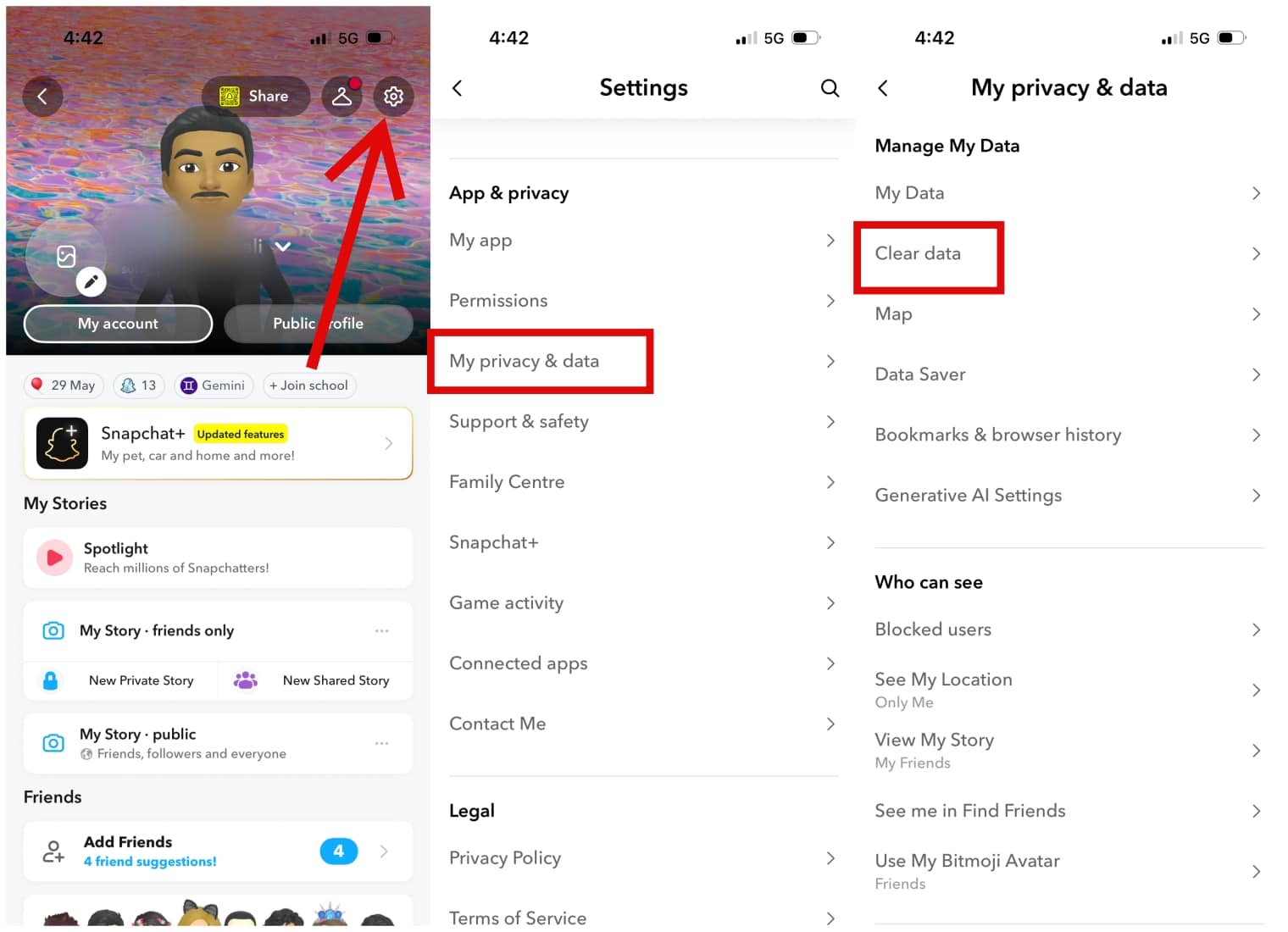
- You can either clear cache or clear the cache for a specific feature. For example, you can clear the lenses cache by selecting the option and confirming the action.
- To remove everything, tap Clear Cache and tap again to confirm.
Steps to Clear Snapchat Cache on Android
If you use an Android device, you have two ways to clear the cache: from inside the app or through your phone’s settings.
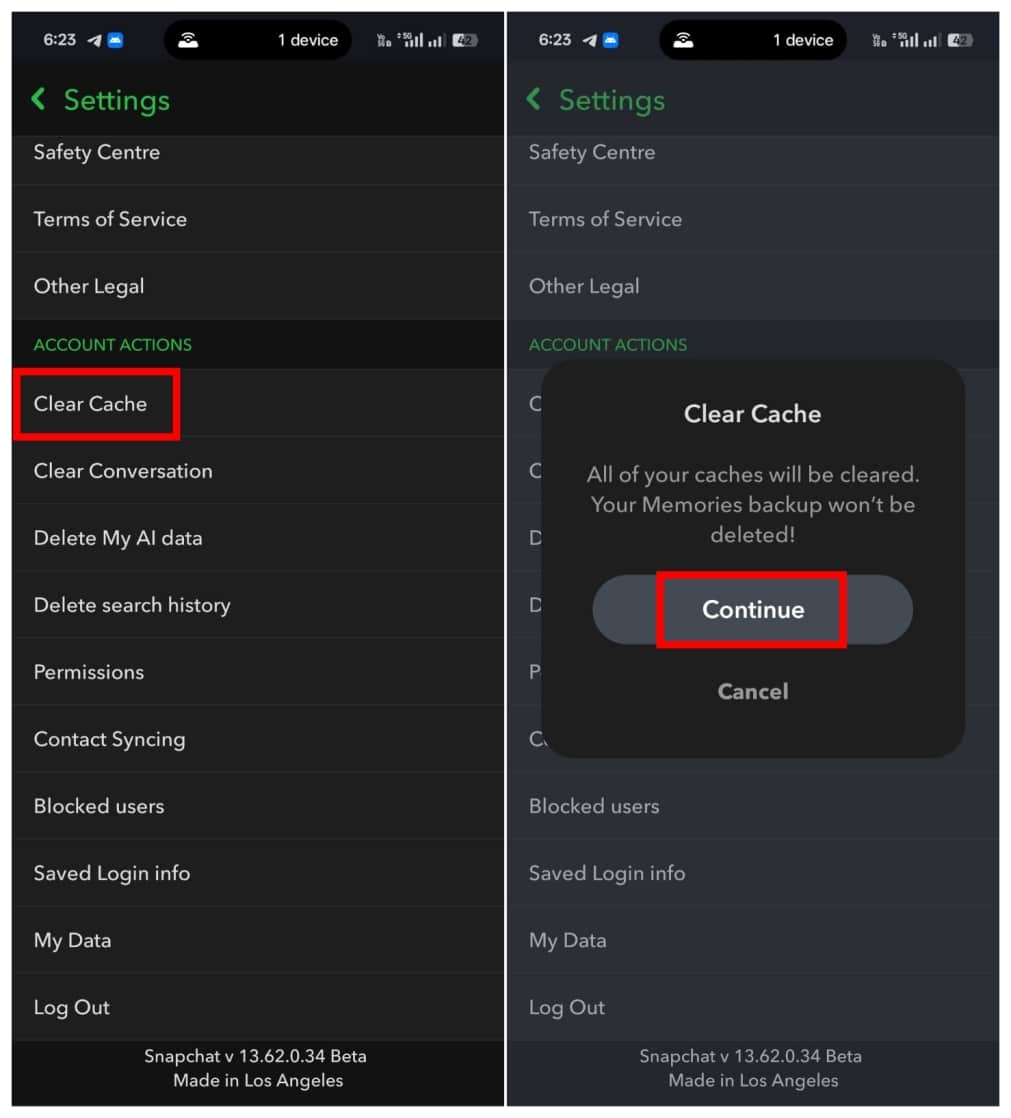
Method 1: Clear Cache Inside the App
- Open the Snapchat app on your Android phone.
- Tap your Bitmoji in the top-left corner.
- Tap the Settings icon.
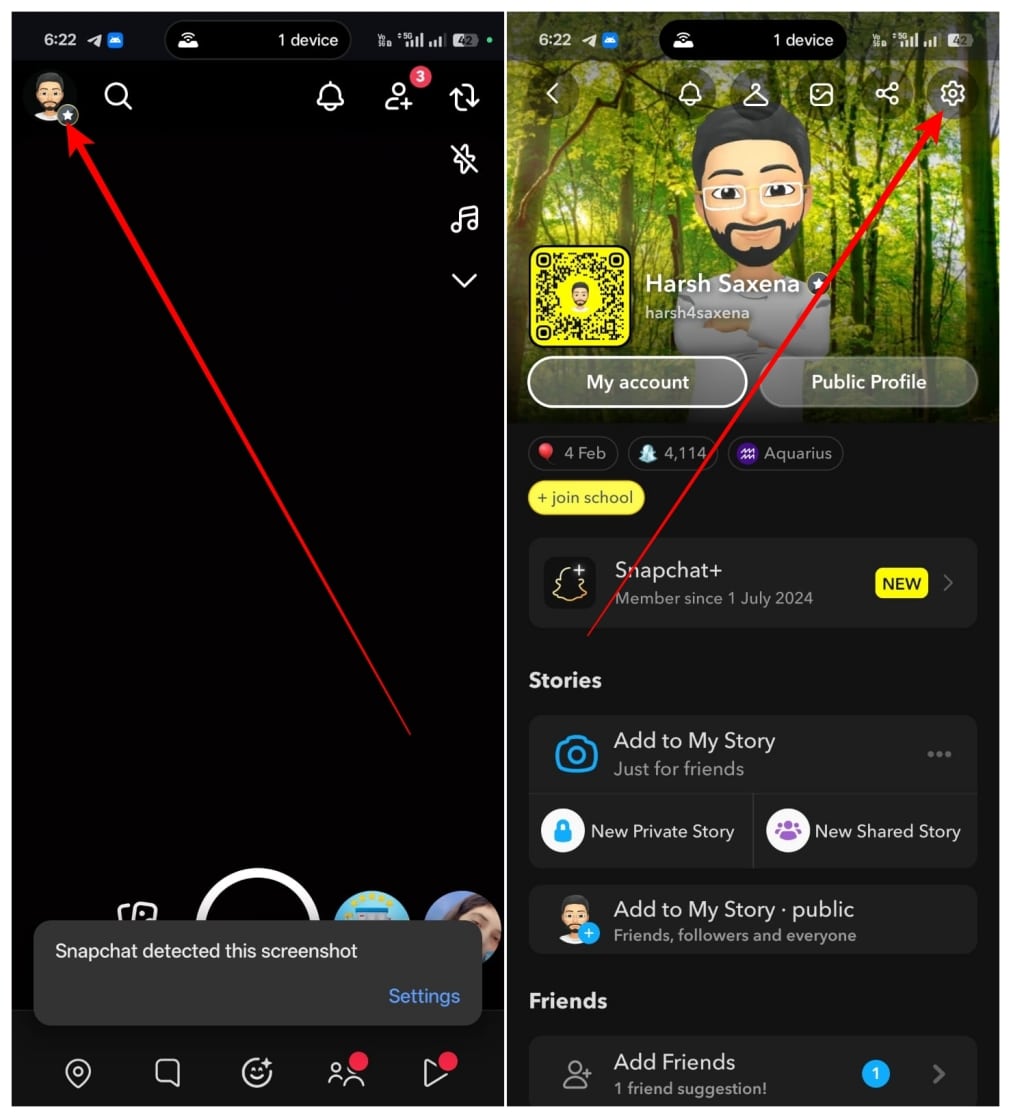
- Scroll down and tap Clear Cache.
- Confirm by tapping Continue.
Method 2: Clear Cache Through Phone Settings
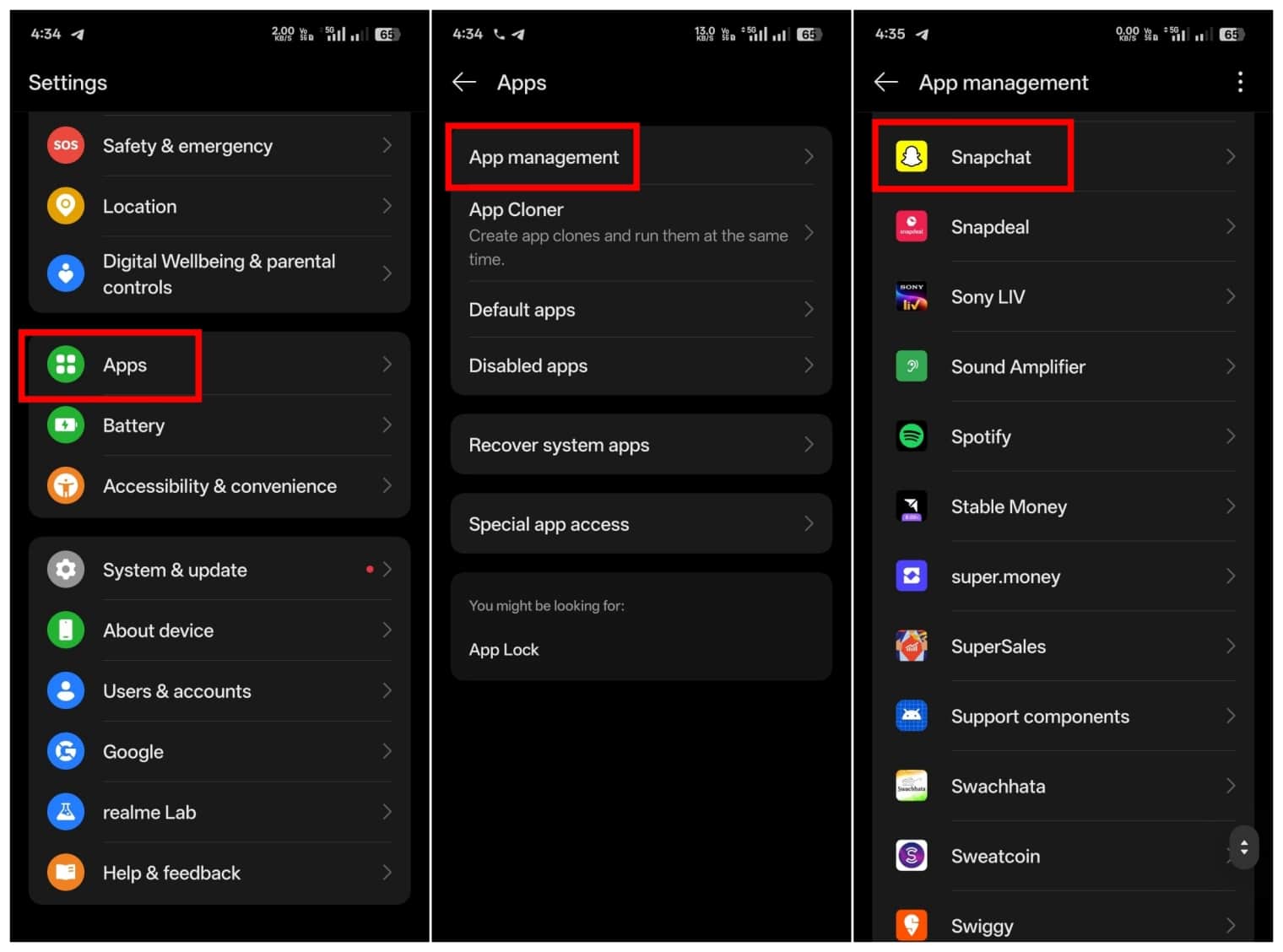
- Open the Settings app on your phone.
- Go to Apps, then tap App management or All Apps.
- Select Snapchat to open the app info page. Alternatively, long-press the Snapchat app icon on the home screen and tap the “i” icon.
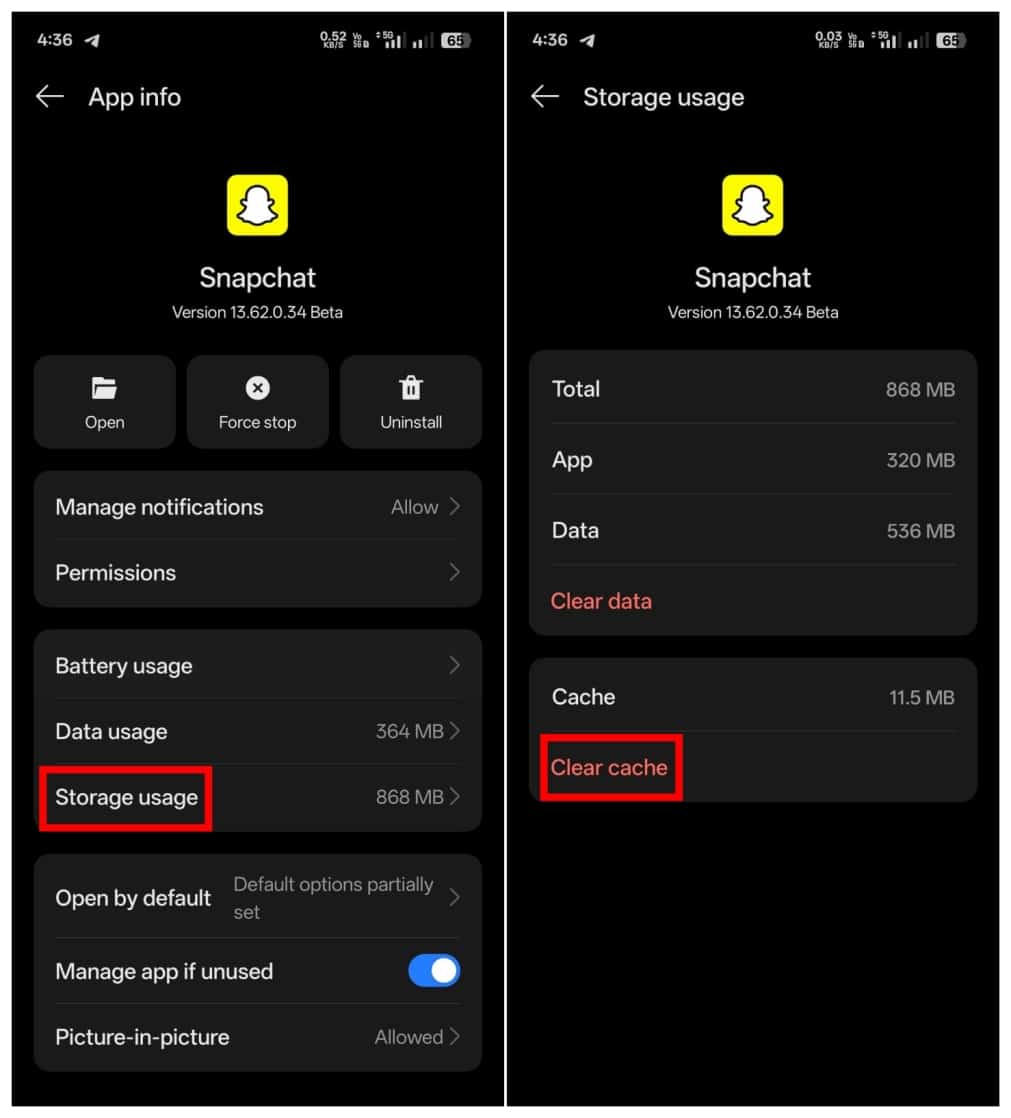
- Tap Storage or Storage Usage, depending on your device.
- Tap Clear Cache.
What to Do If Snapchat Remains Slow After Clearing the Cache
If clearing the cache does not help and the app still feels slow, try these fixes in order.
- Update the app from the Play Store or App Store to the latest version. Issues in your current version may have already been fixed in a newer update.
- Restart your phone to refresh system memory.
- Log out of Snapchat and log back in to refresh account syncing.
- Reinstall the Snapchat app to remove corrupted files if nothing else works.
Wrapping Up
Clearing the Snapchat cache is one of the quickest and easiest ways to fix slow loading, storage issues, and random app glitches. It takes less than a minute, does not delete personal data, and can noticeably improve app performance.
You do not need to clear the cache regularly. Only do it when you notice performance issues or storage problems.
Yes. Clearing the cache is completely safe. It only removes temporary files and does not affect your personal data.
No. Clearing the cache does not log you out of your account. However, tapping Clear Data instead of Clear Cache will log you out.
New cache files build up over time, especially from lenses, stories, and media previews. That’s normal behavior.
Yes. Removing corrupted temporary files can stop freezing and crashing issues. If the problem continues, try restarting your phone, logging out, or reinstalling the app.
Related articles worth reading: