
Seeing “Tap to Load” on Snapchat, only for nothing to happen, is one of the most frustrating app glitches right now. This is when Snaps sent by your friends get stuck, stories refuse to open, and messages never load.
If you’re dealing with this issue, you’re not alone. The Tap to Load glitch usually occurs because of an unstable internet connection, a corrupted app cache, aggressive battery or data restrictions, or bugs in Snapchat’s latest builds. Occasionally, it’s caused by Snapchat server outages. Keep reading to learn what this issue actually means, why it appears, and how to fix it.
What “Tap to Load” Actually Means on Snapchat
Snapchat normally preloads snaps in the background so they open instantly. When that background process fails, Snapchat displays “Tap to Load” and waits for manual input.
The glitch starts when tapping does nothing. At this point, Snapchat cannot maintain a stable connection to its content servers, even though your internet connection appears normal.
Why the “Tap to Load” Issue Appears on Snapchat
This problem usually comes from one or more of the following:
- Corrupted Snapchat cache files.
- Background data restrictions imposed by the phone.
- Outdated Snapchat builds containing unresolved bugs.
- VPN interference with Snapchat’s content delivery network.
- Low device storage preventing media caching.
- Network routing conflicts.
- Temporary Snapchat server problems.
8 Ways to Fix Snapchat Not Loading Snaps
Fortunately, there are a few simple ways to troubleshoot this Snapchat glitch. Here are some straightforward solutions you can try:
1. Switch Between Wi-Fi and Mobile Data
Snapchat relies on its own content delivery network to fetch snaps and stories. Many Wi-Fi networks, especially those in offices, hostels, or public areas, partially block these servers even when normal browsing works. That’s why Tap to Load often appears only on Wi-Fi.
In such cases, try switching to mobile data, then opening the snap again. If it loads instantly, your Wi-Fi network is the problem.
Alternatively, you can toggle Airplane Mode on for about 30 seconds, then turn it off. This refreshes your network connection and clears routing conflicts that prevent Snapchat from downloading media.
If snaps still don’t load on Wi-Fi, restart your router or change your phone’s DNS settings.
2. Clear Snapchat Cache
Snapchat stores temporary files to speed up loading. Over time, these files become corrupted and block new snaps from downloading. Clearing the cache removes those broken files.
- Go to your Snapchat account settings.
- Tap Clear Data under Privacy Controls.
- Tap Clear Cache.
- Tap the Clear button to confirm.
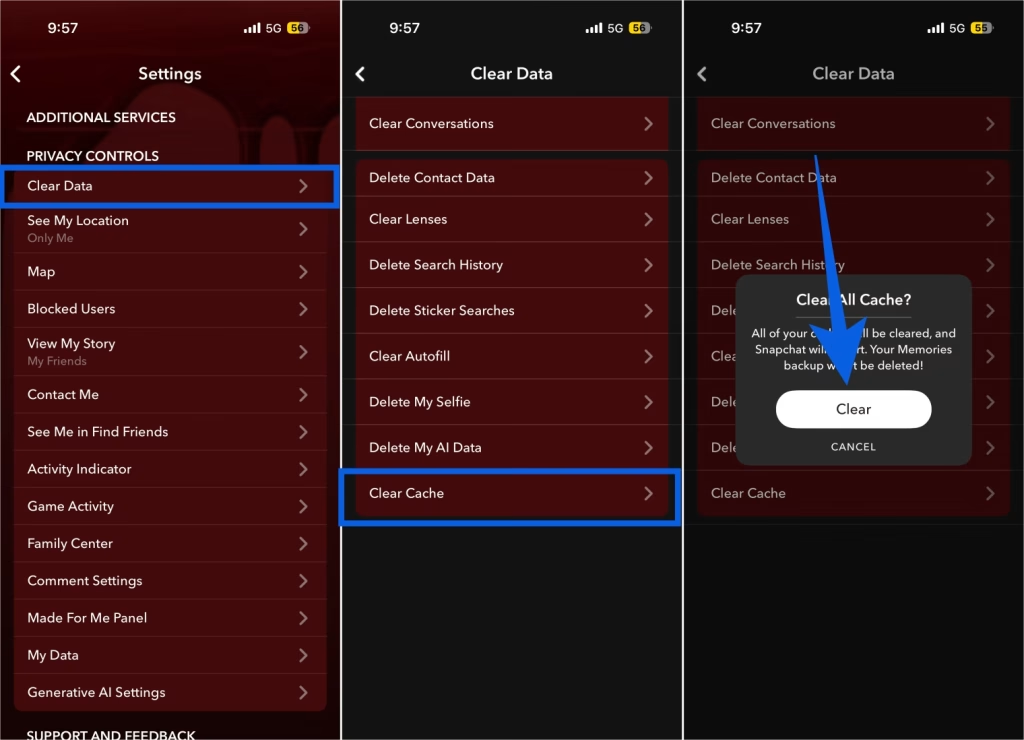
Once done, force close the Snapchat app and reopen it. The “Tap to Load” should be gone now.
3. Log Out and Log Back In
If Snapchat still won’t load after clearing the cache, try logging out of your account and signing back in. This gives your session a fresh start and forces Snapchat to reconnect with its servers, which often fixes annoying sync and loading issues.
4. Update Snapchat App
Running an outdated version of Snapchat can easily trigger loading problems, including the Tap to Load glitch. Snapchat rolls out fixes for performance issues and server compatibility silently through app updates, so even if the app seems to work normally, an older build may struggle to fetch snaps.
- On iPhone: Open the App Store, search for Snapchat, and tap Update if one is available.
- On Android: Head to the Google Play Store, look up Snapchat, and update the app if needed.
Once the update is complete, check if the issue is resolved. In most cases, Tap to Load problems go away right after updating because the new version fixes bugs and improves how the app connects to Snapchat’s servers.
5. Delete and Reinstall the Snapchat App
If the steps detailed above failed to resolve the issue, deleting and reinstalling the Snapchat app might help.
- On iPhone: Press and hold the Snapchat app icon, tap Delete App, then head to the App Store to download it again.
- On Android: Press and hold the Snapchat icon, choose Uninstall, and reinstall it from the Google Play Store.
This removes corrupted app components that basic troubleshooting cannot fix.
6. Remove Background Restrictions
Since Snapchat needs background access to preload media, there shouldn’t be any restrictions applied.
- On iPhone: Open Settings, tap Battery, then Power Mode Options, and make sure Low Data Mode is turned off.
- On Android: Go to Settings > Battery > turn off Battery Saver, allow background data for Snapchat, and remove it from battery optimization lists.
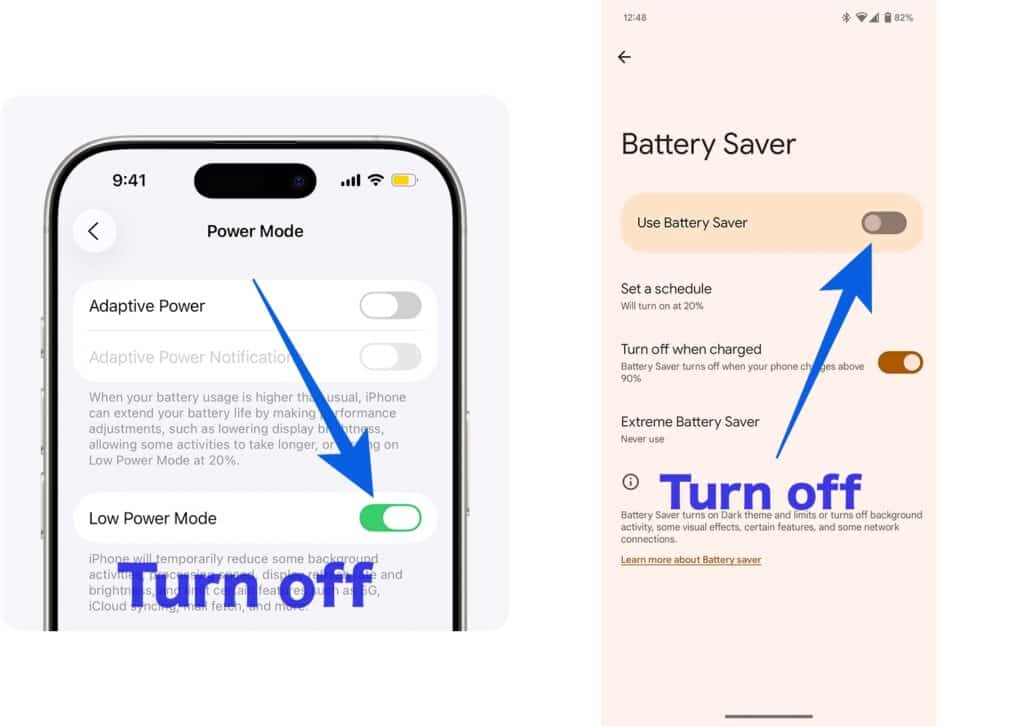
These restrictions quietly block Snapchat and commonly trigger the Tap to Load glitch.
7. VPN and Network Conflicts
If you’re using a VPN, turn it off temporarily, as an active VPN connection can interfere with Snapchat’s media delivery. If the problem continues, reset your device’s network settings. This clears hidden routing conflicts that may prevent Snapchat from downloading snaps.
8. Check for Snapchat Server Outages
Even after trying multiple fixes, you might still see Snapchat stuck on Tap to Load. At that point, it’s easy to assume something is wrong with your phone. However, the problem isn’t always on your end.
Snapchat occasionally experiences server outages or partial service disruptions. When this happens, snaps and stories fail to load for thousands of users simultaneously, regardless of device or internet connection. During these outages, no amount of cache clearing or reinstalling will help because Snapchat simply cannot deliver media from its servers.
If you suspect a server-side issue, check outage tracking websites like Isitdownrightnow.com or search on X for recent Snapchat complaints. A sudden spike in reports usually confirms a platform-wide problem.
In such cases, the only real solution is to wait. Once Snapchat restores its services, snaps start loading normally without you needing to change anything on your phone.
Tap Load Fix…
The Snapchat Tap to Load glitch is usually caused by app-level or network issues rather than a permanent account problem. Clearing the cache, removing background restrictions, and reinstalling Snapchat resolves most cases within minutes.
If those fixes don’t work, checking the Snapchat server status helps rule out platform-wide outages before spending more time troubleshooting. Once you or Snapchat addresses the underlying cause, Snapchat resumes normal loading without any lasting impact on your account or saved content.
Have any other fixes that worked for you? Share your experience in the comments below. Your tip might help someone else stuck with the same issue.