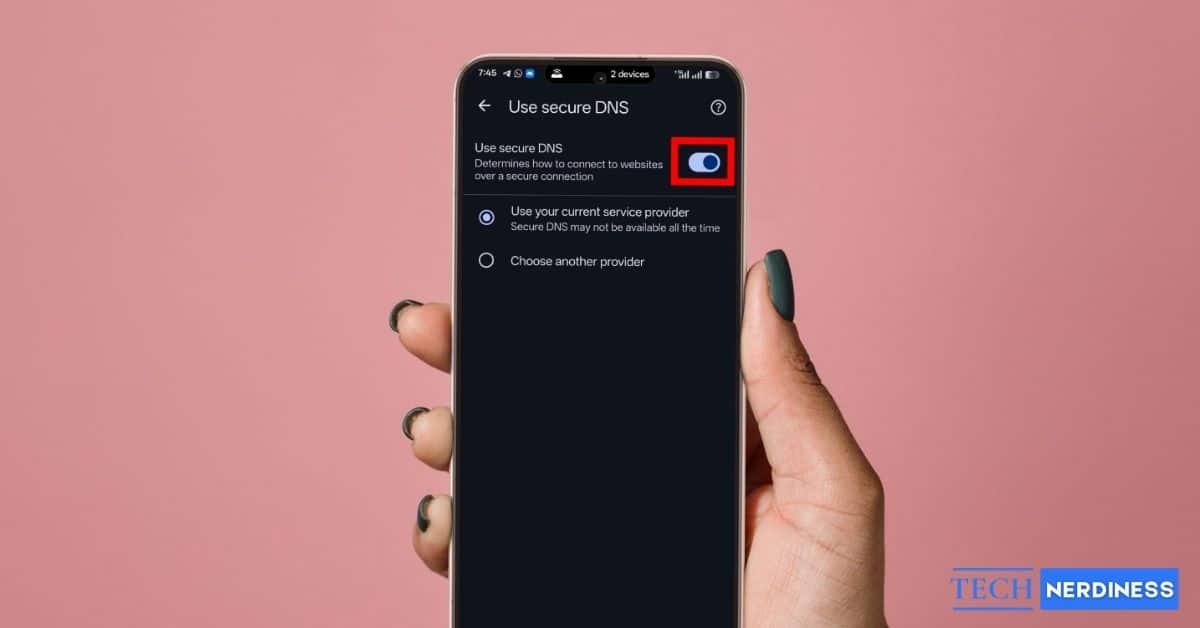
Secure DNS in Google Chrome enhances your privacy and security by encrypting DNS lookups while you browse. However, if you’re troubleshooting connection issues, using a custom DNS provider, or managing network settings, you may need to turn off Secure DNS on Android and PC.
In this guide, we explain what Secure DNS is, how it works, and the step-by-step process to disable it in Chrome.
What Is Secure DNS in Chrome and How Does It Work?
Secure DNS is a feature in Chrome that safely converts website names into IP addresses, which your device needs to open websites. It uses an encrypted method called DNS-over-HTTPS (DoH) to prevent others from seeing which sites you visit, improving your privacy and security.
Many browsers enable DNS-over-HTTPS by default. When you connect to a VPN, your device usually uses the VPN’s DNS service. However, if Secure DNS is turned on in the browser, Chrome may continue using its own DNS instead of the VPN’s DNS. This can sometimes lead to a DNS leak, which may reduce privacy.
Because of this, some users may choose to turn Secure DNS on or off depending on their privacy needs, security preferences, or network performance.
How to Turn Off Secure DNS in Chrome Browser on Android
Turning off the Secure DNS feature on the Chrome mobile app is very easy. Here’s how you can do it.
- Open the Chrome app on your Android device.
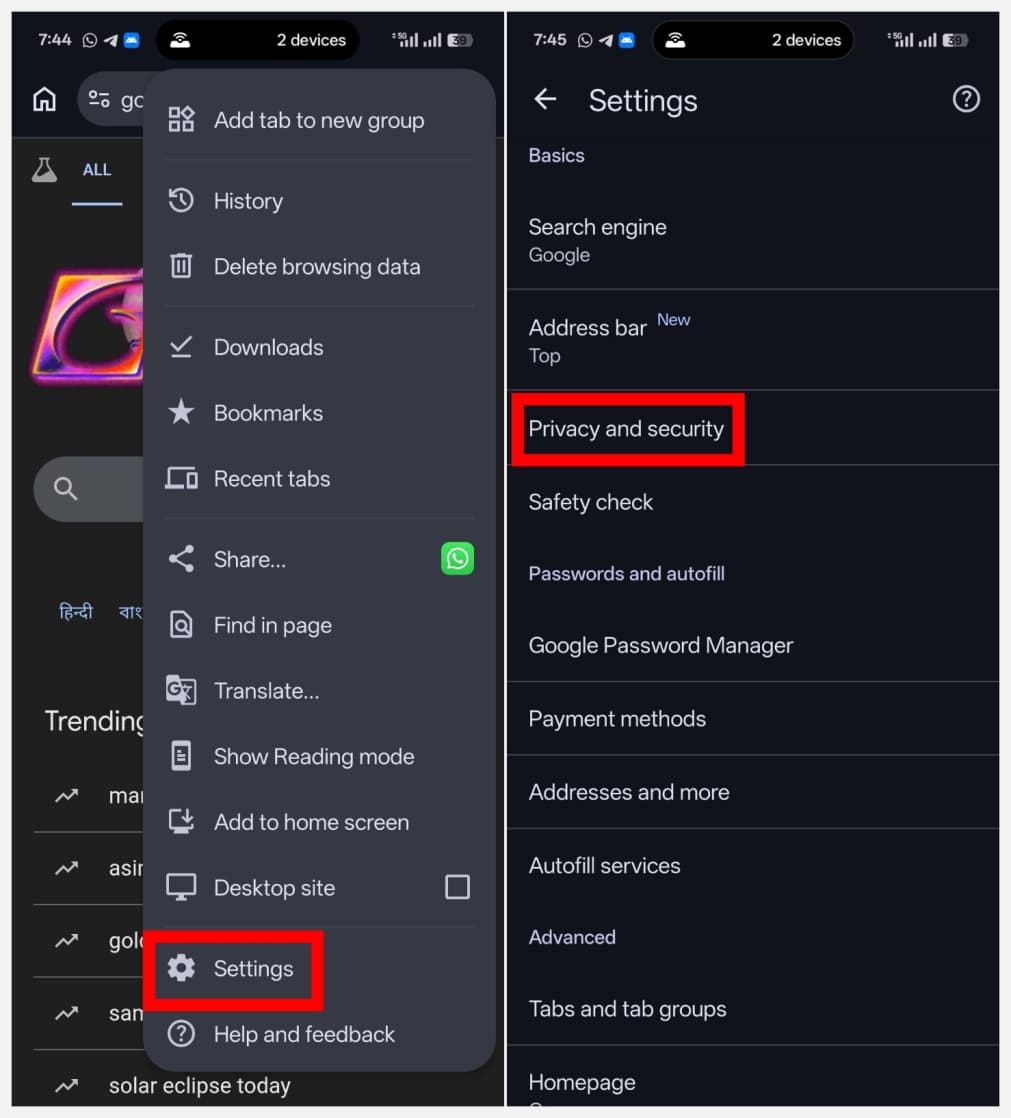
- Tap the three-dot icon at the top or bottom-right corner and select Settings.
- On the Settings page, tap Privacy and security.
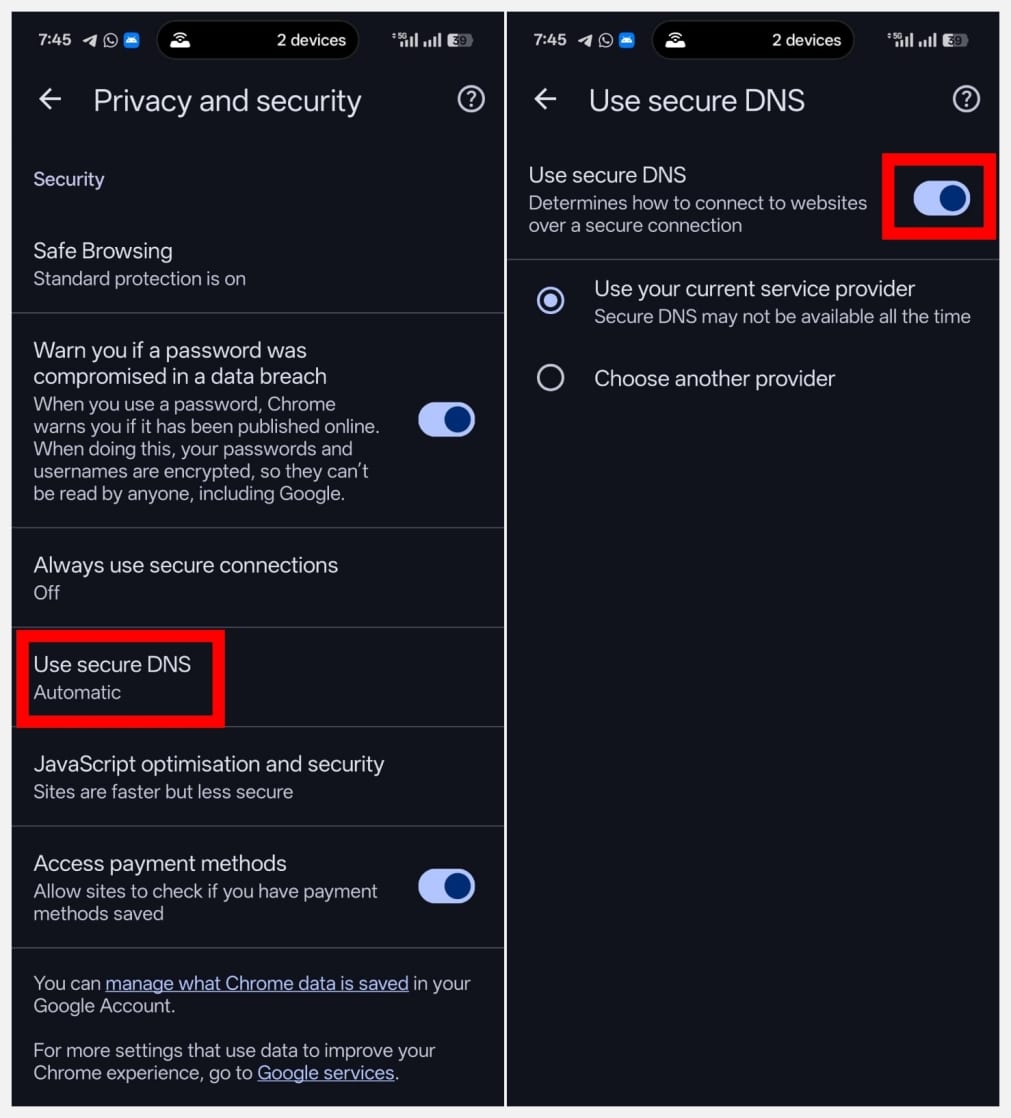
- Under the Security section, tap Secure DNS.
- Finally, turn off the toggle next to Secure DNS to disable it.
How to Turn Off Secure DNS in Chrome on Windows or Mac
If you use Chrome on your Windows or Mac and want to disable secure DNS, the steps are simple. Here’s how you can do it.
- Open the Google Chrome browser on your PC.
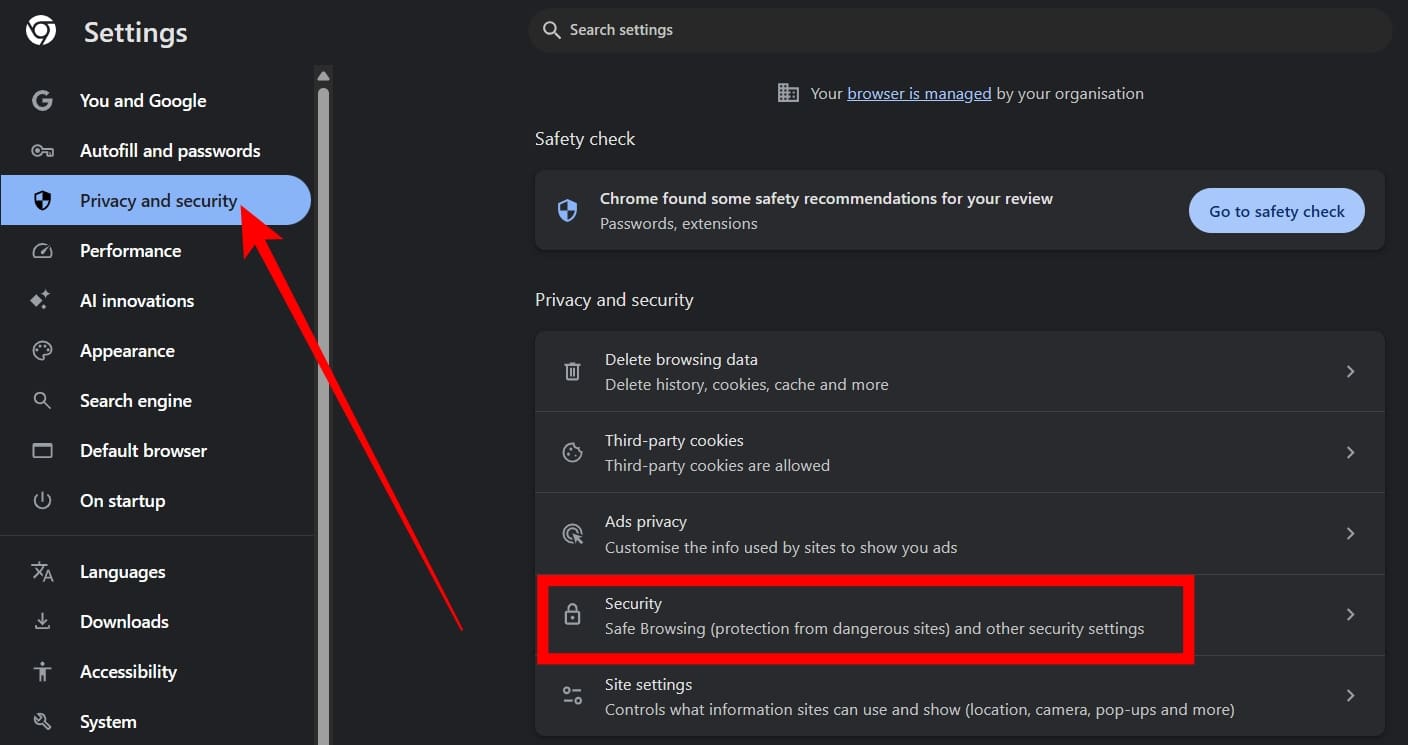
- Click the three-dot icon in the top-right corner of the screen and select Settings. Alternatively, type
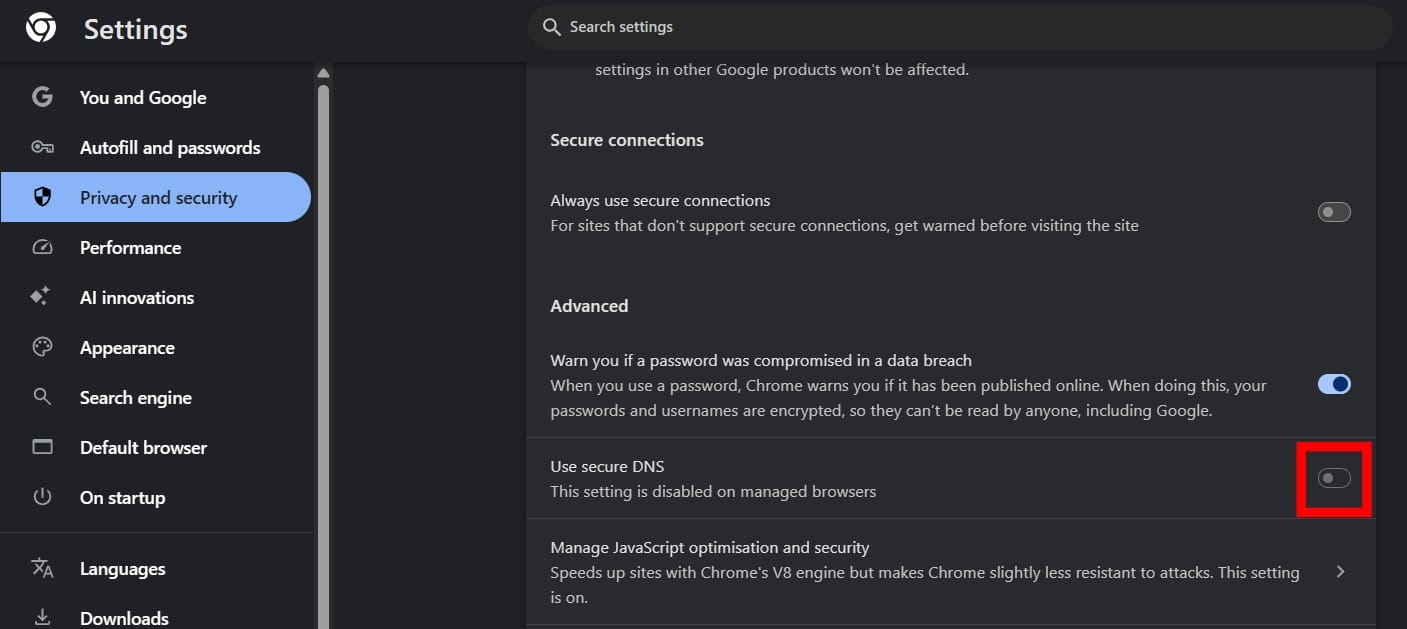
chrome://settingsin the address bar to access the Settings page directly. - From the left sidebar, click Privacy and security.
- Click Security, then turn off the toggle next to Use secure DNS.
Wrapping Up
Secure DNS is quite a useful privacy feature that protects your browsing activity by encrypting DNS requests. However, sometimes it may create issues. So, if you face problems when it’s enabled, you can turn it off in just a few simple steps.
Yes. Turning it off is safe for normal browsing. You may lose a small layer of privacy protection, but that’s completely fine.
For better privacy, keep it on. For troubleshooting, VPN use, or custom DNS configuration, you can turn it off.
If your VPN is not working properly, certain sites are not opening, or you want to use custom DNS, or you are having internet speed or connectivity issues, you should disable Secure DNS.