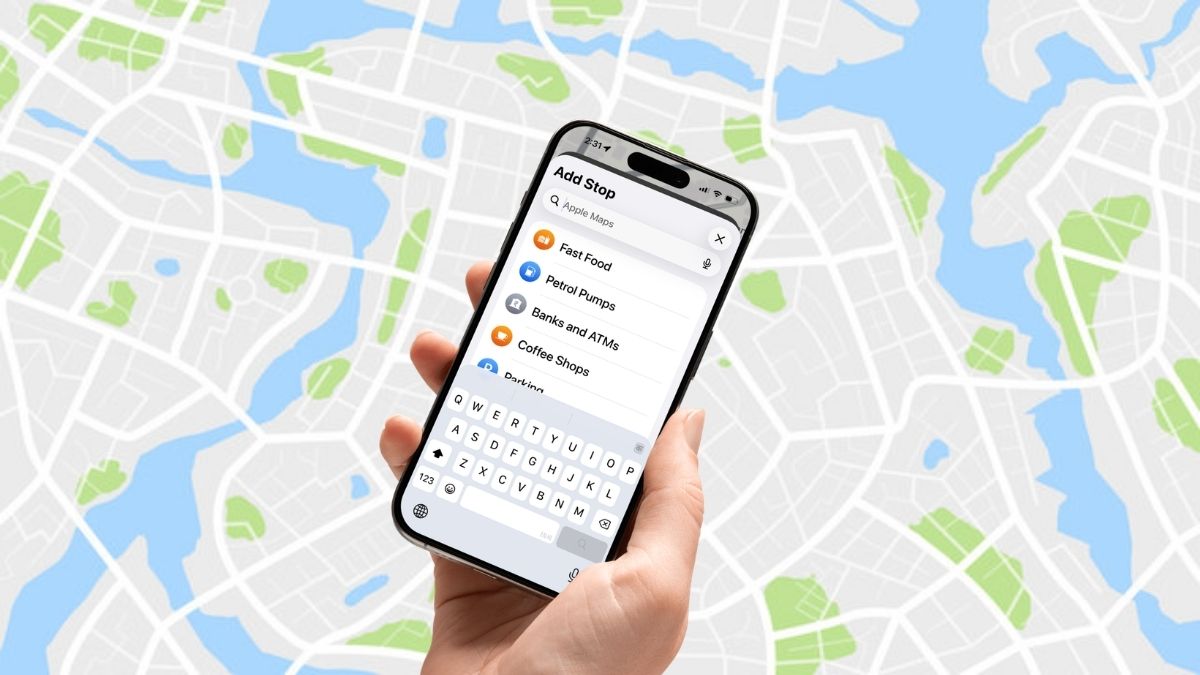
Not every drive is a straight shot from A to B. Sometimes you need to swing by a gas station before hitting the highway, grab a coffee to survive the next two hours, or make a quick city stop along the way. If you’re driving from Chicago to New York, for example, you might want to roll through Philadelphia first without restarting your navigation.
The good news is, Apple Maps handles this better than most people expect. You can add stops mid-route, adjust them on the fly, and remove them just as easily, all without interrupting your navigation. Once you know where the option lives, it becomes second nature. Here’s how to quickly add a stop or detour in Apple Maps on iPhone or iPad.
Add Stops to Your Route in Apple Maps While Navigating
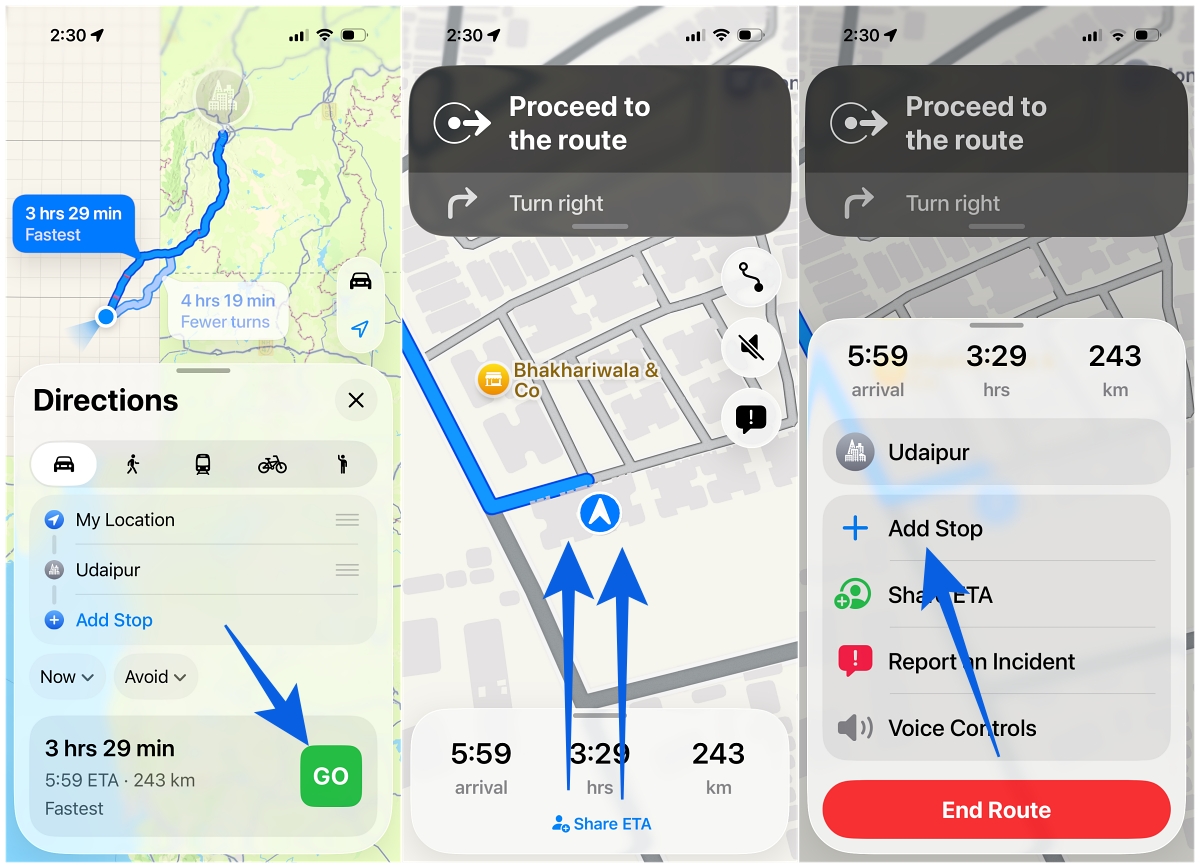
- Open Apple Maps, enter your destination, and tap Go to start navigation.
- Once navigation begins, swipe up on the route card at the bottom of the screen or tap the upward arrow. Then tap Add Stop.
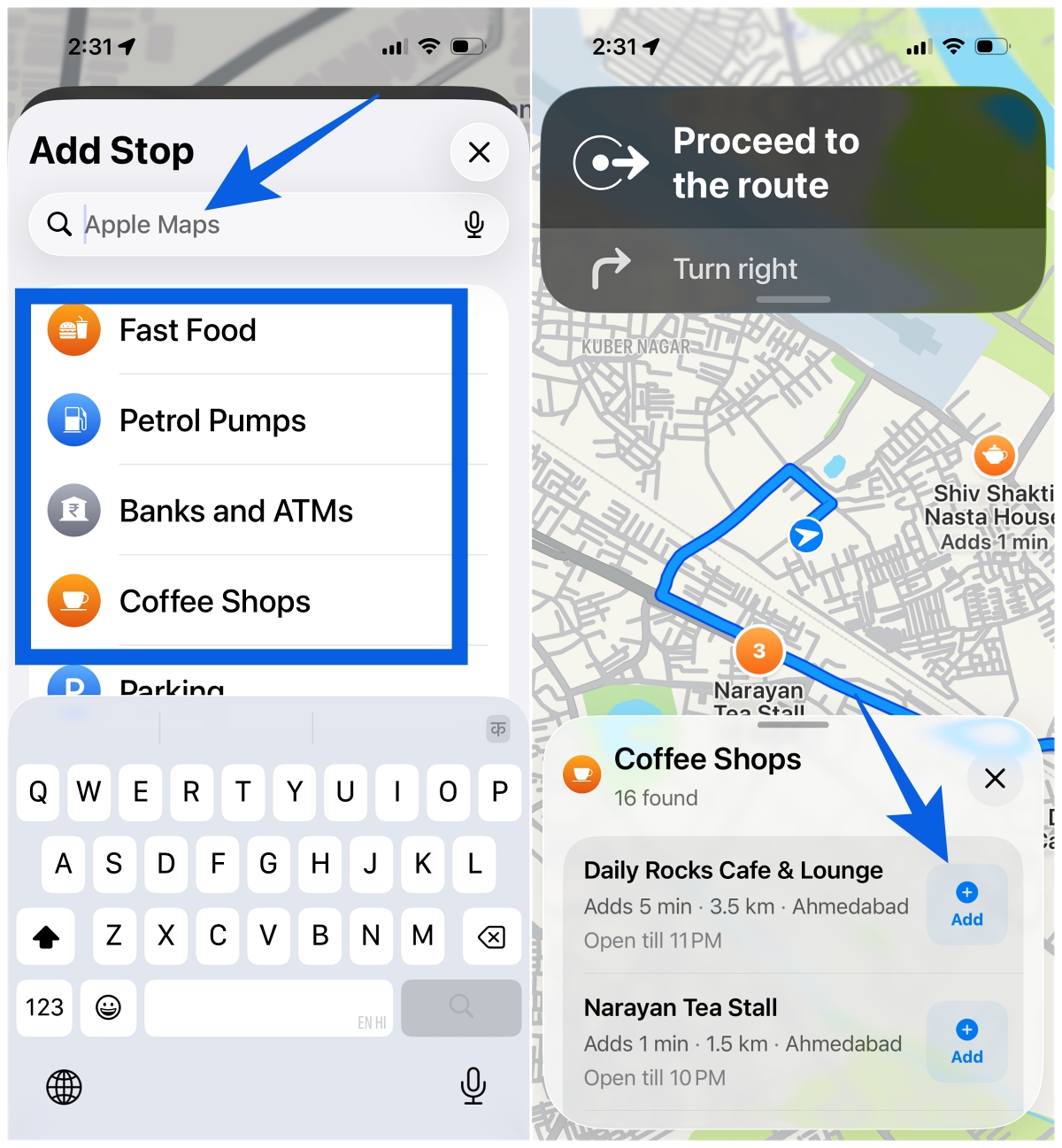
- You’ll see quick-access options like gas stations, coffee shops, restaurants, parking, and ATMs. These suggestions are location-aware, so they update based on where you are.
- If you want to add a specific place or city, use the search bar at the top and type it in. For example, you can add a city like Boston while heading to New York, and Apple Maps will adjust your route accordingly.
- Tap Add next to your chosen stop. Apple Maps will instantly reroute, placing that stop before your final destination.
If you change your mind, swipe up on the route card again and tap the minus (–) icon next to the stop. Your route will update immediately.
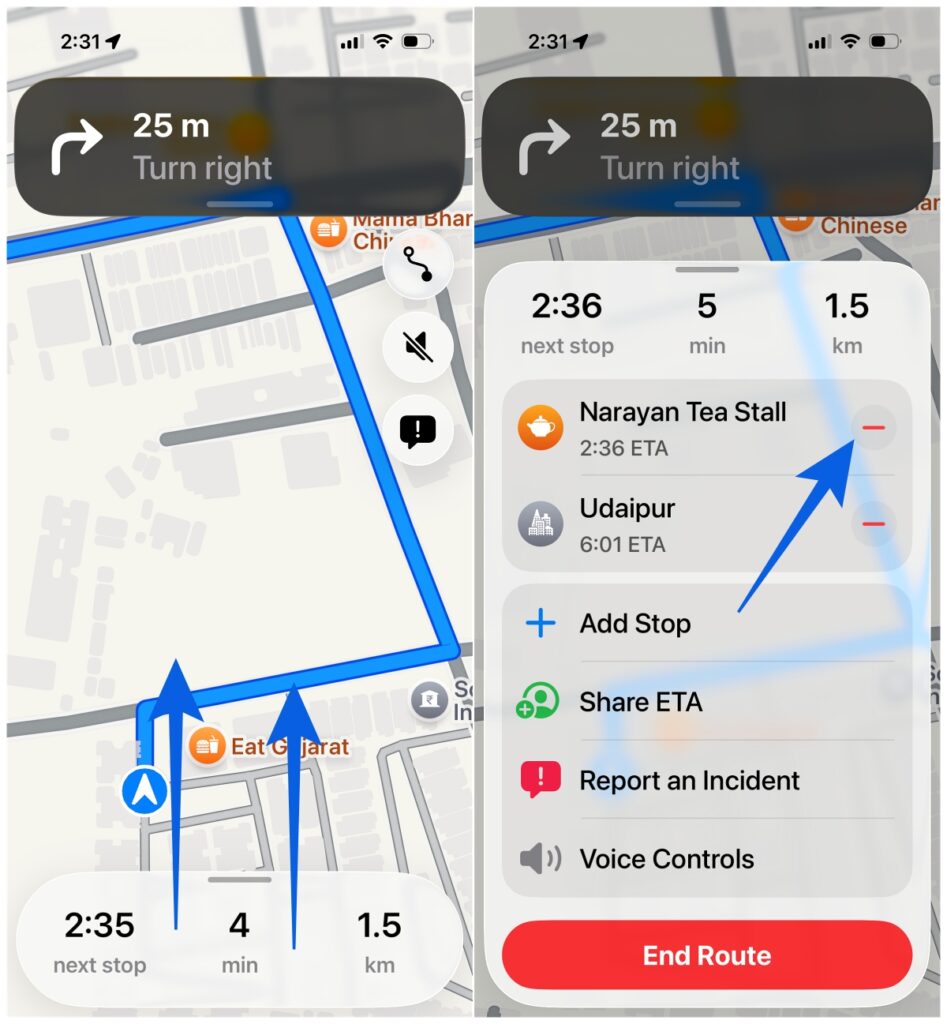
One thing that makes this feature genuinely useful: you can add multiple stops. For longer drives or road trips, this means you can plan your route more realistically instead of relying on a single destination.
Tip: If the navigation voice feels off while you’re driving, you can quickly adjust it. Here’s how to change the Apple Maps voice to something that’s easier to follow.
What Makes This Feature Actually Useful
From experience, the value here isn’t just convenience. It’s flexibility.
Instead of restarting directions every time you make a detour, you can adjust your route in seconds. That matters most during:
- Long road trips
- Multi-stop errands
- Unplanned breaks (fuel, food, rest)
Once you start using it, going back to restarting navigation feels unnecessary.
Final Take
Adding stops in Apple Maps is one of those features that feels small until you start using it. It turns navigation from something rigid into something flexible. You’re no longer locked into a single route, you can adapt as you go.
And once you get used to that, it’s hard to go back.
Yes. While navigation is active, swipe up on the route card and tap Add Stop. Apple Maps will reroute automatically.
Apple Maps supports multiple stops in a single route. While there isn’t a clearly defined limit, it works reliably for typical multi-stop trips.
Make sure you’ve already tapped Go and started navigation. The option only appears during active navigation, not on the preview screen.
You might also like: