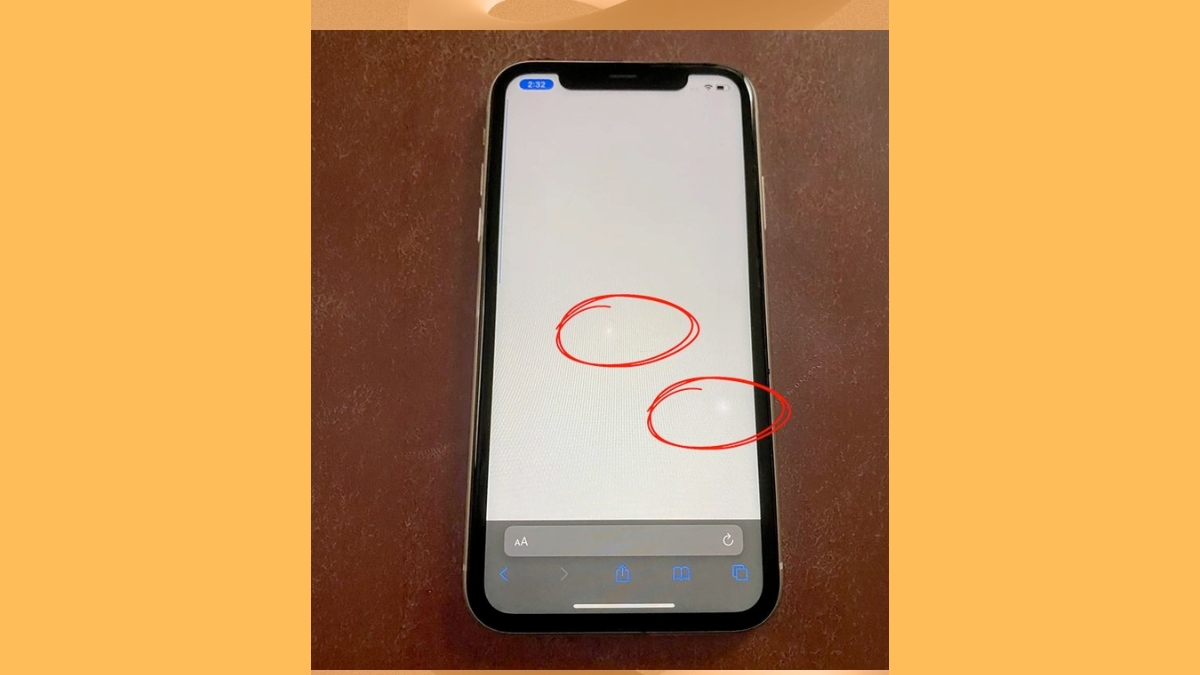
You pick up your iPhone, unlock it, and there it is. A small white dot sitting on your screen that you definitely don’t remember seeing before.
At first, it’s easy to ignore. But once you notice it, it’s hard to unsee. The good news is that in most cases, this isn’t a serious display issue. But there are situations where it can be, which is exactly why it’s worth figuring out what you’re dealing with instead of ignoring it.
Here’s how to identify what’s causing that white dot and how to fix it.
Why Does a White Dot Appear on Your iPhone Screen?
There isn’t just one answer here. That same white dot can show up for completely different reasons depending on how your iPhone is set up or what it has been through.
In some cases, it’s as simple as an accessibility feature like AssistiveTouch being turned on without you realizing it. I’ve seen people assume their screen is damaged when it was just that floating button all along.
In other cases, especially on older devices or phones that have had a screen replacement, it can be linked to display wear or pressure damage.
And then there are those moments when it’s just a software glitch, a UI element that didn’t disappear when it should have.
Before jumping to conclusions or booking a repair, it’s worth checking the basics first. Most of the time, this turns out to be something you can fix in a minute or two.
Common Causes of White Dots on iPhone Screen
After going through user reports and real-world cases, these are the most common reasons:
- AssistiveTouch: The most common cause. A floating accessibility button that looks exactly like a white dot if you’re not familiar with it.
- Vehicle Motion Cues: A newer feature that shows small white dots along the edges of the screen. Many users don’t even realize it’s turned on.
- Software glitch: Sometimes after an update or app crash, a UI element just gets stuck on screen.
- OLED screen issues: Dead pixels or burn-in can create white spots that don’t move and don’t respond to touch.
- LCD pressure damage: On older iPhones, pressure on the display can cause bright patches over time.
- Hardware damage: Drops, defects, or low-quality screen replacements can also cause permanent white spots.
Also check: All iPhone Icons and Symbols Explained: Status Bar, Control Center, and More
Which iPhone Models Are Affected?
This isn’t limited to one model.
You’ll see reports across both older and newer devices:
- LCD iPhones: iPhone 11, XR, XS, X, 8, and earlier
- OLED iPhones: iPhone 12, 13, 14, and 15 series
The cause usually differs:
- LCD models → more prone to pressure-related issues
- OLED models → more prone to pixel or panel damage
How to Fix a White Dot on Your iPhone Screen
Go step by step. The first two fixes solve the issue for most people.
1. Turn Off AssistiveTouch
If the white dot moves when you drag it and opens a menu when tapped, this is AssistiveTouch.
Go to Settings > Accessibility > Touch > AssistiveTouch and turn it off.
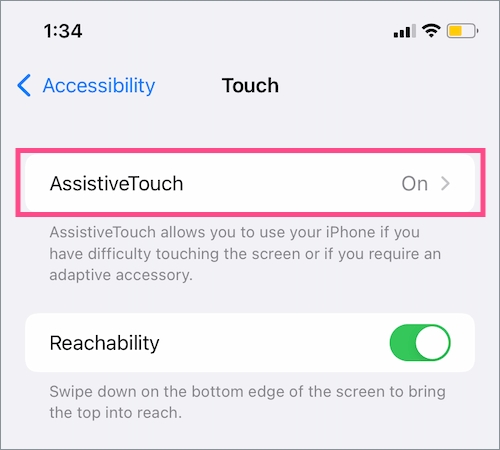
The moment you disable it, the dot disappears.
This is easily the most common cause, and also the easiest fix.
2. Disable Vehicle Motion Cues
If you’re seeing multiple small white dots near the edges of your screen, this is likely Vehicle Motion Cues.
Go to Settings > Accessibility > Motion > Vehicle Motion Cues and set it to Off.
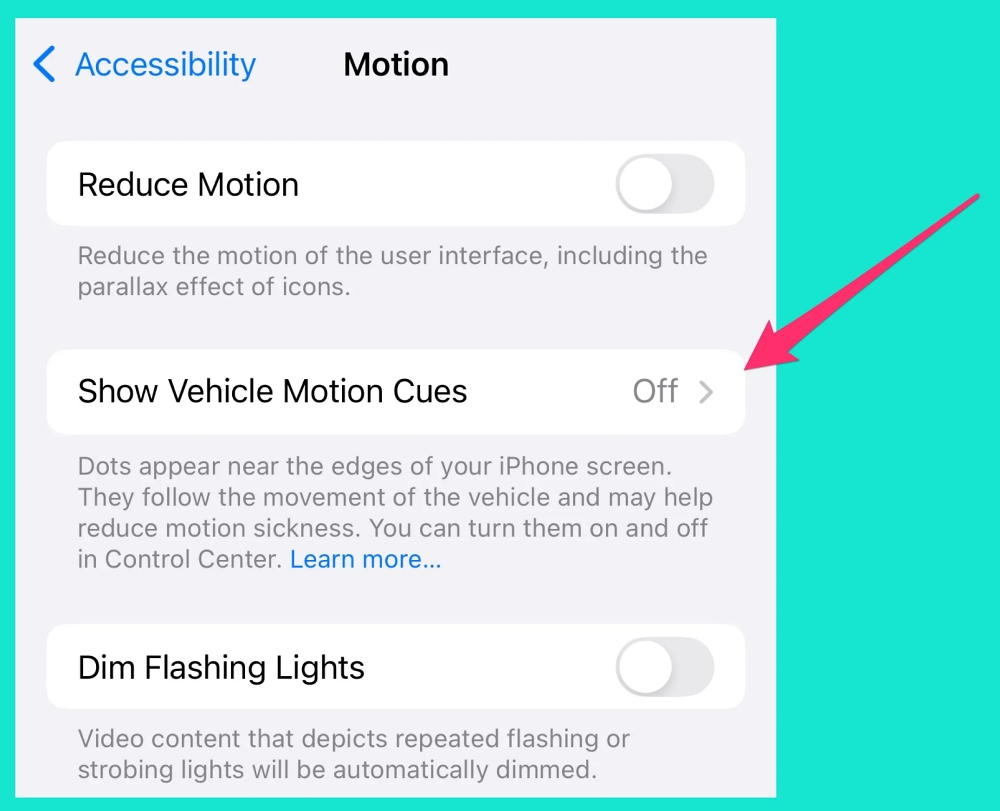
The dots disappear instantly.
3. Restart Your iPhone
If it’s not either of those, try a simple restart.
I’ve seen UI glitches stick around after updates or app crashes, and a restart usually clears them.
- Hold the Side button + Volume Up.
- Slide to power off.
- Wait a few seconds, then turn it back on.
Check if the dot is gone.
4. Reset All Settings
If restarting doesn’t help, your settings might be causing the issue.
Go to: Settings > General > Transfer or Reset iPhone > Reset > Reset All Settings.
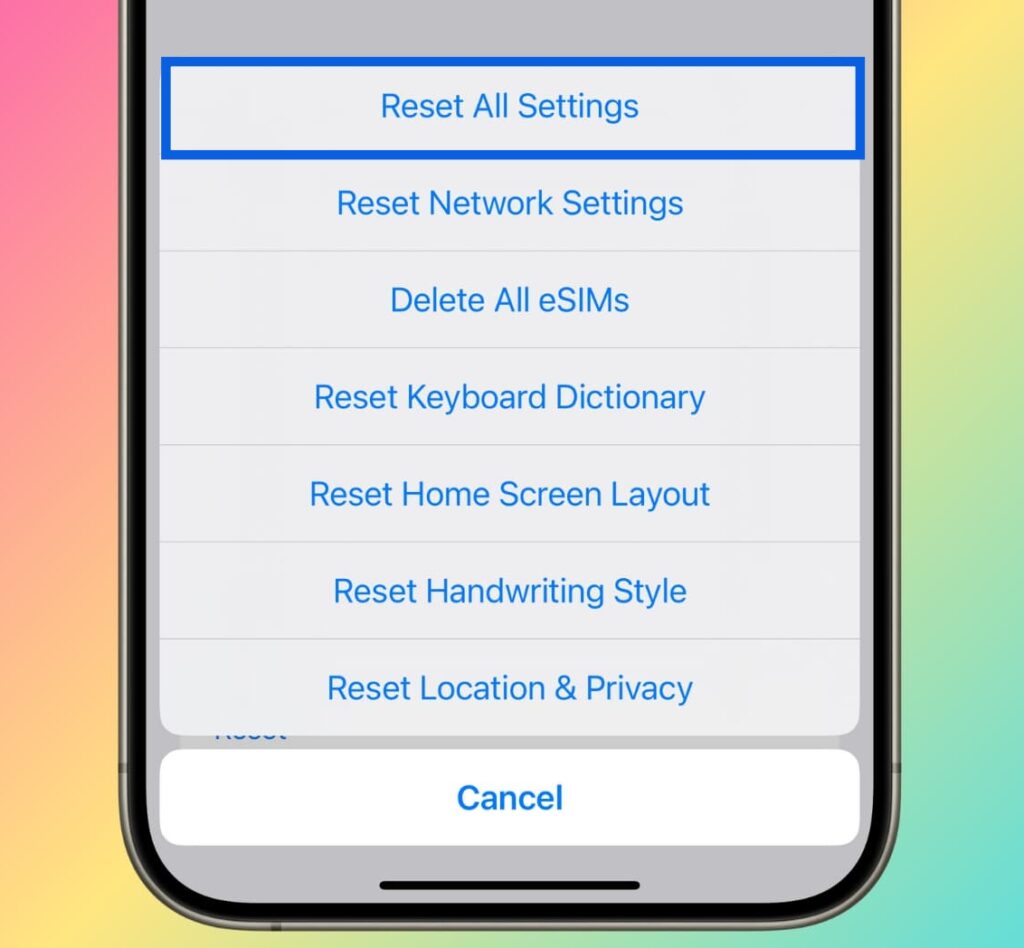
This won’t delete your data, but it resets system settings.
5. Factory Reset (Last Software Step)
If nothing has worked so far, this step helps confirm whether it’s software or hardware.
Back up your data first, then go to: Settings > General > Transfer or Reset iPhone > Erase All Content and Settings.
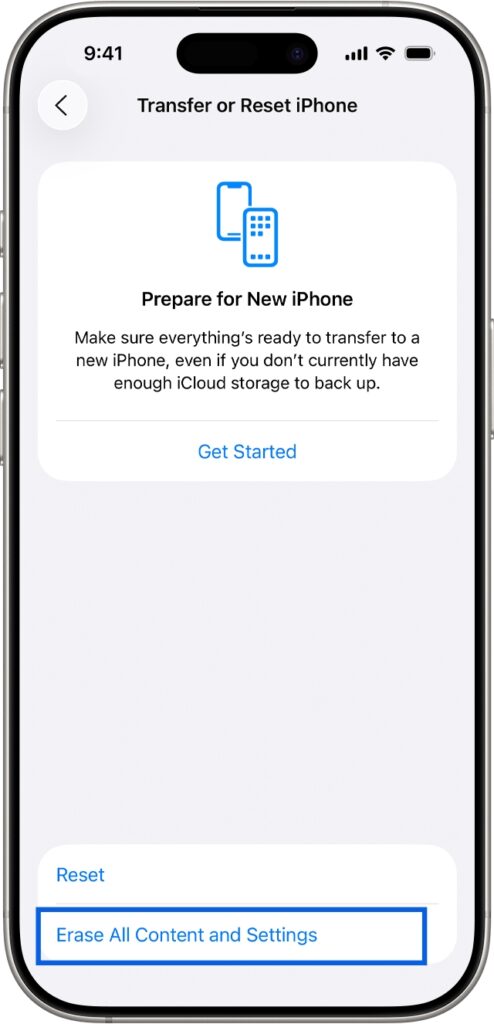
If the dot disappears after this, it was software.
If not, it’s hardware.
6. Visit an Apple Authorized Service Center
If the dot:
- Stays in one place
- Doesn’t respond to touch
- Appears even in screenshots
…it’s a hardware issue.
At that point, no setting or reset will fix it.
Take your iPhone to an authorized service center. If it’s under warranty or AppleCare+, the repair might be covered or discounted.
Avoid third-party repairs unless necessary. Poor-quality screens are a common reason this issue shows up.
No. In most cases, it’s just AssistiveTouch or Vehicle Motion Cues. Both can be turned off quickly.
If your iPhone is under warranty or AppleCare+, the repair may be free or discounted. Otherwise, standard service charges apply.