You’re scrolling through a random website, maybe checking a recipe or reading a forum thread, when the entire screen suddenly locks up. A siren starts blaring. Red text fills the display: “WARNING! Your iPhone Has Been Hacked. Call Apple Support Immediately.”
A countdown timer begins ticking as though your phone is seconds away from becoming unusable. For a moment, your stomach drops. That reaction is exactly what the scammers are counting on.
Fake Apple security alerts are designed to create panic before you have time to think. They’ve also become much more convincing throughout 2026. Scam-tracking reports published in April documented criminals spoofing caller ID so incoming calls appeared to come from “Apple Inc.” Meanwhile, security researchers were still tracking widespread fake Calendar invitations targeting iPhone users well into late 2025.
Here’s the reassuring part: this almost certainly isn’t a virus, and it probably hasn’t compromised your iPhone. Instead, it’s a social engineering scam disguised as a security warning. Its entire goal is to convince you to call a fake support number, download an app, or hand over sensitive information.
Here’s what’s actually happening and how to remove the fake alert safely.
Why You’re Seeing a Fake Apple Security Alert
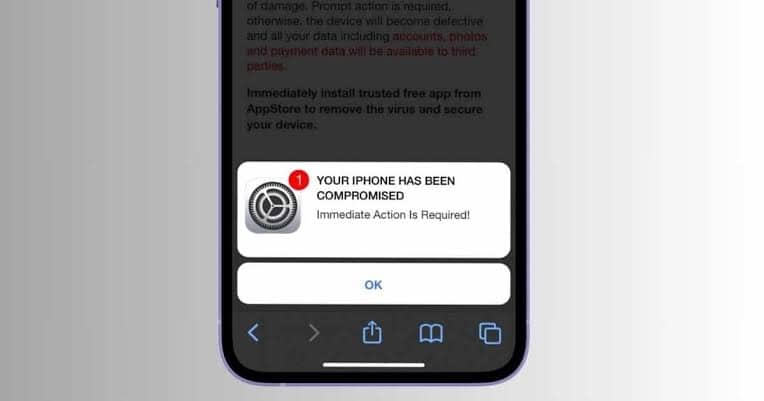
Most fake Apple security alerts don’t come from malware running on your iPhone. They come from a website.
Visit the wrong webpage, often through a misleading advertisement, a shortened URL, or a manipulated search result, and the site can trigger a full-screen popup designed to look like a genuine Apple warning. Some pages also ask for permission to send browser notifications. If you tap Allow without thinking, that same website can continue sending fake security warnings long after you’ve forgotten visiting it.
This is where iPhone security works in your favor.
Unlike many desktop operating systems, iOS uses strict app sandboxing. A website opened in Safari can’t secretly install software on your device simply because you visited the page. That’s why messages claiming your iPhone has “247 viruses” or has been “hacked by a remote attacker” are almost always fake. The page only succeeds if you interact with it by calling the number, downloading software, or following its instructions.
Scammers don’t rely only on browser popups either. Similar scams also arrive through:
- Fake package-tracking text messages
- Phishing emails that closely imitate Apple
- Spam Calendar subscriptions that generate repeated alerts
- Phone calls with spoofed caller IDs displaying “Apple Support” or “Apple Inc.”
Each method aims to create enough urgency that you stop thinking critically before acting.
How to Tell if an Apple Security Alert Is Real or Fake
Apple does send legitimate security notifications, but they’re very different from the fake alerts circulating online.
Apple’s official Threat Notification system, used only when the company detects sophisticated spyware attacks against specific individuals, appears in exactly two places:
- A notification banner after signing in directly to account.apple.com
- An email or iMessage sent from an official apple.com address
Apple also states that legitimate security notifications will never ask you to:
- Click a link inside the alert
- Open an attachment
- Install an app or profile
- Call a phone number
- Share your Apple Account password
- Reveal a verification code
That’s the easiest way to identify a scam.
If an alert tells you to call “Apple Support” immediately or asks you to install software, it isn’t from Apple.
Instead of interacting with the popup, close it completely and manually type account.apple.com into Safari. If Apple genuinely needs your attention, you’ll see the notification there.
Phone calls deserve special attention, too.
Apple has repeatedly confirmed that it doesn’t make unsolicited calls warning customers about hacked accounts or suspicious activity. Even if your iPhone displays “Apple Inc.” or “Apple Support” as the caller, that doesn’t prove anything. Caller ID spoofing is inexpensive and widely used by scammers.
Hang up immediately.
If you’re concerned about your Apple Account, contact Apple through the Apple Support app or Apple’s official website, never through a number provided by the caller.
How to Remove a Fake Apple Security Alert From Safari
If Safari becomes stuck on one of these fake warnings, resist the urge to tap OK, Close, or any other button inside the popup. Some scam pages intentionally redirect you regardless of where you tap.
Instead, follow these steps.
1. Force-close Safari
Swipe up from the bottom of the screen and pause to open the App Switcher, or double-press the Home button on older iPhones.
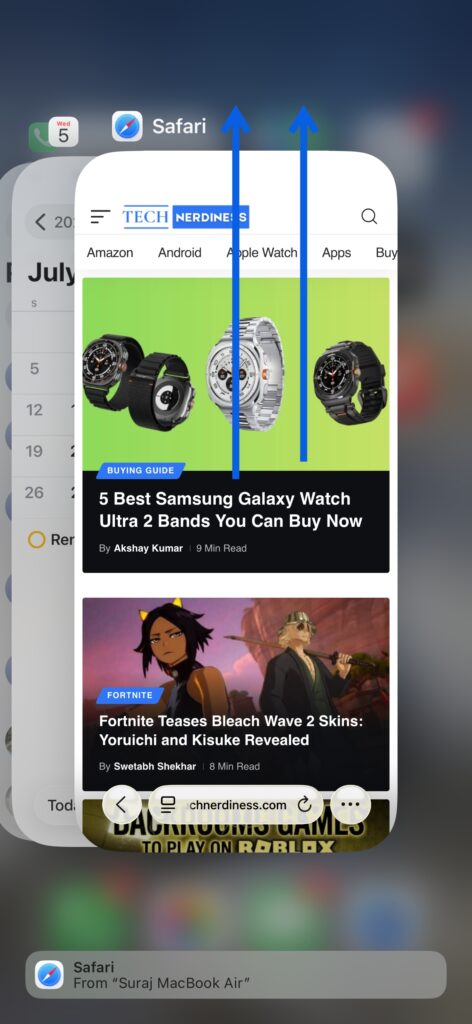
Swipe Safari away to force it to close completely. This ends the malicious webpage without interacting with it.
2. Clear Safari’s History and Website Data
Go to Settings → Apps → Safari → Clear History and Website Data. Confirm the action when prompted.
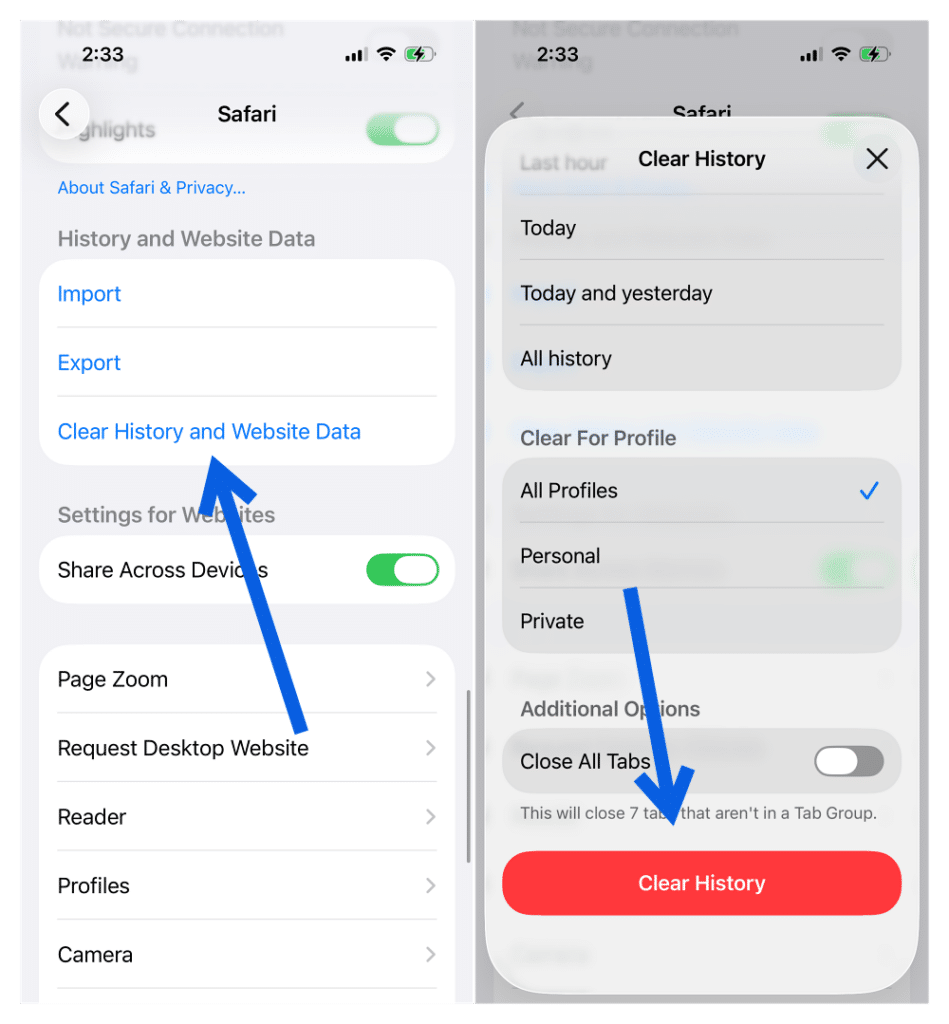
This removes cached webpage data, cookies, and tracking information that may allow the scam page to reload.
3. Make Sure Pop-up Blocking Is Enabled
While you’re still in Safari settings, confirm that Block Pop-ups is enabled.
The feature is turned on by default, but many people disable it temporarily for banking, shopping, or streaming sites and never switch it back.
4. Review Website Notification Permissions
Some fake alerts don’t appear inside Safari at all. Instead, they arrive as browser notifications from websites that previously received notification permission.
Review the websites allowed to send notifications and revoke access for anything unfamiliar or suspicious.
5. Remove Suspicious Safari Extensions
Go to: Settings → Apps → Safari → Extensions
Delete anything you don’t remember installing yourself. Most people won’t find anything unusual here, but it’s worth checking anyway.
For the overwhelming majority of users, these five steps completely remove the problem because the alert lives inside the browser, not inside iOS itself.
How to Remove Fake Apple Calendar Security Alerts
Sometimes the warning doesn’t appear in Safari at all.
Instead, it repeatedly shows up as a Calendar notification claiming your Apple ID has been compromised or that your device has been infected.
These usually come from a subscribed spam calendar rather than malware.
To remove it:
- Open Settings > Apps > Calendar, then Accounts, then Subscribed Calendars and look for anything unfamiliar.
- Tap it, then delete the account entirely.
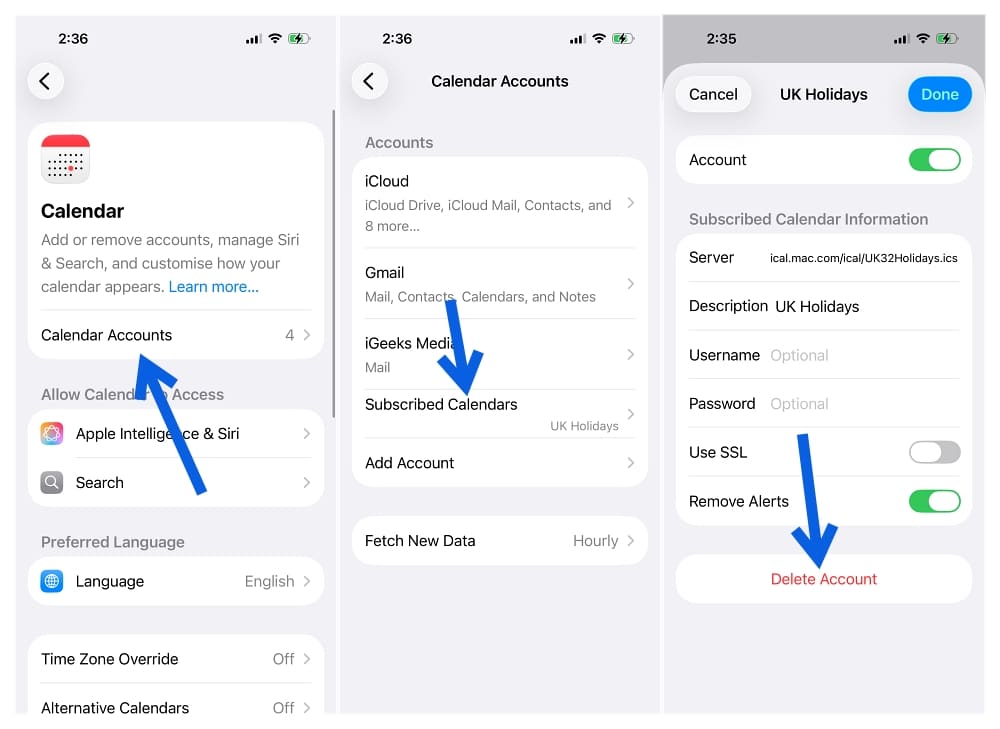
- If you do not see it there, open the Calendar app, tap Calendars at the bottom, and check under the Subscribed section for the same thing.
Removing the subscription permanently stops the notifications. Deleting individual spam events without removing the subscription only means they’ll return later.
Check for Unknown Profiles and Suspicious Apps
If you’ve only ever installed apps from the App Store, this step probably won’t reveal anything unusual. Even so, it only takes a minute and is worth checking.
- Go to Settings, then General, then VPN and Device Management, and see whether any configuration profile is listed that you did not install yourself. A profile you do not recognize can, in rare cases, redirect your network traffic or install a certificate that lets someone intercept encrypted connections, so remove anything unfamiliar
- While you are in Settings, tap General, then iPhone Storage, and scan the app list for anything you do not remember installing
Because iOS isolates every app inside its own sandbox, deleting a suspicious app removes it completely. Unlike some desktop operating systems, there aren’t leftover background services continuing to run after you uninstall it.
Additional Steps to Secure Your iPhone
Once you’ve cleared the fake alert, it’s worth spending a few minutes making sure your iPhone is protected against future scams.
Update Your iPhone
Keeping iOS up to date remains one of the simplest ways to stay protected.
Apple released iOS 26.6 on July 27, 2026, patching 78 security vulnerabilities, including fixes affecting the kernel and WebKit that could potentially be combined into real-world attacks. The update also improves Messages’ ability to identify suspicious or potentially harmful texts before you even open them.
If you’re curious about everything included, our complete breakdown of iOS 26.6 covers all the new features, security fixes, and improvements.
Report the Scam
Reporting scams helps Apple and carriers identify active campaigns more quickly.
If you received:
- A phishing email, forward it to reportphishing@apple.com.
- A scam text message, forward it to 7726 (SPAM) if your carrier supports spam reporting.
Then delete the message.
While reporting won’t undo what already happened, it helps reduce the chances of someone else falling victim to the same campaign.
If You Already Called the Number
If you called the fake support number, shared your Apple ID password, provided a verification code, or allowed remote access using software like AnyDesk or TeamViewer, don’t wait.
Immediately:
- Change your Apple Account password from a trusted device.
- Review the devices signed in to your Apple Account under Settings > Your Name > Sign-In & Security.
- Remove any device you don’t recognize.
- Contact your bank or card issuer immediately if you shared payment information.
- Monitor your Apple Account for unusual activity.
Acting quickly significantly reduces the chances of further damage.
Common Mistakes to Avoid
Most fake Apple security alerts only work because they create urgency.
Avoid these common mistakes:
- Don’t call the phone number displayed in the popup.
- Don’t tap OK, Allow, or Close inside the fake alert.
- Don’t install apps suggested by the warning.
- Don’t share your Apple ID password or verification code.
- Don’t assume caller ID proving “Apple Inc.” means the call is legitimate.
Whenever you’re unsure, close the page and visit apple.com or account.apple.com yourself instead of following instructions from the alert.
Final Thoughts
A fake Apple security alert is designed to make it feel like your iPhone is falling apart in real time, and that manufactured urgency is the entire scam.
Fortunately, iOS is built to make exactly this kind of attack difficult. A website, text message, or browser popup can’t secretly install software on your iPhone without your involvement. That’s why these scams focus so heavily on convincing you to panic, call a fake support number, or hand over sensitive information instead.
In most cases, the fix is straightforward: close Safari, clear your browsing data, remove any spam Calendar subscriptions, and check your device for anything unfamiliar. Once you’ve done that, you can move on with reasonable confidence that your iPhone hasn’t been compromised.
Scam tactics evolve constantly, so even if the warning you’re seeing doesn’t exactly match the examples above, treat any unexpected security alert that asks you to call a number, install software, or share personal information with the same level of caution.
Don’t miss these related reads: