If you’ve ever sent a sensitive email from your phone and wondered who might be able to see it along the way, you’re not alone. It’s one of those concerns most people don’t think about until they have to.
That’s exactly what end-to-end encryption is meant to solve. And now, Gmail is finally bringing it to where most people actually use email: mobile.
Google has rolled out end-to-end encryption (E2EE) for Gmail on both Android and iPhone through its native app. This isn’t new technology, but bringing it to mobile changes how practical it becomes in everyday use.
What Gmail End-to-End Encryption Does (And How It Works)
At its core, end-to-end encryption ensures that only you and the recipient can read the message.
Once you send an encrypted email, it’s scrambled immediately and can only be decrypted by the intended recipient. Not Google, not your network provider, and not anyone intercepting traffic in between.
From a usability standpoint, this is the most accessible version of email encryption I’ve seen so far.
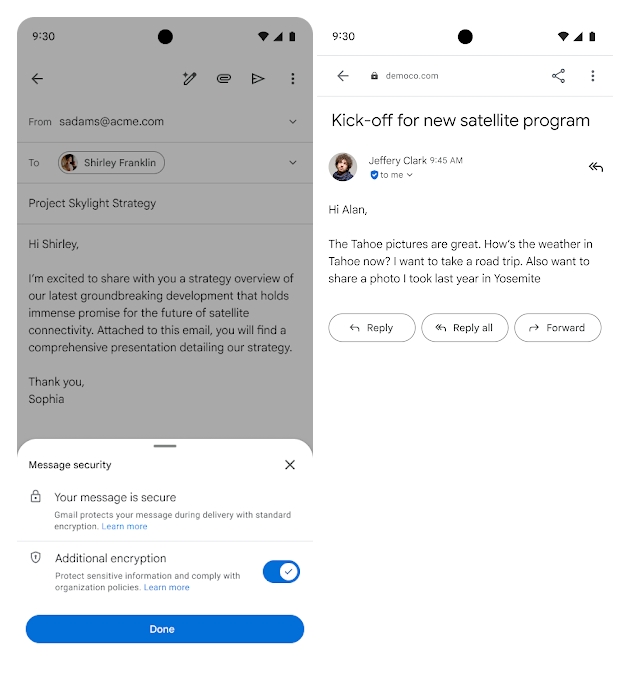
When composing an email in Gmail, you’ll notice a lock icon. Tap it, enable additional encryption, and the message is secured. There’s no need to deal with certificates or third-party tools, which used to be the biggest barrier.
If the recipient is also using Gmail, everything feels normal. The conversation looks like a regular email thread.
If they’re not, they’ll receive a secure link to view and reply to the message. It’s not perfect, but it’s significantly easier than older enterprise solutions.
Why This Matters Beyond Just “Security”
It’s easy to think of this as just another privacy feature, but it goes beyond that.
For many businesses, email security isn’t optional. Regulations like GDPR require organizations to protect sensitive data in transit. Failing to do so can lead to serious legal and financial consequences.
There’s also the issue of data sovereignty. In some regions, data must stay within specific geographic boundaries. Encryption reduces the risk of that data being exposed or mishandled as it moves across servers.
From what I’ve seen, this update makes Gmail much more viable for industries like healthcare, finance, and legal, where data protection is critical.
How to Enable Gmail End-to-End Encryption
This is where things get a bit limited for now.
Currently, Gmail’s E2EE is available only to Google Workspace Enterprise Plus users with the right add-ons (Assured Controls or Assured Controls Plus).
Here’s how it works in practice:
- Your IT admin enables client-side encryption in the Admin Console.
- Once enabled, the option appears in the Gmail app.
- You can turn it on directly while composing an email.
The good part is that users don’t have to deal with complex setup steps. Everything is handled in the background, which makes adoption much easier.
If you’re using a personal Gmail account, this feature isn’t available yet. In that case, services like ProtonMail still offer built-in end-to-end encryption.
The Bigger Picture: Why This Update Matters Now
Google didn’t release this overnight.
They’ve been gradually building toward it since 2022, first with limited enterprise support, then desktop expansion, and now mobile.
From experience, the biggest barrier to using secure email has always been complexity. If it’s too hard to use, people simply don’t use it.
That’s what makes this update important. It brings encryption into a workflow that already feels familiar. And with Google also introducing more flexibility around accounts, like the ability to change your Gmail address, it’s clear the focus is shifting toward making Gmail more practical for everyday use.
Final Thoughts
Gmail’s move to bring end-to-end encryption to mobile is less about introducing something new and more about making it usable.
For professionals handling sensitive data, this isn’t just a feature update. It’s something worth paying attention to right now.
If your organization uses Google Workspace, it’s a good time to check with your admin and see if your plan supports it.
No, it’s currently limited to Google Workspace Enterprise Plus users with specific add-ons. Personal Gmail accounts don’t support it yet.
Recipients outside Gmail are redirected to a secure web page instead of seeing the message directly in their inbox. Also, the feature requires admin setup and isn’t available on all plans.
Don’t miss these related reads: