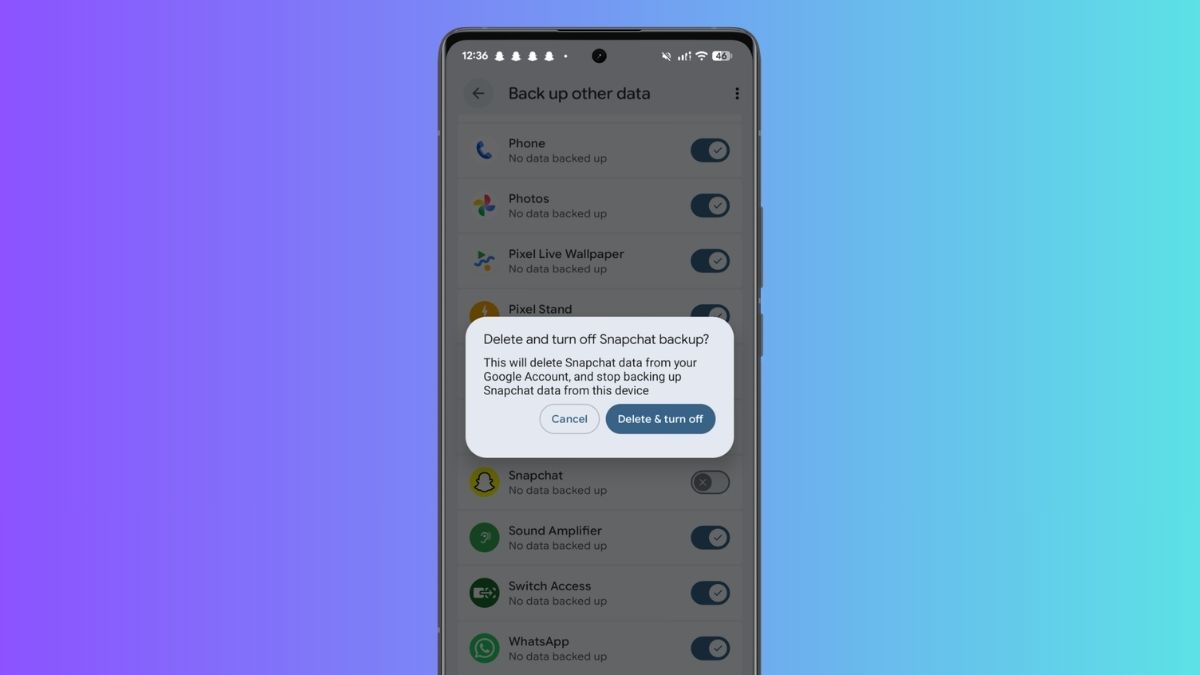
For years, backing up an Android phone meant accepting a quiet tradeoff. You either let Google sweep up everything under one Apps & app data switch, or you turned the whole thing off and went without. As of late June 2026, that’s finally changing. Google has started rolling out per-app backup controls to Pixel phones, giving you a separate on/off toggle for each app instead of a single all-or-nothing option. It’s the latest in a series of backup improvements that have arrived since Android 17 stable rolled out to Pixel devices earlier this month.
The reason this matters is simple. Not everything on your phone deserves a place in the cloud. Some apps store sensitive information, others take up a surprising amount of backup storage, and some simply don’t need to be restored if you switch devices. Until now, Android’s backup settings gave you no control at the app level. The new App data section changes that and fits neatly into Google’s broader backup improvements, which we covered in our roundup of Google System Updates for June 2026.
Here’s everything you need to know about the new per-app backup controls, including where to find them, what each toggle does, and how Android’s backup system works behind the scenes.
What’s New With Per-App Backup Controls?
The biggest change is simple: granular control.
Previously, Google only showed a single Apps & app data option with an app count and total storage size. If backups were enabled, every supported app was included.
Now, supported Pixel devices display a dedicated App data section that lists apps individually.
Your three largest app backups appear first, along with the amount of data each app stores in your Google Account. Tap Show more to view the complete list. Apps without backup data appear at the bottom with a No data backed up label.
Every supported app is enabled by default, so nothing changes unless you manually disable a backup.
These controls only affect Android app data backups. The feature still relies on Android’s existing Auto Backup system, meaning the familiar 25 MB per-app limit and Wi-Fi-only backup behavior remain unchanged.
How to Access Per-App Backup Controls on Pixel
If the feature has reached your Pixel device, here’s where you’ll find it:
- Open Settings.
- Go to Accounts & backup (or Google > All services > Backup, depending on your build).
- Open Google Backup or Backup & restore.
- Scroll to Other device data.
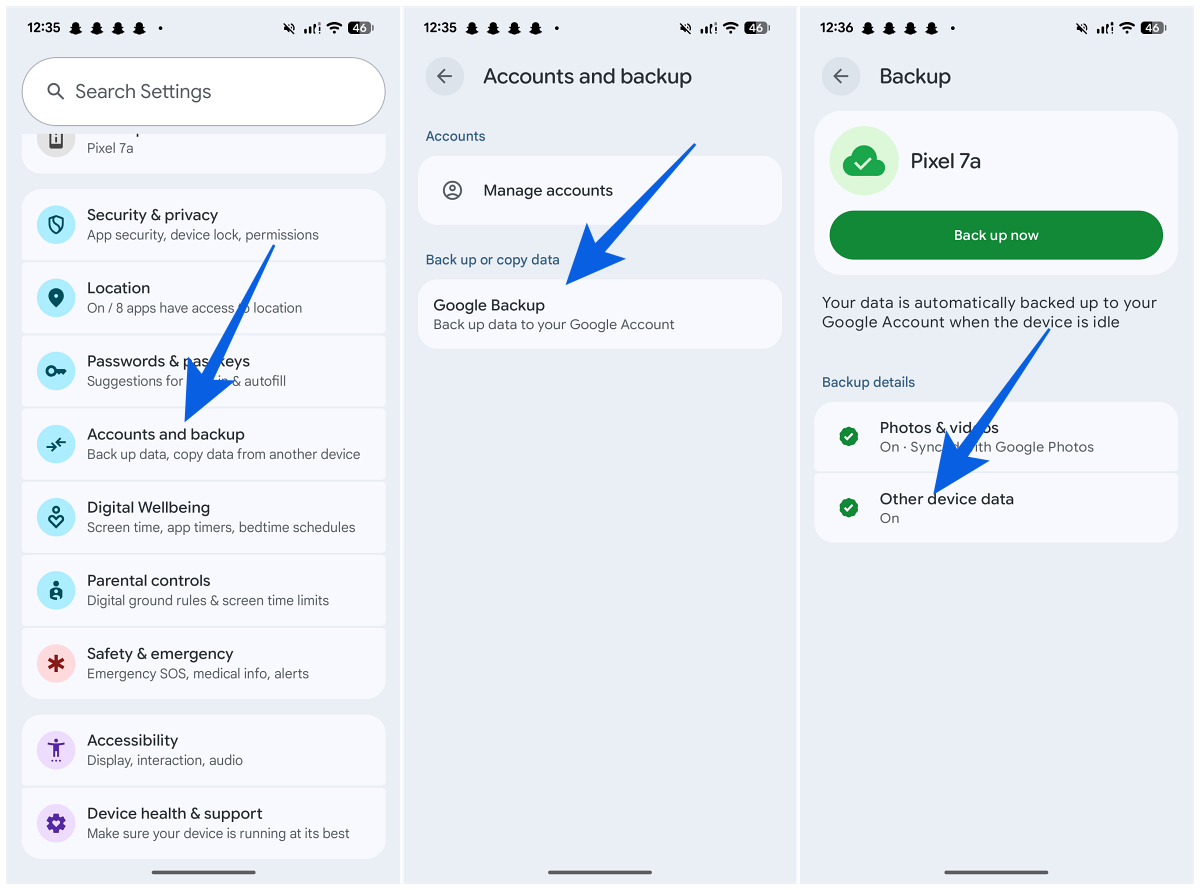
- Open App data.
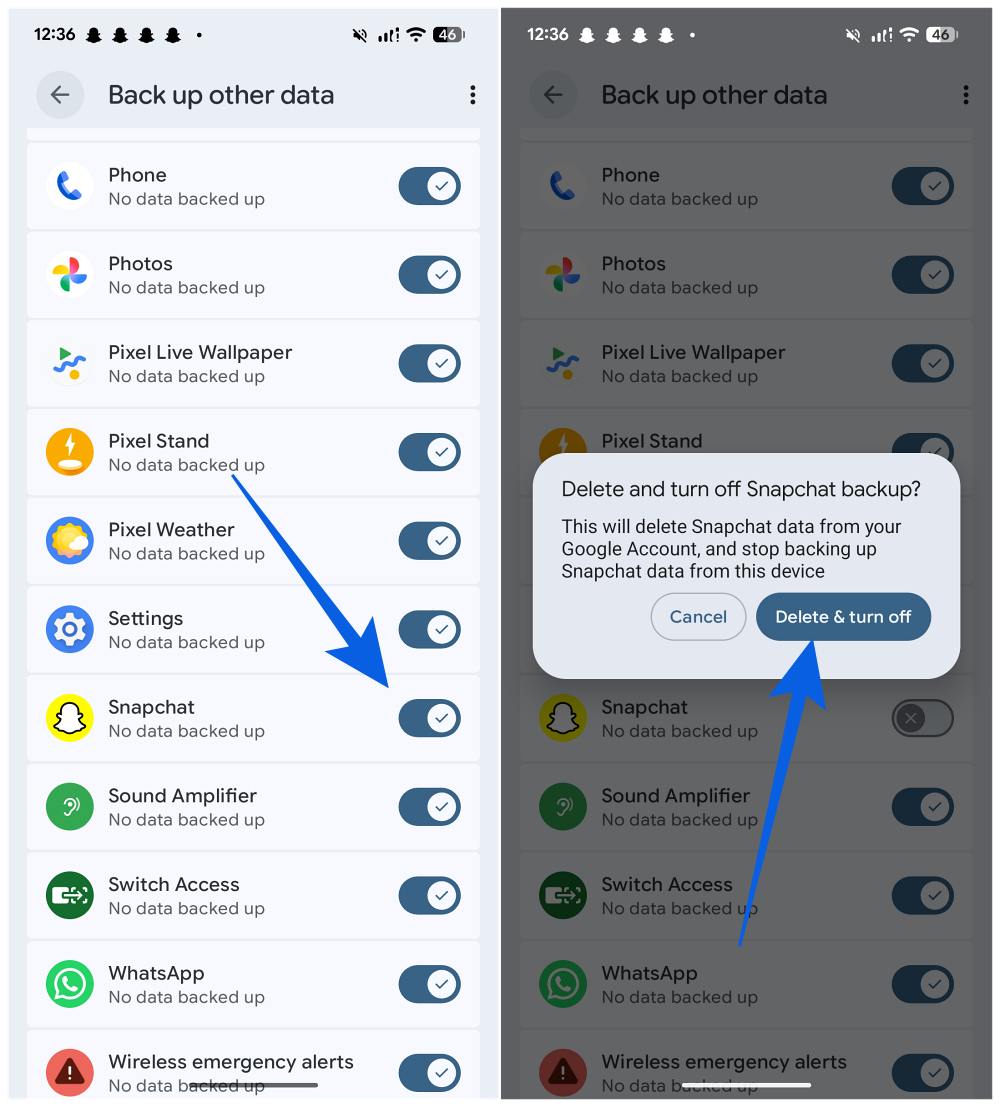
- Review your apps and tap Show more to expand the full list.
- Turn off the backup toggle beside any app you don’t want backed up.
If you don’t see the new section yet, the rollout probably hasn’t reached your device. Update Google Play services and your system software, then check again over the next few days.
What Happens When You Turn an App Backup Off?
This is the most important part to understand.
Disabling an app’s backup doesn’t simply pause future backups.
Android warns that turning off the toggle will:
- Delete the app’s existing backup from your Google Account.
- Prevent future backups for that app from this device.
That means if you later restore your phone or move to a new device, Google won’t have a saved copy of that app’s data.
For privacy-focused apps, that’s exactly what many users want. However, if you’re only trying to save storage space, remember you’ll lose the existing backup as well.
What the New Controls Don’t Cover
Per-app controls only apply to app data.
The Device data section, located above App data, still groups the following items together:
- SMS & MMS messages
- Call history
- Device settings
These remain all-or-nothing options.
Likewise, photos and videos continue to be managed separately through Google Photos, not Android Backup. So while these new controls are a welcome improvement, they don’t yet provide complete backup customization.
How Android Auto Backup Works
These new switches sit on top of Android’s existing Auto Backup system. Introduced with Android 6.0, Auto Backup automatically saves supported app data to your Google Account.
By default:
- Apps targeting Android 6.0 or newer participate automatically.
- Developers can opt out using android:allowBackup=”false”.
- App backups are limited to roughly 25 MB per app.
- Cache files aren’t included.
- Developers can customize exactly which files are backed up using XML rules or custom backup agents.
Backups typically occur automatically when your phone is:
- Connected to Wi-Fi
- Charging
- Idle
The backup data is encrypted and stored privately in your Google Account. The new per-app controls simply give you direct control over which apps participate.
Where to View Your Android Backups
Besides the Settings app, you can also manage backups in a couple of other places. The Google Drive app includes a Backups section showing your device backups.
For more detailed storage information, open the Google One app or visit one.google.com, where you can see backup sizes and overall cloud usage.
Checking these locations alongside your Android backup settings makes it easier to identify apps consuming the most backup storage.
Which Phones Support the Feature?
As of June 29, 2026, per-app backup controls are rolling out to:
- Pixel devices running Android 16 or Android 17
- Google Play services version 26.24
The feature was not yet available on Samsung devices during the initial rollout.
Since this arrives through Google Play services instead of a full Android update, availability depends on:
- Your device
- Android version
- Google Play services version
- Google’s staged rollout
Other Android manufacturers are expected to receive the feature later, although some may continue using their own backup systems.
Limitations and Alternatives
There are still a few limitations. Not every app fully supports Android Backup because developers decide what gets backed up. Even with the toggle enabled, some apps may restore only partial data.
Likewise, manufacturers often bundle their own backup utilities with different capabilities.
If you need complete app backups, including APK files and offline storage, third-party tools such as Swift Backup offer more advanced options. However, they usually require additional setup and work best on rooted devices.
For most users, Google’s built-in per-app controls should provide enough flexibility to improve privacy while reducing unnecessary backup storage.
Wrapping Up
Per-app backup controls may seem like a small addition, but they give Android users something they’ve wanted for years: the ability to decide exactly which apps are backed up to Google.
The feature doesn’t yet extend to messages, call history, or device settings, and it’s still rolling out gradually. But it’s another step toward making Android backups more flexible and privacy-friendly.
If you don’t see the App data section yet, keep Google Play services and your system updated. The feature should arrive as the rollout expands.
They are individual backup toggles that let you choose which apps back up their data to your Google Account instead of using one global Apps & app data switch.
Yes. Disabling an app’s backup removes its existing backup from your Google Account and prevents future backups from that device.
No. They only apply to app data. SMS, MMS, call history, and device settings remain grouped under Device data.
Android Auto Backup saves supported app data over Wi-Fi while your phone is charging and idle. Most apps targeting Android 6.0 or later are backed up automatically, with a storage limit of about 25 MB per app.
Don’t miss these related reads: