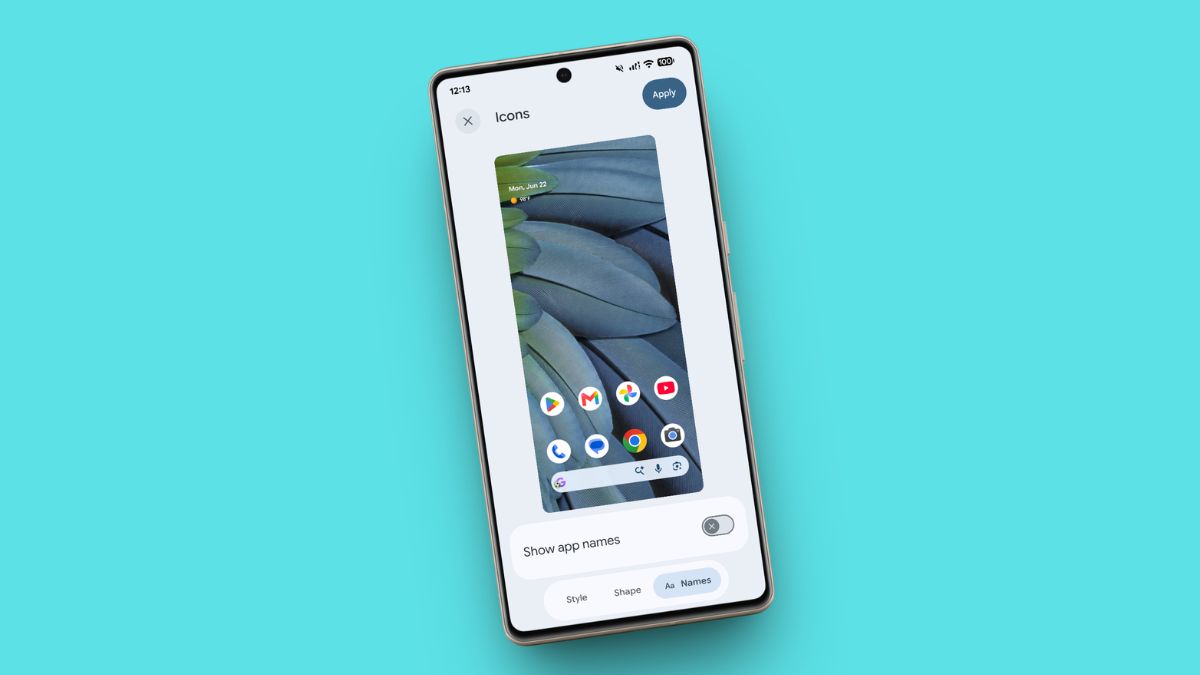
I’ll say it plainly, even as someone who genuinely loves Google’s Pixel phones: home screen customization has never been their strong suit. Pixels nail so much, the cameras, the clean software, the feature drops that actually matter, but when you want to roll up your sleeves and make the home screen truly yours, you’ve historically hit a wall faster than you’d expect.
That’s finally starting to change. After rolling out system-wide app icon theming and those AI-generated icon packs over the past year, Google has quietly slipped in another tuning knob. With Android 17, you can now remove app icon names for a minimalist home screen setup, with no third-party launcher, no workarounds, and no Reddit threads full of “it can’t be done.” It’s baked right into the Pixel Launcher.
And that last part is the real story here. For years, the honest answer to “can I hide app names on my Pixel home screen?” was no, not without replacing the whole launcher. So if you stumble across an older forum post or support thread swearing it’s impossible, just know those predate this update. As of Android 17, it’s a built-in setting you can flip in about ten seconds.
Here’s how to do it, plus a few things worth knowing before you do.
Before You Start: You’ll Need Android 17
The toggle ships as part of Android 17 itself, so this is step zero. If you’re still on Android 16, you won’t find the option no matter how hard you dig.
A bit of context on where this came from: the feature first surfaced in the Android 17 Beta 3 build around March 2026, which is when the minimalist crowd started getting excited. It’s now graduated to the stable release, which Google began pushing to Pixel devices on Tuesday, June 16, 2026. The update reaches every Pixel from the Pixel 6 onward, so unless you’re holding onto something older, you’re covered.
If you haven’t grabbed the update yet, here’s the quick path:
- Open the Settings app.
- Tap System.
- Tap Software updates.
- Tap System update.
- Tap Check for update.
Give it a minute or two and you should see Android 17 waiting for you. One caveat worth flagging: Google rolls these out in waves, so if your phone insists it’s already up to date but you still don’t see the toggle below, it may just be that the rollout hasn’t reached your device yet. Patience, or a day or two, usually sorts it out.
How to Remove App Names From Your Pixel Home Screen
Once Android 17 is installed, actually using the setting is almost embarrassingly simple. You just have to know which menu it’s hiding in. I ran through these steps on my Pixel 7a, but they’re identical across supported models:
- Press and hold on any empty patch of your home screen.
- Tap Wallpaper & style.
- Tap Icons.
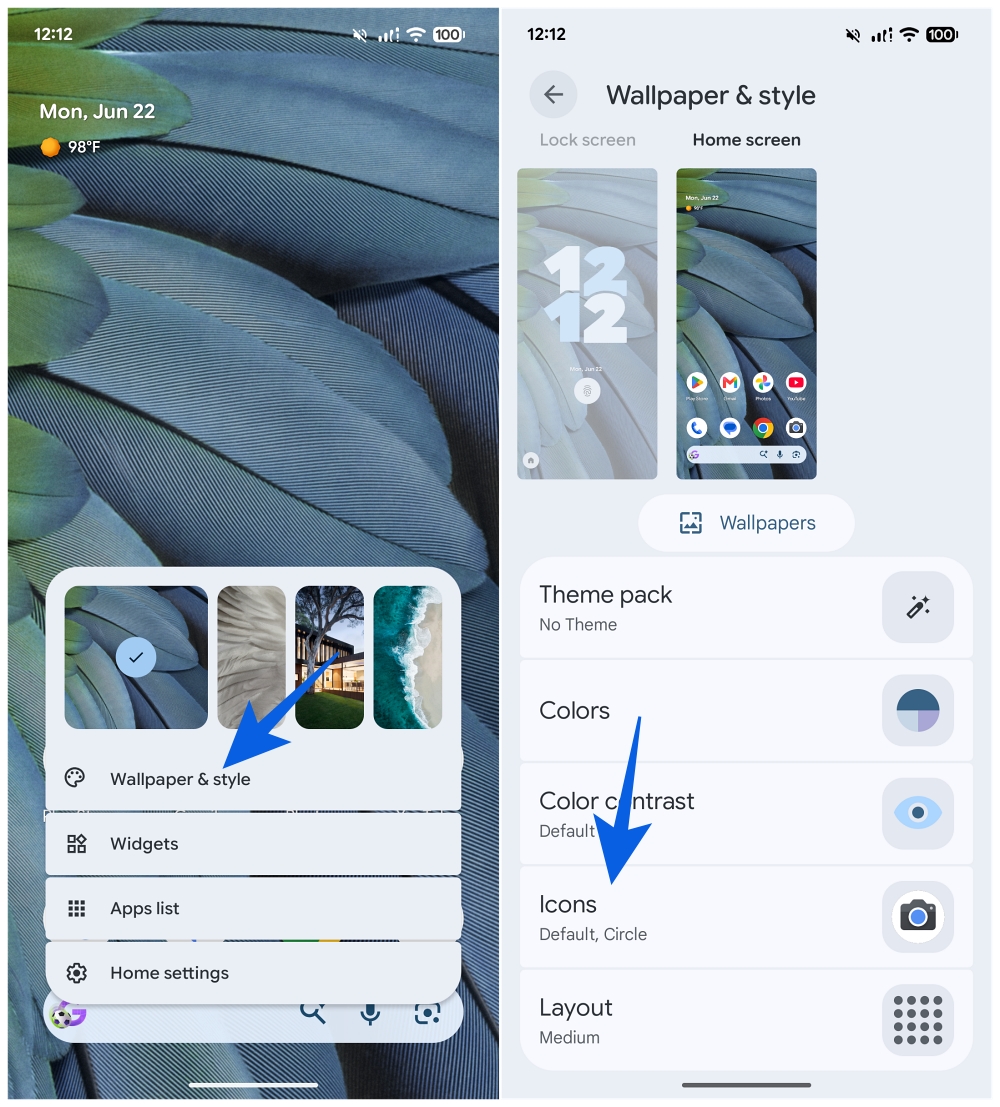
- Tap Names.
- Toggle off Show app names.
- Tap Apply.
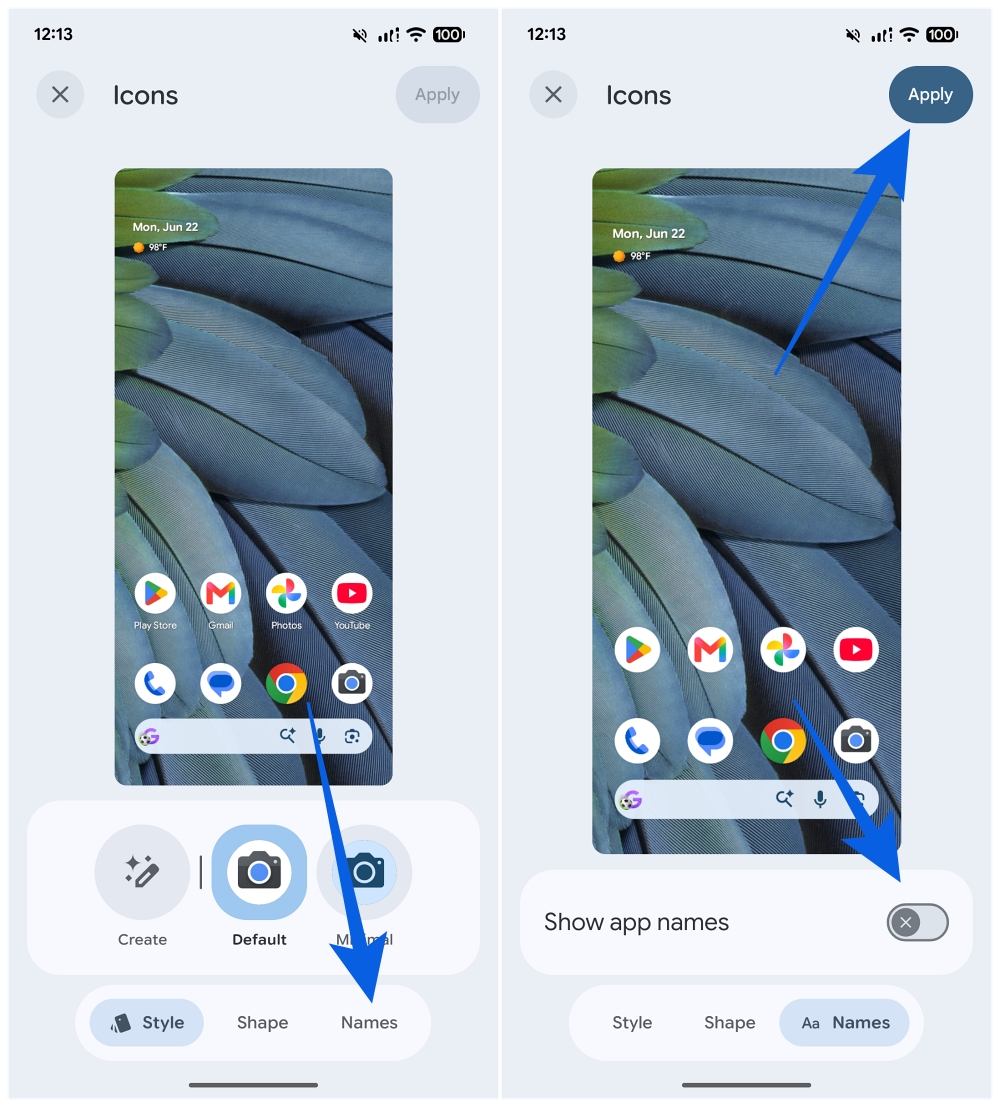
Pop back to your home screen and you’ll notice every icon is now standing on its own, with no labels underneath. Open your app drawer, though, and the names are right where you left them. That’s by design.
One thing to keep in mind
This toggle is more surgical than you might assume. It strips labels from home screen icons only. Your folders still show their names, the app drawer keeps every label intact, and search is untouched. So you’re not flying completely blind; you’re just decluttering the surface you stare at most. For most people that’s exactly the right amount of change. For the “I memorize my grid by muscle memory anyway” crowd, it’s close to perfect.
Why It’s Worth Doing (and How to Make It Look Even Better)
Will this be everyone’s thing? Definitely not. But if you’ve ever tried to build a genuinely minimal home screen, you know how much visual noise a wall of tiny text labels adds. Killing them off makes the whole layout breathe.
My personal favorite trick: pair the missing labels with the Minimal app icon style, which recolors all your icons to match your current system accent. Hidden names plus monochrome-ish icons gives you that cohesive, almost wallpaper-like home screen that looks deliberate rather than accidental. It’s the kind of small thing that makes you glance at your phone and think, yeah, that’s clean.
And nothing here is permanent. Decide you miss the labels? Walk through the exact same steps and flip Show app names back on. You can bounce between the two looks as often as you like, which makes it low-risk to try it for a week and see how it feels.
A Few Other Android 17 Notes
This launcher tweak landed alongside the broader June 2026 Pixel Drop, so it’s not the only thing worth poking at. If you want to push your multitasking further, the new App Bubbles feature in Android 17 lets you turn almost any app into a floating window you can summon over whatever you’re doing, handy for keeping notes or maps within arm’s reach.
On the flip side, big updates occasionally bring big headaches. A handful of users have run into connectivity hiccups post-update, so if your phone starts acting up after installing, our guide on Android 17 Wi-Fi not working on Pixel walks through the fixes worth trying first.
Final ThoughtsHow to Hide App Names on Your Pixel Home Screen in Android 17
There’s still plenty more I’d love to see from Google on the customization front, proper third-party icon pack support, please, Google, but I’m not going to pretend this isn’t a genuinely nice addition. Something about the Pixel Launcher just feels right on a Pixel, and I’ll never say no to one more way to shape it around how I actually use my phone. A small toggle, sure. But a satisfying one.
You might also like: