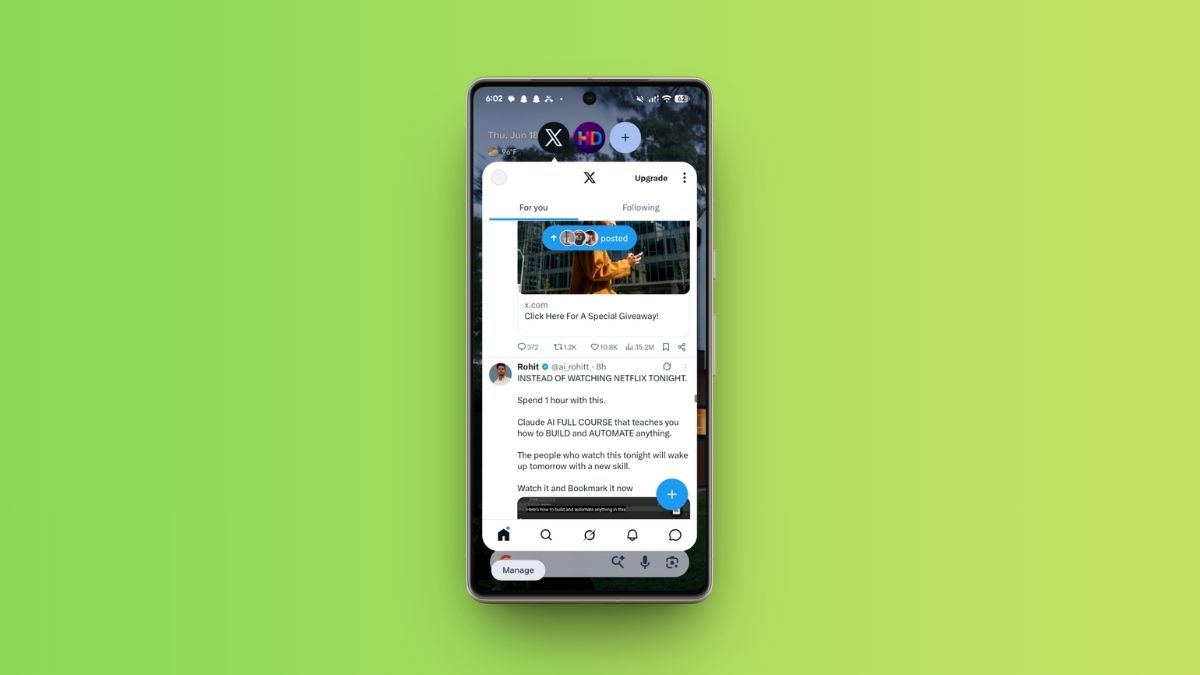
There’s no real debate left here: multitasking on Android has been quietly running circles around the iPhone for years, and the Android 17 update just stretched that lead a little further. Buried in the long list of Android 17 features that shipped with this release is the one I keep coming back to: App Bubbles. The name does most of the explaining. It lets you shrink an app down into a small bubble that floats right on top of your home screen, so you can dip in and out of it without ever fully leaving what you were already doing.
If you used Facebook Messenger back when Chat Heads were a thing, the concept will feel oddly familiar. The difference is that Google has taken that old messaging trick, dusted it off, and opened it up to nearly every app on your phone. Here’s how to switch it on and actually fold it into your day.
What Is the App Bubbles Feature in Android 17?
App Bubbles is Android 17’s headline multitasking addition, and the best part is you don’t have to go hunting for it. It’s enabled by default. We tested it on the Pixel 7a, and it’s rolling out now to every Android 17-eligible device as part of the June 2026 Pixel Drop. The stable build went live on June 16, 2026, reaching the Pixel 6 and everything newer first, with other manufacturers like Samsung, OnePlus, and Xiaomi expected to ship their own versions through the rest of the year.
One thing worth knowing before you dive in: you can keep up to five apps floating at once. Try to add a sixth and Android simply swaps out one of the existing bubbles to make room. So this isn’t a free-for-all. It quietly rewards being a little intentional about which five apps actually earn a spot in your floating lineup.
How to Create and Use Bubbles on Android 17
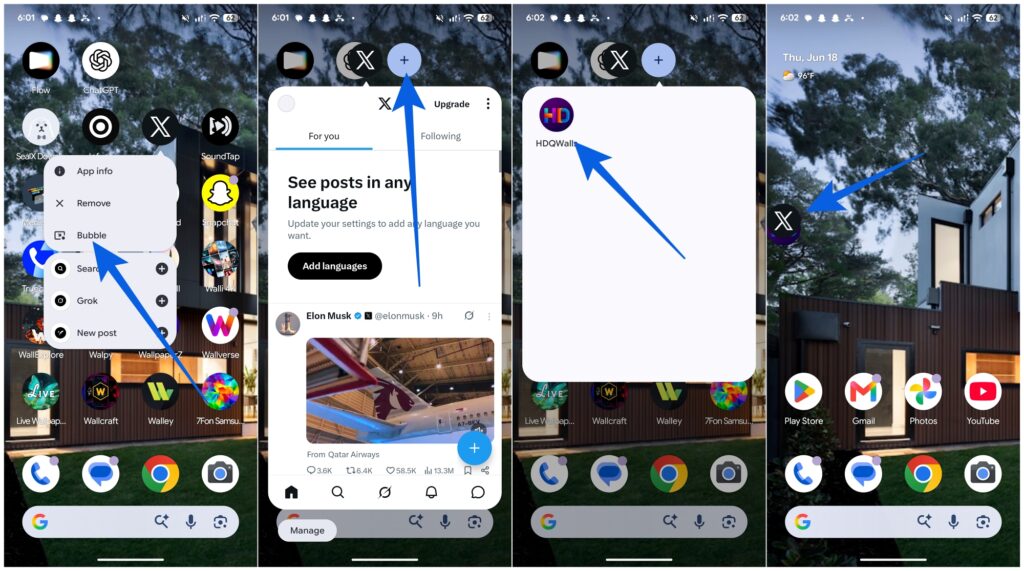
Getting started takes seconds, and there’s almost nothing to configure. Once you’re on the stable Android 17 update, here’s the full flow to use the Bubbles feature on Android 17:
- On your home screen or in the app drawer, long-press the app icon you want to float. This opens its overflow menu.
- Tap Bubble. Depending on the app, you might instead see a small minimized Bubble icon sitting next to the hourglass icon. Same result, just a slightly different shortcut.
- The app instantly opens in a compact window overlay, with its icon hovering as a bubble on your screen.
- Repeat the process for any other apps you want on standby. They’ll stack up as their own bubbles.
That’s the entire setup. There’s genuinely no learning curve here, which is a big part of why it stops feeling like a “feature” within a day and just becomes how you use your phone.
How to Manage and Interact With Your App Bubbles
Floating the apps is the easy part. The real payoff is in how lightly you can move between them. Once you’ve started to use app bubbles on your Pixel phone with Android 17, here’s how to keep everything tidy.
- Expand and collapse. Tap any floating bubble and the app springs open in a small, fully interactive window. When you’re done, tap anywhere outside that window and it shrinks straight back into a bubble. No closing, no app switcher, no losing your place.
- Drag them out of the way. Press and hold a bubble and slide it to snap against the left or right edge of the screen. It’s a small thing, but it keeps the middle of your display clear so whatever you’re focused on stays front and center.
- Add more without the long-press. Tap the + icon and Android shows you a list of apps you’ve bubbled before, so you can re-add one in a tap instead of going back to the drawer and starting over each time.
Lean on the Bubble Bar. Once you’ve got several apps bubbled, Android groups them into a Bubble Bar, a neat little tray that opens into an overflow menu of your minimized apps. On foldables and tablets it lives in the bottom corner of the screen, and it’s the difference between a clean display and a cluttered mess of icons drifting around the edges.
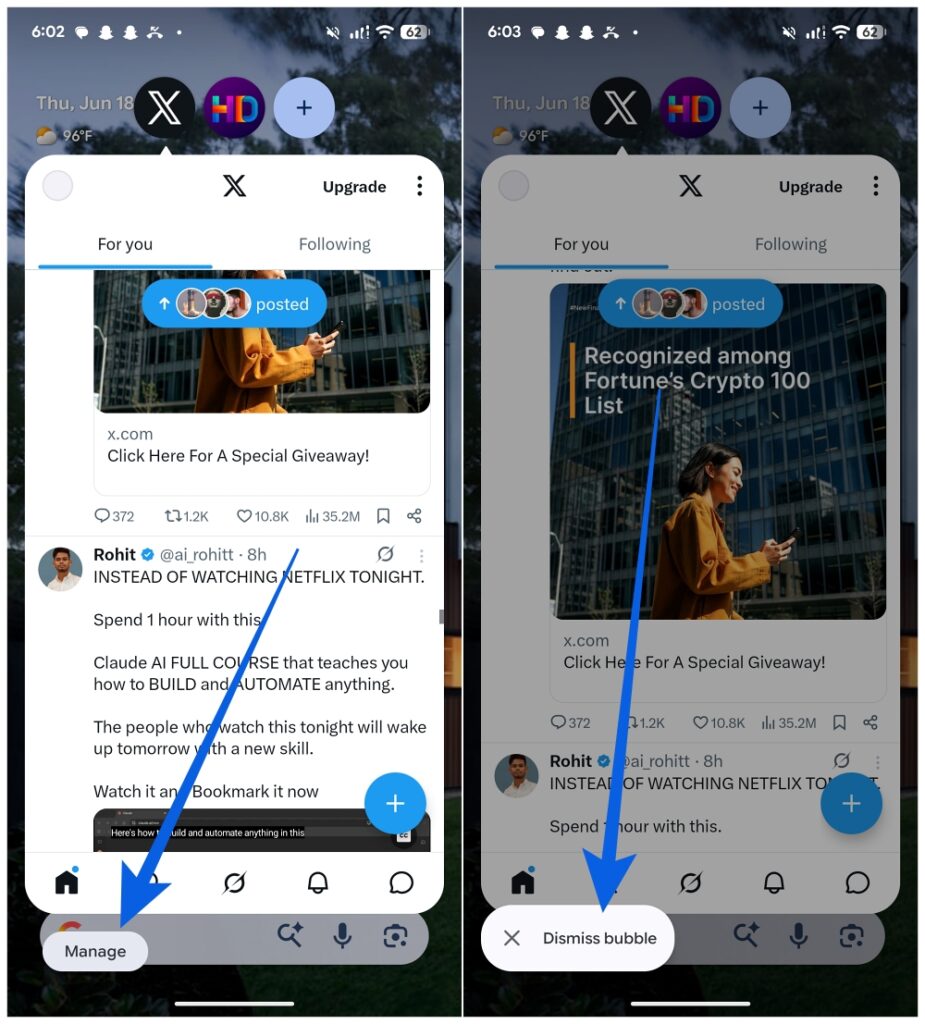
Dismiss when you’re finished. Drag a bubble’s icon down onto the X to close it, or tap Manage at the bottom and choose Dismiss bubble. Worth flagging for now: dismissing a bubble fully closes the app rather than just tucking it into the background, so don’t reach for the X if you only want it out of sight for a moment.
A Few Rough Edges Worth Knowing
App Bubbles is a polished addition, but it’s still finding its feet, and it helps to go in with realistic expectations. At launch, you’re mostly creating bubbles from the launcher long-press. There’s no quick way yet to fire one off straight from your recent apps or a notification. You also can’t freely resize a bubble or pop two expanded windows open side by side on a phone, and jumping a bubbled app back to true full-screen sometimes takes an extra tap or two.
Bubbles will also politely collapse on their own when a call comes in or you launch a full-screen game. None of this is a dealbreaker, and a lot of it reads like the kind of thing a future update will smooth over.
The Bottom Line
Stack it up against split-screen or picture-in-picture and App Bubbles is the lighter, friendlier option: less a full windowing system and more a way to keep a handful of apps within arm’s reach without committing your whole screen to them. Checking a message mid-document, glancing at Maps without backing out of what you’re doing, keeping a track-skip away while music plays in the background, that’s where it quietly earns its place.
For Pixel owners stuck on a single slab of glass, that’s a genuinely meaningful upgrade. It finally hands Android users something close to a PC-style windowing experience, and for power users who live in three or four apps at once, it makes juggling tasks and copying text between them noticeably faster. After a few days with it, the highest praise I can give is the most boring one: I stopped noticing it was there.
Check out these helpful guides too: