Facebook Messenger icons carry almost every piece of information the app gives you, and most people read them wrong or not at all. Small circles, dots, locks, and bells quietly tell you whether a message is sending, delivered, seen, muted, or failed, but the app never spells any of it out. That gap is where the confusion and the second-guessing come from.
This guide explains every Facebook Messenger icon in plain language, working through the app in the order you actually meet these symbols: the home screen first, then the chat screen, the typing bar, reactions, and finally the message status circles that cause the most confusion. Where it matters, the meanings here follow Meta’s own official definitions so you are not relying on guesswork.
Facebook Messenger Home Screen Icons
The home screen is the first thing you see when you open Messenger, showing your conversations, active contacts, and overall activity. Here is what each symbol means:
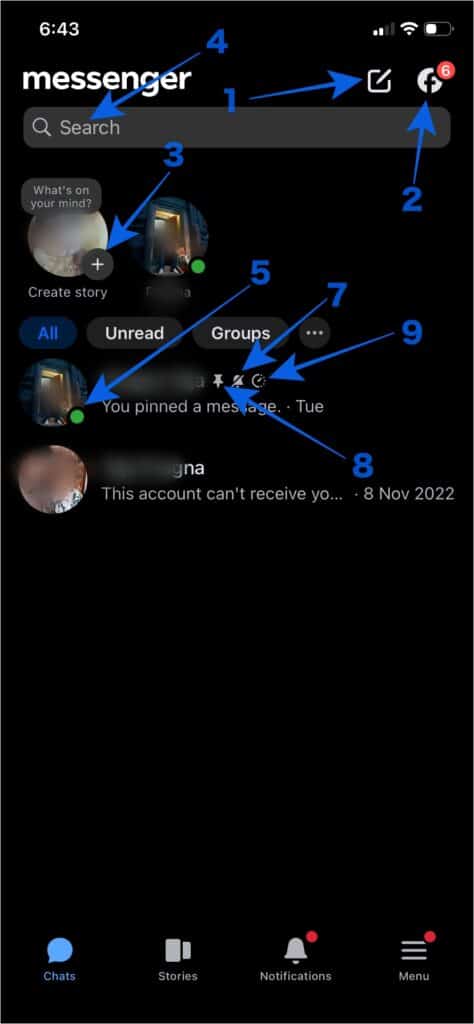
1. New Message (Pencil) Icon
Starts a new chat, creates a group conversation, or opens a Messenger Room. You may also see a lock icon here to start an end-to-end encrypted conversation.
2. Facebook Icon
Opens the Facebook app, or Facebook in your browser if the app is not installed.
3. Profile Pic with Plus icon
This is the Stories shortcut. Tapping your profile picture with the plus lets you create a story that appears across Facebook and Messenger.
4. Search Bar
Finds people, conversations, or specific messages by keyword, which is useful once your inbox gets crowded.
5. Green Dot
Appears next to a person’s profile picture when they are currently online or were recently active on Messenger.
6. Blue Dot
A blue dot next to a chat indicates an unread message. Once you open the chat, the dot disappears.
7. Bell with a Line (Muted Chat)
The conversation is muted. You still receive the messages, but Messenger sends no notifications for them.
8. Pin Icon
Appears beside a chat you have pinned by long-pressing it. Pinned chats stay at the top of your list.
9. Timer Icon
Shown beside a chat that has disappearing messages enabled.
Facebook Messenger Chat Screen Icons
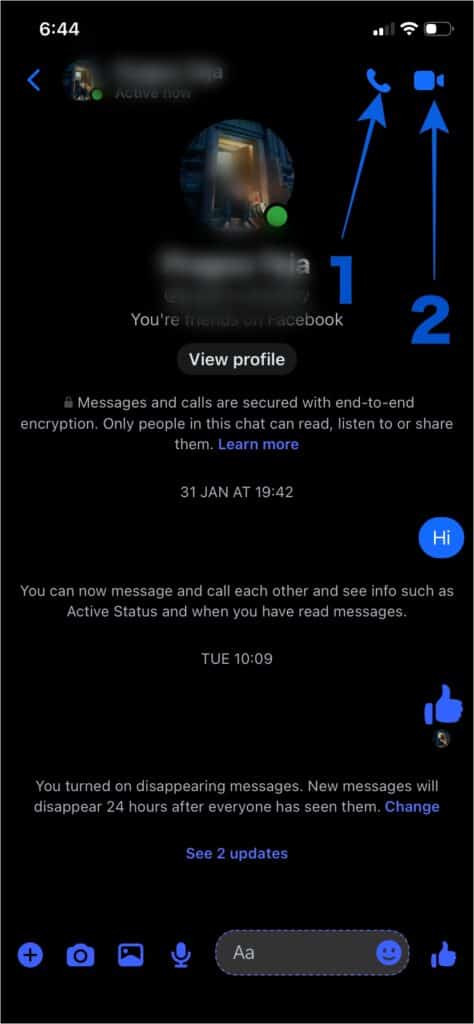
When you open a conversation, Messenger shows a set of icons that control calling and communication tools:
1. Phone Icon (Voice Call)
Starts an audio call. During the call, more icons appear for speaker, mute, adding people, and ending the call.
2. Video Camera Icon (Video Call)
Starts a video call. Inside the call you can toggle your camera, switch between front and rear cameras, mute, apply effects, or hang up.
3. Floating White Circle (Screenshot)
During a video call, a small floating white circle may appear. Tapping it takes a screenshot and sends it straight into the chat.
Message Typing Bar Icons
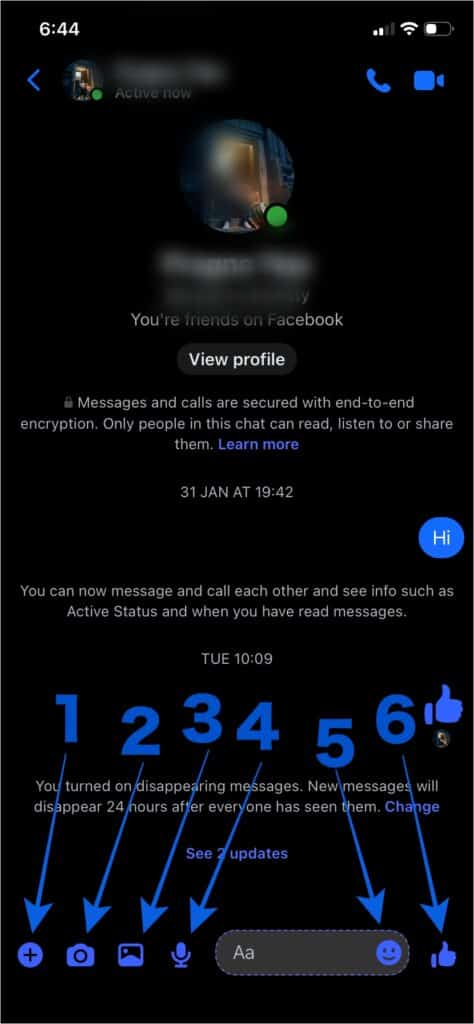
The bar at the bottom of each chat holds the tools for sending different kinds of content:
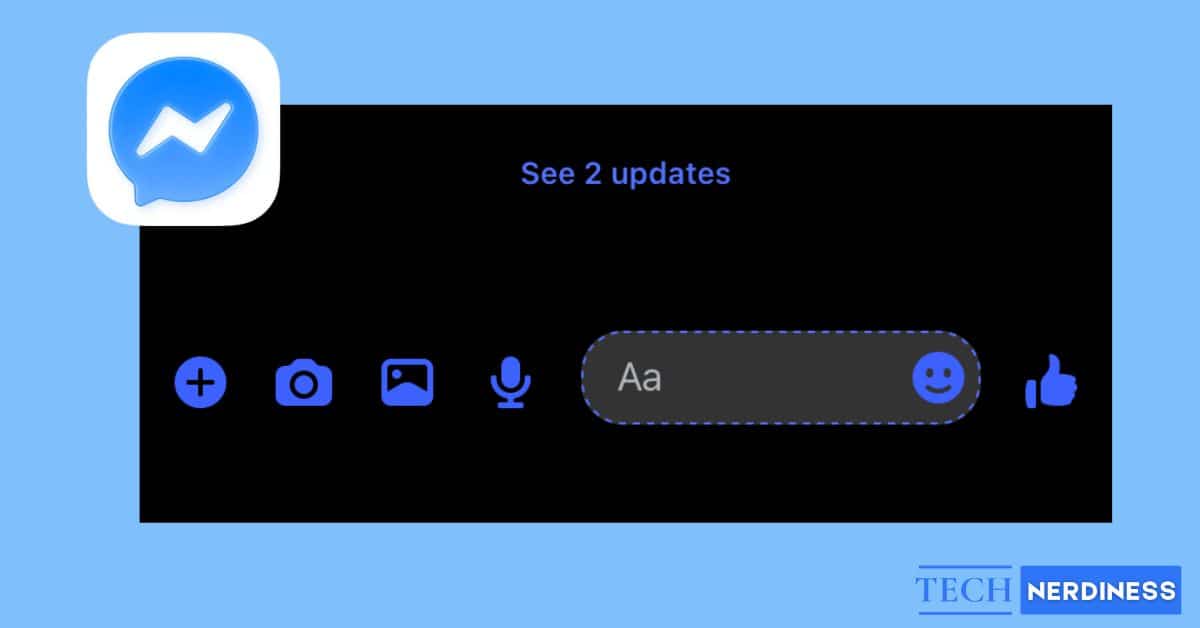
1. Plus Icon
Opens options to send files and your location, generate an AI image to send directly, or share a link to play a game together in the chat.
2. Camera Icon
Takes a photo or video and sends it instantly.
3. Gallery Icon
Lets you pick existing photos or videos from your device.
4. Microphone Icon
Records and sends a voice message. Press and hold to record, release to send.
5. Smiley Face Icon
Opens emojis, stickers, GIFs, and sound emojis.
6. Emoji Shortcut Icon
On the far right, sends a quick reaction emoji. You can also send GIFs, stickers, custom stickers, or avatar reactions from here.
Emoji Reactions
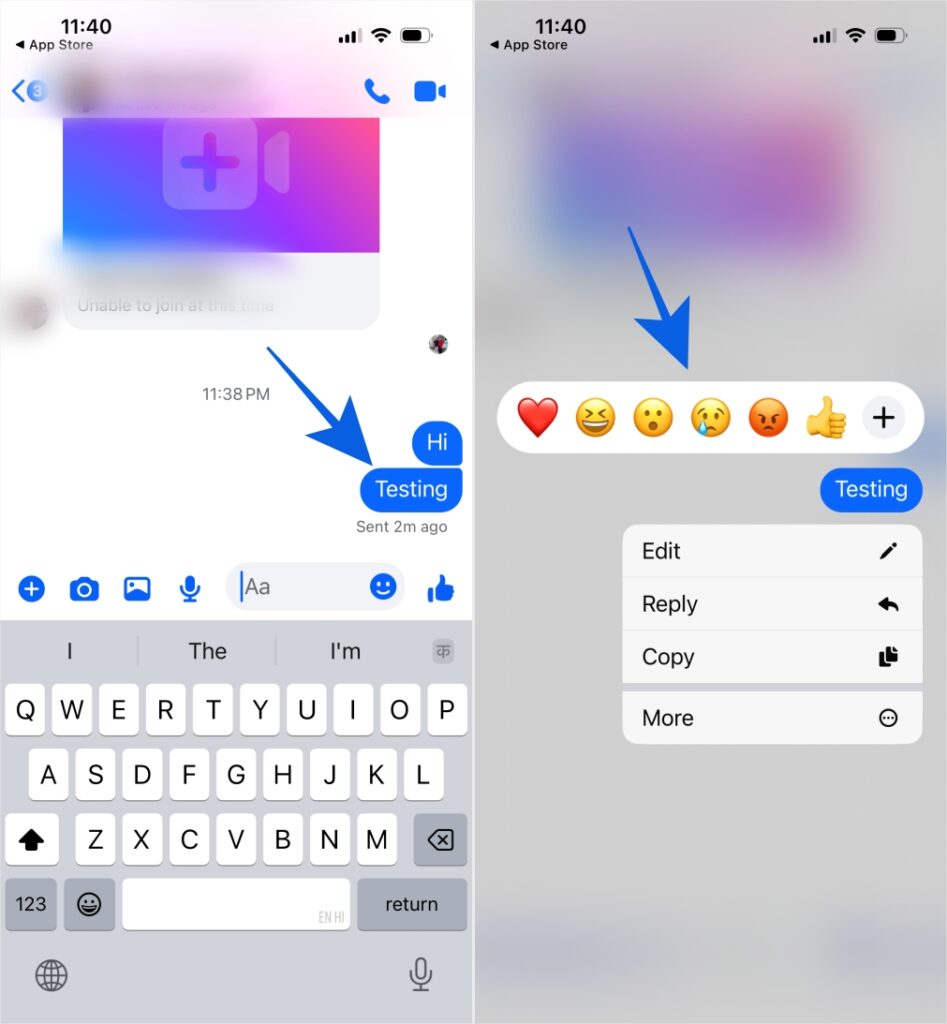
Emoji reactions appear underneath a message rather than as a separate reply. Long-press any message and pick an emoji to react to it instead of typing a response. In group chats, you can see who reacted and with what by tapping the reaction.
Message Status Icons Explained
These icons appear next to messages after you send them and show the message status clearly.
1. Open Blue or Gray Circle
This icon means your message is currently being sent.
2. Open Circle with Checkmark
The message has been sent from your device but has not yet delivered to the recipient.
3. Filled Circle with Checkmark
The message has been delivered successfully but has not been read.
4. Profile Picture or “Seen”
When the recipient reads your message, their profile picture or the word “Seen” appears below it. In group chats, multiple profile pictures may appear.
5. Red Triangle with Exclamation Mark
This symbol means the message failed to send, usually because of an internet connection problem. Tap the message to retry.

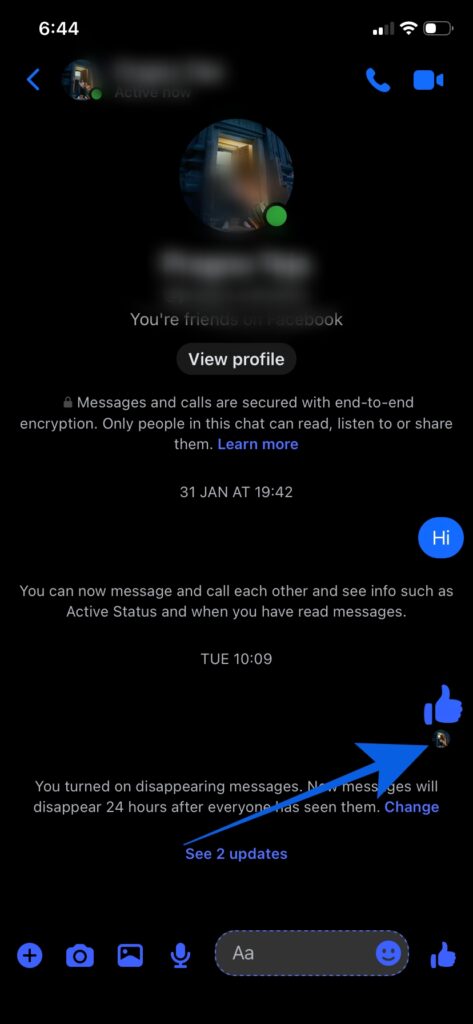
Reading them in plain terms: the empty circle means Messenger is still transmitting your message, so wait before closing the app. The circle with a check means it has left your device. The filled circle with a check means it reached the other person’s phone, tablet, or computer, though they may not have opened it yet. And when their profile picture appears below the message, they have actually read it, with a timestamp often showing when.
One more status symbol sits outside that sequence:
Red Triangle with an Exclamation Mark. Your message failed to send, almost always because of an internet connection problem. Tap the message to retry once your connection is stable.
The key distinction people get wrong: delivered is not the same as seen. A filled blue circle with a check only confirms the message reached their device. It is only truly read when you see their profile picture or the word “Seen” beneath it.
Message Color Meaning: Blue vs Green
Message color tells you how a message is being sent:
- Blue messages go through Facebook Messenger to another Messenger user, using your internet connection.
- Green messages are SMS or MMS texts sent to a contact who is not using Messenger, which can happen when Messenger is set up to handle your text messages. Green means the message travelled over your carrier’s text network rather than through Messenger itself.
If your messages to someone suddenly turn green, it usually means they are being sent as regular texts rather than through Messenger, not that anything is wrong on your end.
Privacy and Encryption Symbols
A few icons specifically signal privacy and security:
- Lock Icon. Indicates an end-to-end encrypted conversation, which Messenger has historically called a secret conversation. In an encrypted chat, only you and the recipient can read the messages, and not even Meta can access the contents.
- Timer or Disappearing Message Icon. Signals that messages in the chat are set to vanish after they are seen or after a set time, an added layer of privacy for sensitive conversations.
- Muted Bell. While primarily a notification setting, a muted conversation also keeps that chat quieter in your notification history, which some people use for privacy on shared devices.
Final Thoughts
Facebook Messenger icons look cryptic only until you know the pattern behind them. The message circles follow a simple ladder from sending to sent to delivered to seen, the dots and bells track activity and notifications, and the lock and timer handle privacy. Once you can read them at a glance, Messenger stops being ambiguous, because the app has been telling you the status of everything all along.
Which Messenger icon confused you the most before now? Let us know in the comments below.
You may like to read: