You have five tabs open for the same couch, three for contractors, and one dentist form you keep putting off. Until now, ChatGPT could only help if you copied and pasted everything into a chat window.
That changed on October 15, 2026. OpenAI updated the ChatGPT extension for Chrome so it can read your open tabs, act inside them, and group them for you. It now fills forms, sends messages, and downloads files from a sidebar that sits next to the page you’re on.
OpenAI’s agent now works inside Google’s own browser instead of a separate one. Here’s what it does, which plan you need, and what you’re agreeing to when you install it.
What’s New in the ChatGPT Chrome Extension
The update adds three abilities on top of the old “ask about this page” sidebar:
- It reads across all your open tabs. Ask ChatGPT to compare three couch listings by dimensions, delivery time, and return policy, and it pulls the details from each tab without you pasting a single link.
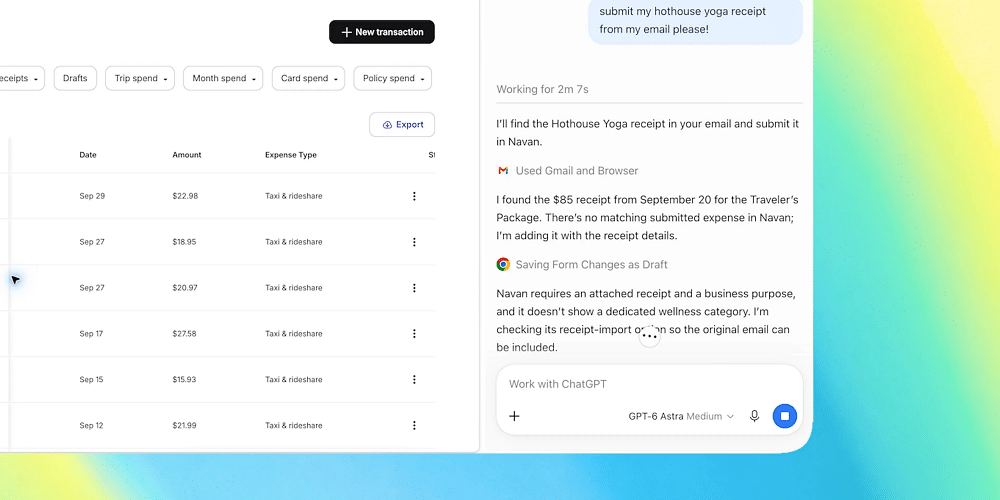
- It acts inside tabs. ChatGPT can fill out a registration form, send a message on a site where you’re signed in, or download a file.
- It organizes tabs. It can sort a messy window into tab groups.
The sidebar also carries your full ChatGPT history, so you can pick up an old conversation while looking at a live web page. OpenAI’s documentation adds a few smaller extras: highlighted text drops straight into a chat, a right-click Ask ChatGPT option works on any page, and YouTube videos with captions come with timestamped transcripts.
On macOS, Cmd + Shift + . opens the side chat from anywhere.
Chat vs Work: Two Modes, Two Levels of Trust
The new features split across ChatGPT’s two modes, and the difference matters for both safety and price.
- Chat reads. It looks across your open tabs to answer questions, compare prices, or explain an article in plain English. It doesn’t click anything.
- Work acts. This is the agent OpenAI introduced on July 9, 2026, when it retired the Atlas browser. In Chrome, Work clicks buttons, types into forms, and moves between tabs to finish multi-step jobs, such as filling a new dentist’s intake form and then adding the appointment to your calendar.
Think of Chat as a research assistant looking over your shoulder. Work is the assistant you hand the mouse to.
A few big upgrades for Chrome users today! We’re bringing the power of computer use to anyone who uses Chrome.
First up: ChatGPT can now use your tabs in Chrome to make answers more useful and get things done for you.
If you’re in Chat, it can look across your open tabs and gather info.
If you’re in Work, ChatGPT can control your Chrome tabs to get things, like sending messages, filling out forms, or downloading files. It can even help you organize and group that pile of tabs you have open.
— ChatGPT (@ChatGPT) October 15, 2026Who Can Use ChatGPT’s Chrome Tab Control?
OpenAI says the extension works on all ChatGPT plans. That’s true for the sidebar and tab reading. Tab control is a different story.
Tab control runs through Work, and OpenAI’s July release notes list Work for paid plans only, excluding Free and Go. So in practice:
- Free and Go: sidebar, chat history, and reading across tabs.
- Plus, Pro, Business, Enterprise, Edu: all of the above, plus Work taking actions in your tabs.
OpenAI hasn’t clarified this split in its October announcement, so check your account before you plan around it. Our ChatGPT pricing breakdown covers what each tier costs.
Browser support: Chrome, Microsoft Edge, Brave, Opera, and Vivaldi. OpenAI added the last four on August 31, 2026. Opera gets no side chat, so tasks there start from the desktop app.
The catch most coverage misses: the extension needs the ChatGPT desktop app, and that app ships for macOS and Windows. The extension pairs with the app through its Computer Use settings. If you browse on a Chromebook or Linux, tab control likely won’t work for you yet.
How to Set Up ChatGPT in Chrome
Setup starts in the desktop app, not the Chrome Web Store. Update the app first.
- Open the ChatGPT desktop app and go to Settings > Computer Use. Expand More browsers if Chrome isn’t listed.
- Select Chrome and follow any plugin prompt.
- Click Install to open the Chrome Web Store, add the ChatGPT extension, and review the permission prompt.
- Back in the app, confirm Chrome now shows Manage with its toggle on.
- Open a ChatGPT Work chat and @-mention your browser to hand it a task.
Use the Chrome profile where you installed the extension. The store lists dozens of lookalike “ChatGPT sidebar” extensions, so confirm the publisher is OpenAI before you click Add to Chrome.
If ChatGPT needs to upload a file in Chrome, open the extension’s Details page and turn on Allow access to file URLs.
What You’re Granting When You Install It
The Chrome install prompt asks for a lot: read and change data on all websites, browsing history, bookmarks, downloads, tab groups, native app messaging, and debugger access.
That last one explains how tab control works. Chrome’s debugger permission gives an extension the same low-level hooks developer tools use, which lets ChatGPT click, type, and read page elements the way you would. It’s powerful, and it’s why you should think about this extension differently from a grammar checker.
OpenAI adds its own guardrails on top of Chrome’s:
- Per-site approval. By default, ChatGPT asks before it touches any new website. You choose Allow once, Allow for this site, Allow for all sites, or Decline.
- Elevated-risk labels. OpenAI flags “Allow for all sites” and browser history access as elevated risk. History access has no always-allow option, so ChatGPT asks every time.
- Download and upload checks. ChatGPT asks before downloading or uploading files.
- Shared allow and block lists. You manage them under Settings > Computer Use > Manage, and they apply across every supported browser.
On data, OpenAI says it keeps no separate full log of browser actions. Activity is stored only when it becomes part of a chat, such as page text, screenshots, or summaries. Computer Use also follows your Memories setting, so if memory is on, ChatGPT can bring what it knows about you into browser tasks. Turn it off in ChatGPT’s personalization settings if you’d rather keep the two apart.
One practical habit: close banking and sensitive work tabs in the window before you give Work a job. Any agent that reads web pages can be fooled by hidden instructions planted on a site, and OpenAI’s own docs tell you to treat page content as untrusted.
Why OpenAI Moved Into Chrome Instead of Its Own Browser
OpenAI launched its Atlas browser in October 2025. It shut Atlas down on August 9, 2026, and pointed users to the Chrome extension.
The reasoning is simple. Most people won’t switch browsers for an assistant, but they will install an extension. The Chrome Web Store already lists about 7 million users for OpenAI’s extension, and the October update turns that installed base into a place where Work can operate. Instead of asking you to move into OpenAI’s browser, ChatGPT now moves into yours.
ChatGPT in Chrome vs Gemini in Chrome
That move puts ChatGPT directly against Google’s built-in assistant. Both now read tabs and act on pages, but they reach you differently.
- Gemini in Chrome comes built into the browser. Its auto browse feature, which handles forms and routine bookings, needs a Google AI Pro or AI Ultra subscription. Google brought it to India on October 7, 2026, on desktop and Android, for devices set to English.
- ChatGPT in Chrome is an extension that depends on the desktop app, so it’s desktop-only. In return, it works across five Chromium browsers and brings your existing ChatGPT history and memory with it.
If you already pay for one assistant, use the one you pay for. Running both agents on the same tabs mostly doubles the permissions you’re handing out. Compare costs in our Gemini AI pricing guide.
Quick Answers
Does ChatGPT see every tab automatically?
It can read your open tabs once you tag the browser in a chat, but it asks before interacting with any new website unless you’ve allowed it.
Can I use tab control on my phone?
No. The extension requires the ChatGPT desktop app on macOS or Windows.
Which model powers Work in Chrome?
OpenAI hasn’t named one in this update. Its October 7 release notes say GPT-6 didn’t change the models behind Work.
Signing Off
The headline feature is tab control, but the real change is where ChatGPT now lives. It no longer needs its own browser or your copy-paste. It works inside the tabs you already have open. Free users get a smarter sidebar, while paying users get an agent that can finish that dentist form for you. Before you let it, check which sites you’ve approved, keep sensitive tabs out of the window, and leave “Allow for all sites” switched off.