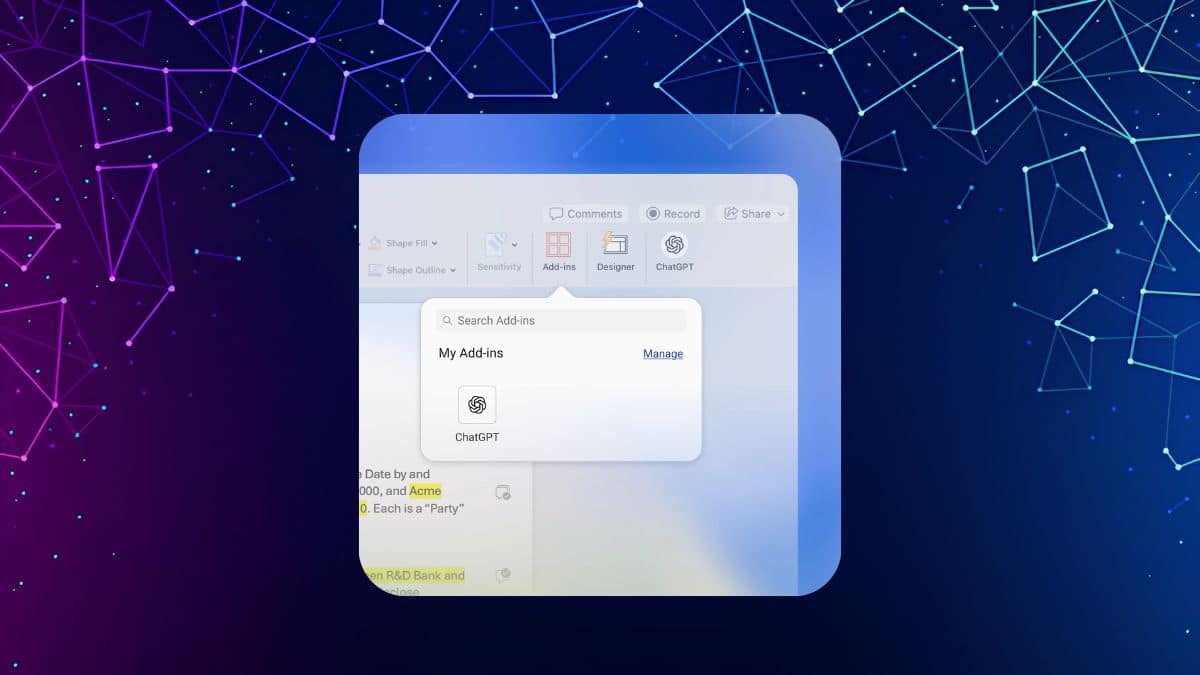
If you’ve spent the last few years pasting paragraphs into a ChatGPT browser tab just to copy the cleaned-up version back into Word, that whole loop just got shorter. OpenAI shipped ChatGPT for Word on September 17, 2026, as an official Microsoft Office add-in, the last piece of a rollout that already covered Excel and PowerPoint. It isn’t a beta and it isn’t a third-party workaround built on the API. It’s published by OpenAI, listed on Microsoft’s own add-in marketplace, and free to install on every ChatGPT plan, including Free.
Think of it as ChatGPT with a permanent seat inside your document instead of a tab you keep alt-tabbing to. Here’s what it actually does, what you need before installing it, and how it stacks up against Microsoft’s own Copilot.
What ChatGPT for Word Actually Does
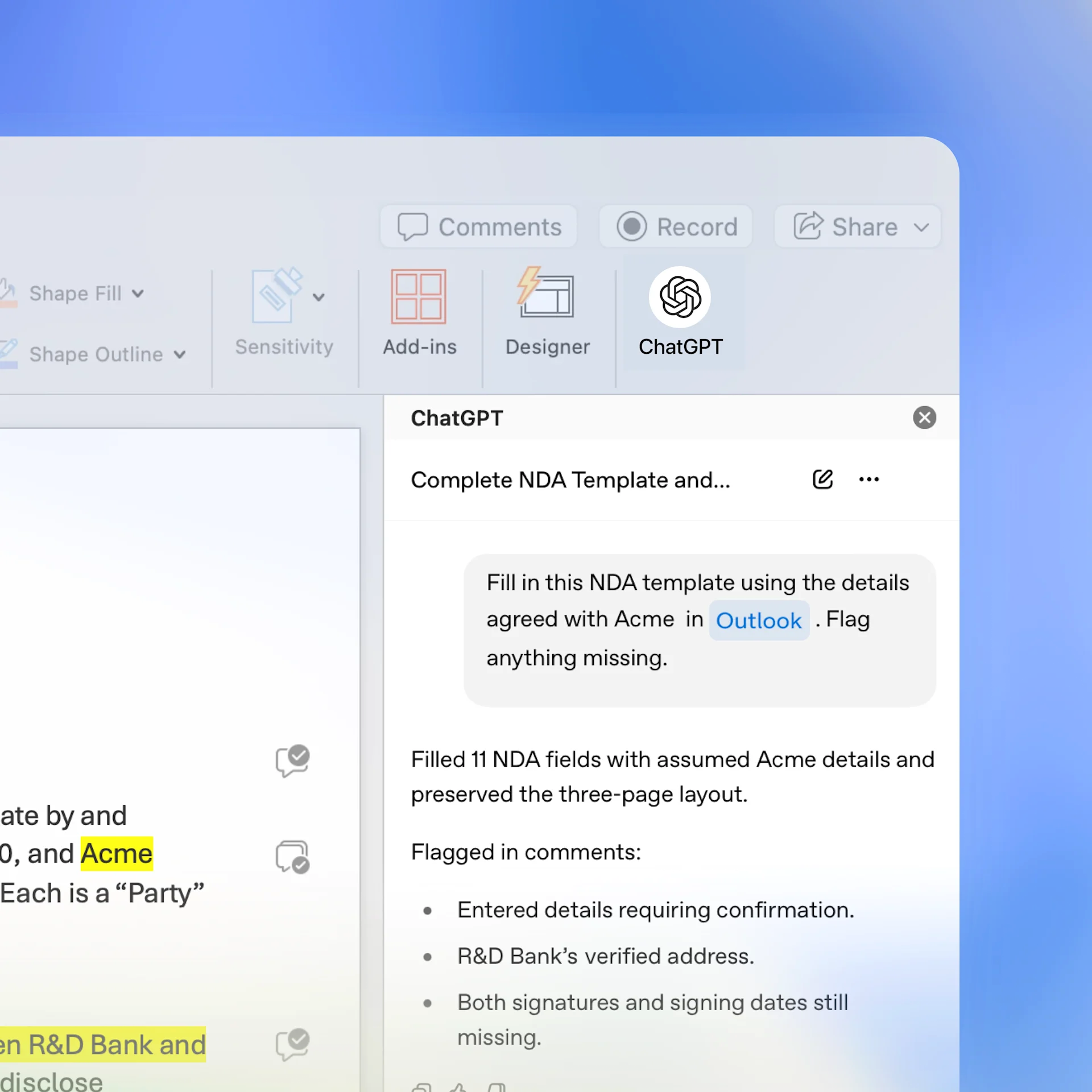
Once installed, ChatGPT opens in a sidebar next to your document. According to OpenAI’s help center, you can ask it questions about the document you have open, revise text you’ve selected, or turn a pile of notes into a first draft. That covers most of what people were already doing manually: summarizing a long report before a meeting, tightening a paragraph that reads awkwardly, or building a memo out of bullet points typed on a phone.
It’s a narrow tool by design. The sidebar reads only the document currently open in front of you. It won’t dig through your other files, and it doesn’t carry a memory of past conversations from one session to the next. That’s a deliberate trade-off for a tool meant to sit inside Word rather than replace ChatGPT.com.
What You Need Before You Install It
- Platforms: Word 2013 or later on Windows, Word 2016 or later on Mac, and Word on the web.
- Account: Any ChatGPT account works, including a Free one. Paid plans just get higher usage limits.
- Publisher: OpenAI, LLC, distributed through Microsoft’s official add-in store, not a third-party listing.
- Work or school accounts: If your Word is tied to a Microsoft 365 Business or Enterprise account, an IT admin may need to approve the add-in before it shows up. If you’re on a ChatGPT Business, Enterprise, or Edu plan, a workspace admin controls that side too.
How to Install ChatGPT for Word
- Open Word, on desktop or in a browser, with your Microsoft account signed in.
- Go to the Insert tab and select Add-ins (some versions label this Get Add-ins).
- Search for “ChatGPT” and pick the listing published by OpenAI, LLC. Several unofficial GPT-branded add-ins exist, so check the publisher name before installing.
- Click Add to install it.
- Open the ChatGPT icon from the ribbon to launch the sidebar.
- Sign in with your ChatGPT account and, if prompted, select the correct workspace.
Worth knowing: starting October 1, 2026, OpenAI is enabling ChatGPT for Word by default for everyone, so if you haven’t installed it manually by then, it may simply appear on its own. Organizations can still turn it off centrally if they’d rather review it first.
How to Use It Once It’s Installed
The workflow is simple once the sidebar is open. Select the text you want changed and describe what to do with it, including anything that should stay exactly as written. Type your request in the prompt box at the bottom of the sidebar, and ChatGPT responds in the conversation pane above it. From there, you copy the result into your document wherever it belongs.
Specific, scoped prompts work better than vague ones. “Rewrite this section for a non-technical reader and keep it under 150 words” gets a more usable result than “make this better.” If you’ve already spent time shaping how ChatGPT responds to you elsewhere, our guide on personalizing ChatGPT’s responses is a good place to apply the same thinking before you lean on the Word sidebar for daily writing.
One detail that’s easy to miss: conversations inside Word stay separate from your regular ChatGPT.com history. Nothing you draft in the sidebar shows up in your app or browser chat log, and nothing from those older chats gets pulled in automatically either.
What It Can’t Do Yet
The add-in has real limits, and OpenAI is upfront about most of them. It can’t reference files on your computer beyond the document you have open, so anything else relevant has to be pasted in manually. Complex tables, charts, and layout formatting usually need a manual fix afterward rather than a clean automatic edit. And like any ChatGPT output, it can get facts wrong or rewrite something you meant to keep, so it’s worth reading the result before you send the document anywhere that matters.
If you use ChatGPT heavily and start hitting errors during busy periods, that’s not unique to the Word sidebar. It draws on the same account and usage limits as the regular app, so our fix for the “too many concurrent requests” error applies here too.
On data handling: for Business, Enterprise, and Edu workspaces, inputs and outputs aren’t used to train OpenAI’s models by default. Free and Plus users should check their own data controls if that matters to them.
ChatGPT for Word vs. Microsoft Copilot: Which One Should You Use
Word already has an AI assistant built in: Microsoft’s own Copilot. The two aren’t really competing for the same job. Copilot ties into your wider Microsoft 365 account, pulling context from your email, calendar, and other files across the tenant when your organization allows it. ChatGPT for Word deliberately doesn’t do that. It only sees what’s on the page in front of you.
That makes the choice less about which AI is smarter and more about what you’re trying to do. If you want an assistant that already knows what’s in your inbox and your other documents, Copilot is the more integrated option, and Microsoft’s own licensing determines what that costs.
If you’d rather keep the same AI account and writing style you already use everywhere else, sticking with ChatGPT keeps that consistent instead of learning a second assistant just for Word.
Pricing and Usage Limits
ChatGPT for Word doesn’t have its own separate price. It draws from whatever plan you’re already on: Free, Go, Plus, Pro, Business, Enterprise, Edu, or the education-specific tiers OpenAI offers schools. Usage is token-based behind the scenes, and how much you burn through depends on the model selected, the length of the document, and how much work you’re asking it to do in one request. Heavy daily use on a Free account will hit rate limits faster than it would on Plus or Pro.
If you decide later that a paid tier isn’t worth it just for a Word sidebar, canceling doesn’t affect your ability to use the free version of the add-in. Here’s how to cancel your ChatGPT subscription if you get there.
Signing Off
ChatGPT for Word doesn’t reinvent what ChatGPT does. It just removes the tab-switching that made using it inside a real writing workflow more annoying than it needed to be. It’s narrow on purpose, it can’t see your other files, and it won’t replace a careful read-through before you hit send.
For the specific job of drafting, tightening, and summarizing inside a document you’re already working on, that narrowness is the point.