Most ChatGPT chats die the moment you close the tab. You ask, it answers, and any follow-up (chasing an unpaid invoice, rechecking a flight price, summarizing Monday’s Slack mess) stays your job.
Dots change that. OpenAI announced them on September 29, 2026, as always-on agents powered by GPT-6 Astra. Each dot gets its own cloud computer and browser, connects to your apps, and keeps working after you log off.
The setup takes a few minutes. Setting it up well takes a bit more thought, and that’s what this guide covers.
What Is a ChatGPT Dot, Exactly?
A dot is a persistent agent that lives inside ChatGPT. Unlike a regular chat, it works between conversations: it researches in the background, runs scheduled tasks, and messages you when it needs a decision.
Here’s what sets it apart from earlier ChatGPT agent features:
- Its own cloud computer. Each dot runs in an isolated virtual machine with a separate browser, not on your laptop. Your local files stay off-limits unless you connect your computer.
- Over 4,000 apps through plugins. Email, calendar, files, Slack, and more.
- Memory that carries over. It starts with your relevant ChatGPT memory, then keeps its own notes as you work.
- Reachable anywhere. Chat with it in ChatGPT on web, desktop, or mobile, call it by voice, or tag it in Slack or Microsoft Teams.
The cloud computer is the part that matters. Background work runs on OpenAI’s machine, so your laptop doesn’t need to stay awake for a weekly report to land on time.
Who Can Use ChatGPT Dots Right Now?
Before you go looking for the button, check your plan. Dots are paywalled and region-limited at launch.
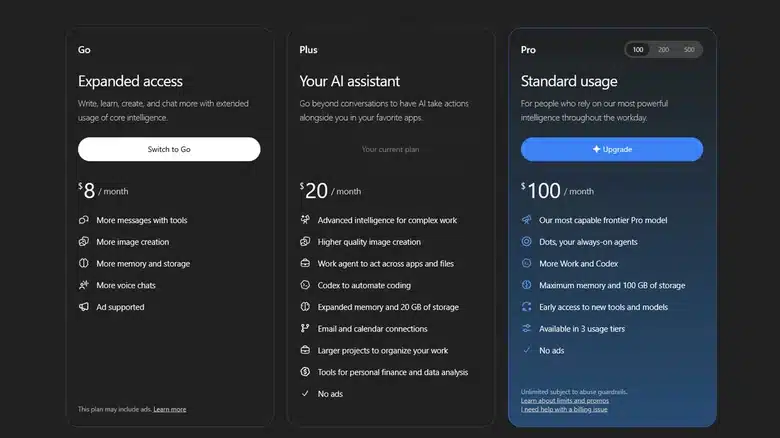
- Pro: Rolling out to adults 18+, but not in the European Economic Area, Switzerland, or the UK. Pro starts at $100 a month.
- Business Premium: Available in every supported ChatGPT region.
- Enterprise, Edu, and Healthcare: Beta only. It stays off until your workspace admin turns it on.
- Free, Go, and Plus: Not included. OpenAI hasn’t said when, or if, these tiers get dots.
Your first dot comes free with Pro or Business Premium. The rollout is gradual, so access can take several days to reach your account even on an eligible plan. If you’re weighing an upgrade just for this, our ChatGPT pricing breakdown shows what each tier includes.
How to Create Your Dot in ChatGPT
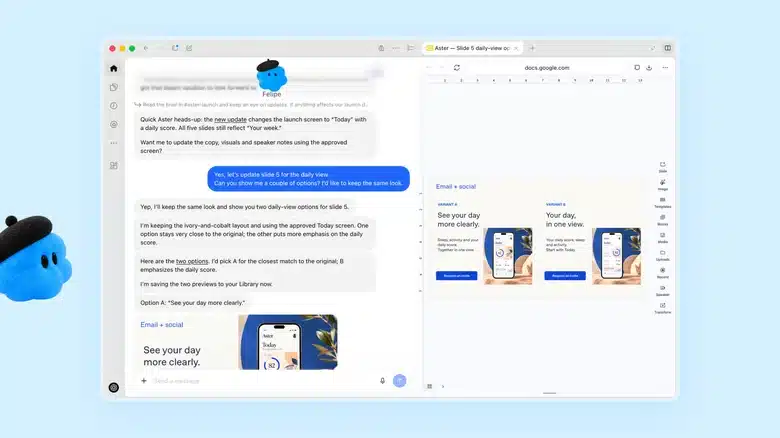
Once your account has access, creation is quick. OpenAI’s help center now lists the ChatGPT mobile app (iOS and Android), the desktop app, and desktop web as supported. Early launch coverage said mobile couldn’t create a dot, so update your app first if you plan to start on your phone. Mobile web still doesn’t work.
- Go to chatgpt.com/dots on desktop, or open dots in the latest ChatGPT app.
- Follow the onboarding prompts. Your dot introduces itself and suggests ways it can help based on your existing ChatGPT context.
- Name your dot and pick its look: a listed character or a pet (it can also generate a pet for you). You can keep the defaults and change them later.
- Note your handle. It defaults to @yourname-dot and becomes @yourname-agentname once you name it. You’ll use this handle to tag the dot in Slack or Teams.
- Connect plugins, or skip and add them later.
To rename or change the avatar later, tap the dot’s name or avatar to open its profile, then select the pencil icon.
Connect Only the Apps Your First Task Needs
That plugin step is where most people overshare. The onboarding makes it tempting to link email, calendar, Drive, and Slack in one go. Resist it.
- To connect apps on mobile: open the dot’s profile, then go to Customize > Plugins. Pick an app, review its permissions, and connect. Desktop users can connect from the same profile. Our list of the best ChatGPT plugins is a good place to start.
- To add a messaging channel: open the profile, select Add, and connect a contact method such as Slack. Set up messaging channels from desktop.
- To connect your own computer (optional): use the ChatGPT desktop app on that machine and select Allow access. Select Revoke access to cut it off. Local access is off by default.
One detail trips people up: these three connections are independent. Adding Slack doesn’t open your inbox, and connecting Codex or turning on Work Sync doesn’t give the dot your laptop.
Disconnecting an app also doesn’t erase what the dot already learned from it. Only a full Reset (covered below) wipes that.
How to Give Your Dot a First Task That Actually Tests It
With one or two apps connected, give the dot something real. A task with a genuine deadline or a recurring rhythm shows you how it handles ambiguity far better than “summarize my emails.”
Good first tasks look like this:
- “Every Friday at 4 PM IST, list unpaid invoices older than 14 days and draft reminders. Don’t send them.”
- “Watch our #bugs Slack channel and summarize new reports each morning at 9 AM.”
- “Track the price of this flight for two weeks and ping me if it drops below ₹18,000.”
A few habits make the results more reliable:
- Name the time zone and duration for anything scheduled, then ask the dot to confirm what it set up.
- Say which decisions need you and where it should send updates.
- Keep corrections in the same task. Each task has its own conversation, so a fix posted elsewhere may never reach it.
- Use the “+” button to attach a file or photo.
If a site needs a login, the dot sends a sign-in request. Tap it, take over the cloud browser, sign in yourself, then hit Return control. The model never sees your password; it uses saved credentials for supported sites.
Finishing a chat or hanging up a voice call doesn’t stop assigned work. That’s the point, but it surprises people the first time.
Set Custom Rules Before the Dot Touches Your Inbox
The bigger risk isn’t what a dot can’t do. It’s what you accidentally let it do. Custom Rules let you decide, action by action, how much freedom it gets.
On mobile, open the profile and go to Customize > Custom rules. Review the defaults, or add a rule and choose one of four behaviors:
- Take action without asking
- Take action if pre-approved (meaning you explicitly requested it in your prompt)
- Ask before taking action
- Hand off to you
Tap the checkmark to save.
Two limits are worth knowing. Rules can’t grant app or computer access, and they can’t override OpenAI’s built-in safeguards. Asking for a draft also doesn’t authorize sending it. Keep sending email, buying things, and posting publicly on Ask before taking action until the dot earns your trust.
Track, Pause, or Reset Your Dot
Rules set the boundaries. The profile shows you what’s happening inside them.
- See what it’s doing: open the dot’s profile on desktop. Work sits under In progress, Scheduled, and Completed, and Activity shows delegated work and pending requests. You can also open the dot’s cloud computer from the profile and watch it work.
- Manage recurring tasks: use Recent activity in the profile or the Scheduled section in ChatGPT. You can pause tasks or edit the repeat schedule, time, and notifications.
- Pause the whole dot: tap ••• in the profile and select Pause. Tap Paused • Tap to resume to bring it back.
- Delete it: tap •••, then Reset, and confirm. Reset deletes conversations, saved memories, and scheduled tasks. It’s the only way to clear the dot’s own memories, since changing your shared ChatGPT memory settings won’t touch notes it already saved. You’ll create a fresh dot afterward.
Do ChatGPT Dots Count Against Your Usage Limits?
Partly, and the timing matters. Talking to your dot doesn’t count toward your ChatGPT usage limits. Work it hands off to Codex or ChatGPT Work does.
OpenAI also extended limits for deeper work during the first month after launch. Since dots launched on September 29, that window should close around late October 2026. OpenAI hasn’t published the exact end date or post-launch limits for each plan.
So use the remaining days to measure. Run your real recurring tasks now, check how much allowance they consume, and decide which ones are worth keeping before normal metering applies. Dots run on OpenAI’s most capable model, and background agents can burn through allowance faster than you’d expect.
ChatGPT Dot Not Working? Quick Fixes
When a dot stalls, the cause is usually something waiting on you:
- Task looks stuck: check it for a pending sign-in, connection, or approval request.
- Dot ignores new instructions: respond to pending requests, make sure it isn’t paused, and post the correction in the affected task.
- Can’t find its files: open the task in the profile. Local work appears in your connected computer’s sidebar, and recurring output sits under Scheduled.
- Computer shows “Offline”: the machine is asleep or the ChatGPT app is closed. Access wasn’t revoked.
- No dots at all: confirm you’re in the right account or workspace, then visit chatgpt.com/dots. Your rollout may still be pending.
The Bottom Line
A dot is only as useful as the job you give it and the limits you set around it. Start with one recurring task, connect only what that task needs, and keep anything that sends, spends, or posts behind an approval step. Check the activity log often in the first two weeks. If you’re on Pro, the extended-limits window is the cheapest time to find out whether a dot saves you real hours or just generates more notifications. What’s the first task you’d hand yours?
Texting is a limited beta for US Pro users only, set up from the desktop app. Reply STOP to end outgoing texts.
No. You can call it using the phone button in its conversation.
Not at launch. You can connect your personal email instead.
Business, Enterprise, and Edu content isn’t used for training by default. On personal plans, you control it in settings. OpenAI says it doesn’t train directly on proactive research or a dot’s notes to itself.