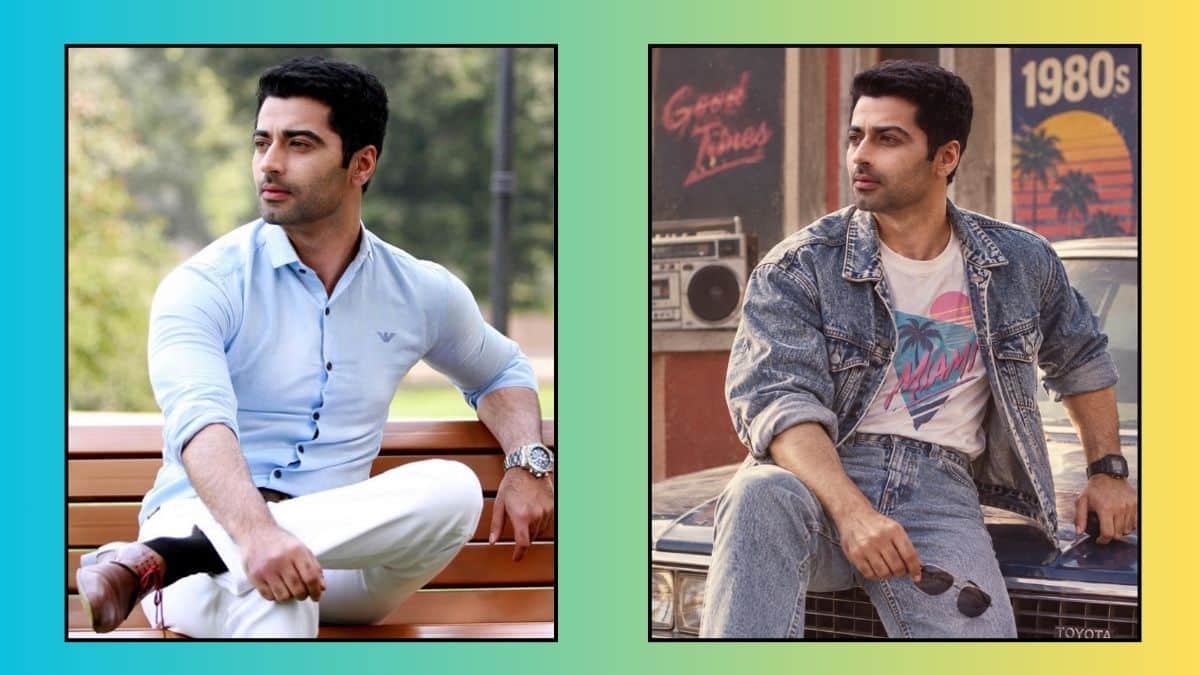
Your feed is suddenly full of friends looking like extras from a Bollywood musical or a mall photo studio circa 1987. Big hair, laser backdrops, warm studio light. You want in, but you’re not sure if it needs a fancy app, a Plus subscription, or some prompt you’ll never remember.
It doesn’t. The trend spreading across Instagram right now runs on nothing but ChatGPT‘s built-in image tool, a single photo, and one well-written prompt. It works the same way on an iPhone as it does on Android, since both run the same ChatGPT app, and OpenAI just made the results noticeably more reliable: it shipped ChatGPT Images 2.5 on September 8, 2026, cutting generation latency by up to 50% and improving how well edits stick to the parts of a photo you actually want changed.
That means the retro portrait you generate today should hold your face steadier than the same prompt would have produced a month ago.
Here’s what you need before you open the app, the exact steps, and the prompt wording that’s actually producing believable results instead of a warped face with a bad wig.
What You Need Before You Start
The process works on a free ChatGPT account. You don’t need Plus, and you don’t need a separate app for Android versus iPhone, since OpenAI publishes one ChatGPT app for both platforms.
A few things do affect your results:
- A clear, front-facing photo. Selfies with even lighting and a visible face work far better than group shots or photos taken from an angle.
- An account signed in. You can’t use image generation in ChatGPT without logging in, even on the free tier.
- Patience with limits. Free accounts get image generation, but OpenAI applies separate, stricter usage limits to it than to text chat, and doesn’t publish an exact daily number. If you hit a wall, the app tells you and offers ChatGPT Plus for higher limits.
None of that requires new software. If ChatGPT is already installed, you’re ready.
Steps to Create 80s Look in ChatGPT on Android and iPhone
- Open the ChatGPT app on your Android phone or iPhone and start a new chat.
- Tap the + button next to the message box.
- Choose Photos (iPhone) or Photos / Files depending on your gallery app (Android), and select a clear selfie.
- Type your 80s prompt in the message box, describing the era, the setting, and what to keep unchanged.
- Send the message and wait. Generation used to take a couple of minutes for a complex request; Images 2.5 has made this noticeably faster.
- Review the result. If something’s off, either use the selection tool to highlight the specific area and describe the fix, or just reply in the same chat with what to adjust. Multi-turn edits now hold up better across several rounds than they used to.
- Save the image to your camera roll and post it.
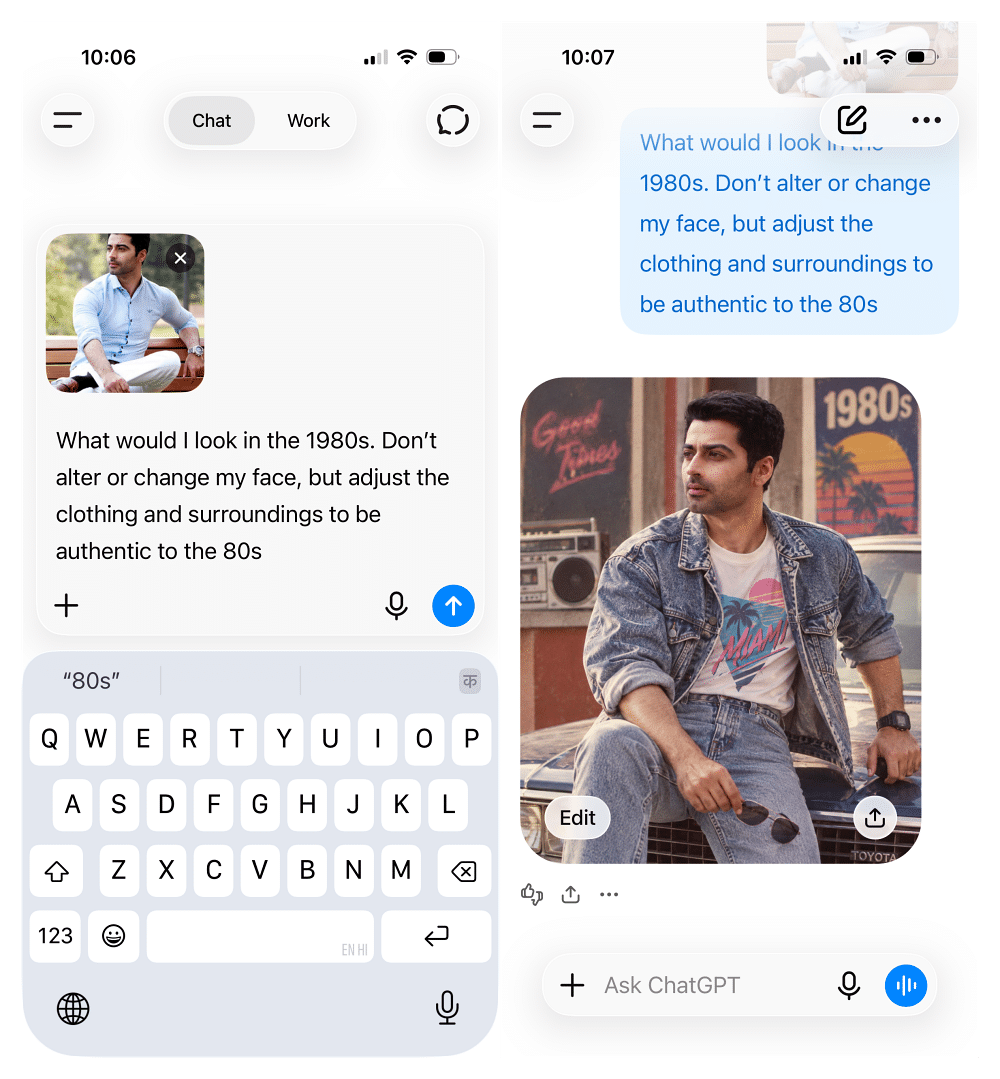
That’s the entire mechanic. The real variable is what you type in step four.
The Prompt That Actually Works
The prompts spreading fastest all share a structure: name the decade and setting, list specific period details, and explicitly tell ChatGPT to preserve the person’s real face. Skip that last part and you’ll get a stranger wearing your outfit.
A version that’s been widely shared and consistently produces usable results:
“What would I look in the 1980s. Don’t alter or change my face, but adjust the clothing and surroundings to be authentic to the 80s”
Variations swap the setting for a different look:
- Mall-studio glamour: a blue-and-pink laser-beam backdrop with a soft airbrushed glow.
- Synthwave portrait: a glowing neon grid floor, a setting-sun stripe pattern, hot-pink and cyan rim lighting.
- Bollywood retro: a vintage Indian film portrait with statement earrings and a cinematic color grade, a variation that’s driven much of the trend’s traction in South Asia.
Swap in whichever backdrop matches your vibe, but keep the instruction to preserve facial features and skin tone in every version. That single line is what separates a portrait that still looks like you from one that just looks like an AI image with your clothes on.
Why This Works Better Than It Did a Month Ago
Worth knowing: this trend existed before September, but it used to be hit-or-miss. Earlier versions of ChatGPT’s image model would drift on small facial details or bleed an edit outside the area you asked for.
Images 2.5 targets exactly that weak point. OpenAI says the update improves precision editing, so unedited parts of a photo (your actual face, in this case) stay closer to the original, and that it follows multi-turn instructions more reliably across a longer back-and-forth.
The same release introduced two API models: GPT-Image-2.5 Flare, built for speed, and a higher-end Sunburst variant aimed at production editing work. The app doesn’t let you pick between them directly, but Flare is effectively what’s now generating your retro portrait behind the scenes.
That’s the difference between this being a fun five-minute experiment and a frustrating loop of regenerating the same request four times.
Fixing Common Problems
- Face looks off or “AI-smoothed.” Regenerate with a sharper source photo and repeat the instruction to preserve natural skin texture. Direct light on your face in the original photo helps more than any prompt wording.
- Edit spilled outside the area you wanted changed. OpenAI acknowledges this can still happen, since highlights aren’t always precise. Use the selection tool to mark a tighter area rather than describing the fix in plain text alone.
- Generation stalls or fails. This usually means you’ve hit your account’s image limit, not a bug. Try again later, or check if upgrading is worth it if you’re doing this often.
If you want more prompt ideas beyond the 80s look, check out this running collection of viral ChatGPT image prompts, built on the same upload-and-describe method.
Mind Your Privacy Before You Upload
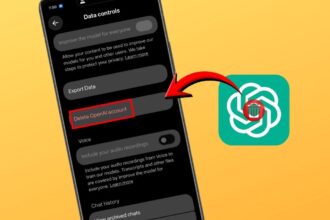
You’re handing ChatGPT a photo of your actual face, which is worth a beat of thought. OpenAI’s own data controls settings let you turn off “Improve the model for everyone,” which stops your uploads from being used to train future models.
It’s tucked under Settings, not exactly advertised, but it’s a real toggle and worth checking before you upload photos of other people without asking them first.
Final Thoughts
The 80s look isn’t a filter, a plugin, or a paid app disguised as a trend. It’s one photo, one carefully written prompt, and a ChatGPT image model that just got noticeably better at keeping your face intact while it changes everything around it. Get the wording right, and the hardest part of the whole thing is picking which decade backdrop suits you best.