Discord relies on small icons instead of long labels. If you have ever wondered what the hashtag, bell, lock, microphone, or green status dot means, you are not alone.
This guide explains the most common Discord icons and symbols, where you will see them, and what each one does. We cover the server bar, DMs, status icons, channels, message box tools, hover actions, search, badges, and voice indicators, so you can use Discord confidently without guessing.
The Server Bar (Left Sidebar)
When you open Discord, your eyes usually land on the left-most column first. This is the server bar, the place where every server you joined lives as a circular icon.
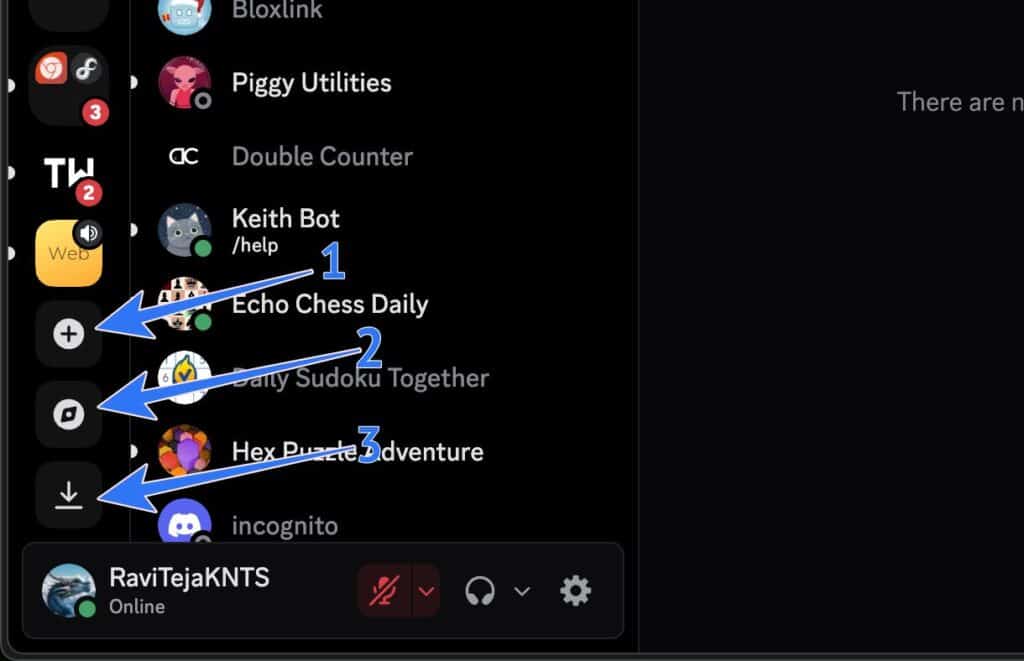
- Plus icon (a plus sign inside a circle): Creates a new server. Discord will walk you through picking a server type, naming it, and then creating channels.
- Compass icon (Discover) (compass-shaped button): Opens Server Discovery, where you can browse public servers by category (gaming, music, education, entertainment, and more) or search by name. If you find one you like, open it and hit Join Server.
- Download icon (Web version only) (down-arrow style download button): Appears on Discord in a browser. It’s a shortcut to install the desktop app instead of using the web version.
Discord Home and Your DM List
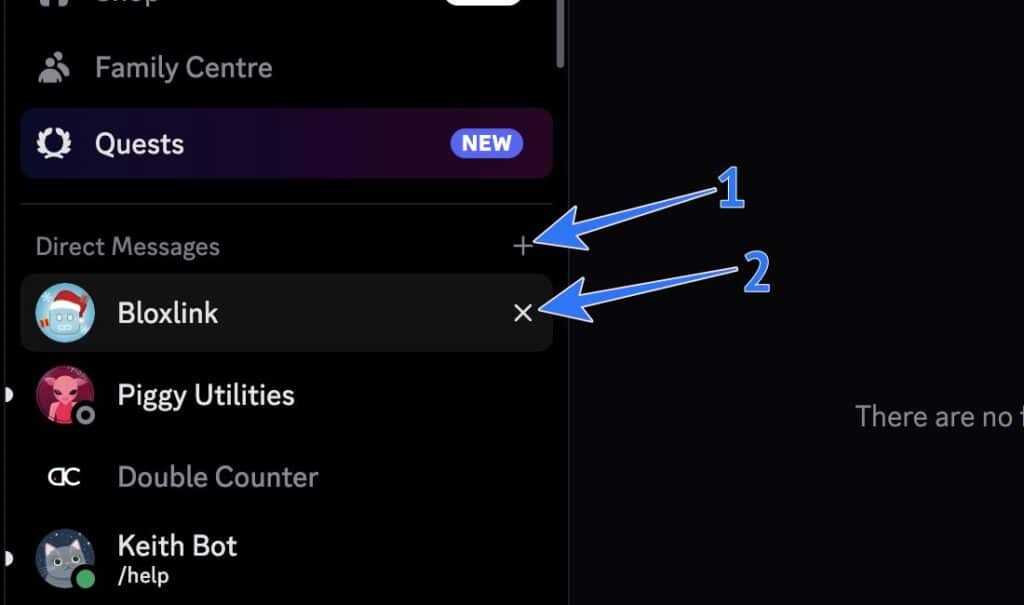
Click the Discord logo (top of the server bar) and you’ll land on Home. This is where your Direct Messages (DMs) live, your one-on-one chats and group chats.
- Plus icon next to “Direct Messages” (small plus near the DM header): Starts a new DM. Pick one friend for a 1:1 chat, or select multiple people to create a Group DM.
- Cross (X) icon beside a DM (appears when you hover a DM): Removes that chat from your DM list. It does not delete the conversation, think of it like hiding the chat. If you message them again, it comes back.
Status Dots and Profile Symbols (On Avatars)
Discord adds a small symbol on a user’s avatar to show their availability. It’s the quickest way to know if it’s a good time to message or call.
- Green dot: The user is active and available.
- Yellow/orange half-moon: The user is away or inactive, but not fully offline.
- Red Do Not Disturb symbol (stop-sign style): The user doesn’t want interruptions. Messages still arrive, but notifications are usually muted.
- Purple streaming symbol: The user is streaming.
- Grey dot / Invisible: The user appears offline. “Invisible” looks the same.
- Phone symbol: The user is online on their smartphone.
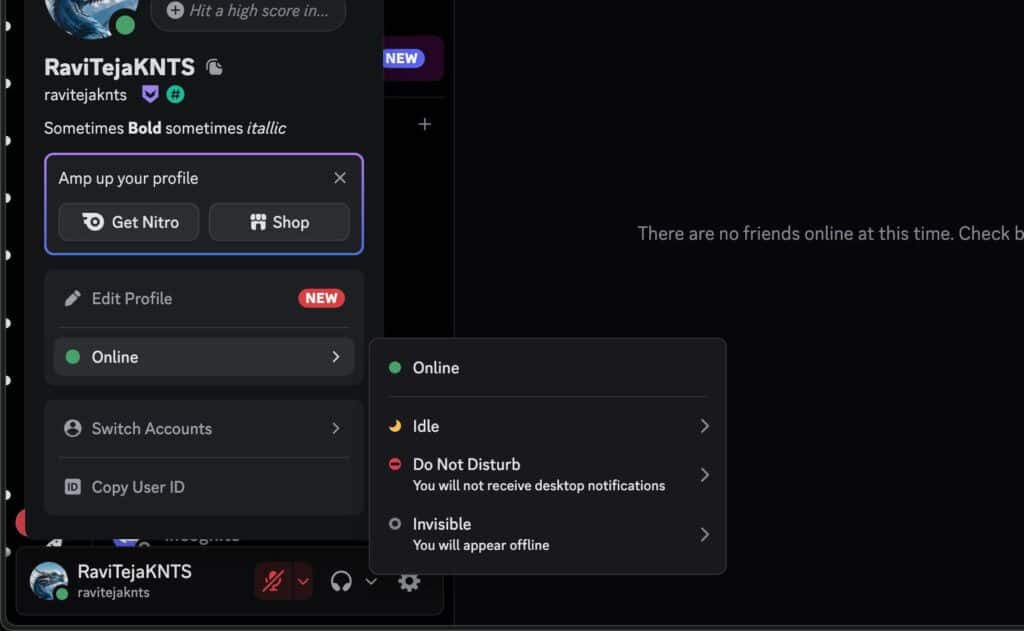
Small but useful detail: you can set your own status too, so you can go “Idle” while working or “Do Not Disturb” when you need focus.
The Username Bar (Bottom Left)
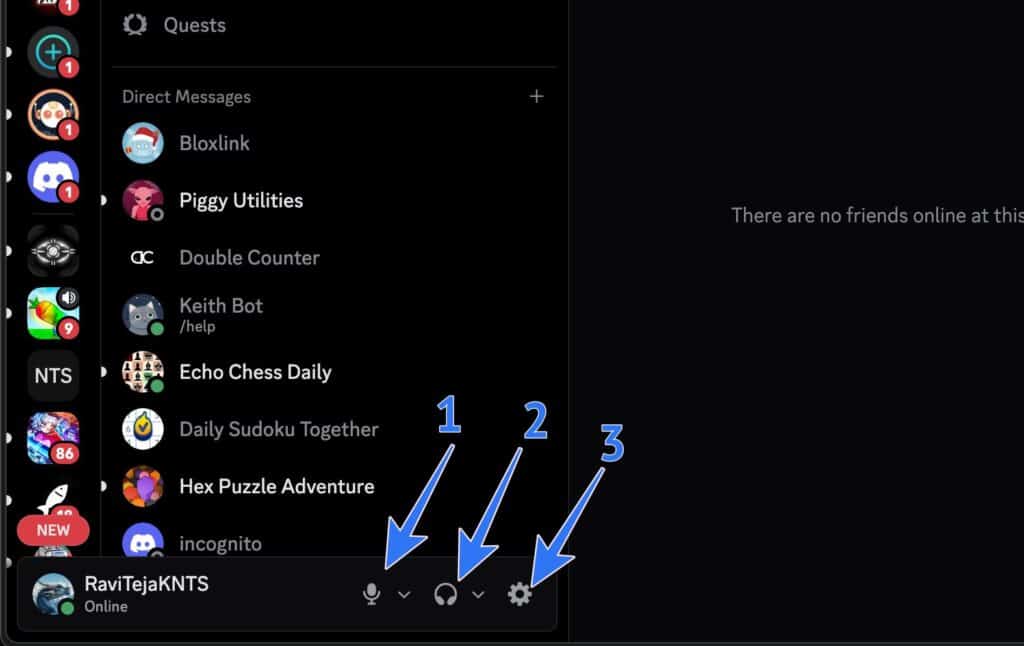
At the bottom-left of Discord (desktop), you’ll see your avatar and username. This bar is your quick control panel for voice and settings.
- Microphone icon (mic shape): Toggles your mic for voice channels and calls.
- Mic on: people can hear you.
- Mic off (muted): you can hear others, but they can’t hear you.
- Headphones icon (headphones shape): Instantly stops all Discord audio (voice, calls, music bots, shared media).
- When you deafen, Discord also disables your mic, so others can’t hear you either.
- Cog icon (gear shape): Opens your User Settings, profile, privacy, notifications, connected apps, Nitro, billing, and account options.
Inside a Server: Server Menu and Channel List
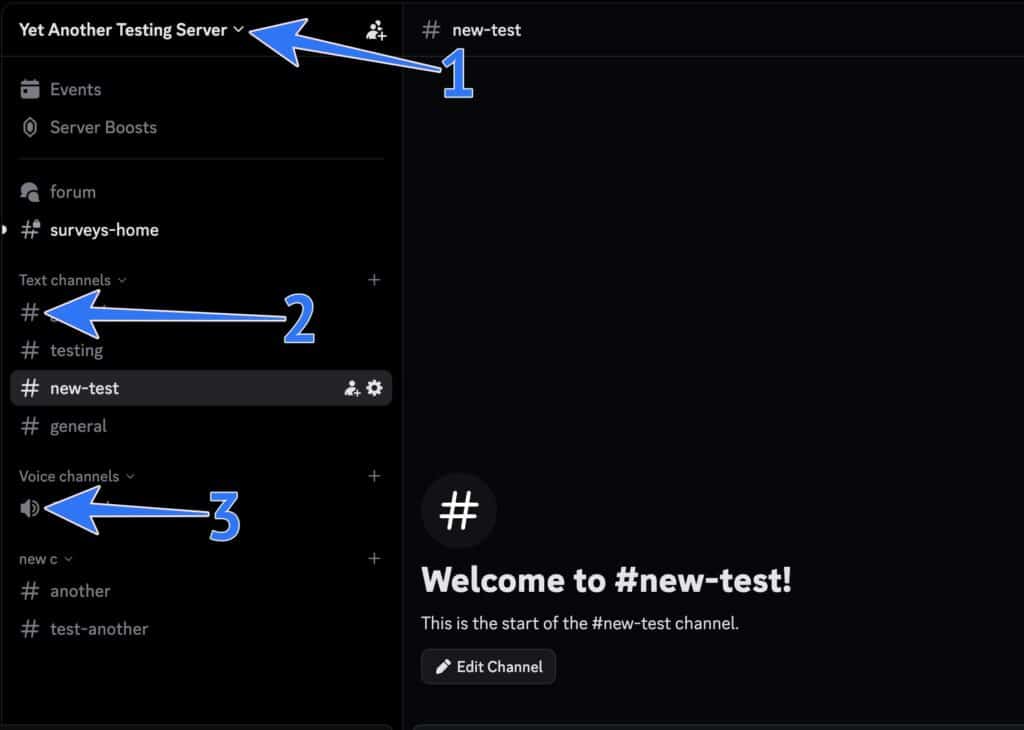
When you click a server icon, the next column shows the server’s channels. Discord uses icons here to tell you what each channel is and what you can do inside it.
- Down arrow next to the server name (small arrow/chevron beside the server name): Opens the server menu. Depending on your permissions, you may see options like Server Boost, Invite people, Create channel/category/event, and Server settings.
- Hashtag icon (# symbol): This is a text channel for messages, images, files, commands, and more.
- Speaker/Volume icon: This is a voice channel, join it to talk.
- Lock overlay (lock icon shown on the channel): The channel is restricted.
- Hashtag icon with a lock: private text channel
- Voice icon with a lock: private voice channel
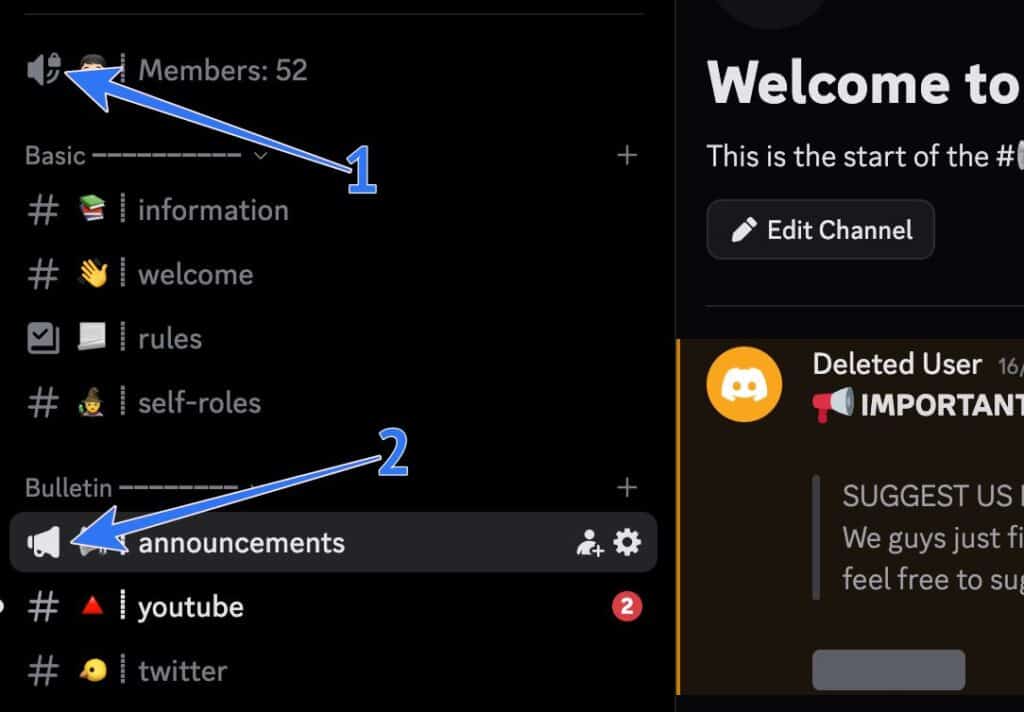
- Announcement icon: Typically used by admins/mods to post updates. Many servers limit posting here.
- Stage channel icon: A live audio “event” channel. Only allowed speakers can talk; everyone else listens unless invited.
Only specific roles or invited members can access private channels.
Channel Controls You See on Hover
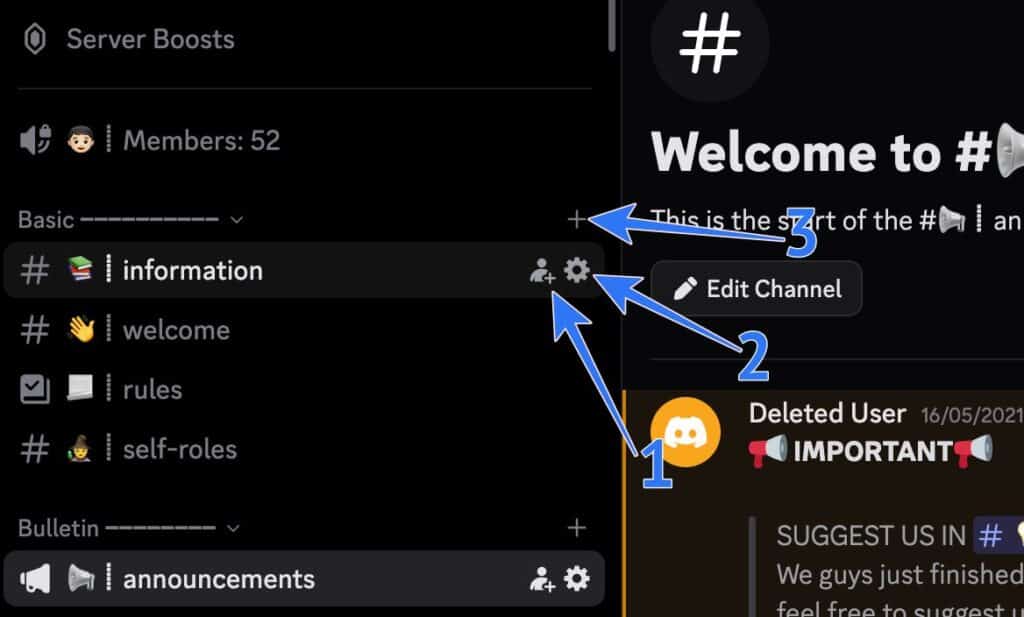
Some buttons only appear when you hover over channel names. This keeps Discord clean, but it also means useful tools can be easy to miss.
- Person with plus icon: Creates an invite link, often for the server, and sometimes pointing people to that channel.
- Cog icon beside a channel: Opens channel settings like permissions, role access, and integrations (usually admin/mod only).
- Plus icon next to a server category: Creates a new channel inside that category.
The Message Box Icons (Where You Type)
The message box is where Discord quietly packs a lot of power. Even the tiny icons around it can change what you can do in chat.
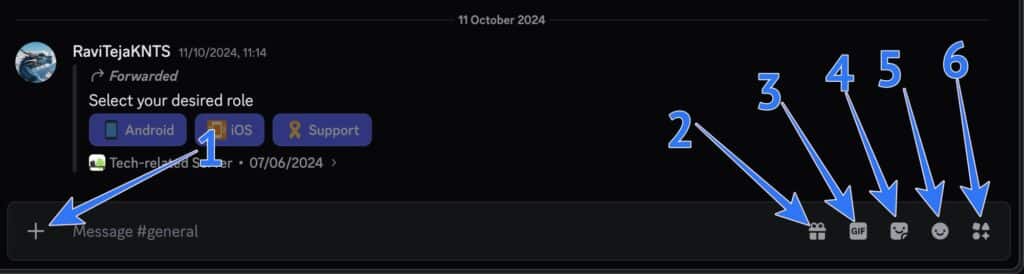
- Plus icon in the message box (Upload + more options) (plus at the left of the typing field): Attaches/uploads a file. In servers, it can also show extra actions like creating a thread or using apps/integrations.
- Gift icon (Gift Nitro) (gift box): Lets you gift Discord Nitro in that chat. If you don’t have Nitro to gift, it usually opens the purchase flow.
- GIF icon (GIF picker) (button that says “GIF”): Opens a GIF library (commonly powered by Tenor) where you can search by keyword or vibe.
- Sticker icon (Stickers) (sticker/folded-paper style): Opens stickers. Some servers have their own custom stickers, and some stickers are server-specific.
- Emoji icon (Emoji picker) (smiley face): Opens emojis, including custom server emojis.
- Activities icon: Open a sidebar that helps you open Discord Apps and Commands.
Important detail: many server emojis work only inside that server unless Nitro unlocks using them elsewhere.
Icons When You Hover Over a Message
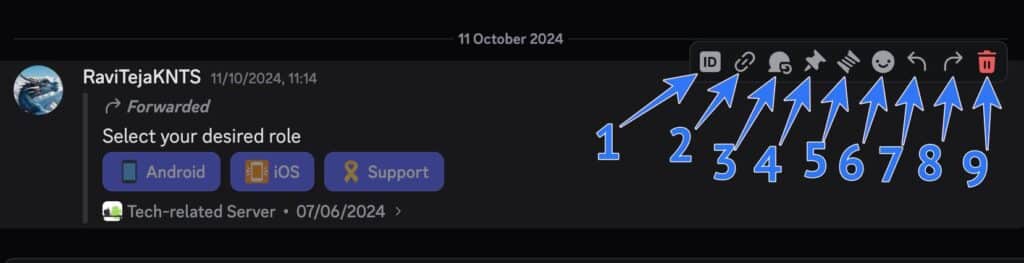
Hover over any message and Discord reveals quick-action buttons. By default, it only few icons, hold the Shift key, you get a big list of options. Here are all those icons mean:
- ID in Square box icon: Let’s you copy the message ID or your or other’s message.
- Link icon: This icon copies the link directly to the specific message instead of entire channel.
- Chat bubble with reload icon: It’s Discord’s Mark unread icon. So that you get to see the red bubble on that DM and respond later.
- Pin icon: Clicking on it will pin the selected icon for that particular channel or DM.
- Thread icon: With this you can create a thread from that message, so you extend discussion without flooding the channel with messages.
- Emoji with plus icon : Adds an emoji reaction, useful for quick feedback, polls, and vibe checks.
- Reply arrow icon: Replies to a specific message and keeps the context attached. It typically pings the original author by default.
- Forward arrow icon: You can share the selected message on other Discord servers or DMs. This depends on the server and user’s privacy settings.
The Header Bar (Top of a Chat)
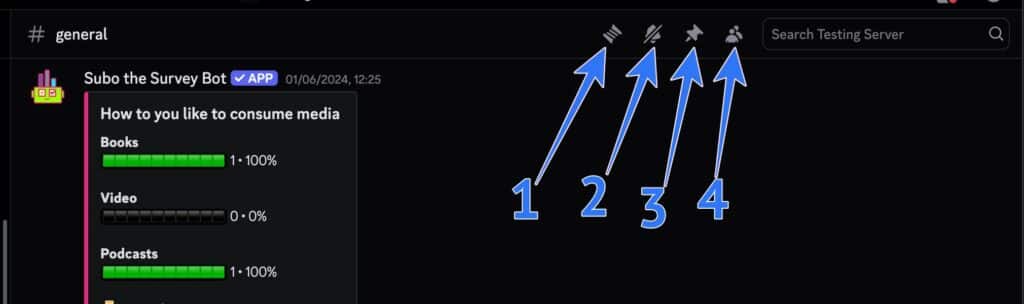
At the top of a DM or server channel, Discord gives you “big picture” controls, search, pins, notifications, members, and more.
- Threads icon: Shows threads for that channel and lets you jump between them.
- Bell icon: Controls how noisy that channel is for you.
- You can often choose: all messages, mentions only, or nothing.
- Pin icon: Shows messages pinned in that channel, useful for rules, links, schedules, and important notes.
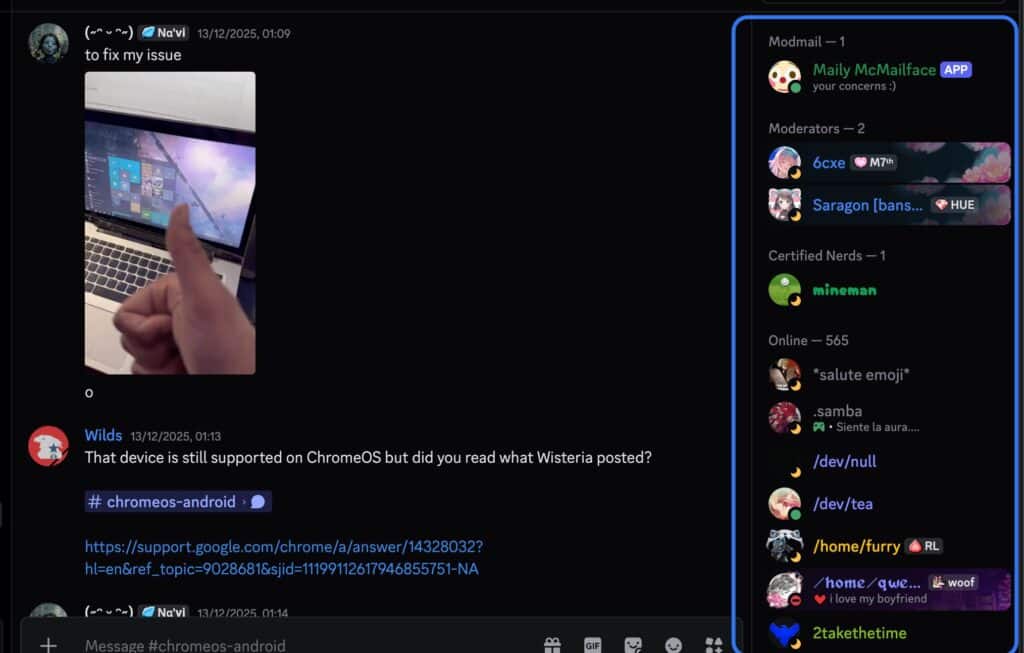
- People icon: Opens the member sidebar showing admins, moderators, members, and bots (plus who’s online/offline).
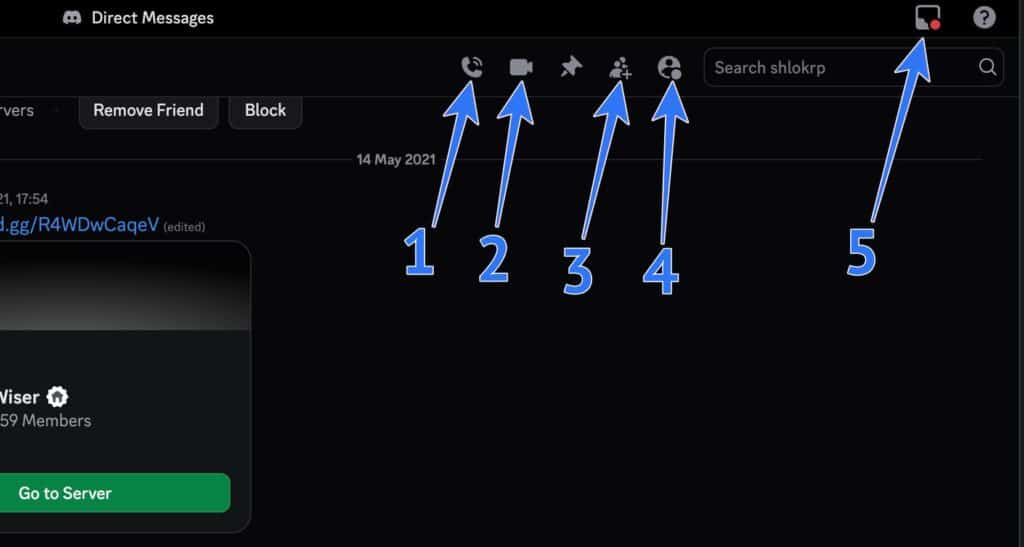
- Phone icon: Starts a voice call.
- Camera icon: Starts a video call.
- Add friends icon: Adds others to the chat to create a group conversation.
- Show profile icon: Opens the other person’s profile panel in a DM.
- Inbox tray icon: A single place to view unread messages across servers.
Search Bar Symbols
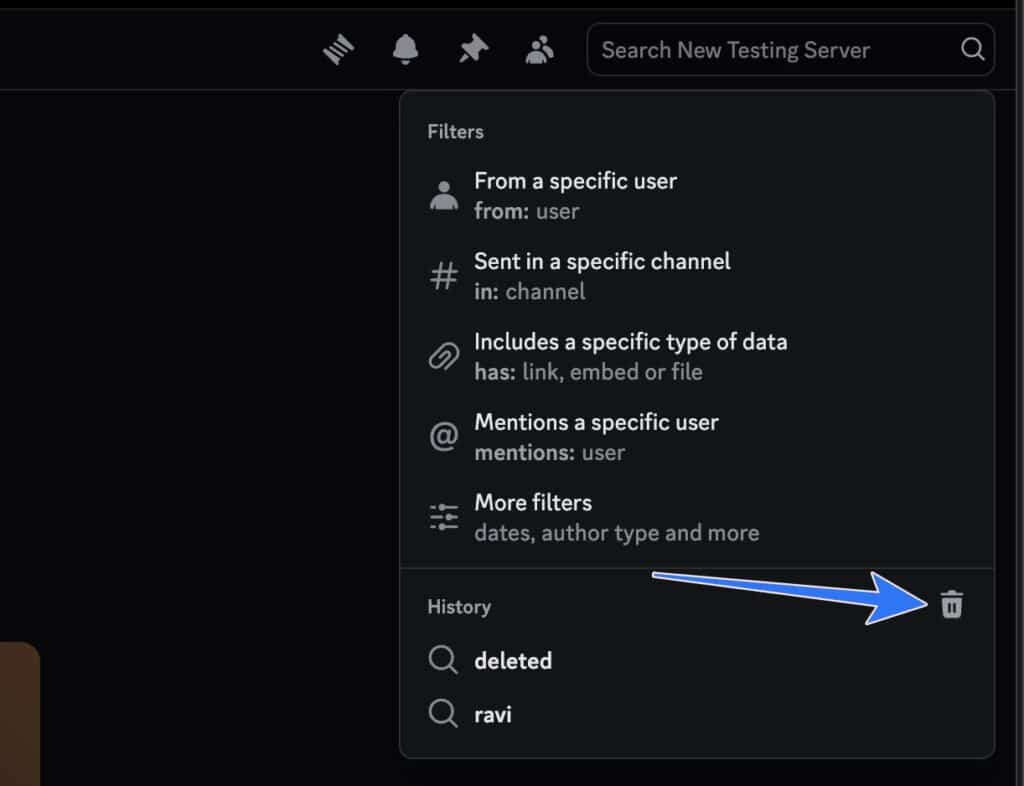
You’ll see a search bar in the header of channels and DMs. This search is usually scoped to where you are. It searches inside that specific channel or DM.
- Clear icon: Clears your current search term.
- Bin Icon: Clears the history of previous searches.
Badges, Roles, Bots, and Server “Status” Symbols
This is where Discord starts to feel like a real community platform, not just a chat app. Badges and labels quietly tell you who someone is, what they’ve earned, and what kind of server you’re in.
User badges (shown on profiles)
These are small icons on a user’s profile that represent official recognition, participation, or achievements.
- Discord Staff badge (blue shield with the Discord logo): An official Discord employee.
- Partner badge (heart/controller-style badge): Given to owners of high-quality, popular communities.
- HypeSquad Houses badges (Bravery/Brilliance/Balance symbols): Shows which HypeSquad House a user joined (usually by taking the quiz).
- HypeSquad Events badge (events-style badge): For users who promote Discord at events.
- Early Supporter badge (early supporter icon): For users who supported Discord early (before Nitro launched).
- Bug Hunter badge (bug icon): For users who report bugs.
- Certified Moderator badge (purple shield): For users certified/trained in moderation.
Nitro badge and Nitro clues
Nitro is Discord’s subscription, and it shows up visually in a few places.
- Nitro badge (purple Nitro emblem): Signals an active Nitro, Nitro Basic, or Nitro Classic subscription. The badge evolves over time as your subscription streak grows.
- Nitro visual perks (like animated avatars and extra profile customization): Clues that the user likely has Nitro features enabled.
Server badges (server reputation + features)
Some servers display special icons near the server name or in server info to show trust and upgraded features.
- Boosted server badge (crystal-style boost icon): Shows the server has boosts and levels, which can unlock perks like better audio quality and more emoji slots.
- Partnered server badge (ribbon-style icon): Indicates an official partnered server. Note that Discord no longer accepts new partner applications, so this badge is now rare.
- Verified server badge (check mark in a ribbon): Common for official brand, game, and developer servers.
- Community server icon (leaf in a chat bubble): Indicates community tools are enabled (welcome screens, moderation helpers, and similar features).
Roles and role icons
Roles help servers organize members and permissions, and they can also add visual cues.
- Colored usernames: A quick way to spot admins, moderators, and special groups. Color codes are unique to each server based on its role settings.
- Role icons (small images next to roles, where enabled): Visual labels for roles. Availability can depend on server features.
Bots and webhook labels
These indicators help you tell humans, bots, and automated posts apart.
- APP tag (label next to a username): Shows the account is a bot or app.
- Webhook or platform icons (icon on an automated message): Helps you recognize the source of a message posted by an integration (for example, updates from another service).
Voice Channel Indicators
Voice channels get chaotic fast without visual cues. These small indicators help you understand what’s happening without interrupting the conversation.
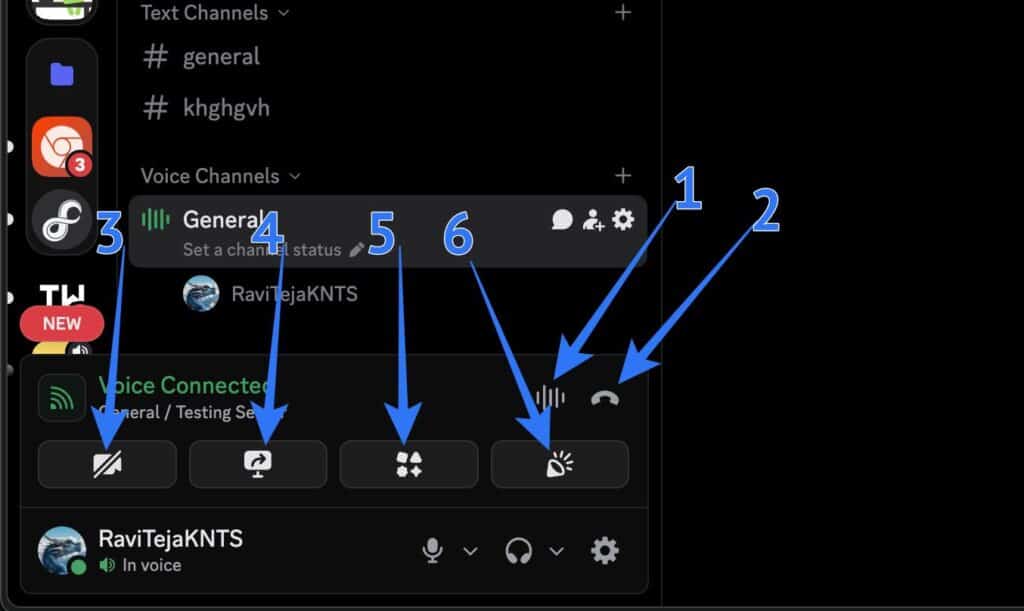
- Audio wave icon (Noise Suppression): Located in the voice status bar at the bottom left. This is Discord’s noise suppression toggle, powered by Krisp. When enabled, it filters out background sounds like fans, keyboards, and traffic from your mic.
- Phone icon (pointed down): The disconnect icon for the voice chat you are currently part of.
- Video camera icon: Toggles your video camera on or off inside a voice chat.
- Desktop with arrow icon: The “Share your screen” option, which lets everyone in the voice chat see your screen.
- Activities icon: Same as in text chat. It opens Discord apps and commands that can be useful during a voice call, including party games.
- Speaker icon (Soundboard): A fun icon that lets you play sounds in a Discord voice channel. Nitro unlocks access to a larger library of sounds.
Final Thoughts
Discord’s icons can feel like noise when you are new, but they are actually shortcuts that make the app quicker once you understand them.
If you remember only one thing, remember this: Discord shows you what is possible before you click. A hashtag tells you “type here.” A speaker tells you “talk here.” A lock tells you “not for everyone.” And badges quietly tell stories about people and communities.
Once you learn the symbols, Discord stops being overwhelming and starts feeling like a place you belong.
You may like to read: