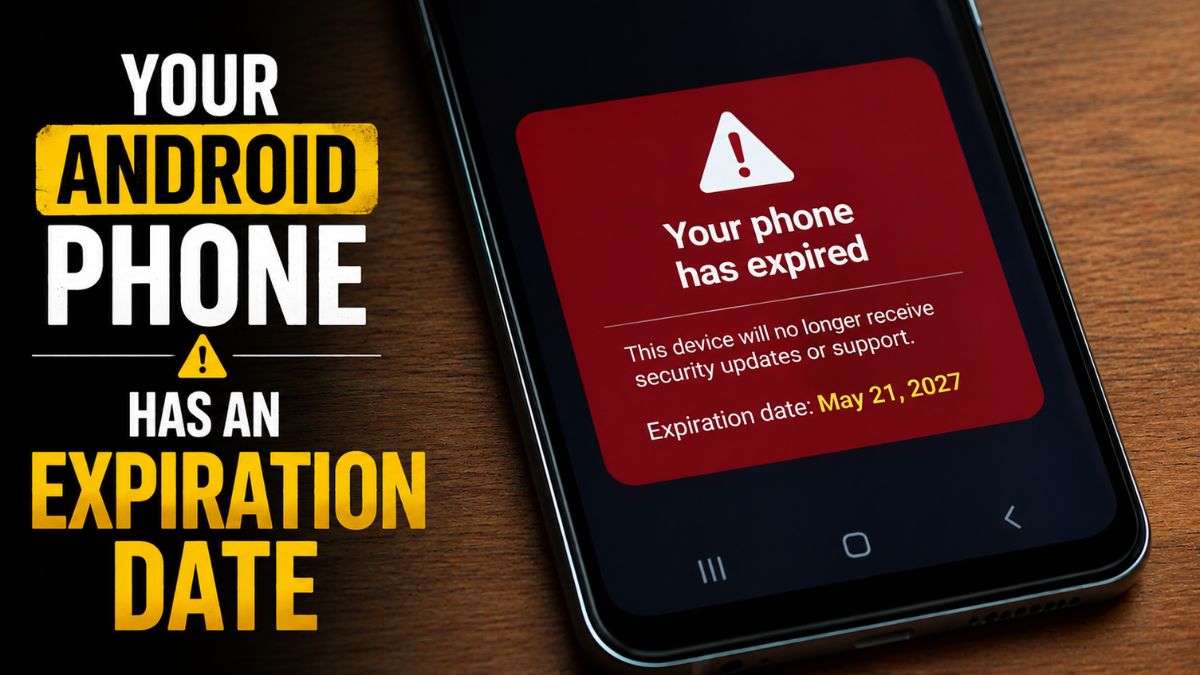
There’s a phrase that gets thrown around a lot in tech circles: planned obsolescence. The idea that your device is quietly engineered to become useless on a schedule someone else decided for you. Whether you believe that’s cynical corporate strategy or just the natural lifecycle of fast-moving technology, one thing is undeniable: your Android phone will eventually stop being functional and safe, even if it looks and feels perfectly fine.
Every Android phone has an expiration date. Cross it, and your device becomes less secure, less compatible with modern apps, and genuinely risky to use for anything important, including banking, email, and sensitive logins. The phone doesn’t die. It just slowly becomes a liability.
Here’s what that expiration date really means, how to find it for your specific device, and why the details matter more than most guides let on.
What “Expiring” Actually Means for an Android Phone
Most people assume a phone expires when it breaks. That’s not it. A phone expires when the software ecosystem stops supporting it, and that happens in stages, not all at once.
- Stage 1: Major Android version updates end. This is the headline number manufacturers advertise. Samsung’s Galaxy S25 series, for example, carries a seven-year software support promise, meaning it’ll receive major Android OS upgrades through 2032. Once that window closes, you won’t be getting the next version of Android.
- Stage 2: Security updates stop. This is where it gets serious. Even after major OS updates end, most manufacturers continue pushing monthly or quarterly security patches. These patches close vulnerabilities that hackers actively exploit. When they stop, your phone becomes an open target, and no amount of being “careful online” fully compensates for running unpatched software. To understand why Android versions matter differently for security vs. features, it’s worth looking at Android version history to see how the cadence has evolved.
- Stage 3: App support breaks down. Eventually, app developers stop testing and optimizing for older Android versions. Things start breaking in subtle ways: crashes, missing features, and apps that simply refuse to install. At this point, the phone has truly expired.
So when you ask how to check phone expiry date on Android, you’re really asking about two separate timelines: software support and hardware warranty. Both matter, for very different reasons.
How to Find the Expiration Date of Your Android Phone (The Fast Way)
The quickest way to check your phone’s support status is straightforward: search for it.
Open a browser and type your exact phone model followed by “end of support date” or “software support end.” Most major manufacturers, especially Samsung and Google, have made this information publicly available because it’s become a genuine selling point.
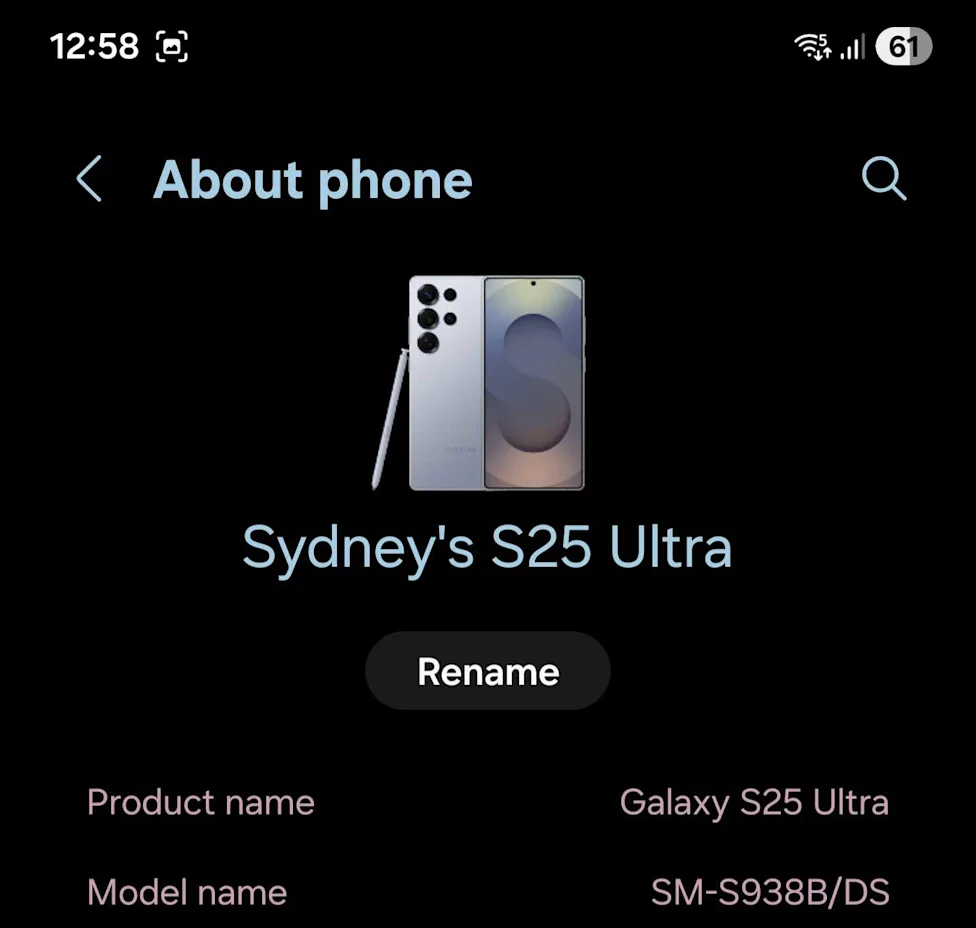
Don’t know your exact model? Go to Settings → About phone. You’ll see a model number like SM-S938B/DS. Use that specific string in your search, not just “Samsung S25.” The model variant matters, especially if you bought your phone in a different region or through a carrier.
For a quick IMEI lookup that also confirms your device’s identity, you can also dial *#06#, a handy Android secret code that surfaces your IMEI without digging through menus.
How to Find the Expiration Date of Samsung Phones
Samsung is one of the most transparent manufacturers when it comes to software timelines, which is genuinely useful if you’re trying to make a smart purchase decision or assess a used phone.
For software support end dates: Samsung publishes these alongside product announcements. Flagship models like the S-series and Z-series (foldables) now carry four to seven years of OS and security updates depending on the model and release year. Mid-range A-series phones typically sit at four years. Budget devices can drop to two or three.
For warranty expiration (how to check phone expiry date for Samsung hardware coverage):
The most reliable method is through your Samsung account:
- Go to Samsung My Page (account.samsung.com or your regional equivalent)
- Sign in and navigate to My Products.
- Select your device → View Product Details.
- Look for warranty status. If the device was registered, often automatically when you sign in on the phone, you’ll see both start and end dates.
If your device isn’t registered or you’re checking a secondhand phone, use an IMEI-based tool:
- Find your IMEI via Settings → About phone → Status information, or dial *#06#
- Visit imei.info or imei24.com and enter your IMEI
- These tools surface estimated warranty end dates, purchase/activation info, and sometimes carrier lock status
Samsung Care+ subscribers have one more place to check: Settings → About phone may display your Care+ end date directly at the bottom of that screen.
One important note: Samsung warranties typically start from the purchase or activation date, not the manufacturing date. If you activated a phone months after buying it, that affects your coverage window. When in doubt, contact Samsung support with proof of purchase. Dates can sometimes be corrected.
How to Find the Expiration Date of Google Pixel Phones
Pixel phones operate on two separate support clocks, and confusing them leads to a lot of unnecessary frustration.
Hardware warranty: Standard coverage is one year from purchase (extendable via Pixel Care+). This covers manufacturing defects, not software.
Software support: Google guarantees OS updates and security patches for five to seven years depending on the Pixel generation. The Pixel 8 series, for instance, carries seven years. This timeline is based on the original release date of the device, not when you bought yours.
To check your Pixel’s hardware warranty status:
- Go to store.google.com/my-devices and sign in with your Google account.
- Select your Pixel. Registered devices typically appear automatically.
- View warranty status, start date, and expiration.
Alternatively, Google’s Hardware Warranty Center allows IMEI or serial number lookups. Your serial lives in Settings → About phone. On newer Pixel models, some warranty and support details also appear directly under Settings → About phone → Device health and support.
To check your Pixel’s software support end date:
Google publishes these timelines publicly on their Pixel update policy page. You can also check community-maintained resources like endoflife.date/pixel, which tracks end-of-support dates for individual models in an easy-to-read format.
Why This Matters More When Buying Used or Clearance Phones
Here’s the scenario that catches people off guard: you find a great deal on last year’s flagship or a discounted model clearing out at a retailer. The phone feels premium, it runs fast, and the camera is excellent. What could go wrong?
Plenty, if you don’t check the support timeline first. A phone selling at clearance in 2025 might have launched in 2022, meaning its software support window is already partially burned through. You might be buying 18 months of remaining updates, not four years. That’s not a bargain. That’s a countdown timer you didn’t know was running.
Checking the phone expiry date before buying used or discounted hardware is one of the most practical things you can do. Use the IMEI lookup tools mentioned above, cross-reference the manufacturer’s update policy page, and factor that timeline into what you’re actually paying.
The Uncomfortable Truth About Smaller Android Brands
Samsung and Google make it easy to find this information because long support cycles are a marketing advantage for them. They put it on spec sheets and in ads. But the Android ecosystem is much larger than those two brands.
Mid-range and budget phones from smaller manufacturers often carry two to three-year support windows, sometimes less. More obscure brands may not publish a clear end date at all. Support simply ends when the company decides it does, with little notice. If you’re choosing between a lesser-known brand and a slightly more expensive phone from Samsung or Google, the support timeline gap is a real consideration, especially if you tend to hold onto phones for three or four years.
Technically, no one is forcing you. But running a phone without security updates is a genuine risk, not a hypothetical one. Vulnerabilities in older Android versions get discovered regularly, and without patches, they stay open. Whether that risk is acceptable depends on what you use your phone for. If it touches banking apps, work email, or saved passwords, the risk calculus tilts toward replacement sooner rather than later.
You need either an IMEI or a serial number for most third-party lookup tools. Fortunately, your IMEI is easy to find: dial *#06# on any Android phone. It works on virtually every device. Your serial number lives in Settings → About phone. Keep both somewhere accessible. They’re useful for warranty claims, theft reports, and resale too.
It can. Warranty coverage and even software support timelines sometimes vary by region and original purchase location. A Samsung phone purchased in one market may have different warranty terms than the same model bought elsewhere. IMEI-based checks and your regional Samsung or Google support page will give you the most accurate local information. If you’ve imported a phone or bought from an overseas retailer, contact the manufacturer’s support directly with your proof of purchase to confirm what coverage applies.
You might also like: