For years, sending files from Android to iPhone was embarrassingly painful. I’ve been there: emailing photos to myself, uploading a video to Google Drive just to download it on the other side, or resorting to WhatsApp because nothing else worked cleanly. And every time an iPhone user just tapped two phones together and watched the magic happen, I felt the gap.
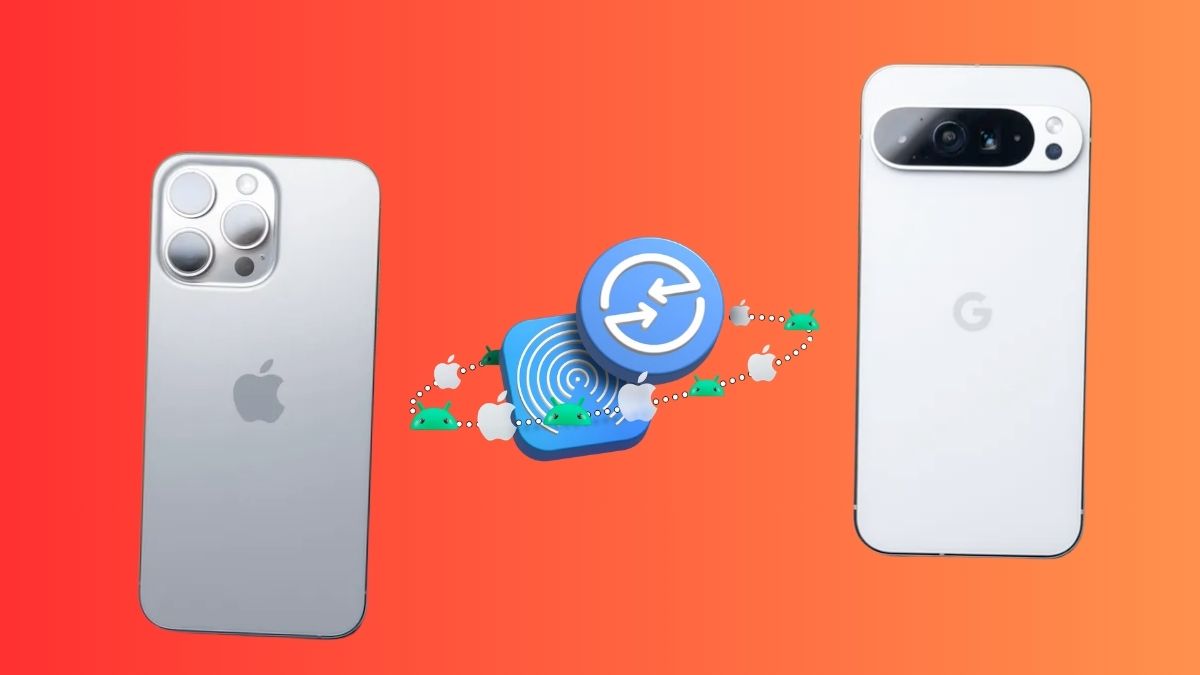
That gap is finally closing. Google has added AirDrop support directly into Quick Share, meaning Android can now send files to iPhones and receive them back, wirelessly, locally, no apps or cloud required. Here’s everything you need to know about how to use AirDrop on Android, including the real-world limitations I ran into and what I still use as backup.
How Google Actually Pulled This Off
Google didn’t rebuild Android into iOS. What happened is far more clever.
Android already had Quick Share (formerly Nearby Share) for peer-to-peer transfers between Android devices. Google expanded that same system to detect and communicate with Apple’s AirDrop., without any involvement from Apple itself. The underlying tech is unchanged: Bluetooth handles discovery, and Wi-Fi Direct does the heavy lifting for the actual transfer. What changed is compatibility. Android is no longer siloed within its own ecosystem.
All transferred content stays local and encrypted, just like native AirDrop. Nothing goes through a server. Nothing requires an account.
Google first rolled this out on November 20, 2025, starting with the Pixel 10 family, and has been steadily expanding it to more devices ever since. If you’re only hearing about it now, that’s because most of the device rollout has happened quietly over the past several months rather than in one big announcement.
Which Android Phones Support This Right Now
Support started with flagship devices and is gradually expanding. Here’s where things stand:
Google Pixel (Fully Supported)
- Pixel 10, 10 Pro, 10 Pro XL, 10 Pro Fold, 10a
- Pixel 9, 9 Pro, 9 Pro XL, 9 Pro Fold
- Pixel 8a
Samsung Galaxy (Some Models Require One UI 8.5)
- Galaxy S26, S26+, S26 Ultra
- Galaxy Z Fold 7, Z Flip 7
- Galaxy S25, S25+, S25 Ultra, S25 Edge
- Galaxy Z Fold 6, Z Flip 6
- Galaxy S24, S24+, S24 Ultra
Newly Added (Rolling Out)
- Oppo Find X9 series
- Vivo X300 Ultra
That’s a decent list on paper, but it’s still overwhelmingly flagship territory. If you’re rocking a mid-range phone, you’re likely not getting this yet. Google has said OPPO, OnePlus, Vivo, Xiaomi, and HONOR devices will keep joining the list through 2026, so check back if your phone isn’t here yet. It’s real, but it’s not universal.
Steps to Use AirDrop on Android to Send Files to iPhone
If you have a supported device, the process is genuinely straightforward. Here’s how to send files from Android to iPhone using AirDrop via Quick Share:
- Swipe down to open Quick Settings. Make sure Bluetooth and Wi-Fi are both on, then tap Quick Share.
- Tap the three-dot menu, go to Settings, then select Who can share with you and set it to Everyone for 10 minutes. This makes your phone visible to nearby iPhones.
- Go back to the Quick Share screen and switch to the Send tab.
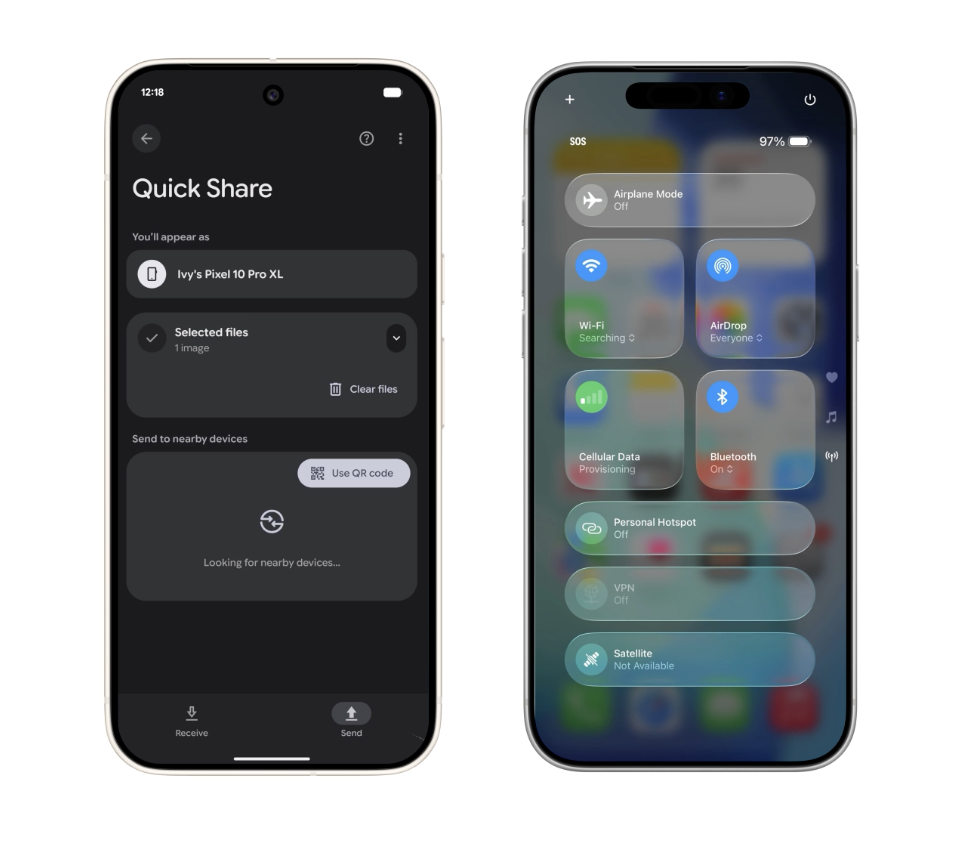
- Tap Select and choose the photos, videos, or files you want to transfer.
- On the iPhone, swipe down from the top-left corner to open Control Center. Press and hold the AirDrop tile and set it to Everyone.
- Your iPhone name will appear on your Android. Tap it.
- The iPhone will show a standard AirDrop pop-up. Tap Accept, and the transfer begins immediately.
- Photos and videos land in the Photos app; documents show up in Files.
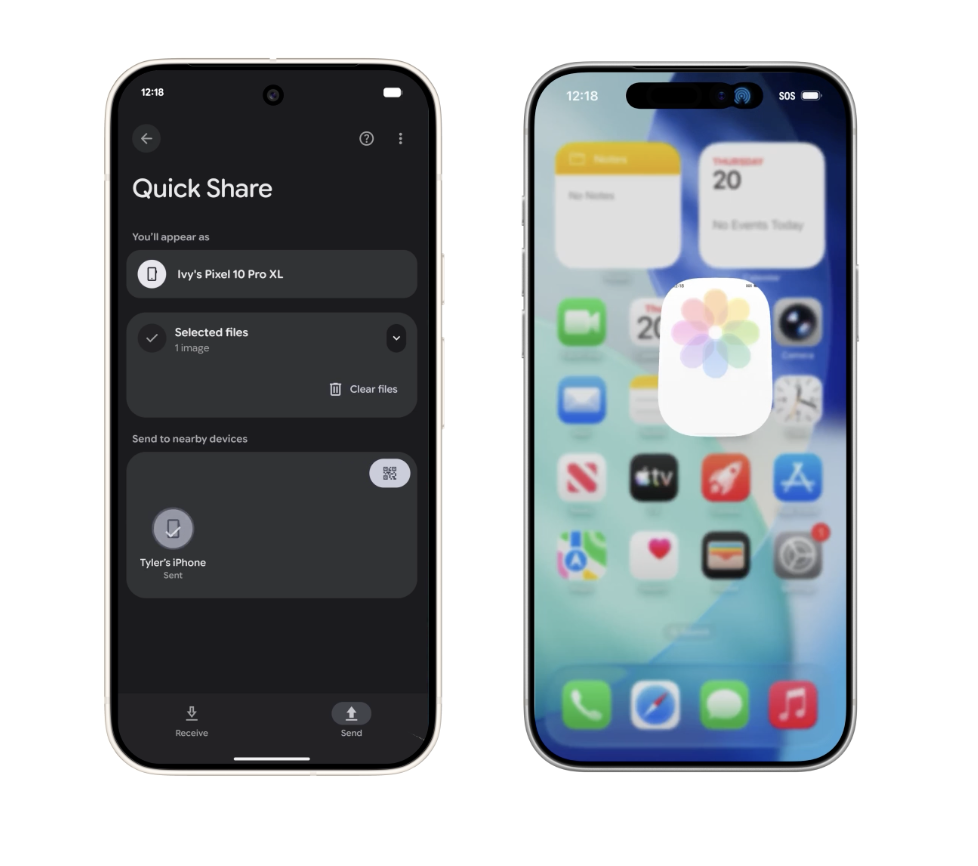
Photos and videos land in the Photos app; documents show up in Files.
Quicker shortcut: Once you’ve set Quick Share to Everyone, you can skip most of those steps. Just open Photos or Files, select what you want to share, tap the share button, choose Quick Share, and your phone scans for nearby devices. When the iPhone appears, tap it. Done.
Steps to Receive Files from iPhone on Android
Going the other direction is just as simple:
- On the iPhone, open Photos and select the image or video you want to share.
- Tap the share button and choose AirDrop from the share sheet.
- On your Android, open Quick Share and stay on the Receive tab.
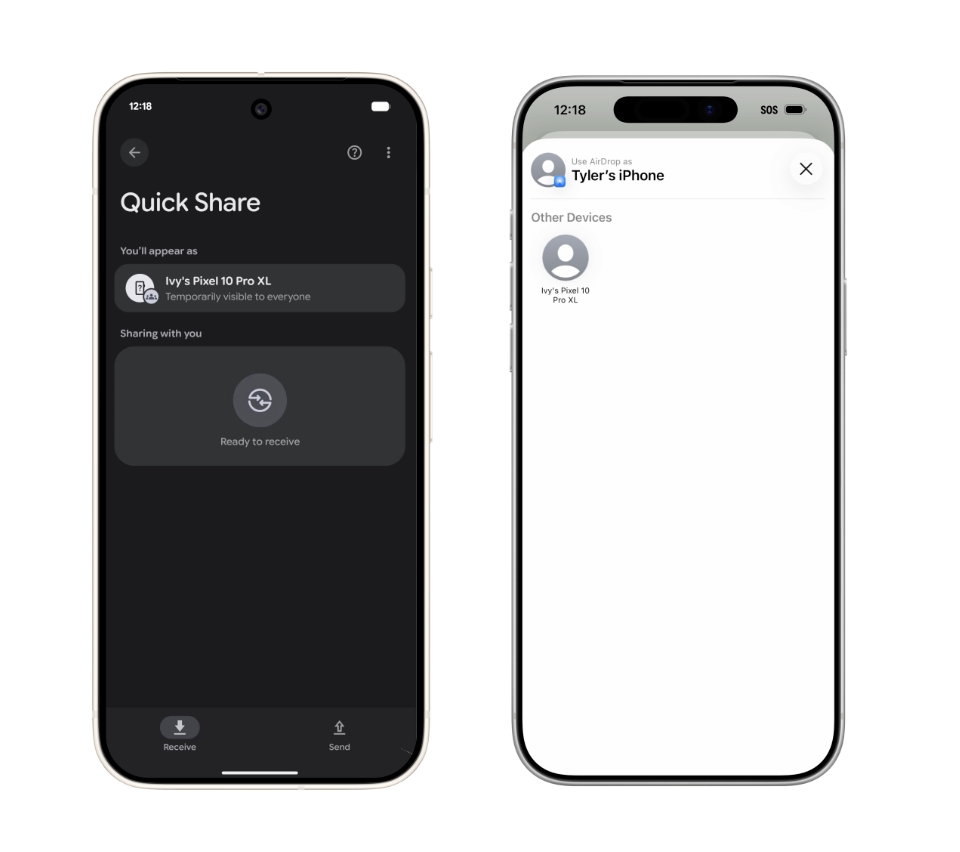
- Your Android device name will show up in the AirDrop list on the iPhone. Select it.
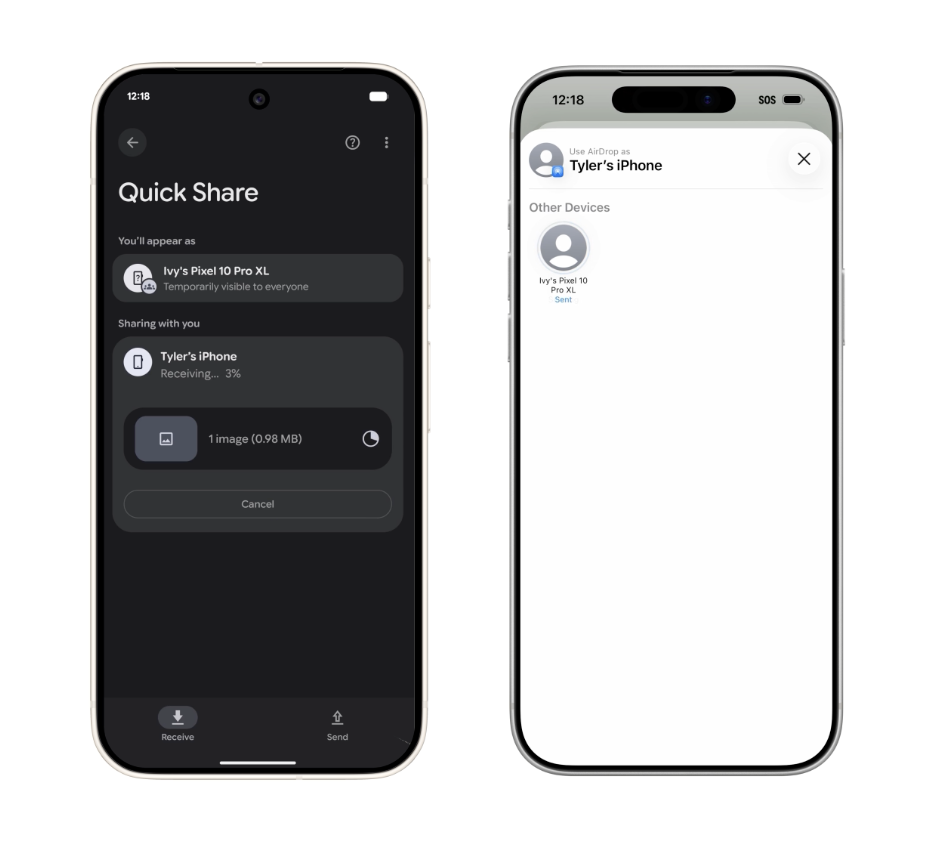
- Tap Accept on your Android, and the transfer starts.
- Tap Open when it finishes to view the file right away.
The Honest Limitations (Because It’s Not Perfect Yet)
This feature is genuinely exciting, but I’d be doing you a disservice if I didn’t mention where it falls short.
The “Everyone” setting is uncomfortable. To send files from Android to iPhone using AirDrop, you have to set your iPhone’s AirDrop visibility to Everyone. In a coffee shop or airport, that’s a little unnerving. Apple hasn’t built any cross-platform-specific controls here, so you’re using a general setting in a way it wasn’t quite designed for.
Detection isn’t always instant. Sometimes the devices find each other in seconds. Other times there’s a maddening delay where nothing shows up. Native AirDrop between two iPhones is more consistent, and that gap in reliability is noticeable.
Proximity and screen-on matter. Both phones need to stay awake and relatively close. If a screen locks or you move too far, the connection drops. It’s not the fire-and-forget experience you get with Apple’s own ecosystem.
It’s still mostly for flagship users. Until this reaches mid-range and budget devices, it’s hard to call it a mainstream solution. Right now, it feels more like a well-executed, steadily expanding rollout than a finished feature.
What I Still Use for Cross-Platform File Sharing
While AirDrop on Android matures, or if your phone isn’t on the supported list yet, here’s what I keep in my back pocket:
Send Anywhere is my first choice. It works across practically any device, requires no login, and as long as both phones are on the same Wi-Fi, transfers are fast and reliable. It’s the closest thing to a universal AirDrop that actually exists today.
Snapdrop is perfect for one-off transfers. Open it in a browser on both devices, and it just works, no install needed. Simple and underrated.
Google Drive is my fallback when distance or reliability is a concern. Slower, yes. But it’s never let me down.
These tools still feel more universally usable than the current Android implementation of AirDrop, at least until the rollout expands. Google is also rolling out a QR-code sharing fallback inside Quick Share for unsupported devices, which works over the cloud rather than a direct local connection.
What’s Coming Next
There’s also a “Tap to Share” feature in the works for Android, Google’s answer to Apple’s NameDrop, where bringing two phones close together triggers a contact, photo, or file share. It’s shown up in Android 17 beta code and Samsung’s One UI 9 builds, and reporting points to a mid-2026 arrival alongside Android 17.
One important caveat: it’s not yet confirmed whether Tap to Share will work between Android and iPhone the way Quick Share now does with AirDrop. Current reporting suggests it may launch as an Android-to-Android feature first, closer to how NameDrop only ever worked between iPhones. If that changes, we’ll update this piece.
On supported devices right now, the share menu already detects nearby Apple devices automatically when AirDrop is set to receive from Everyone. People who’ve tried it describe it as the first time cross-platform file sharing actually felt native, and that’s not a small thing.
Final Thought
This is one of those updates that sounds technical but changes something you feel every single day. AirDrop wasn’t Apple’s flashiest feature. It was just quietly one of the best reasons to stay in their ecosystem. It removed friction. It made sharing effortless. And Android never had a real answer to it until now.
Android just got AirDrop, and even in its current form, it matters. Google is clearly investing in cross-platform interoperability, from RCS messaging to this. Using an Android phone no longer means being locked out of Apple’s world, and that shift is more significant than most headlines are giving it credit for.
Yes, it works with any iPhone running a recent version of iOS, as long as AirDrop is set to Everyone. No special setup is needed on the iPhone side beyond that.
No. Quick Share uses Bluetooth for discovery and Wi-Fi Direct for the transfer, so a shared network isn’t required. Both phones just need to be physically close to each other.
Make sure Bluetooth and Wi-Fi are enabled on both devices, AirDrop on the iPhone is set to Everyone, and both screens are on and unlocked. A quick toggle of Quick Share visibility to Everyone on Android also helps.
Not yet. As of now, support is limited to recent Pixel and Samsung Galaxy flagships, with Oppo and Vivo devices joining the rollout. Mid-range and older devices are expected to follow, but no firm timeline has been announced.
You might also like: