Do you know Google keeps a record of much of what you do across its services? This includes every search you make, YouTube videos you watch, places you visit in Maps, and interactions with tools like Assistant or Gemini. This activity helps Google personalize your experience, but it also means your account can hold years of personal data.
If you want more control over your privacy, clearing your Google Activity History is a good place to start. In this guide, you’ll learn how to delete My Activity history in Google, remove history from specific services, and stop Google from saving new activity in the future.
What Deleting Google Activity Does (and Doesn’t Do)
Before deleting anything, it’s important to understand what Google actually removes and what remains untouched.
When you delete My activity history, you remove stored records of Google Search activity, YouTube watch and search history, Google Maps navigation and location data, Google Assistant queries, Gemini activity, and other Google service interactions.
This reduces personalization and prevents others with account access from viewing your activity. Thankfully, Google gives you good control over how this data is handled. You can:
- Delete everything at once
- Remove only specific items
- Select a custom date range
- Clear history from a single service (like YouTube or Gemini) while keeping the rest
It’s important to remember that this only covers past activity. For future data, you can either disable activity tracking completely or set auto-delete rules (3, 18, or 36 months). This way, Google clears your activity automatically without you doing it manually every time.
Google activity deletion does NOT:
- Delete your Google account
- Remove Gmail emails
- Delete Google Drive files
- Remove Google Photos images
- Delete public content like YouTube comments
- Hide activity from your ISP or websites
- Immediately erase all backup logs
Think of it as cleaning your visible Google history, not deleting your entire digital presence.
How to Delete My Activity History in Google from iPhone and Android
Use this method when you want to quickly clear your entire Google activity history from a mobile device.
Here’s how.
- Tap the link to open Google Activity page.
- Tap Delete above your activity.
- Choose All time.
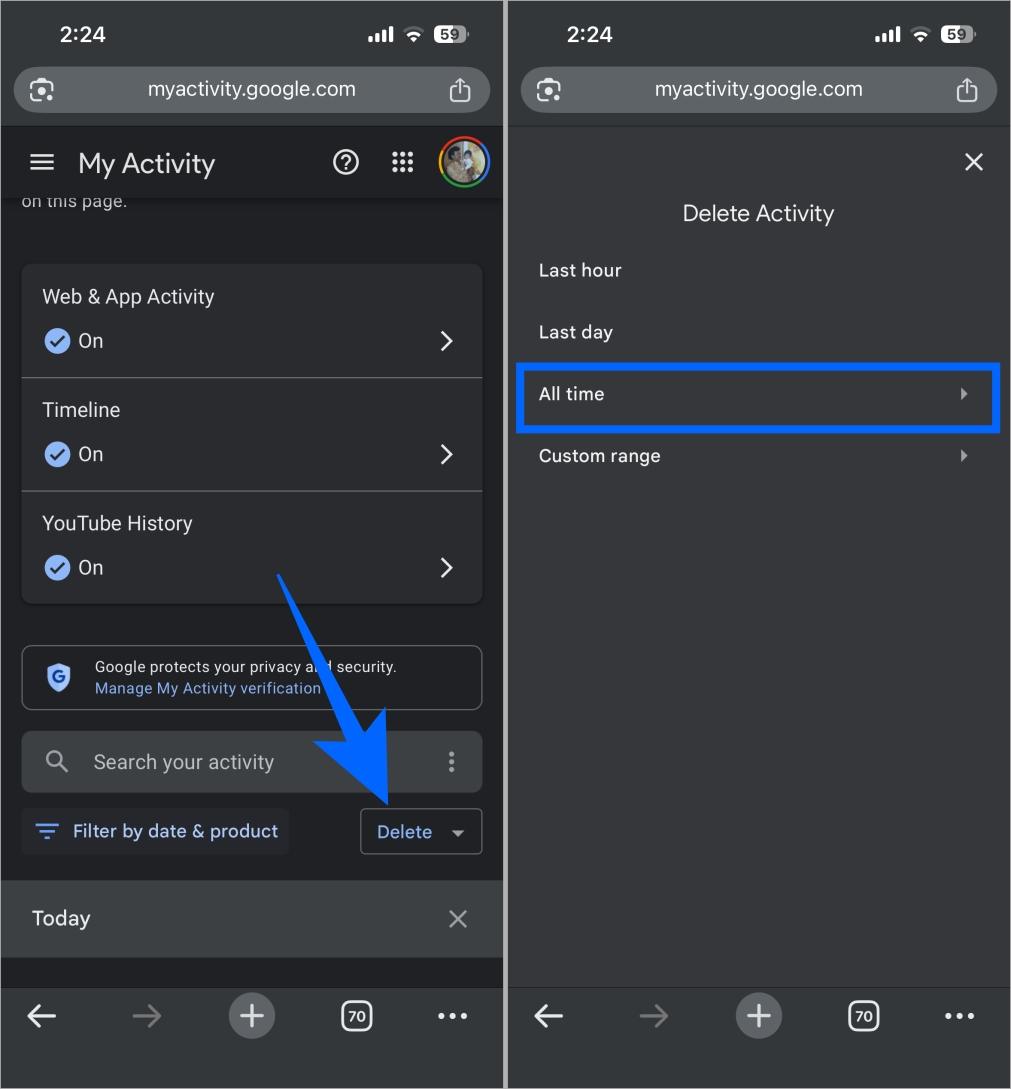
- Tap Next → Delete to confirm.
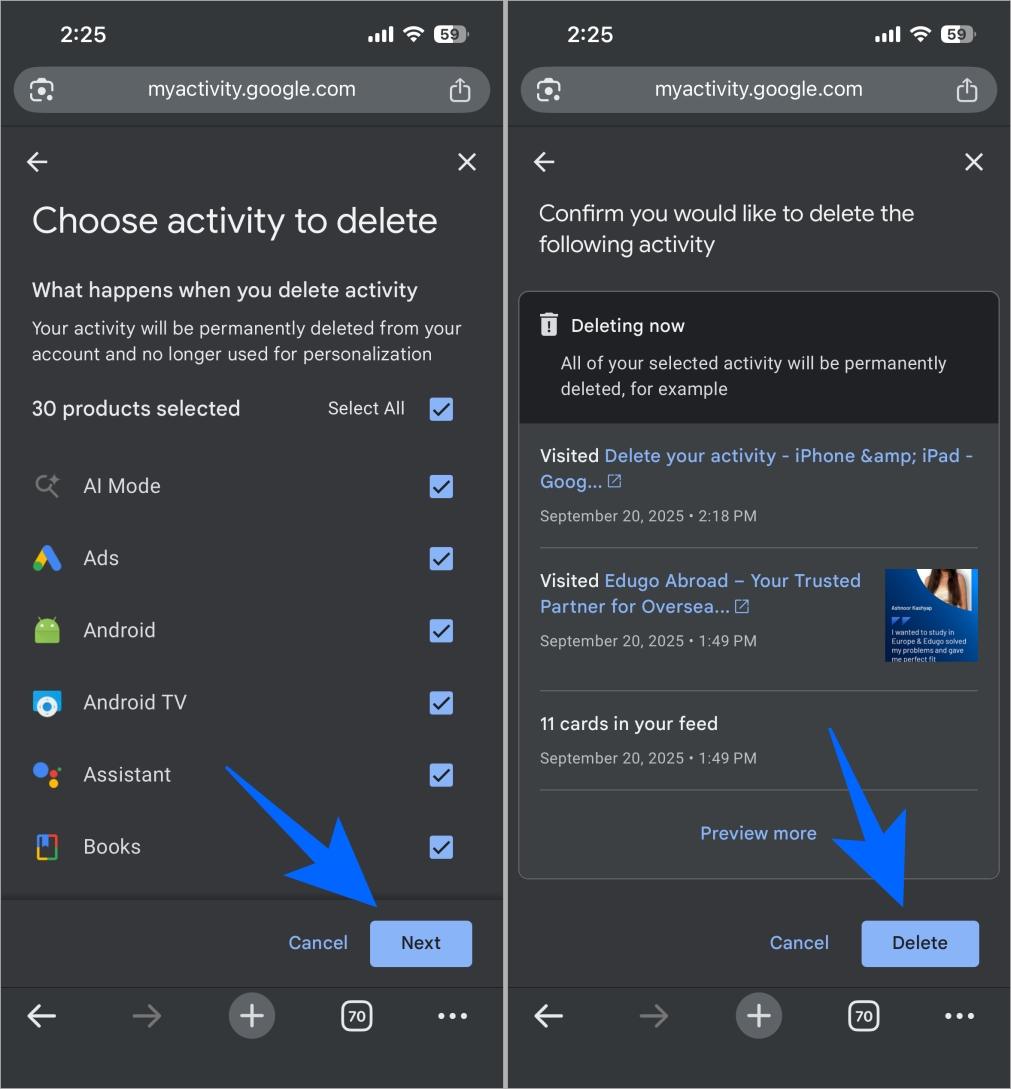
That’s all! Your stored Google activity will be removed.
You can also delete data of:
- Specific dates
- Individual items
- Activity from certain services only
Remember: Google will continue collecting data unless tracking is disabled. We will discuss it later in the post.
Tip: Fine-tune your search results by adding preferred sources in Google Search.
How to Delete My Activity History in Google from Desktop
If you’re using a computer, the process is almost identical but easier to manage on a larger screen.
Steps:
- Go to Google Activity page.
- Click Delete above your activity.
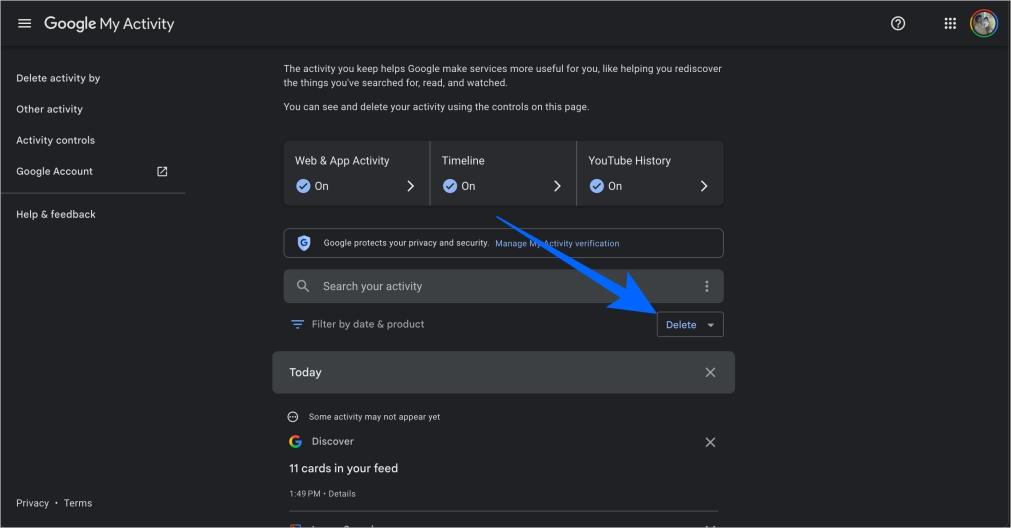
- Select All time.
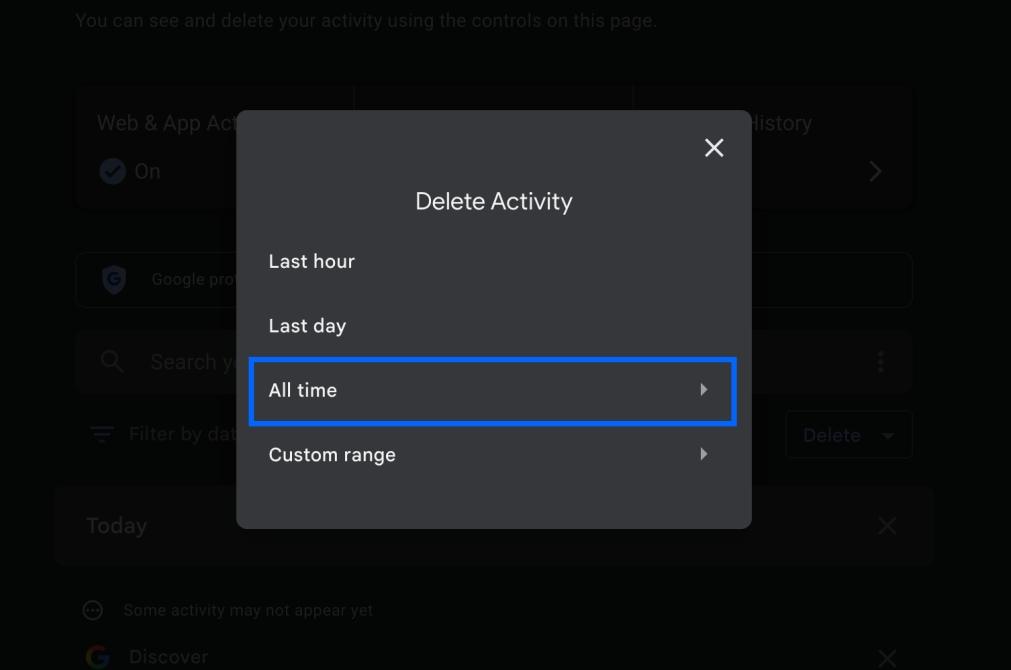
- Confirm by clicking Next → Delete.
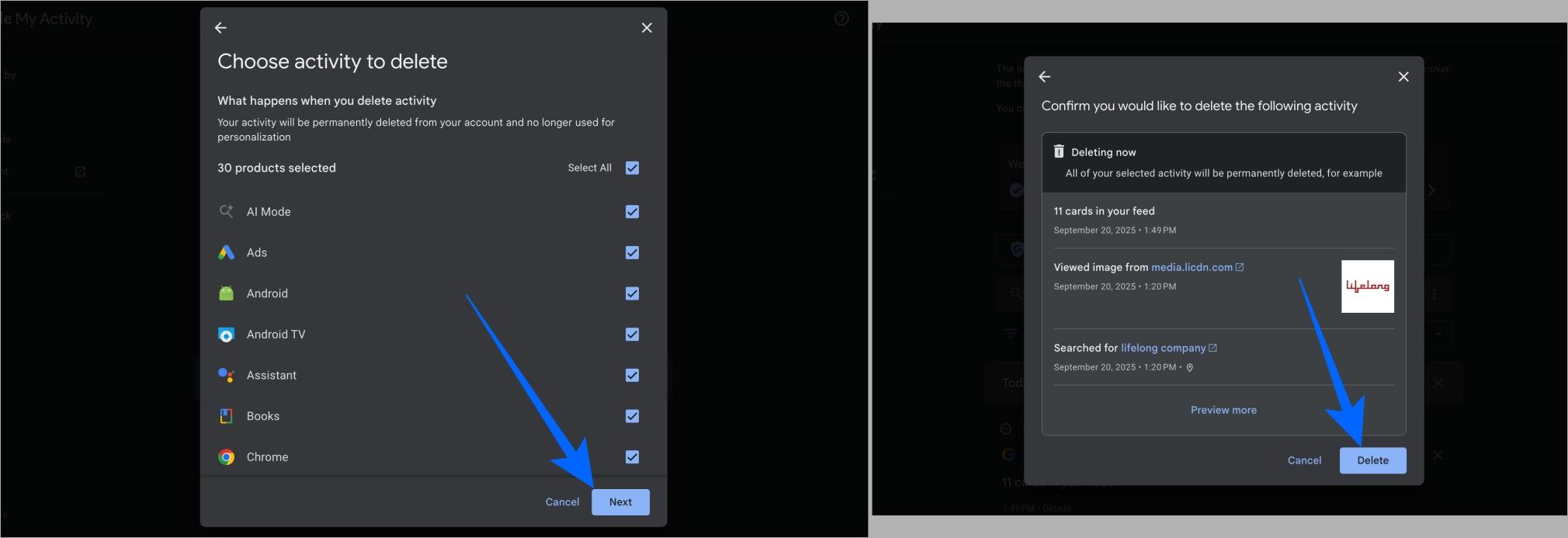
This clears your saved account activity history.
Sometimes you want to keep your Maps timeline but delete your Chrome Browsing history. In that case, you can delete them separately.
Delete History from Specific Google Services
Instead of wiping everything, you can delete activity from individual Google products. This gives you more control over what stays and what goes.
Delete YouTube History
Your YouTube history keeps track of every video you watch and search for. While it helps with recommendations and remembering where you left off, it also reveals your interests, habits, and even personal moods.
- Open Google Activity page.
- Click on YouTube History and then Manage History.
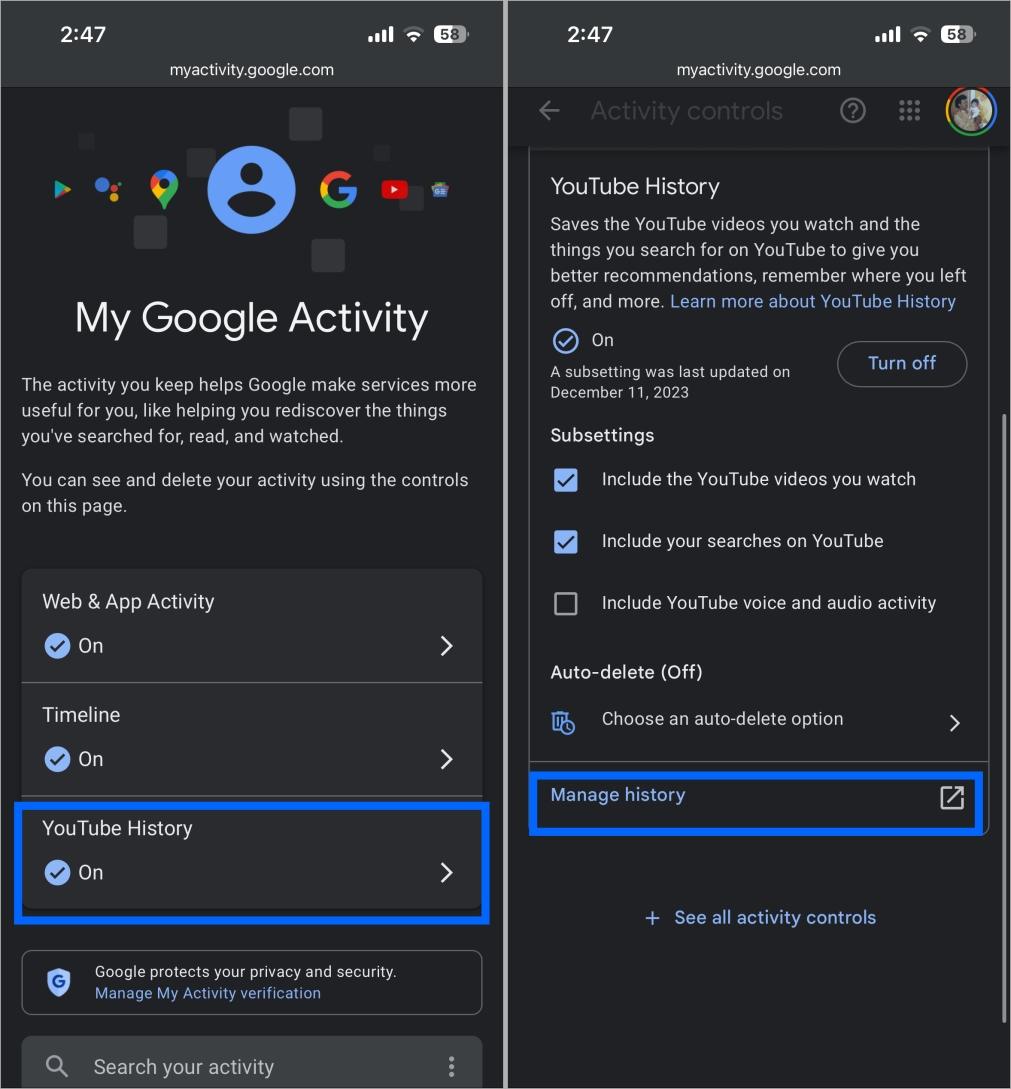
- Here you can view all your YouTube activity.
- Select Delete and then Delete all time
- In the pop-up, click on the Delete to confirm.
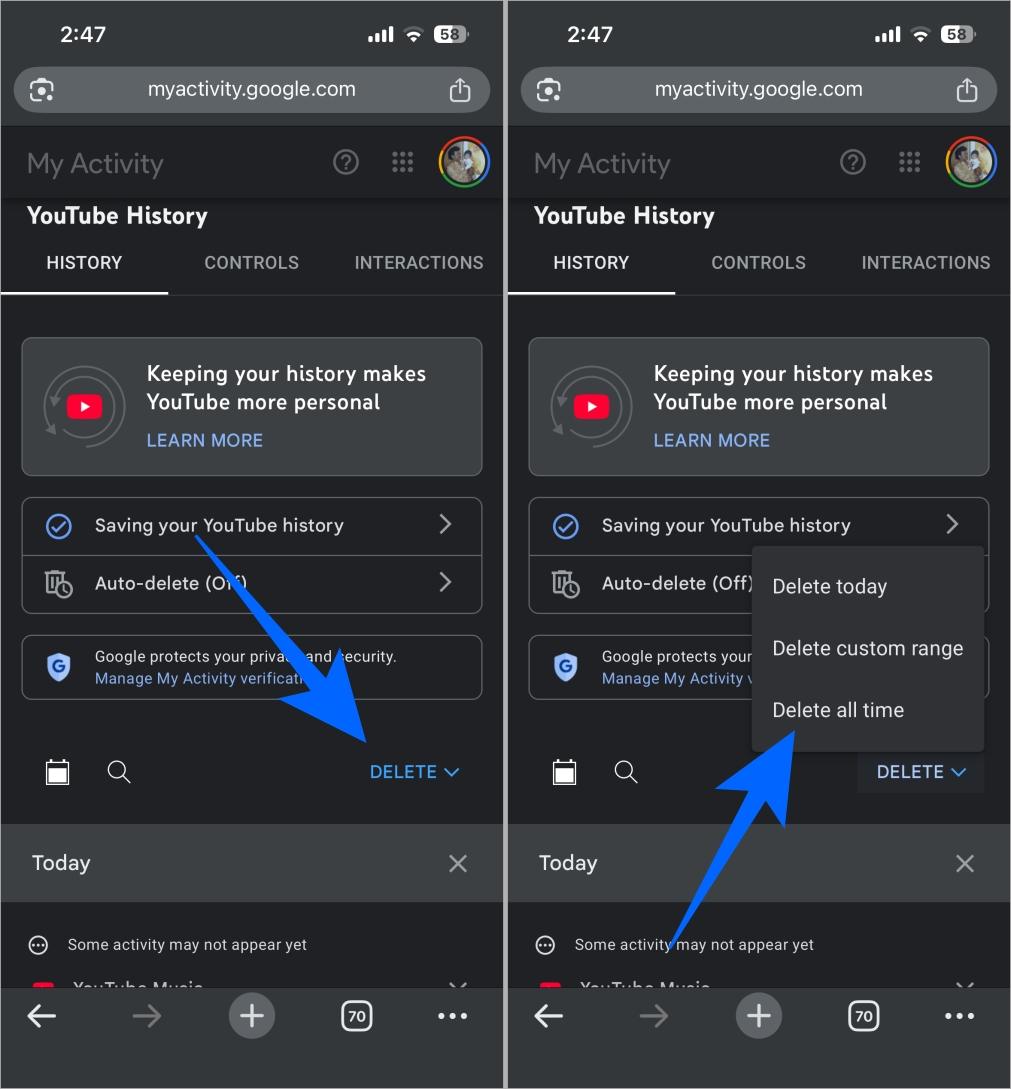
It will reset recommendations and remove records of what you’ve watched or searched for.
Related: How to Clear YouTube Search History
Remove Chrome Browser History
Chrome saves a record of every site you visit, every search, and sometimes even forms you fill out. This makes browsing easier, but it can reveal sensitive details if someone gains access to it.
- Open Chrome on your device (computer, Android, iPhone, or iPad).
- Tap or click the More (three dots) menu at the top right.
- Select Delete browsing data.
- Select how much history to delete (for example, the last 15 minutes, the last 24 hours, etc.). To delete everything, choose All time.
- Check the boxes for the data you want Chrome to delete, including browsing history, cookies, cached files, and more.
- Deselect anything you don’t want to remove.
- Confirm by tapping or clicking Delete data (or Confirm, then Delete Browsing Data on iPhone/iPad).

This removes websites visited, cached files, cookies, and saved browsing data from Chrome.
Tip: To delete just one or a couple of websites you visited, open the three-dot menu → History → select the site(s) → delete.
Clear Google Maps Timeline
Maps Timeline stores every place you’ve been, using GPS and location services.
- On your Android phone, iPhone, or iPad, open the Google Maps app.
- Tap your profile picture or initial and select Your timeline.
- At the top right, tap Backup.
- In the Your backups section, choose the device you want to manage.
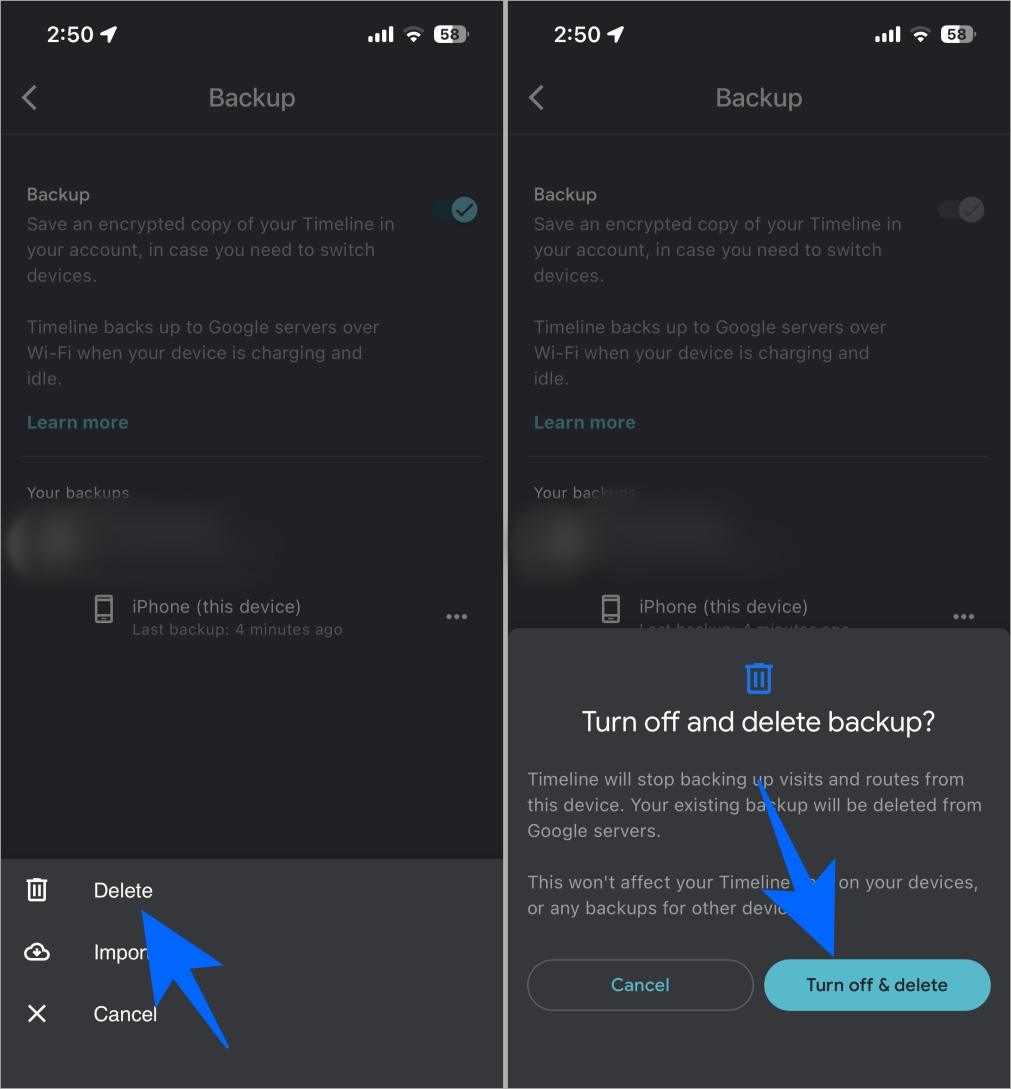
- Tap More (three dots).
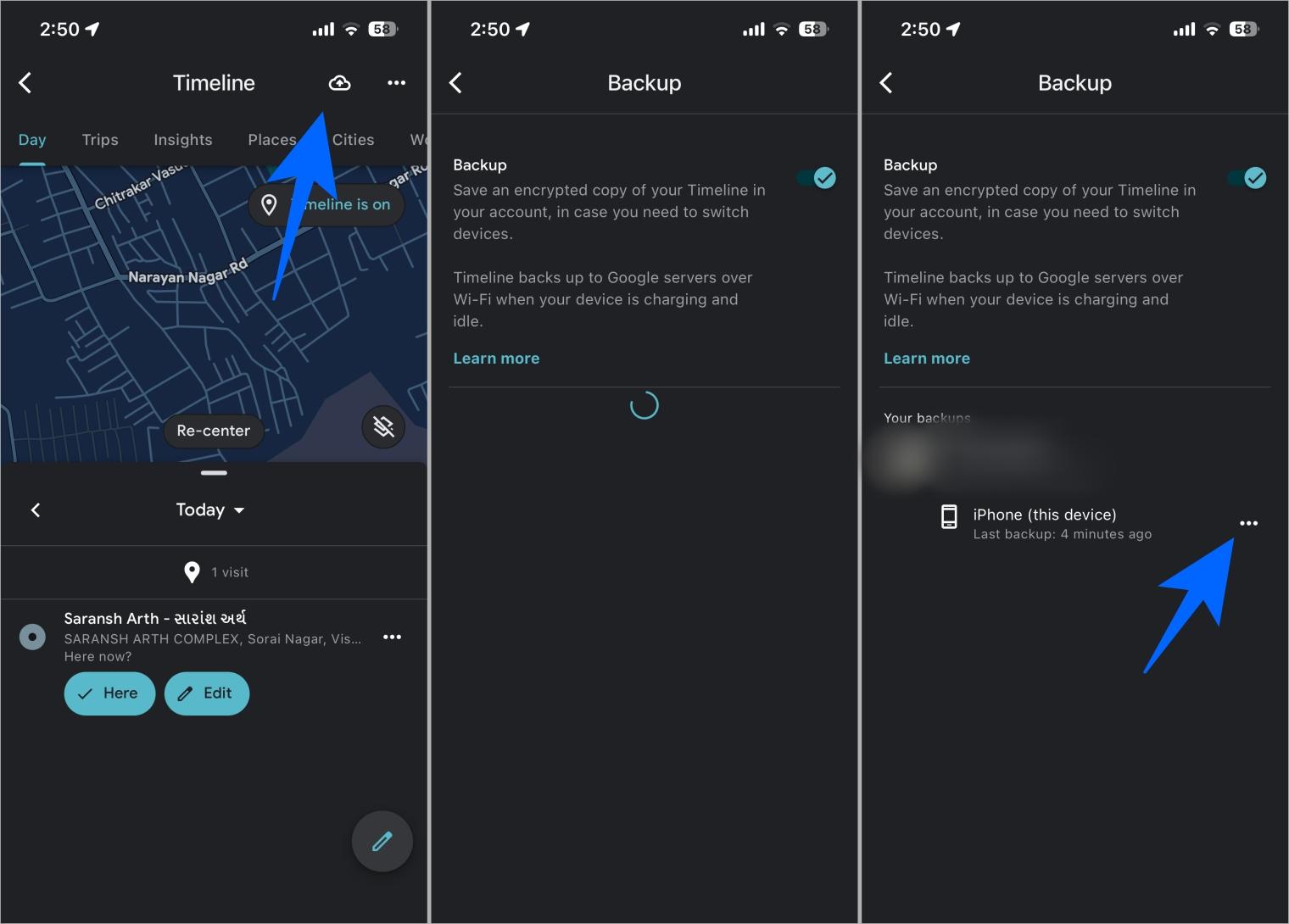
- Tap Delete → Select Turn off & delete to confirm.
Google Play Search History
Google Play history can show your app interests or reveal apps you’d prefer to keep private.
- Open the Google Play Store app on your Android device.
- At the top right, tap your profile icon.
- Go to Settings → General → Account and device preferences.
- Scroll down and tap Clear device search history.
Delete Gemini Activity
Gemini, Google’s AI assistant, logs your chats and interactions. These entries help improve answers, but they also contain personal context you may not want stored.
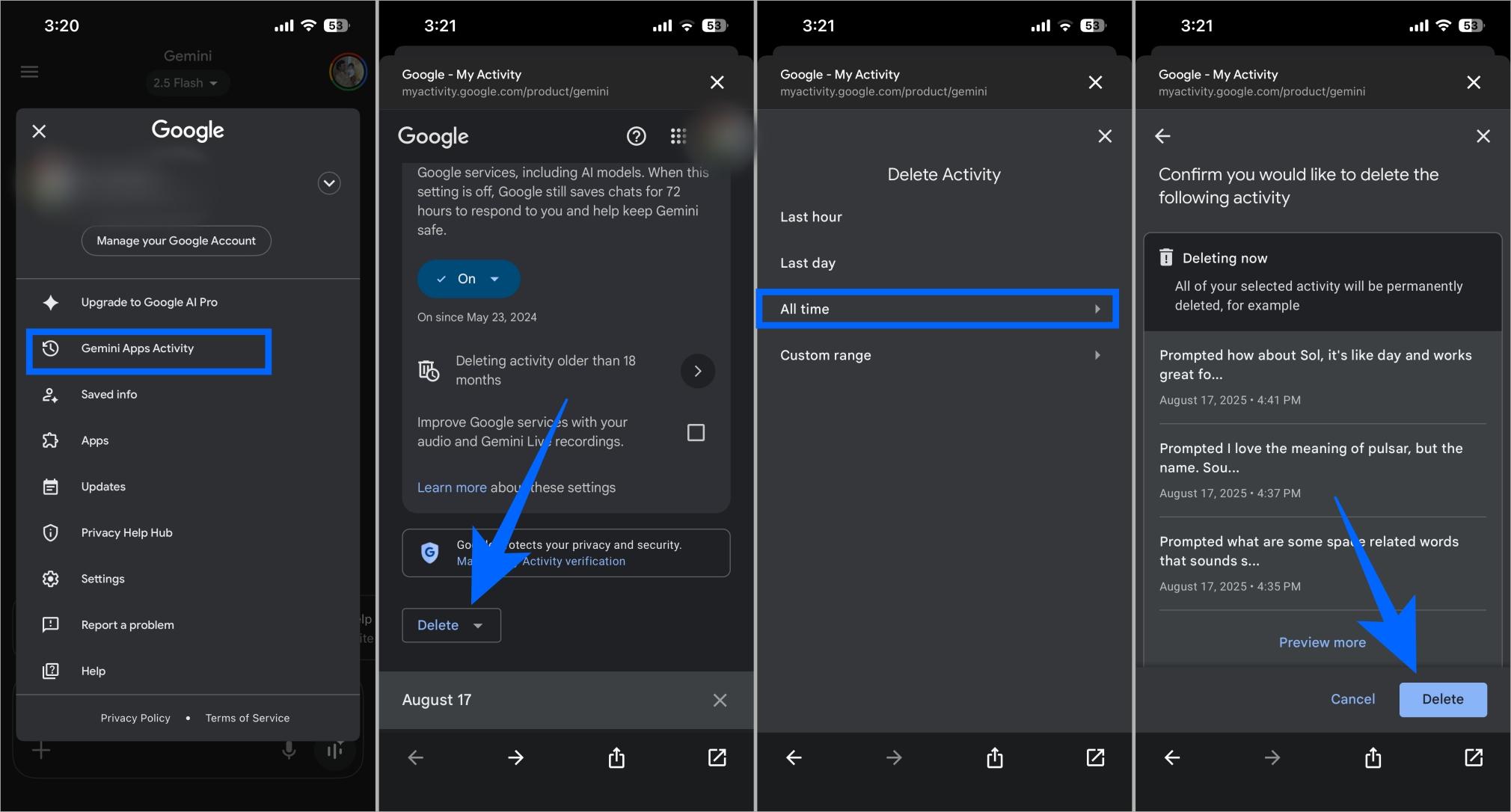
- Open the Gemini app on Android or iPhone, or go to gemini.google.com on your computer.
- Sign in with your Google Account if needed.
- Tap or click your profile picture or initial.
- Select Gemini Apps Activity (on computer: go to Settings & help → Activity).
- Choose Delete and then what you want to delete: All time, Last hour, Last day, Custom range, a specific day, or a specific activity item.
- Confirm by selecting Delete.
How to Turn off Google Activity Tracking
If you want to stop Google from saving activity going further, you will need to turn tracking off manually. This includes searches, YouTube, Maps, Gemini, and other services linked to your Google Account. Keep in mind that turning this off may limit personalization, like fewer tailored recommendations or ads.
- Go to Google Activity page.
- Choose the history type you want to disable (Web & App Activity, Location History, YouTube History, Gemini Activity).
- Tap or click Turn off.
- (Optional) Select Turn off and delete activity if you also want to remove past data tied to that service.
- Confirm your choice.
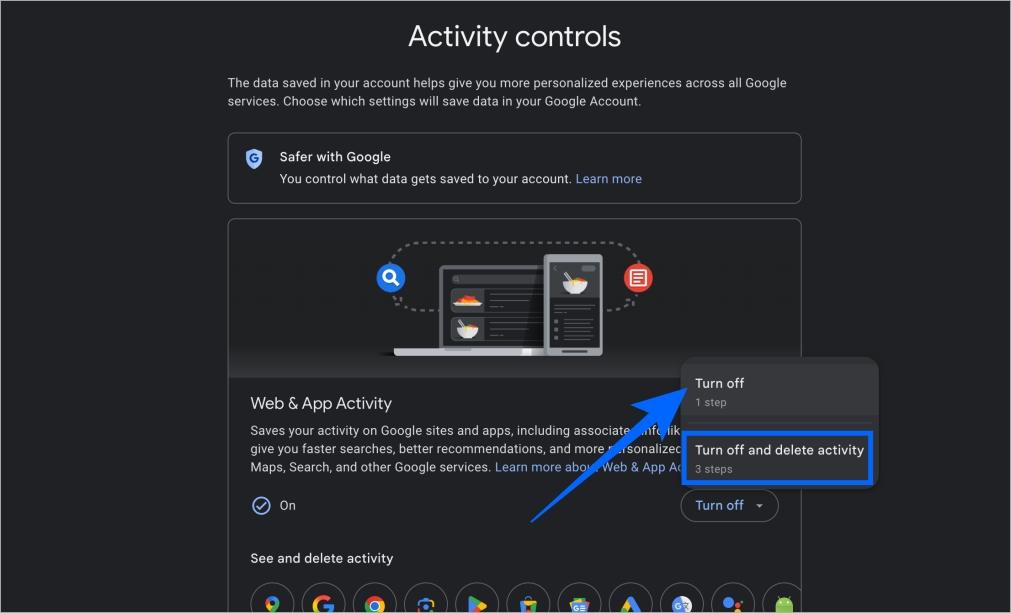
You can also find more activities here. Disable everything that you do not want Google to keep track of.
From now on, Google won’t record new activity for that service. You can repeat the process for each type of history you want disabled. If you change your mind later, you can re-enable tracking with the same steps.
How to Auto-Delete for Google Activity
Auto-delete is useful if you want Google to keep only recent activity and remove older data automatically.
- Go to Google Activity page.
- Choose the activity type (Search, YouTube, Location, Gemini, etc.).
- Tap or click Auto-delete.
- Pick how long Google should keep your history: 3 months, 18 months, or 36 months.
- Confirm your choice.
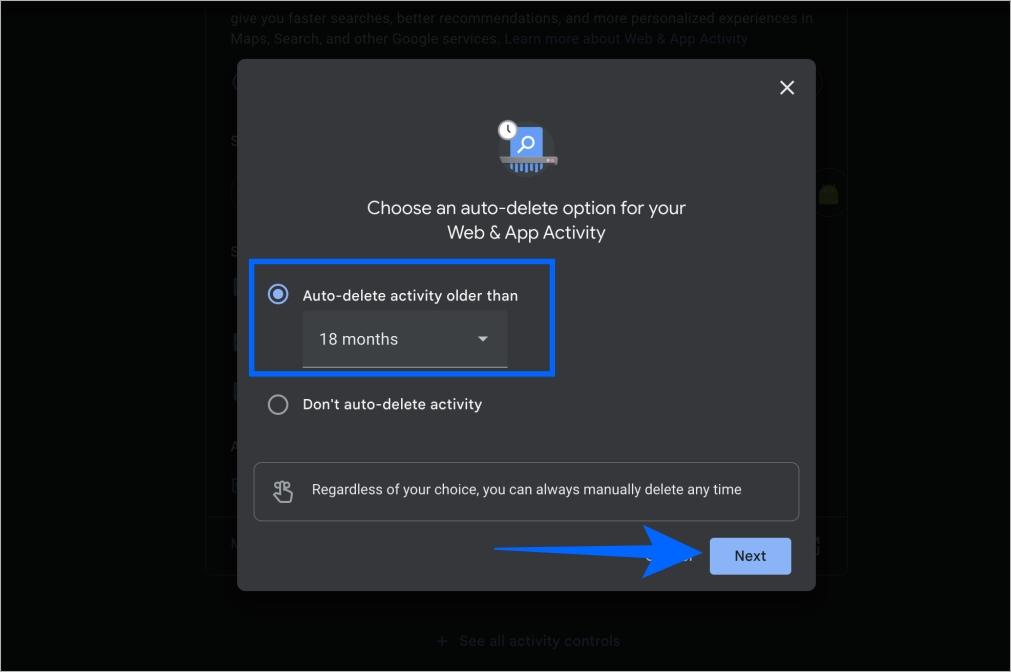
Once set, Google will regularly remove older entries. For example, if you choose 3 months, everything older than that will be erased automatically.
Some information, like IP-based location data, may still expire sooner (often after 30 days). This ensures your activity log stays short and manageable while giving you the privacy of not having years of data saved.
Final Thoughts
Your Google activity history helps make services more convenient and personalized, but it’s still your data, and you should decide how long it’s kept. Regularly reviewing and deleting your activity can help protect your privacy and keep your account information under control.
And if you found this guide helpful, you might also want to explore other ways to improve your online privacy like using Incognito mode, managing app permissions, or adjusting personalization settings such as turning off AI Overview in Google Search.
No. It only removes history. Your account stays active.
Mostly. Google removes data from your account and systems, though some info may be kept for legal or business needs.
If you’re signed in on multiple devices, synced activity may take time to update, or some activity outside ‘My Activity’ (like Maps Timeline) may need separate deletion.
No, ads don’t disappear. But they’ll be less personalized without your past activity.
No. Once deleted, you can’t restore it. That’s why it’s good to double-check before confirming.