Knowing how to clear YouTube search history is useful for more than tidiness. Your search history is a running record of everything you have looked up, from a recipe you forgot to save to a late-night search you would rather nobody on a shared device stumbled across. Clearing it protects your privacy and resets some of what YouTube uses to build your recommendations.
Before you start, there is one thing worth understanding, because it catches almost everyone out.
Read This First: The Delete Button That Takes Both
YouTube stores your search history and watch history in the same activity log, and the bulk delete control does not separate them.
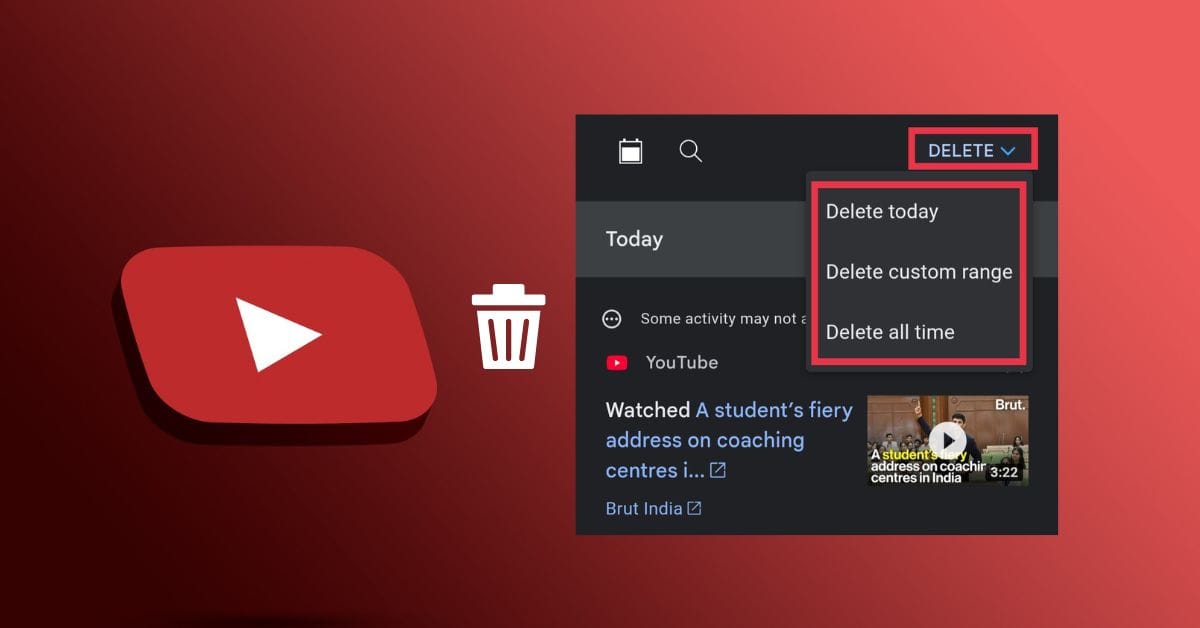
Google states this plainly in its own documentation: using the DELETE button to remove your search history also deletes your watch history from the selected time frame. The reverse is equally true. Bulk-deleting watch history wipes your searches from that same period.
This applies whether you pick a single day, a custom range, or all time.
The safe alternative: deleting an individual search using the X icon next to it removes only that search. Your watch history stays intact.
So the rule is simple. Use the X on individual entries when you want surgical removal. Use the bulk DELETE button only when you genuinely want both histories gone.
Which Method Should You Use?
Pick your goal first, then use the matching method below.
| What you want | Method to use |
|---|---|
| Remove one specific search | X icon beside that entry |
| Clear all searches and accept losing watch history | Bulk DELETE button |
| Stop YouTube saving future searches | Pause in the Controls tab |
| Set history to clear itself over time | Auto-delete in the Controls tab |
| Browse without saving anything temporarily | Incognito mode |
Why You Might Want to Clear It
Your search history does real work behind the scenes, so it is worth knowing what you gain and lose.
- Privacy on shared devices. If family, friends, or coworkers use the same phone, tablet, or computer, your searches sit there for anyone to scroll through.
- Resetting recommendations. YouTube shapes your feed around what you search and watch. Spend a week on one niche topic and your homepage fills with it. Clearing search entries removes their influence on suggestions.
- Cleaning up clutter. One-off searches you will never repeat still show up as suggestions in the search box. Removing them makes the box more useful.
Worth setting expectations: deleted searches stop influencing your feed immediately and disappear from search suggestions. But YouTube’s recommendation system leans heavily on watch history too, so clearing searches alone is a partial reset rather than a fresh start.
How to Clear YouTube Search History on Android and iPhone
The steps are effectively identical on both platforms.
- Open the YouTube app and make sure you are signed in to the account you want to manage.
- Tap your profile picture.

- Go to Settings → Manage all history.
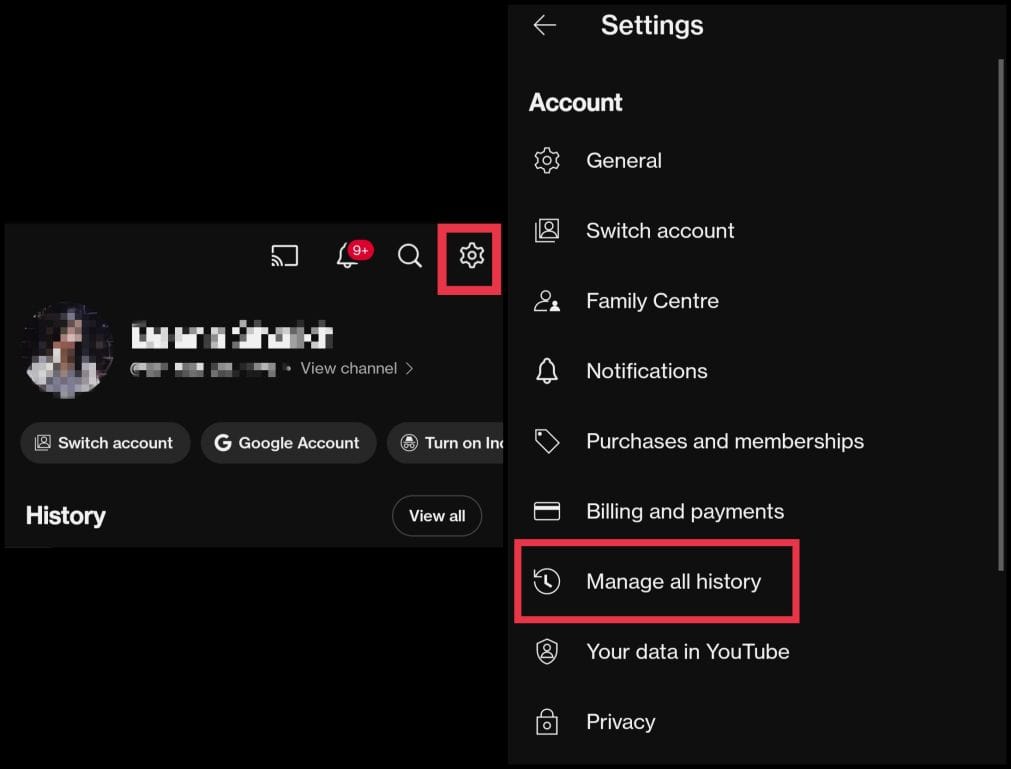
- You can now manage your searches in different ways:
- Delete single searches: Tap the “X” or close icon next to a search to remove it.
- Delete multiple searches: Tap DELETE to clear more than one search at once.
- Search for entries: Use the search bar to find specific terms in your history.
- Delete by date: Tap the Calendar option to clear searches made within a chosen date range.
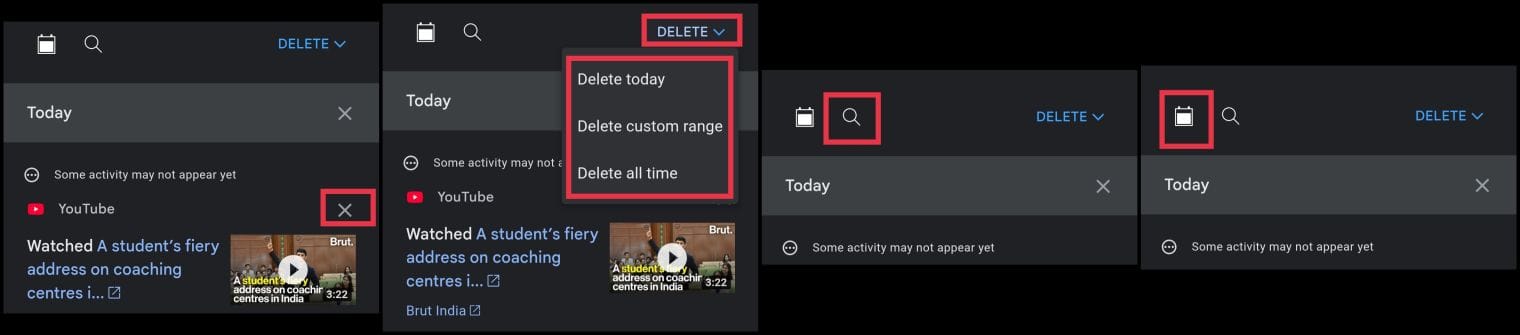
Remember that anything you remove through the DELETE button takes your watch history from that same window with it.
Delete Individual Search Items (Mobile)
There is a quicker route for one-off removals that skips settings entirely.
- Tap the Search bar in the YouTube app.
- Scroll through the drop-down list of recent searches.
- Long-press the search you want to remove.
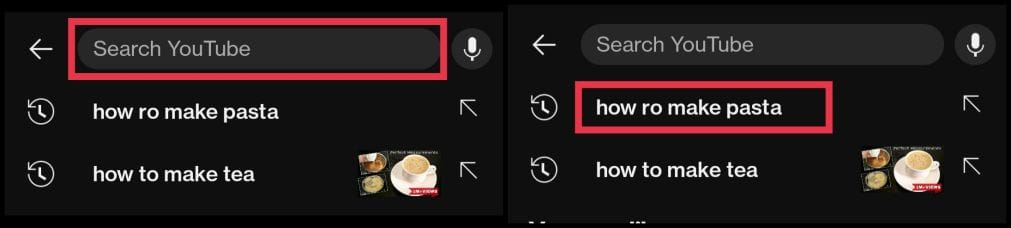
- Tap Remove when prompted.

Auto-Delete YouTube Search History (Mobile)
If you want history that clears itself on a schedule rather than doing it manually, YouTube supports auto-delete:
- Open the YouTube app and sign in.
- Tap your profile picture in the bottom right corner.
- Tap the Settings icon at the top.
- Select Manage all history.
- Go to the Controls tab.
- Tap Choose an auto-delete option.
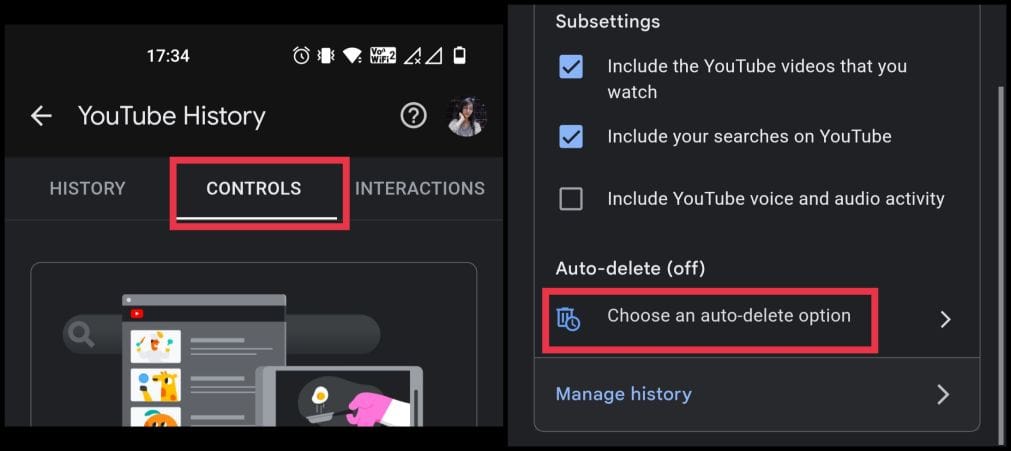
- Pick how often you want history removed: every 3 months, 18 months, or 36 months.
- If you don’t want auto-delete, choose Don’t auto-delete activity.
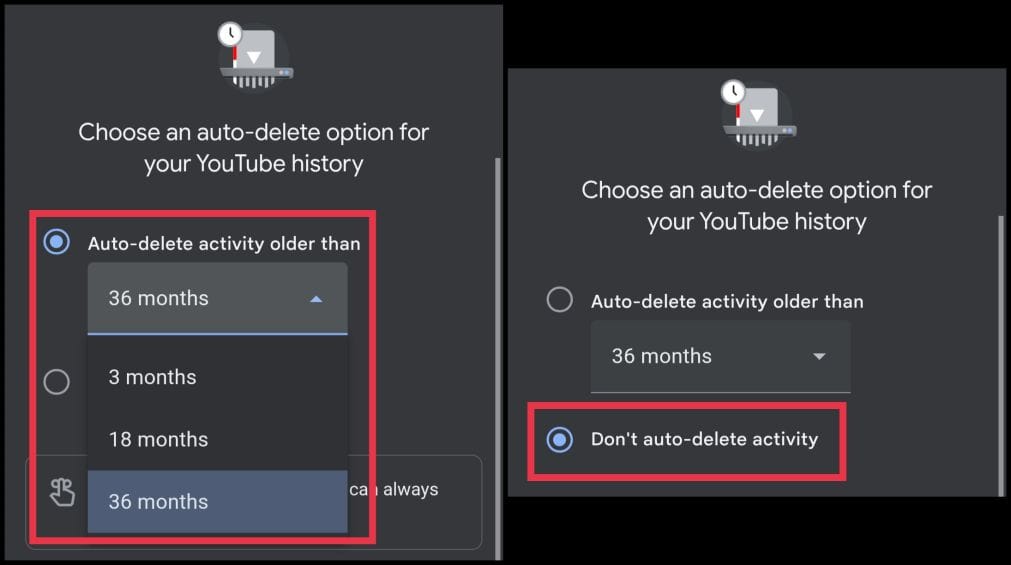
Once set, YouTube removes anything older than your chosen window automatically, so you get rolling privacy without having to remember to clear it yourself. The 3-month option is the most aggressive of the built-in choices.
Pause YouTube Search History (Mobile)
You can also pause your search history on YouTube if you are tired of deleting it from time to time. Here is how you can do it:
- Open the YouTube app and sign in.
- Tap your profile picture.
- Go to Settings and select Manage all history.
- Switch to the Controls tab.
- Turn off the option “Include your searches on YouTube”.
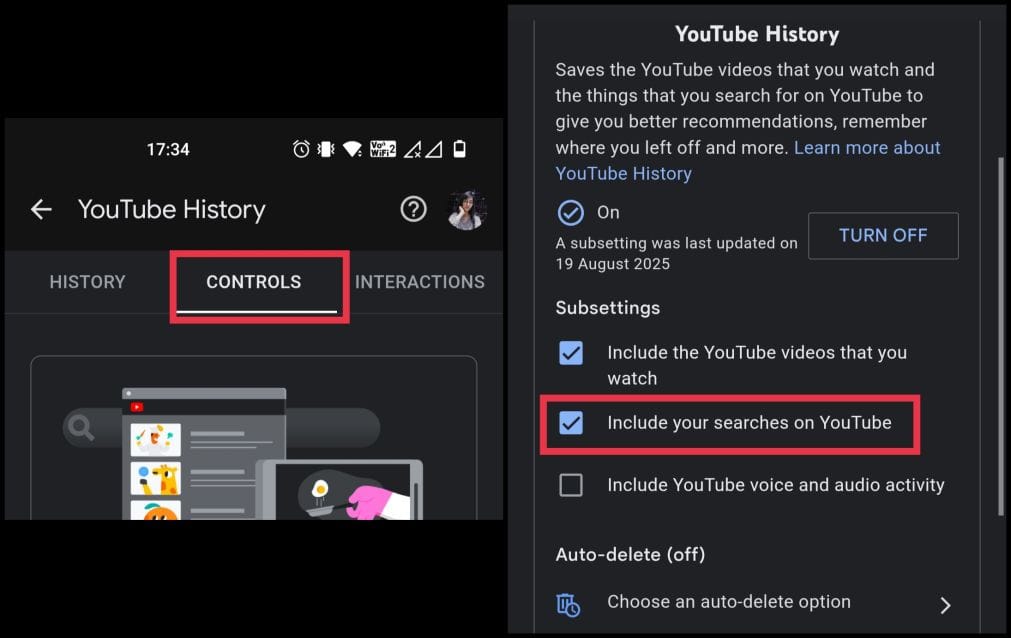
This will stop YouTube from saving new searches until you turn it back on.
Related: How to Delete All Your Google Activity History
How to Clear YouTube Search History on Desktop
If you prefer managing your account from a PC or Mac, here is how to clear your YouTube search history through the browser.
- Open the My Activity page.
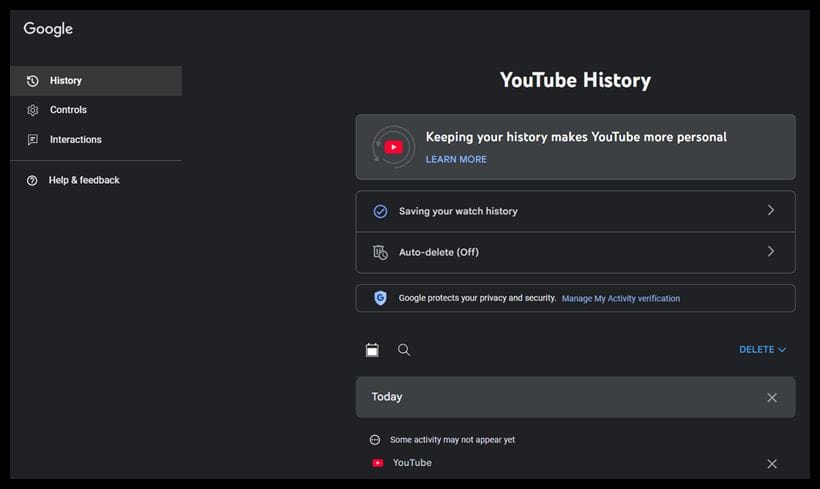
- Choose how you want to manage your searches:
- Remove single searches: Click the “X” icon next to an entry.
- Delete multiple searches: Use the DELETE option to clear more than one at once.
- Find specific searches: Use the Search tool to locate particular entries.
- Delete by date: Select the Calendar option to remove history from a chosen time frame.
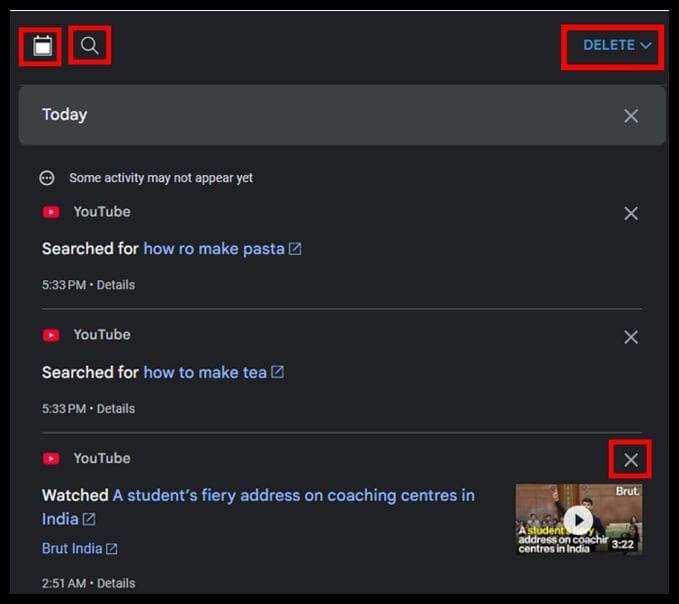
Important: If you delete searches by date range or use bulk delete, your watch history from that same period will also be removed.
Delete Individual Searches (Desktop)
Here are the steps you can follow to delete individual search items in YouTube from your desktop.
- Click the Search bar on YouTube.
- Hover over the search term you want to remove.
- Click the X on the right side of the term.
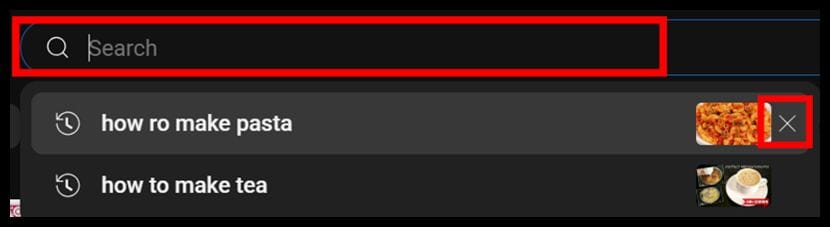
Best For: This method is great when you only want to erase one-off or sensitive searches without losing the rest of your history.
Auto-Delete YouTube History on Desktop
YouTube gives you the option to automatically clear your search history at regular intervals. Here is how you can set it up:
- Go to the YouTube My Activity page and make sure you are signed in with the correct account.
- In the left sidebar, select Controls.
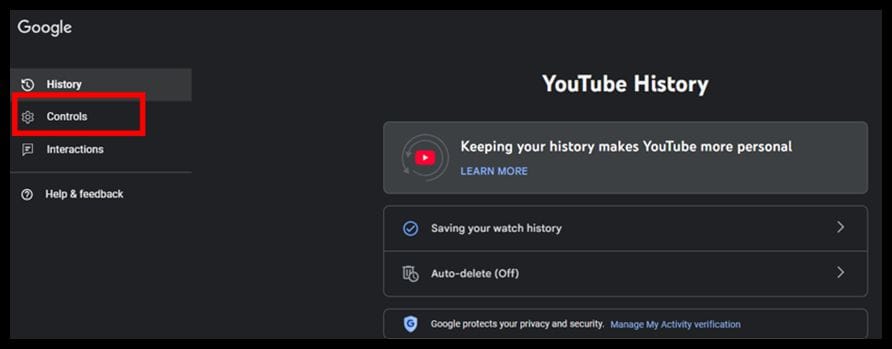
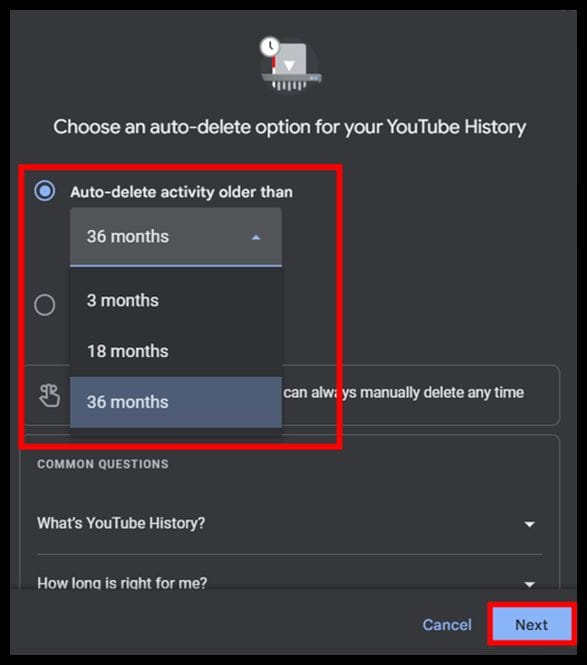
- Click on Choose an auto-delete option.
- Pick how often you want your history removed: every 3 months, 18 months, or 36 months.
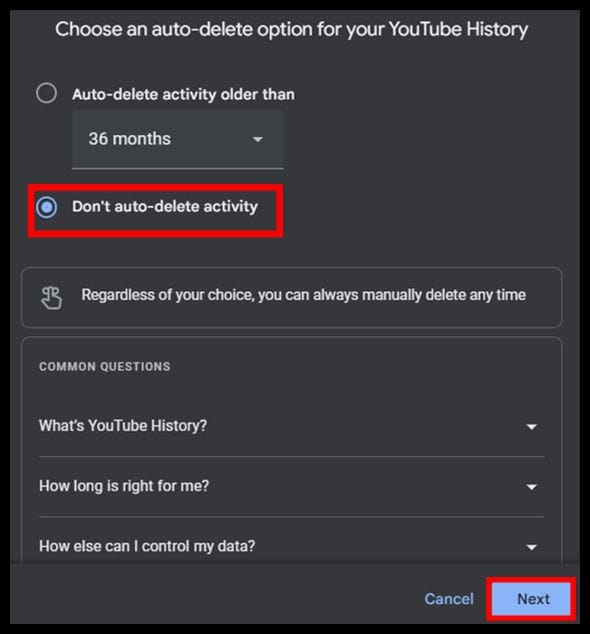
- If you would rather keep everything, select Don’t auto-delete activity.
- Click Next and then confirm your choice.
Pause YouTube Search History on Desktop
- Go to the My Activity page in your Google account
- Open the Controls option
- Find the option “Include your searches on YouTube” and turn it off.
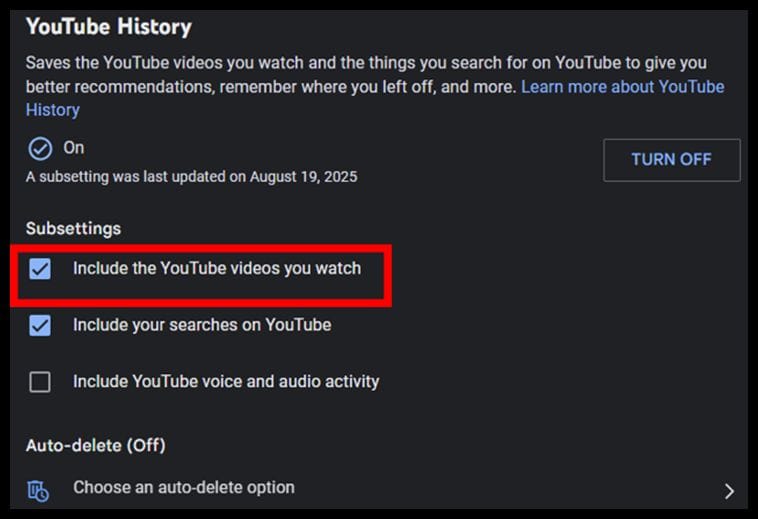
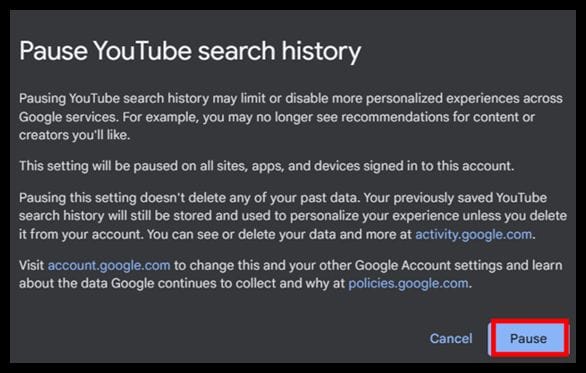
This will stop YouTube from saving any new searches until you enable it again.
Extra Ways to Protect Your YouTube Privacy
Clearing your search history is a good start, but you can go further if you want more control over your privacy. YouTube has built-in tools that limit tracking and give you more control over recommendations. Here are a few ways to fine-tune your settings.
1. Use Incognito Mode
The YouTube app has an Incognito mode, similar to private browsing in web browsers. When you turn it on, YouTube does not save your search or watch history for that session. This is helpful if you want to look up something without leaving a trace or changing your recommendations. Once you exit Incognito, tracking starts again, so this works best for short-term privacy.
To turn on Incognito mode on your phone:
- Open the YouTube app and tap your profile picture.
- Select Turn on Incognito.
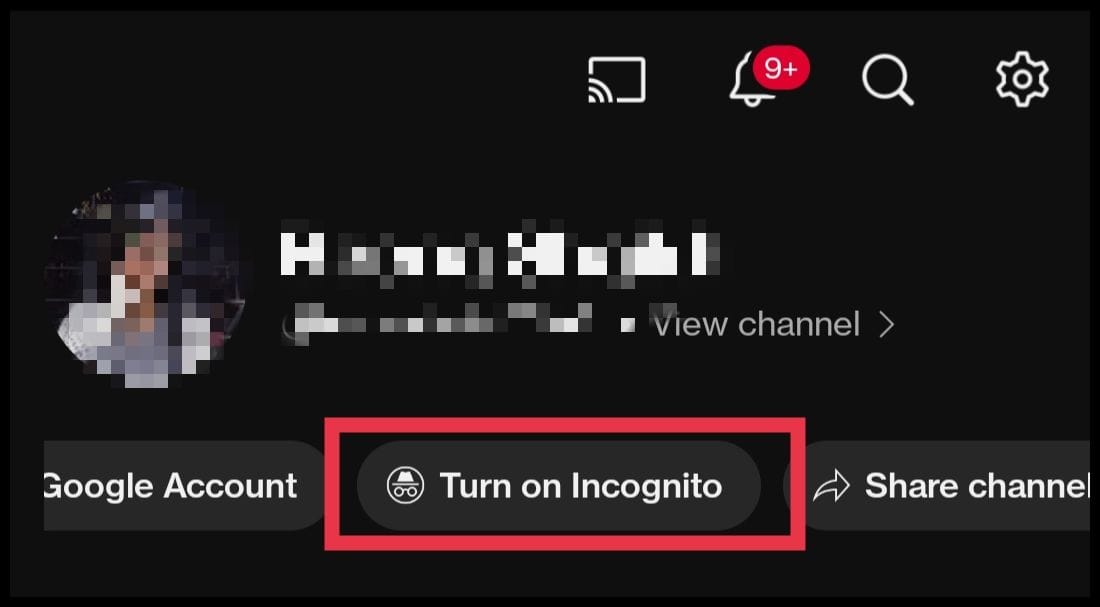
On a desktop, you need to open an Incognito or private tab in your browser and use YouTube from there.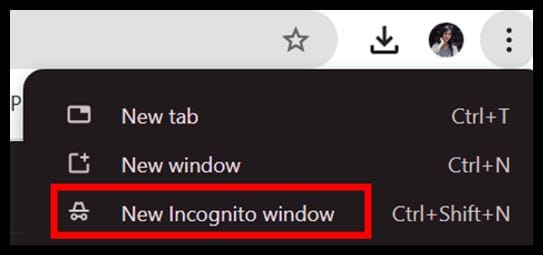
2. Pause Search History
If you want a longer break from tracking, you can pause your search history. When this is on, YouTube will stop saving new searches until you switch it back. This is useful when you want to explore topics without changing your future recommendations.
3. Sign Out on Shared Devices
If you use a device that others also access, signing out of your YouTube account is a simple way to protect your privacy. This stops your activity from being linked to your account and prevents others from viewing your searches.
4. Clear Watch History Too
For a complete reset, clear your watch history along with your search history. This removes videos you have already watched from your account’s memory and gives your recommendations a fresh start. You can also set both watch and search history to auto-delete for ongoing privacy.
Know the Difference Between YouTube and Google Search History
Deleting your YouTube search history will not delete your Google search history. They are stored separately. If you want to remove Google searches, you need to clear them through Google’s activity settings.
Take Control of Your YouTube Privacy
Your YouTube search history shapes your recommendations and reveals a lot about your interests. Whether you want privacy, a refreshed feed, or a cleaner account, clearing your search history only takes a few moments. By using the steps above, you can take control of your data and browse with peace of mind. For even more privacy, use our privacy tips.
Not always. If you delete by date range or select “all time,” YouTube will remove both your search and watch history from that period. If you only delete individual search terms, your watch history will stay the same.
No, YouTube search history and Google search history are stored separately. Deleting one will not remove the other.
Yes, you can pause search history in your settings. This way, YouTube will not record new searches until you turn the option back on.
Yes, there is a built-in control feature you can use. All you need to do is follow the steps to enable the auto-delete option. We have shared it above in the blog.
No, Incognito mode only prevents new searches and watch activity from being saved while it is active. Anything that you search for or watch before turning it on will still appear in your history.