If you’ve ever opened YouTube just to watch one video and somehow ended up 45 minutes deep into Shorts you never planned to watch, you’re not alone. I’ve been there more times than I’d like to admit. The short-form feed is built to keep you hooked, and until recently, there was no clean way to step out of it.
That’s finally changed. YouTube has quietly rolled out a feature that lets you set your daily Shorts limit to zero minutes. Once I tried it, the difference was immediate. No endless scrolling, no accidental taps pulling me into the feed. It’s not a workaround or a hack. It’s a native setting that most people haven’t discovered yet.
Here’s exactly how to turn off YouTube Shorts and what actually happens after you do.
Why YouTube Is Finally Giving This Control
This feature didn’t just appear randomly. It originally showed up as part of YouTube’s parental controls back in early 2025. The idea was simple: if kids are using YouTube for learning or focused content, parents should be able to block Shorts entirely.
But the use case quickly went beyond that.
A lot of people, myself included, weren’t trying to block content. We just wanted control over how easily we fall into it. Shorts are great in small doses, but the problem is that they rarely stay small.
That’s likely why YouTube expanded the feature to regular users. According to The Verge, the limit now goes down to zero minutes. And once you set it there, it effectively removes Shorts from your daily experience.
How to Disable YouTube Shorts on Android and iOS
The steps are simple, but the setting is slightly hidden. Once you know where it is, it takes less than a minute.
- Open the YouTube app on your phone.
- Tap your profile picture in the bottom-right corner.
- Then go to Settings.
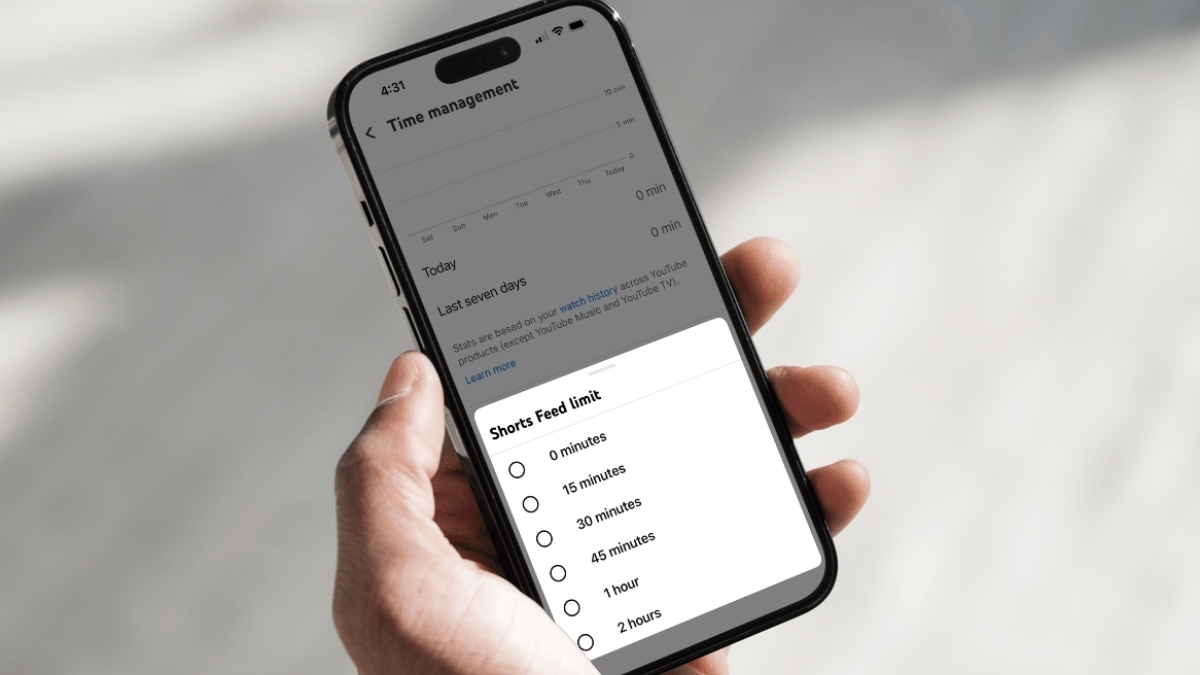
- Scroll down and tap Time Management.
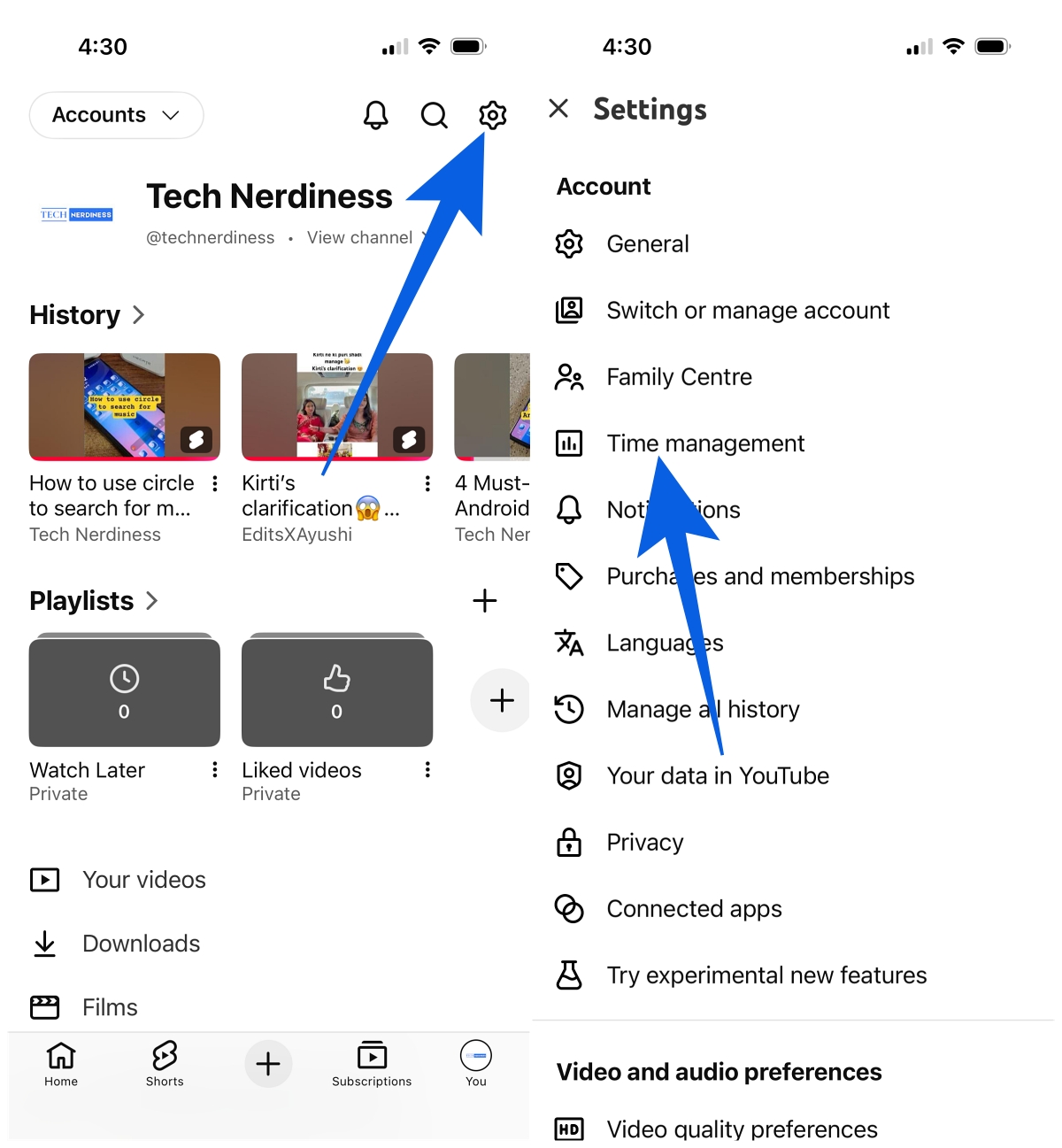
- Find the Shorts feed limit option and turn it on.
- Now set the limit to 0 minutes.
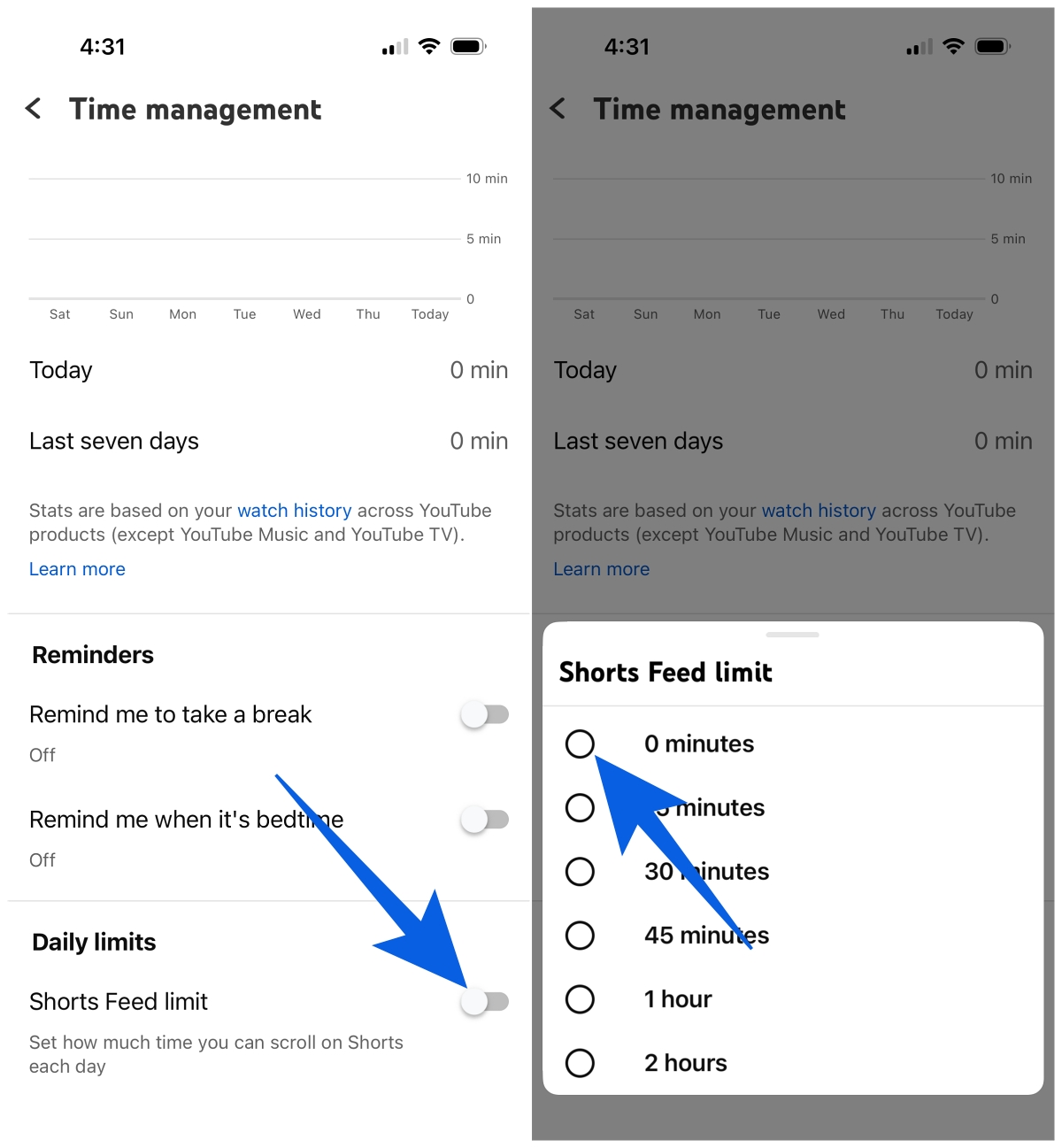
This is the key step.
Once you do this, YouTube behaves as if you’ve already used up your Shorts time for the day. And since the limit resets daily to zero again, Shorts stay effectively disabled unless you change it manually.
What Actually Changes After You Disable Shorts
This is where it gets interesting.
Right after setting the limit to zero, the Shorts tab stops functioning the way it used to. Instead of loading videos, it shows a message saying you’ve reached your limit.
But the bigger change is in your overall experience.
- The Home feed feels less cluttered.
- You don’t get pulled into endless loops accidentally.
- You open YouTube with intent and leave with it.
In my case, I noticed I was spending less time inside the app without even trying to reduce it. That’s what stood out the most. It didn’t feel forced. It just removed the trigger.
If you’re trying to clean up your YouTube experience even further, it also helps to clear your YouTube search history, so the recommendations don’t keep pulling you back into similar content.
That said, this isn’t a permanent system-level block. It’s technically a timer set to zero. If you ever want Shorts back, you can just change the limit again.
Final Take
This is one of those features that looks small on paper but feels significant once you use it.
You don’t realize how often you fall into Shorts until that option is gone. And once it is, YouTube starts to feel more like a tool again instead of a distraction loop.
If you’ve been trying to cut down on mindless scrolling without uninstalling the app, this is probably the simplest fix available right now.
In most cases, yes. After setting the limit to zero, Shorts become far less visible across the app, including the Home feed. The behavior can vary slightly depending on your app version.
Not permanently at the system level, but setting the limit to zero minutes effectively disables it every day unless you change the setting yourself.