I didn’t think much about WhatsApp security until I saw someone lose access to their account overnight. No warning, no obvious mistake. Just locked out.
That’s when I finally turned on two-step verification.
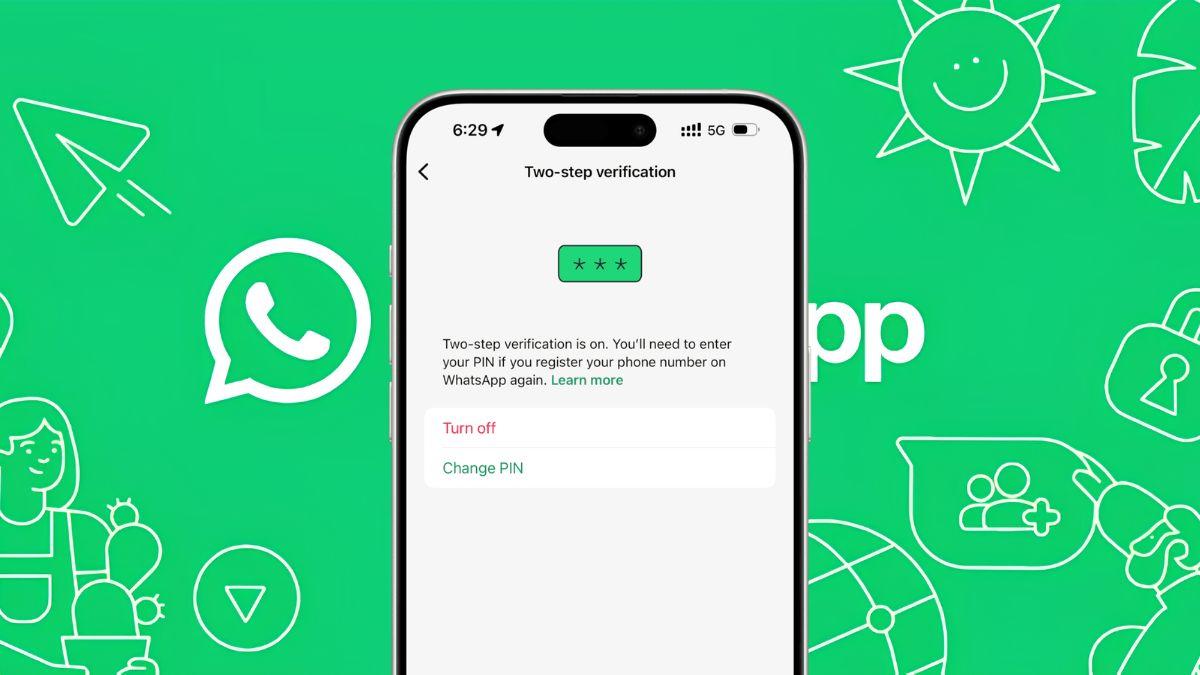
It took less than five minutes, and honestly, it’s one of those things you don’t realize you need until you set it up. WhatsApp calls it two-step verification, but it’s essentially two-factor authentication (2FA). It adds a simple 6-digit PIN on top of your SMS verification.
So even if someone manages to get your SIM or intercept a verification code, they still can’t access your account without that PIN. With SIM-swap attacks becoming more common, that extra layer matters more than most people think.
How to Enable Two-Step Verification on WhatsApp from Android
Here’s exactly how I set it up on Android:
- Open WhatsApp and tap the three-dot menu in the top-right corner.
- Go to Settings, then tap Account.
- Select Two-step verification and tap Enable.
- Create a 6-digit PIN you’ll remember (but not something obvious).
- Confirm the PIN.
- Add a recovery email address (I’d strongly recommend this).
- Tap Save.
Once it’s enabled, WhatsApp will occasionally ask for your PIN, and you’ll need it whenever you set up your account on a new device.
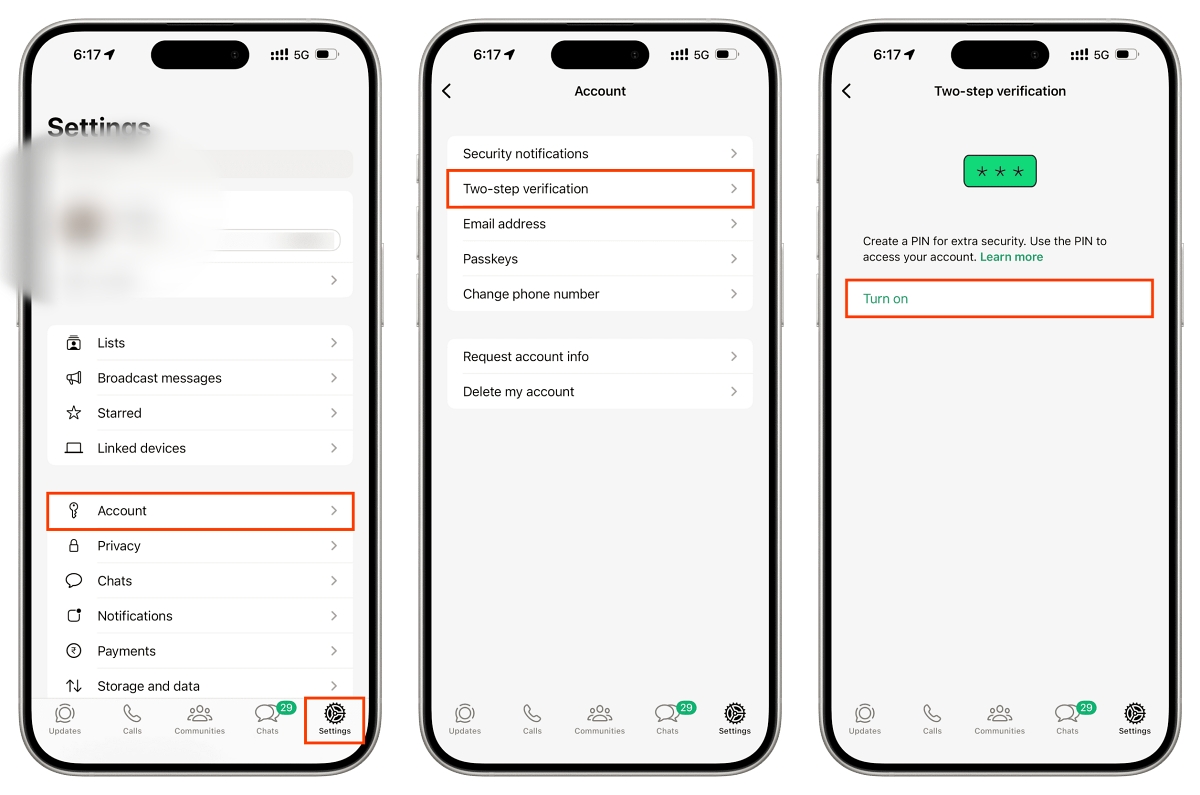
How to Enable Two-Step Verification on WhatsApp from iPhone/iPad
The steps on iPhone are almost identical:
- Open WhatsApp.
- Tap Settings (bottom-right corner).
- Go to Account → Two-step verification.
- Tap Turn On or Set up PIN.
- Enter your 6-digit PIN and confirm it.
- Add a recovery email (again, don’t skip this).
- Tap Done.
If you add an email, WhatsApp will send a quick verification code to confirm it. After that, you’re all set.
You can also enable WhatsApp Advanced Chat Privacy to better control who can interact with your messages and data.
What Changed After Turning On Two-Step Verification on WhatsApp
After enabling it, nothing feels different in daily use, and that’s actually the best part.
There’s no extra friction unless you’re re-registering your number or switching devices. But in the background, your account is significantly harder to break into.
It’s one of those quiet protections that only matters when something goes wrong.
Why You Should Turn It On (Even If You Think You’re Safe)
Before setting this up, I assumed the SMS verification was enough. It isn’t.
If someone gets control of your number, your WhatsApp account is basically exposed. Two-step verification changes that completely. Now they would need both your SMS code and your PIN, which is much harder to bypass.
And this doesn’t just apply to WhatsApp. Once you start enabling 2FA on one account, it makes you rethink everything else. Email, banking, social apps, they all need it.
If you added a recovery email, you can reset your PIN through it. If not, you’ll have to wait up to seven days before you can access your account again. That’s why adding an email is worth it.
Yes. It’s tied to your phone number, not your device. Once enabled, it works the same way whether you’re using Android, iPhone, or switching between them.
Check out more WhatsApp posts: