Even though we talk to the same people on WhatsApp regularly, there are times when we may need to save someone’s profile picture to double-check something. Unfortunately, WhatsApp doesn’t include a built-in option to download profile photos for privacy reasons. However, a few reliable methods still work depending on your device. Want to know how to save one in the best possible quality? Here are the best 5 methods ranked by reliability and image quality.
Note: WhatsApp profile photos are intended for viewing, not storing or redistributing. Always respect people’s privacy and get permission before saving or sharing someone’s image.
1. WhatsApp Web (Best Overall)
WhatsApp Web in a browser is your best bet for the quickest, highest-quality screenshots. The method will work for both Windows and Mac users.
Follow the steps below to do so:
- Open WhatsApp Web on any browser and log in.
- Open the chat of the person you wish to download the DP for.
- Click their name and then on their profile photo.

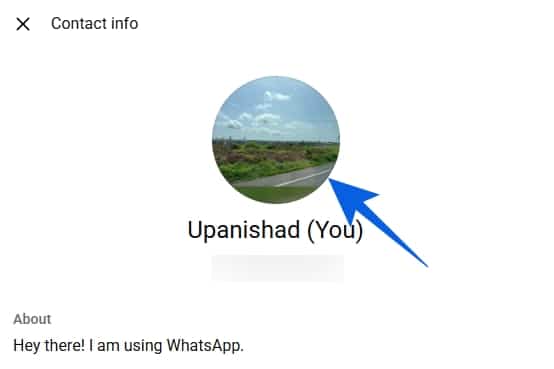
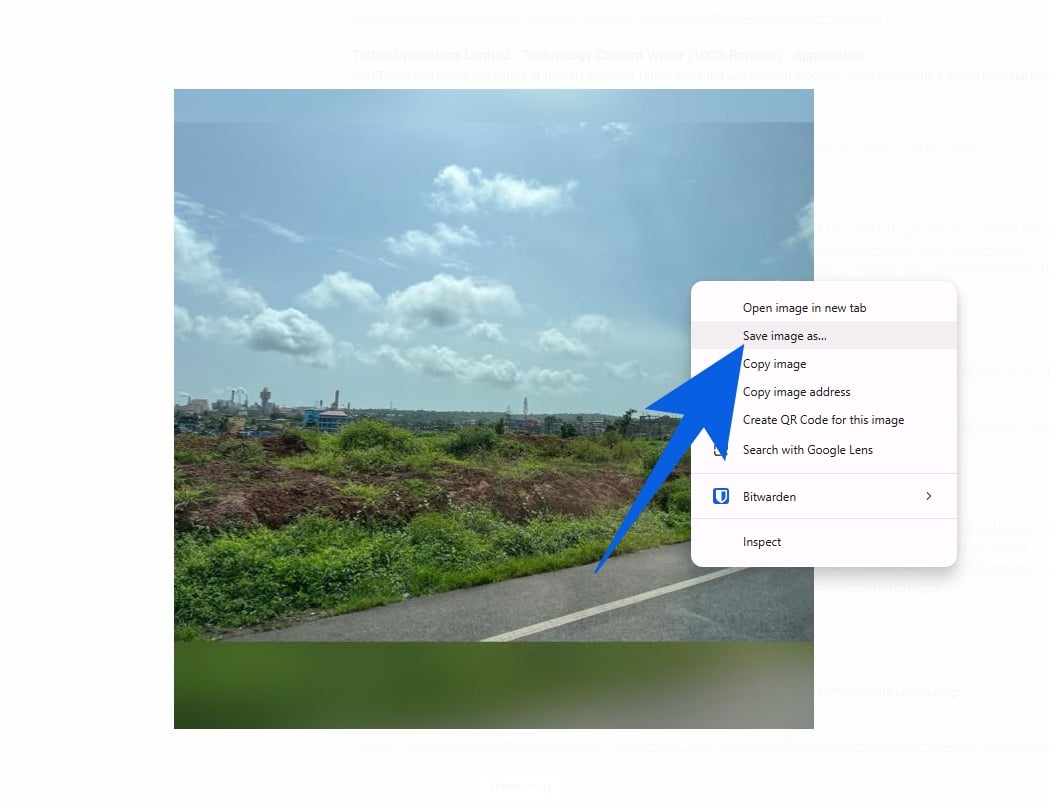
- Right-click and select Save Image as or directly take a full screenshot.
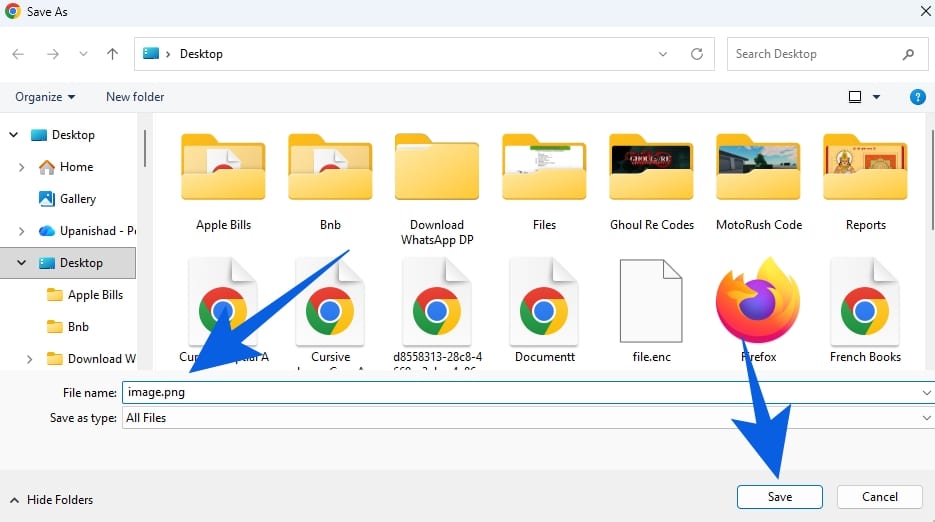
- In the file saving option, change the Save as Type to all files and save it as image.png or .jpg.
- You can also take a simple screenshot and save it, but that will compress the quality further.
You can use the above method to download as many WhatsApp profile pictures as you wish. This works for groups and personal chats alike.
Also Read: Can You See Who Viewed Your WhatsApp Profile Picture? What You Need to Know
2. WhatsApp Desktop App
This method is useful if you already use the WhatsApp Desktop app. This will work for Windows users; Mac users will need to take a screenshot of the DP. Follow the steps below to learn how:
- Download WhatsApp on Windows or macOS.
- Log in using your preferred method.
- Follow the steps in Method 1 to go to the person’s name and profile photo.
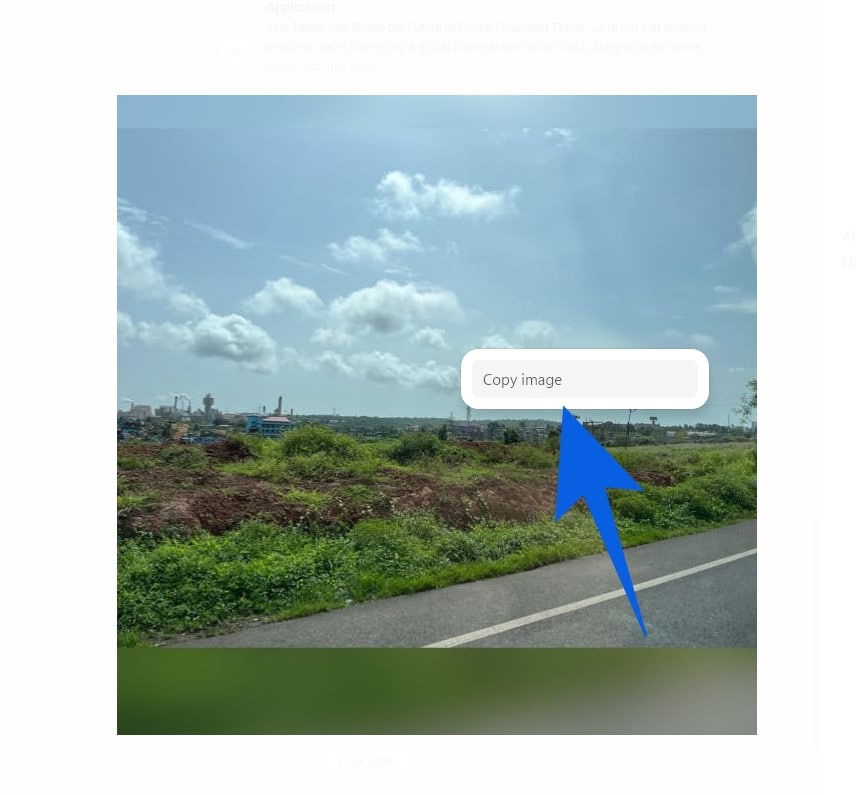
- Upon reaching the photo, right-click and click on Copy Image.
- Open any image software on your laptop. We are using Paint.
- Simply paste the image and save it in your desired format.
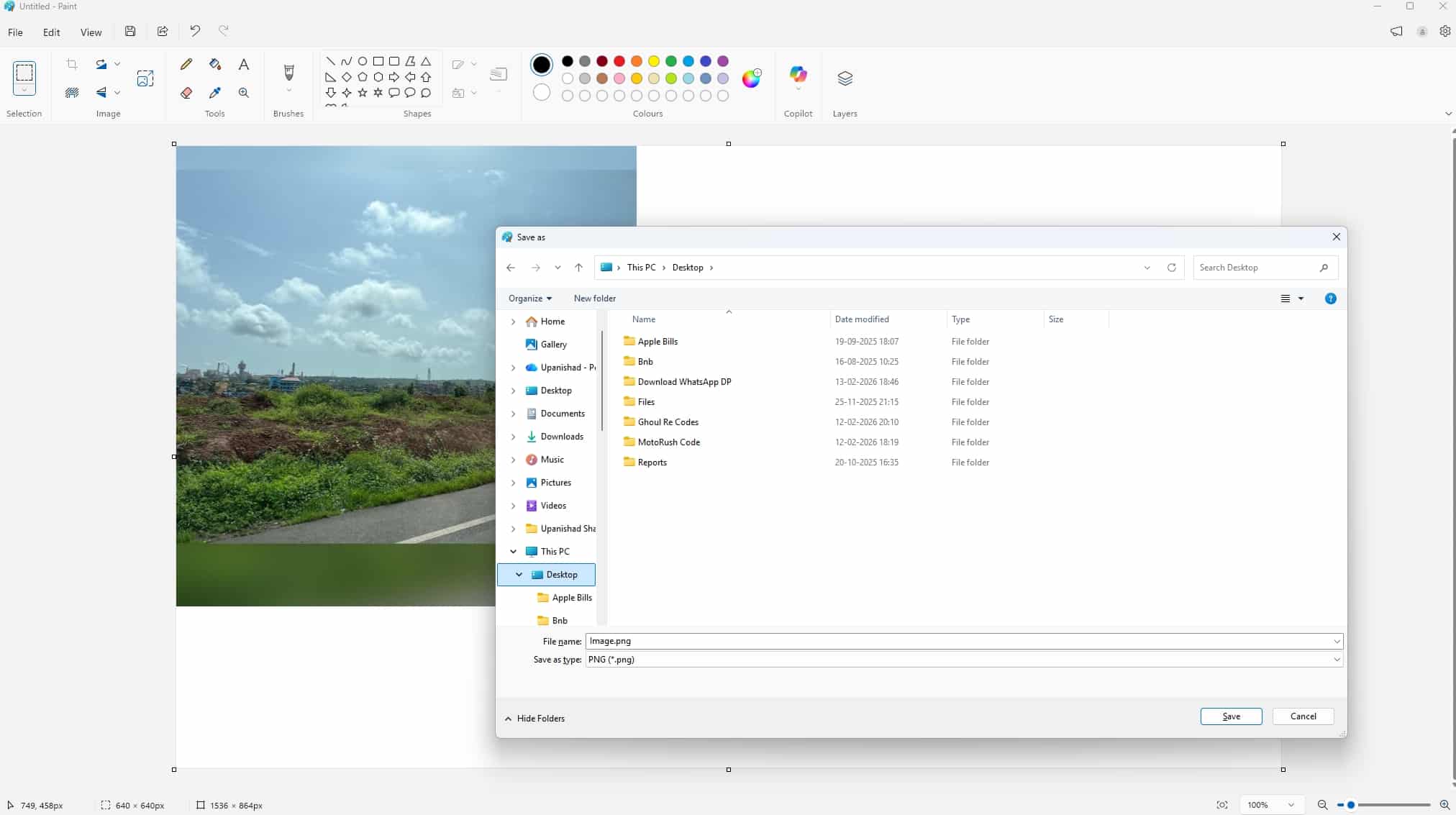
This method to download WhatsApp profile pictures will render the same quality as Method 1. As such, you can use either way to do so.
3. Screenshot Profile Preview (Android and iOS)
WhatsApp by default blocks full-screen screenshots, but you can use this method to at least download the small preview and zoom in on it. Here are the steps for it:
- Open WhatsApp on your Android or iOS.
- Open the chat of the contact whose profile photo you want.
- Take a screenshot of the chat to capture the profile photo preview.
- Now, just crop the image to only get the profile photo.
You can now zoom in on the image and try to get the best possible quality out of it. Sadly, since WhatsApp won’t let us take a photo of the full image, this is the closest you can get with screenshotting.
4. Take a Picture With Another Device
We are going back to the basics with this one. If all the above methods didn’t satisfy you, then it’s time to grab another phone. Grab another device and follow the steps below:
- Open WhatsApp on any platform. A bigger screen will be better, so stick to laptops.
- Open up the contact you wish to get the picture for.
- Simply snap a photo of the person’s DP, and you’re all done.
While not the best method out there, you can use it in a pinch.
5. Online Downloader Tools (Last Resort)
If you don’t want to go through all the hard work the above methods require, this one is for you. Several websites exist that download WhatsApp profile pictures for you. However, this method may work if the person has made their DP visible to everyone. Furthermore, you will need to provide the phone number of the person, which makes it riskier. As such, only use this method as a last resort.
Note: We are using Toolzin for our method here, but you can find other websites online. However, do be cautious of fake services out there
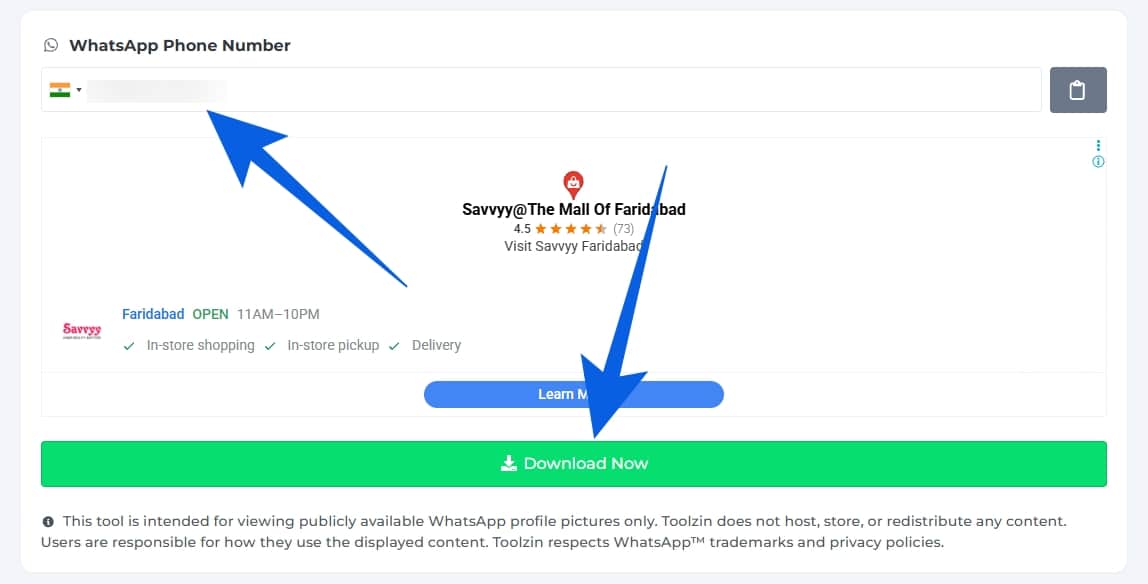
- Open up Toolzin on a web browser.
- Here, enter the mobile number of the person you wish to get the profile picture of.
- Click Download Now and let the app do its thing.
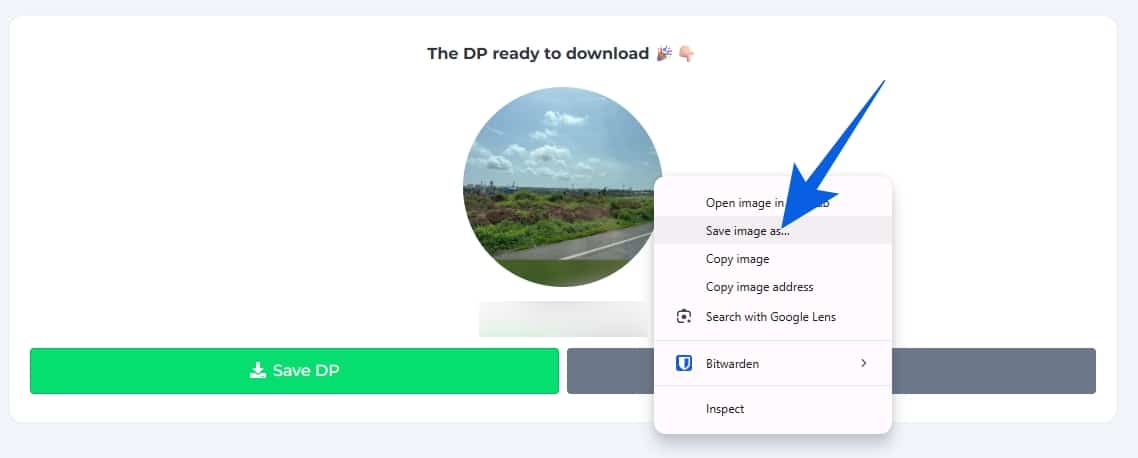
- Now, right-click and click Open image in a new tab.
- Save the image on your desktop, and you’re done.
This method may work if the profile photo is publicly visible, but we suggest you stick to our other methods to download profile pictures on WhatsApp.
Final Thoughts
We hope our in-depth guide helps you quickly download WhatsApp profile pictures in the best possible quality. If you still have any doubts, drop them in the comments below, and we will help you out!
Unfortunately, WhatsApp doesn’t provide a built-in option to download someone’s profile photo directly. However, you can save them using our workarounds above.
While it’s not illegal to download someone’s WhatsApp DP, using or sharing it without permission could land you in trouble and is borderline unethical. As such, use the above methods responsibly.
WhatsApp downloads images in .enc format by default due to file encryption. However, you can use our first method to learn how to save it in other formats.
The WhatsApp DP download tools only work when the person has set their profile photo to be visible to everyone.
No, WhatsApp doesn’t notify anyone when you download, screenshot, or save their profile picture.