Picture this: you’re working from a coffee shop, WhatsApp Web is open beside your spreadsheet, and you step away for two minutes to grab your order. Anyone walking past your laptop can scroll through your conversations—no login, no fingerprint, and no extra verification. That’s exactly the privacy gap WhatsApp’s App Lock feature closes, and surprisingly, many people still don’t know it’s available.
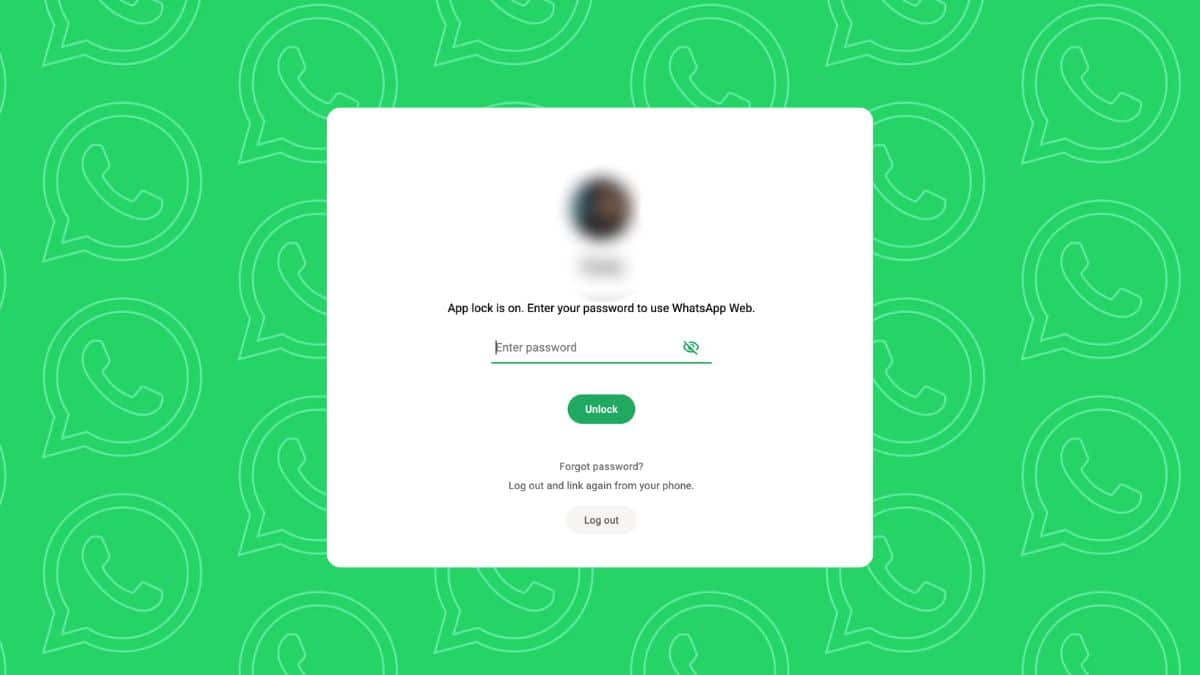
This isn’t a brand-new feature. WhatsApp first tested it with a small group of Web beta users in 2023 under the name Screen Lock, before expanding it into the more capable App Lock available today, complete with additional auto-lock timers and support for longer passwords. What matters in July 2026 is simple: it’s available to everyone using web.whatsapp.com, it works reliably, and enabling it takes less than a minute.
Here’s what it actually does, how to switch it on, and the handful of catches worth knowing before you rely on it.
Where to Find App Lock on WhatsApp Web
App Lock lives inside WhatsApp Web, not the WhatsApp app on your phone. Open web.whatsapp.com in Chrome, Safari, or basically any browser, click the three-dot menu (or the gear-shaped Settings icon, depending on your layout) in the sidebar, and head into Privacy. That’s where App Lock sits, waiting to be switched on.
One important limitation: App Lock only works on web.whatsapp.com. If you’re using the standalone WhatsApp desktop app for Windows or Mac, the native software, not the web.whatsapp.com tab, App Lock isn’t there. That’s a surprising inconsistency, and one WhatsApp still hasn’t publicly explained. If you split your time between the desktop app and the browser version, only the browser side gets this protection.
Related: WhatsApp Icons and Symbols Meaning Explained: A Complete Guide
How to Lock WhatsApp Web With a Password
Setting it up is genuinely quick:
- Open web.whatsapp.com and make sure you’re logged in via your phone’s QR scanner, the usual way.
- Click the three-dot menu (or Settings gear) in the bottom-left or sidebar area.
- Go to Privacy, then select App Lock.
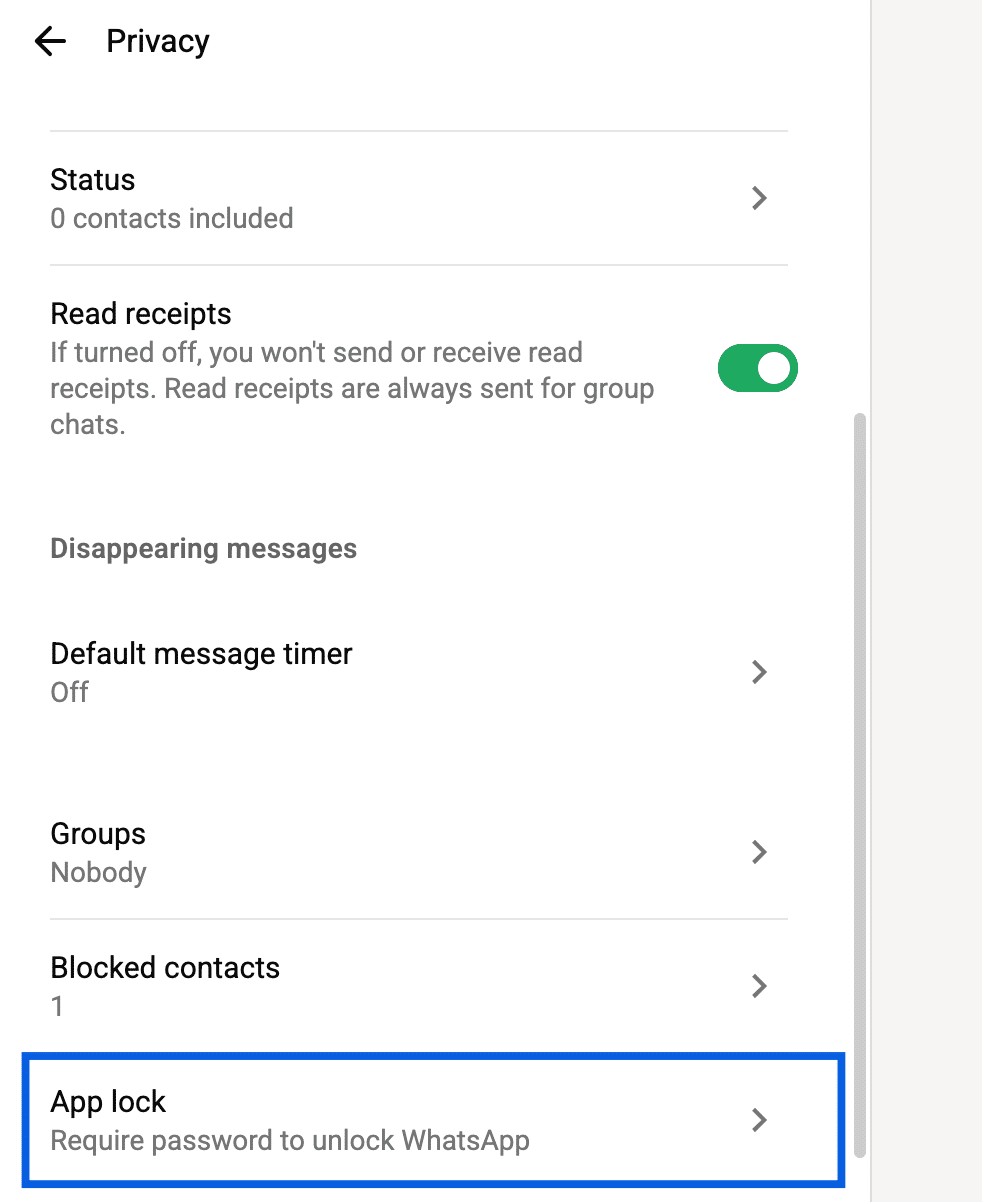
- Toggle it on, then create a password. WhatsApp requires a minimum of 6 characters, mixing letters, numbers, and punctuation, and interestingly, it’ll accept passwords far longer than that if you want serious length behind your chats.
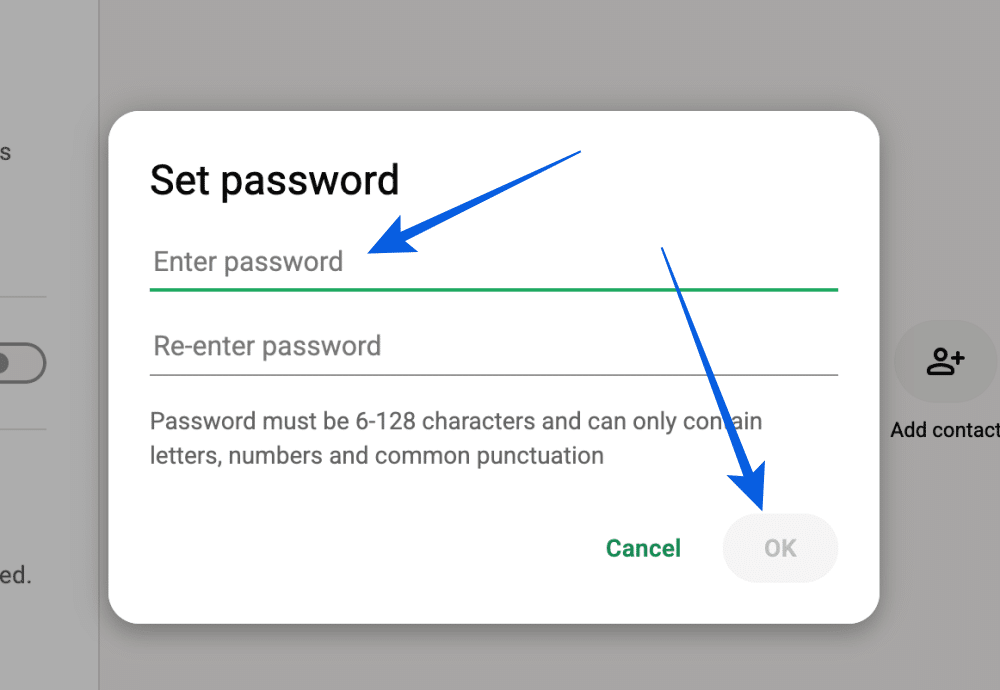
- Confirm the password, then hit Done.
- Pick an auto–lock timer, or test it immediately with Lock Now from that same three-dot menu.
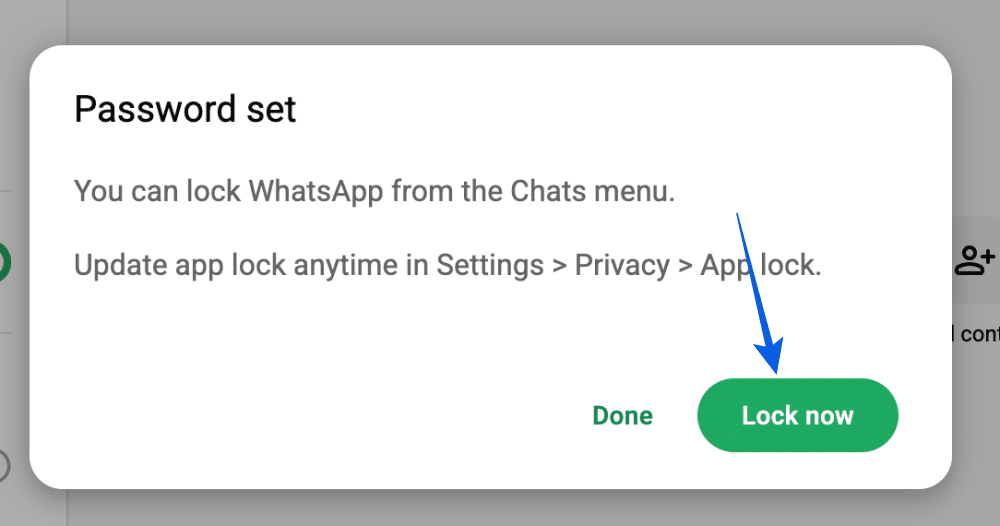
Once enabled, your entire WhatsApp Web session stays behind a password whenever it locks—either automatically after your chosen timer or immediately when you manually select Lock Now.
Which Auto-Lock Timer Should You Choose?
This is where the feature becomes genuinely useful: After 1 Minute, After 15 Minutes, After 1 Hour, or After 8 Hours, and the default sits at 15 minutes. That range matters more than it looks like on the surface.
If you’re on a shared office computer or working somewhere public, the 1-minute setting is the honest choice, even though it means re-entering your password more often than feels convenient. Fifteen minutes is a reasonable middle ground for a personal laptop you still don’t want left wide open during a lunch break. The 8-hour option is really built for a single-user home desktop where the real risk isn’t a stranger, it’s just wanting one less password prompt during a long work session.
One small but useful detail is easy to overlook: closing the browser tab or your laptop lid locks the session immediately, no matter which timer you picked. The countdown only governs idle time while WhatsApp Web stays open and untouched. Once the session is locked, WhatsApp also stops showing message previews in desktop notifications, preventing anyone nearby from reading incoming chats at a glance.
WhatsApp App Lock vs. Chat Lock: What’s the Difference?
It’s easy to confuse App Lock with Chat Lock, but they’re designed for completely different situations. Chat Lock, which WhatsApp introduced back in May 2023, hides individual conversations behind their own folder, unlockable only with your device’s password or biometrics, so a single sensitive chat stays hidden even if someone else has your phone unlocked in their hands.
App Lock, on the other hand, secures your entire WhatsApp Web session behind a password. It doesn’t hide specific chats from each other, it just keeps the whole inbox behind one password when you’re not actively using it. If your real concern is a shared laptop rather than one particular conversation, App Lock is the more useful tool of the two. WhatsApp has been working on syncing Chat Lock’s secret-code protection across linked devices, including the web client, but based on the most recent beta reports, that piece is still rolling out gradually rather than sitting fully live for every account. App Lock, meanwhile, isn’t experimental. It’s been stable and available since its original rollout years ago.
Things to Know Before Enabling App Lock
A few practical things to keep in mind, since none of them are obvious from the settings screen itself:
- There’s no password reset. Forget it, and your only way back in is logging out of that WhatsApp Web session entirely and reconnecting from scratch by scanning the QR code with your phone. There’s no “forgot password” link waiting to save you.
- Biometrics aren’t part of the web version. Fingerprint and Face ID unlock exist for WhatsApp on your phone, but WhatsApp Web only ever asks for the password you set, on any device or browser.
- It’s session-specific, not account-wide. If you use WhatsApp Web on more than one computer, you’ll need to set App Lock up separately on each one.
None of these limitations make App Lock any less useful—they simply mean you should choose a password you’ll remember, since recovering it isn’t an option.
Final Thoughts
WhatsApp Web’s App Lock isn’t flashy, and it certainly isn’t new, but it quietly fixes one of the biggest privacy gaps for anyone who leaves WhatsApp open in a browser.
If you’ve never explored the Privacy settings in WhatsApp Web, this is one feature worth enabling. It takes less than a minute to set up and offers far more day-to-day value than many of the features that receive much bigger announcements.
Don’t miss these related reads: