If you find yourself opening WhatsApp a dozen times a day just to reach the same three people, a home screen widget for WhatsApp is one of those small changes that quietly fixes a daily annoyance. Instead of hunting for the app icon and then scrolling your chat list, you tap a face on your home screen and you’re already in the conversation.
The good news: WhatsApp has official widgets on both iPhone and Android now, no shady third-party app required. The slightly messier news is that what’s available, and how you add it, depends on your phone, your OS version, and how recently you’ve updated. Here’s exactly how it works in 2026, plus a few things WhatsApp is testing right now that haven’t made the rounds yet.
What a WhatsApp Widget Actually Gives You
Before you go adding one, it helps to know what you’re getting. A WhatsApp widget isn’t a mini version of the app. It’s a shortcut surface. Depending on the type and size you pick, it can show your most recent chats, your pinned or favorite contacts, the people you message most, or recent Status updates. Tap a contact and you land straight in that thread, usually without marking anything as read, which is handy if you’re triaging rather than replying.
It pairs nicely with the rest of WhatsApp’s quiet quality-of-life features. If you’ve ever squinted at a checkmark or a tiny clock and wondered what it’s telling you, the meaning of WhatsApp icons and symbols is worth a quick read. A widget gets you into the chat faster, but those symbols tell you what happened once you’re there.
How to Add a WhatsApp Widget to Your Home Screen on iPhone (iOS)
WhatsApp shipped a dedicated Chats widget for iOS back in October 2024, starting with version 24.21.81. If your iPhone has updated at any point since then, you already have it.
Here’s how to add the WhatsApp widget to your home screen:
- Open the App Store and make sure WhatsApp is on the latest version. This is the step people skip, and it’s the reason the widget doesn’t show up for a lot of them.
- Touch and hold any empty area of your home screen until the apps start to jiggle.
- Tap Edit, then Add Widget.
- Type WhatsApp in the search bar and select it.
- Swipe through the styles: Recents, Favorites, Pinned, or Frequently Contacted, and pick the one that matches how you actually use the app.
- Tap Add Widget, then drag it wherever you want it to live.
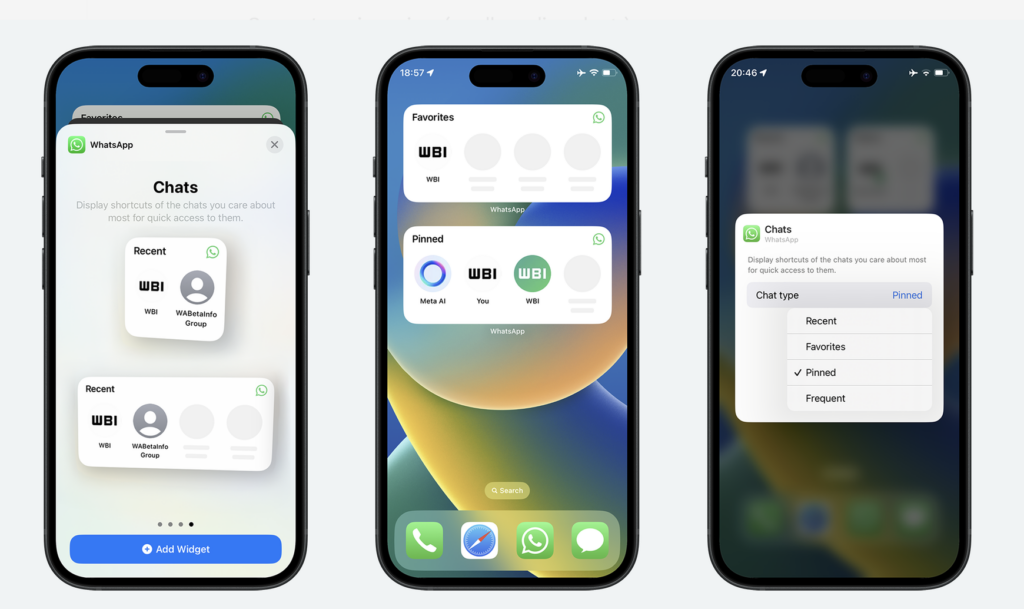
You can repeat that last bit as many times as you like. There’s nothing stopping you from keeping a small Pinned widget next to a larger Recents one if you split your day between a tight circle and a wider net of contacts.
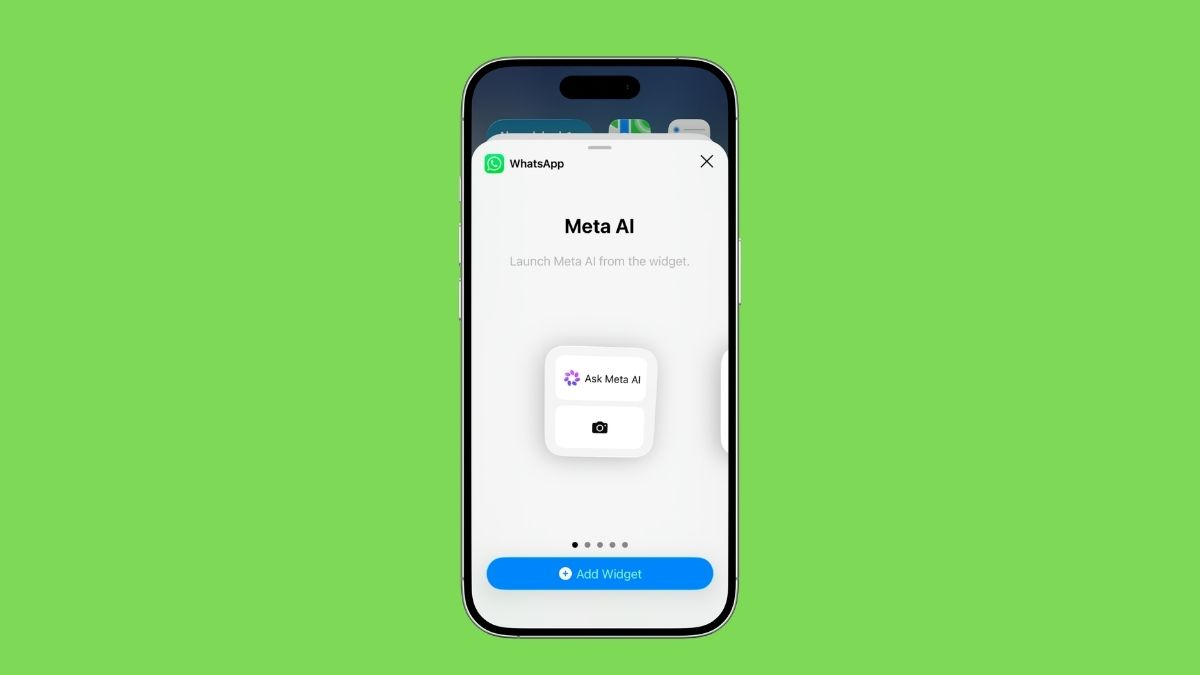
A couple of details worth knowing: the iOS widget shows contact avatars and names, so it’s genuinely tap-and-go, and it comes in small, medium, and large sizes that change how many people it displays. iOS also has a Status widget that surfaces recent updates from your contacts, and Apple users have had a Meta AI widget option float through beta builds too. So “WhatsApp widget” on iPhone is really a small family of them now, not a single thing.
How to Add a WhatsApp Widget to Your Home Screen on Android
Android users have had WhatsApp widgets far longer than iPhone owners. The Messages/Chats widget has been around for years, typically in layouts like 1×1 and 3×2. The flow is slightly different from iOS:
- Update WhatsApp through Google Play first.
- Touch and hold an empty spot on your home screen.
- Tap Widgets.
- Scroll until you find WhatsApp, or type it into the search bar.
- Choose the Messages (or Chats) widget and the size you want.
- Drag it onto your home screen and drop it in place.
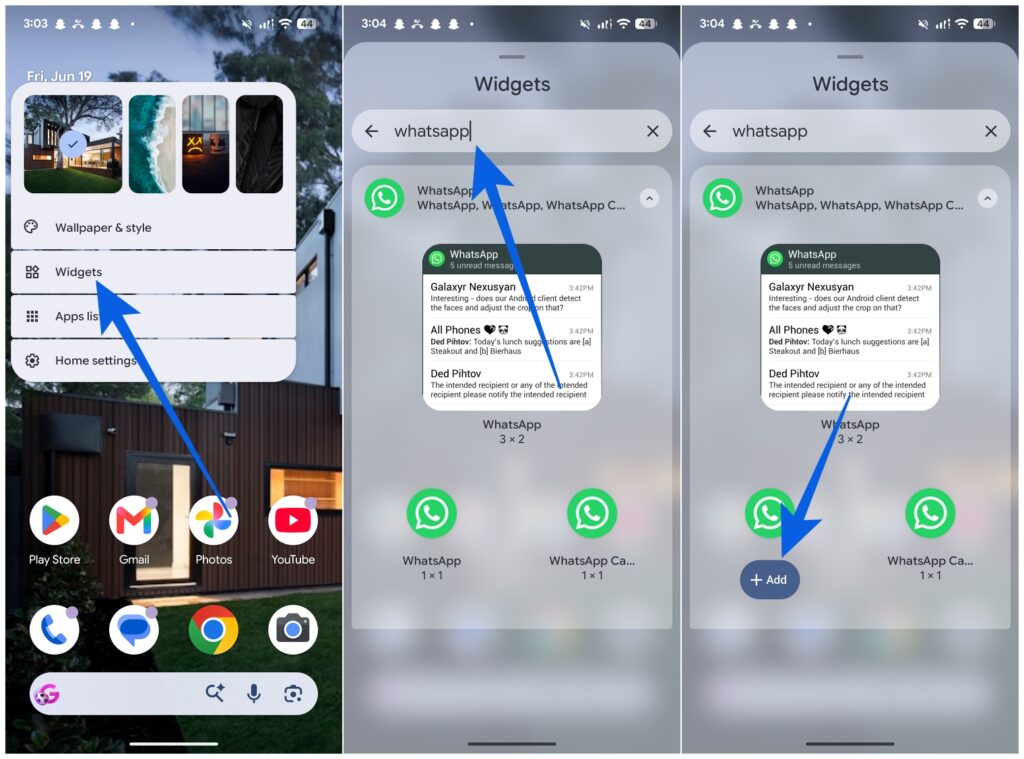
Once it’s down, you can move it around like any other widget. Tap a chat and you jump straight into the thread.
One honest caveat: Android isn’t one phone, it’s hundreds. The exact wording, Widgets versus Edit, and whether you long-press the home screen or the app drawer, shifts between Samsung’s One UI, a Pixel’s clean Android, and whatever skin your manufacturer ships. The destination is the same; the path just has a different sign or two along the way.
How to Remove a WhatsApp Widget
This part is refreshingly simple on both platforms. Touch and hold the widget, then tap Remove Widget (you may get a confirmation tap on iOS, or a Remove prompt on Android). On a Pixel, you can also drag the widget up to the Remove zone at the top of the screen. Done. No settings menu, no digging.
What’s New in 2026: The Widgets WhatsApp Is Testing Right Now
Here’s where most “how-to” guides go stale, because they were written in 2024 and never touched again. As of mid-2026, WhatsApp is actively working on two new Android widgets that aren’t in the stable app yet, so if a friend swears they have one and you don’t, this is probably why.
The first is a Status widget for Android, spotted in the beta channel (version 2.26.18.5) and clearly modeled on the one iPhone users already have. It comes in two sizes: a compact version showing a single contact’s update, and a larger one displaying up to three contacts at once. It’s smart about who it shows, leaning on WhatsApp’s ranking system to surface the people you interact with most, and it includes a shortcut to post your own Status without opening the app. Worth being precise here: this is still under development, not a finished feature rolling out to everyone, despite a lot of headlines suggesting otherwise.
The second is newer still, first surfaced in mid-June 2026. WhatsApp is building a resizable 3×1 voice message widget that lets you record a voice note with a single tap from the home screen, then choose who to send it to: one person, several at once, or your Status. For anyone who communicates mostly by voice rather than typing, that’s a real time-saver. Like the Status widget, it has no confirmed release date and is expected to land in beta before it reaches the public app.
The pattern is obvious once you see it: WhatsApp is trying to move more of your everyday actions, checking updates, firing off a voice note, jumping into a chat, onto the home screen so you open the app less. Whether that’s convenience or another nudge to stay glued to your phone is a fair question, but the direction is clear.
When the Widget Just Won’t Show Up
If WhatsApp is missing from your widget list, run through these in order before assuming your phone is broken:
- Update the app. Nine times out of ten, this is it. The widget only exists in recent versions, and an app that “updated” months ago may have stalled.
- Force-close and reopen WhatsApp. Then check the widget picker again.
- Restart the phone. Tedious, but it clears up a surprising number of widget gremlins.
- Reinstall as a last resort. Back up your chats first, then remove and reinstall from your app store.
If you’ve done all that and it still won’t appear, your device or Android version may simply not support that particular widget yet, especially for the newer Status and voice-note ones still in testing.
A Quick Word on Privacy
A home screen widget puts your most frequent contacts, and sometimes a slice of a recent message, out in the open where anyone glancing at your phone can see them. If that makes you uneasy, it’s worth tightening things up on the app side too. You can enable WhatsApp advanced chat privacy to lock down what leaves your most sensitive conversations, which is a sensible companion to any feature that surfaces chats more publicly.
Signing Off
Adding a WhatsApp widget to your home screen takes under a minute on either platform: update the app, long-press the home screen, find WhatsApp in the widget picker, pick your style and size, and drop it in. iPhone gives you Chats, Status, and a tidy set of sizes. Android has long had a Chats widget and is now testing Status and voice-note widgets that should make the home screen do even more. Keep the app updated, and you’ll get new widget types as soon as they’re ready, often before the rest of your contacts even know they exist.