WhatsApp has been testing the call scheduling feature on the platform since 2023, and it finally rolled out in August 2025. With this feature, users can schedule voice or video calls in advance for both personal chats and groups.
It also syncs scheduled calls with Google Calendar, making it easier to track them. Today, I’ll explain the benefits of scheduling WhatsApp calls and the steps to schedule a call on WhatsApp.
How to Schedule WhatsApp Calls on Android and iPhone
The steps to schedule a voice or video call on WhatsApp are very similar for both Android and iPhone devices. You’ll find the option to schedule a call on WhatsApp under the Calls tab. Here’s a step-by-step guide to do so.
- First, open the WhatsApp app on your Android or iPhone device.
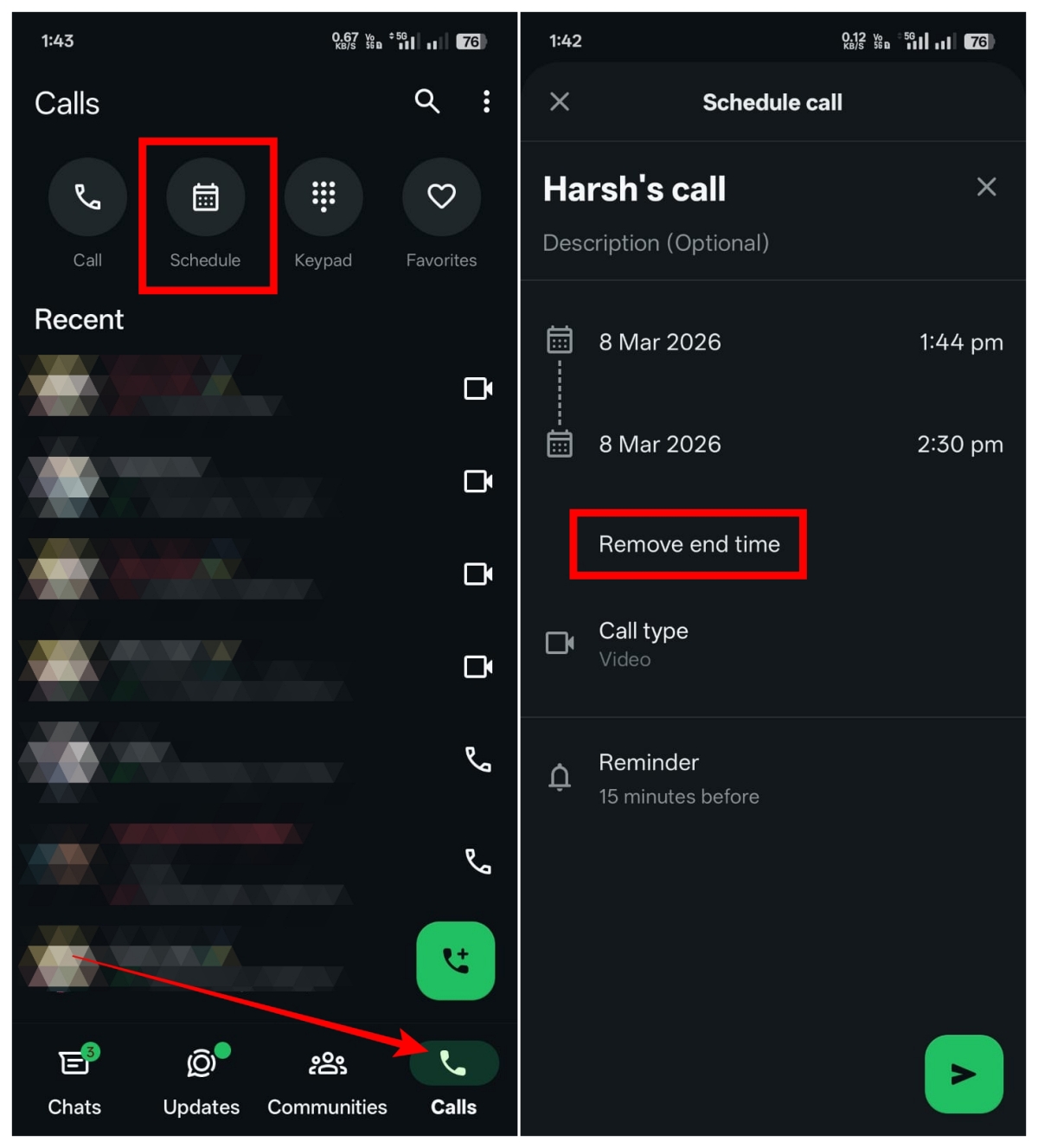
- Tap the Calls tab to go to the call management page.
- From the available options, tap Schedule.
- Add a title and description (optional) for your call. By default, the title is set to the name you’ve added on the platform.
- Set the start date and time of the call. You can also set an end time or remove it by tapping the Remove end time option.
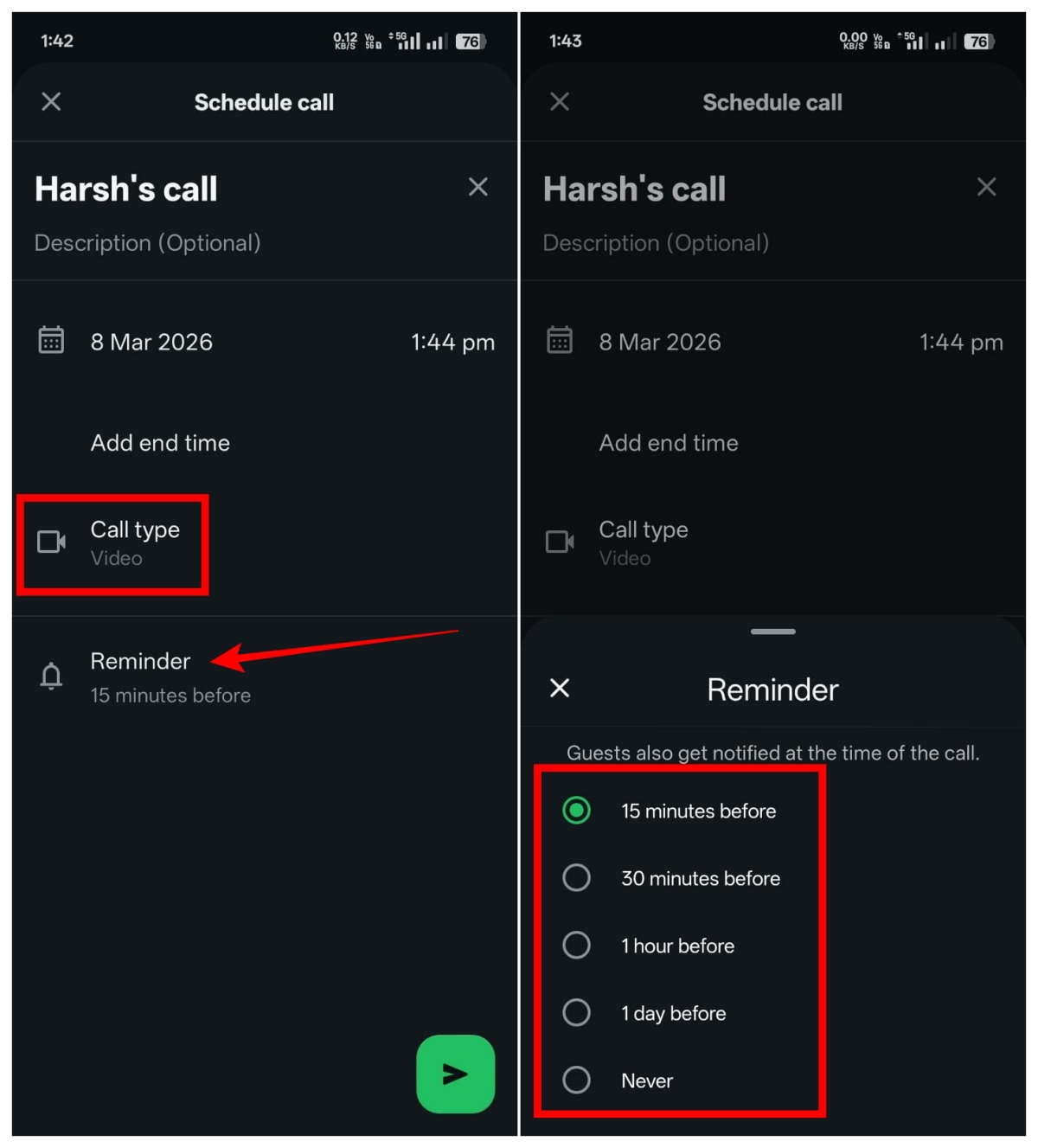
- Now select the call type. It can be either an audio or video call.
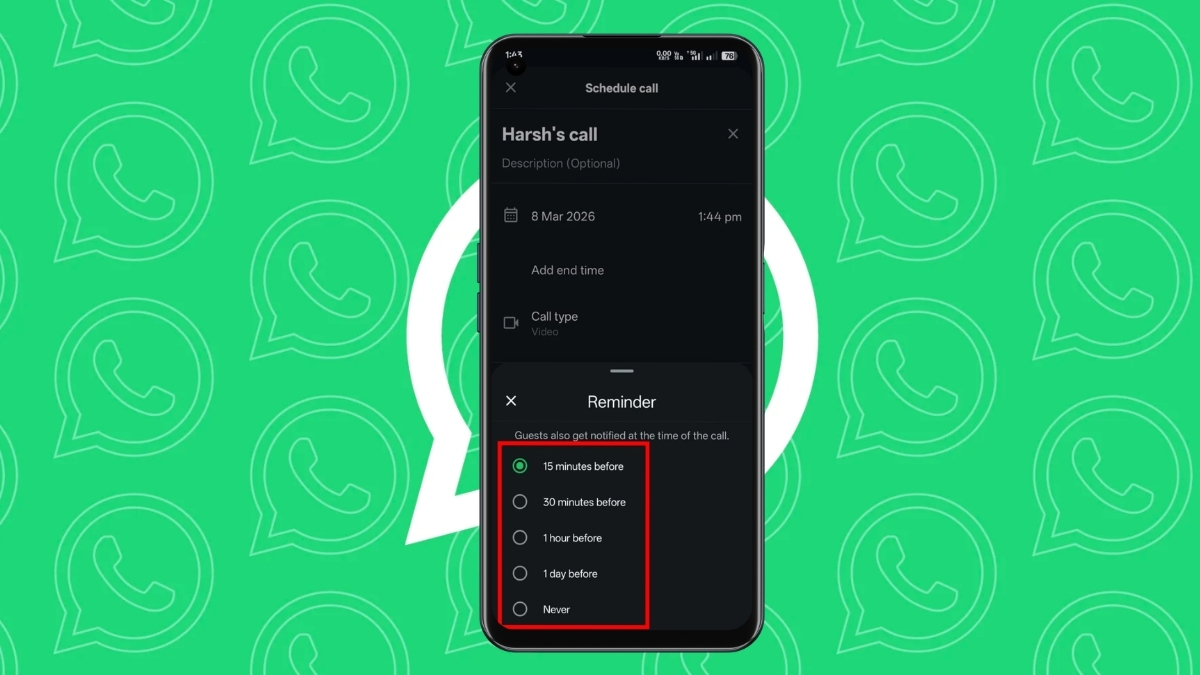
- Next, you’ll see a Reminder option. Tap it and choose when participants should be notified before the call begins. The options include 15 minutes, 30 minutes, 1 hour, or 1 day before. You can also choose Never, which means WhatsApp will not notify users before the call begins.
- Tap the green icon to continue.
- Select the participants. You can invite either a single contact or an existing WhatsApp group.
- Finally, tap the Next icon to send the invite to the selected contact or group.
Once scheduled, WhatsApp will automatically notify participants about the call and send reminders before the call starts.
Benefits of Scheduling Calls on WhatsApp
There are many benefits to scheduling calls on WhatsApp. Some of them include:
- It avoids last-minute coordination.
- Useful for both work and personal use.
- Participants receive reminders automatically before the call so they don’t forget.
- Users can track upcoming calls in the Google Calendar app.
Also Read: WhatsApp Plus Premium Plan in the Works: What to Know
WhatsApp Schedule Call Feature Not Showing? Try These Fixes
Although the feature was released last year and is available to most users, if you can’t find it on your account, here’s how you can fix it.
- Restart the WhatsApp App: Sometimes the feature may not appear due to a temporary glitch. Simply close the app completely, remove it from the background, and open it again.
- Update WhatsApp to the Latest Version: If you haven’t updated your WhatsApp app for a while, it could be the reason you don’t see the Scheduled Calls option. Open the Play Store or App Store on your device, search for WhatsApp, and tap the Update button on the app page to install the latest version.
Wrapping Up
WhatsApp call scheduling is a very useful feature for users who regularly organize calls with friends, family, or colleagues. You no longer have to coordinate manually. With this feature, you can schedule voice or video calls, send invitations, and receive reminders automatically.
Yes. You can cancel a scheduled call by deleting the message. You can also edit the timing or details of the scheduled call from the Calls tab if needed.
Yes. While scheduling the call, you can choose between audio and video calls depending on your preference.
Yes. WhatsApp sends automatic reminders to participants based on the reminder time you selected when scheduling the call. You can also choose whether you want WhatsApp to notify participants before the call starts.
You can see all scheduled calls under the Chats tab. Here, you’ll find an Upcoming section where all scheduled calls are listed.
Don’t miss these related reads: