Open Google Messages and scroll through your conversation list. Every thread looks the same: identical blue bubbles, the same flat background, nothing to tell your group chat with friends apart from a work thread at a glance. For an app that now handles most of Android’s texting, that sameness has always felt like an oversight.
Google closed that gap on August 27, 2026, officially rolling out Chat themes, a feature that lets you set a unique color scheme and background wallpaper for individual conversations. It’s not a flashy redesign. It’s the kind of small, overdue fix that makes the app feel like yours instead of a stock inbox.
Here’s what the feature actually does, how to turn it on, and why it took Google the better part of a year to get it fully working.
What Chat Themes Are, and Why They Took This Long to Arrive
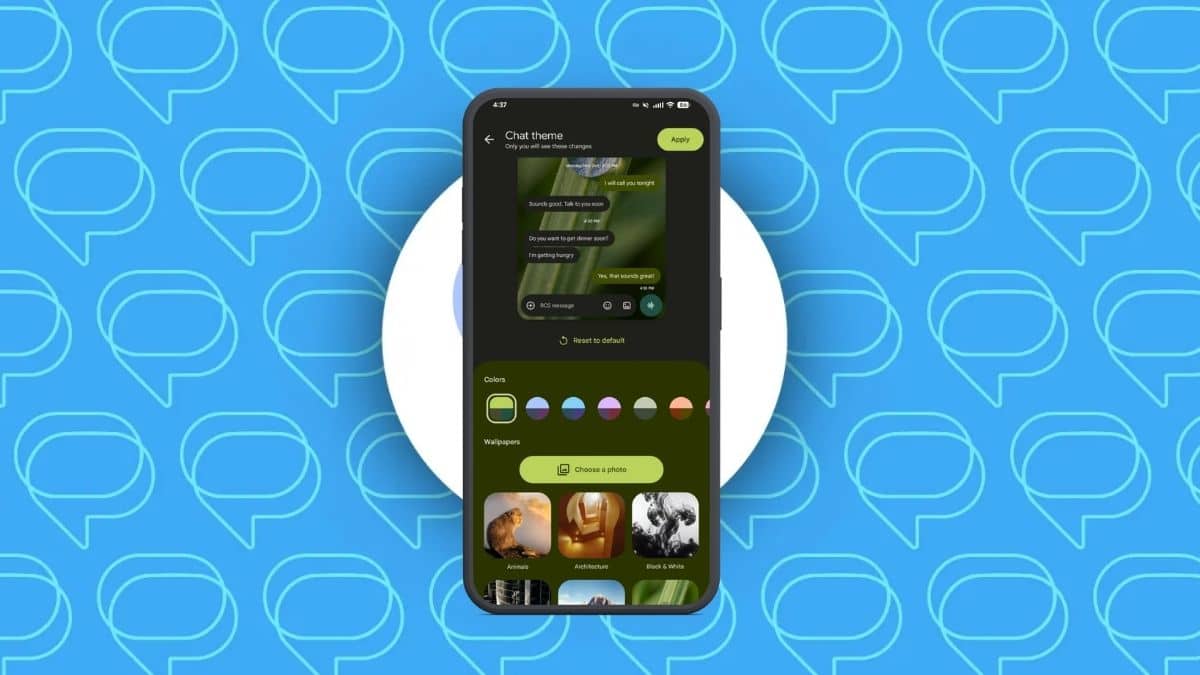
Chat themes let you assign a distinct color palette and background image to any single conversation in Google Messages, without changing how the app looks anywhere else. Pick a wallpaper, and your message bubbles automatically shift color to match it. You can also override that pairing and pick a color manually.
This isn’t a brand-new idea. Google introduced a more limited “Change colors” option back in 2024, and it was shared with the person you were texting. Chat themes replaces that entirely, and the new version flips the privacy model: your customizations live only on your device.
Getting here took a while. Google pushed an early build to beta testers around June 23, 2026, with a server-side switch flipping for some users on Google Messages version 20260622_01_RC00 by June 26. What followed was messier than a typical staged rollout.
Testers reported the option showing up on one phone, vanishing after switching devices, then reappearing days later with no clear pattern. Google folded chat themes into the same push that made Google Messages the official replacement for Samsung Messages in early July, which likely explains some of the inconsistency: two large user bases, one feature, uneven timing.
By the official August 27 announcement, Google Messages had shipped several more builds, and the rollout was still described as staged rather than universal.
Worth knowing: if you’ve read about the best Samsung Messages alternatives as Samsung phased out its own app, this is one of the features Google added to make the transition feel less like a downgrade.
How to Customize a Google Messages Chat’s Theme
The process itself is quick once the option shows up on your account.
- Open Google Messages and select the conversation you want to personalize.
- Tap the contact or group name at the top of the screen, or tap the three-dot menu icon in the top right.
- Select Chat theme.
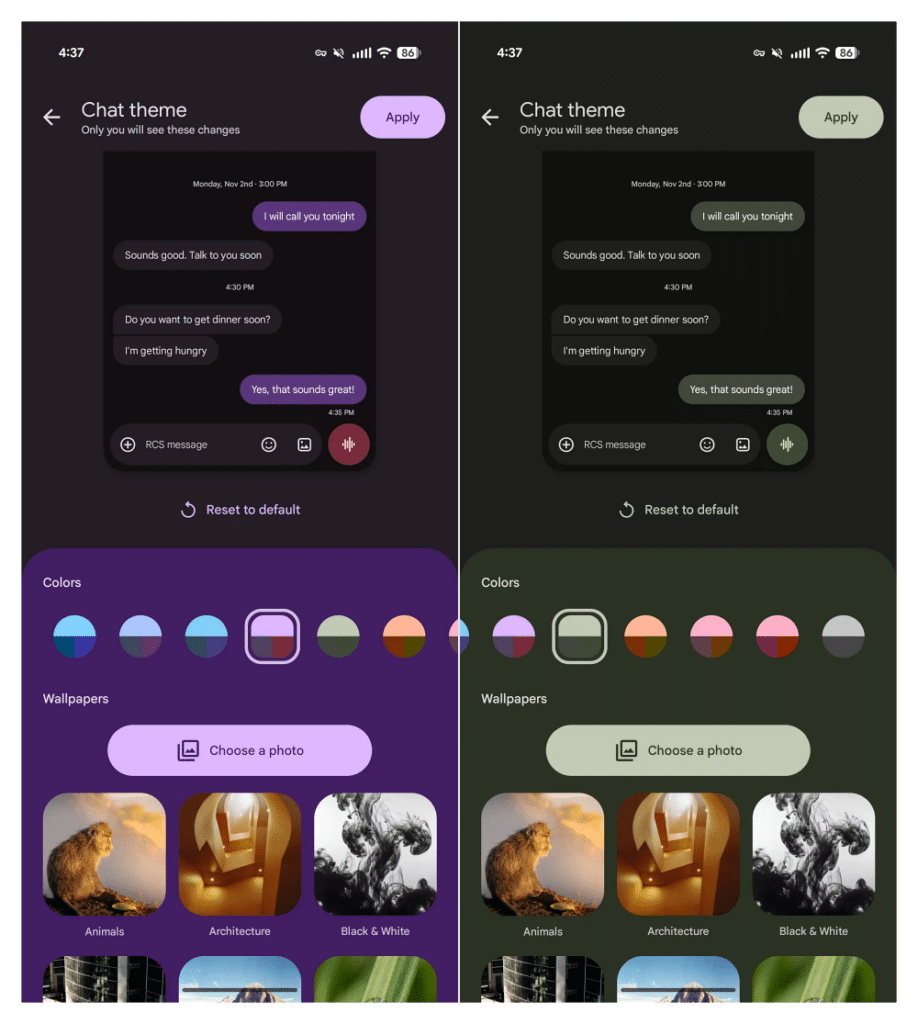
- Choose a color from the palette, or pick a wallpaper first and let the app match colors automatically.
- Tap Next to preview how the conversation will look.
- Tap Apply to save it.
Two things matter before you go looking for the option. First, Chat themes only works if RCS chats are turned on for that conversation. If you’re still texting over plain SMS, the setting won’t appear. Second, because the rollout has been inconsistent since June, not having the option today doesn’t mean something is broken on your end.
Google says to watch for a red dot on the three-dot menu icon, which is the signal that Chat themes has reached your account.
If you want to undo a change, the path is the same: open Chat theme again, tap Reset to default, and confirm with Apply.
Also Check: Google Messages Screen Effects: Full List of Trigger Phrases & Animations
The Colors and Wallpapers You Can Actually Pick From
The color carousel offers a Dynamic Color option, which pulls its palette from whatever background you’ve set, alongside eight fixed color choices that stay put regardless of wallpaper.
That’s a meaningful difference from a simple accent-color picker: pick a moody landscape photo, and Dynamic Color adjusts your bubbles to complement it rather than clashing with it.
For backgrounds, Google offers curated categories, including Animals, Architecture, Black & White, Cityscapes, Landscapes, Macro, Space, Sunsets, and Textures, each with multiple images to browse. You’re not limited to Google’s picks, either.
You can pull a photo straight from your camera roll or Google Photos and use that instead, which is really where the feature earns its “make it yours” pitch. A theme built around a photo of your actual dog reads differently than a stock landscape, and that’s the point.
One Big Catch: Nobody Else Sees Your Theme
Here’s the part that’s easy to miss if you only skim the announcement: Chat themes are entirely local. Whatever colors or wallpaper you set only show up on your screen. The person you’re texting sees none of it, even if they’re also using Google Messages with RCS turned on.
That’s a deliberate change from the old 2024 version, where a color choice applied to both sides of the conversation. It also means chat themes solve a genuinely different problem than that older feature did. This isn’t about signaling anything to the other person. It’s about making your own inbox easier to navigate, the same reason people color-code folders or pin certain apps to their home screen.
If you manage a lot of active threads, a quick glance at background and color is often faster than reading the contact name.
Not Seeing the Option Yet? Here’s What to Check
If Chat theme isn’t showing up in your three-dot menu, run through this before assuming something’s wrong:
- Update Google Messages from the Play Store. The feature requires a recent build; version 20260824_01_RC00 or later is the one confirmed to include it.
- Turn on RCS chats. Go to Messages settings and confirm RCS is enabled for the conversation, since SMS-only threads won’t get the option.
- Give it time. Given how unevenly this rolled out between June and August, a staged server-side switch is the most likely explanation for a missing option, not a bug on your device.
- Watch for the red dot. Google is using that indicator on the three-dot menu to flag when the feature has reached your account.
Final Thoughts
Chat themes isn’t the kind of update that gets its own keynote slide, but it’s the sort of thing that makes an app you open dozens of times a day feel less generic. Google took its time getting the rollout right, and going device-only instead of shared with recipients was the smarter call than what shipped in 2024.
If your Messages app still looks the same in every thread, check for that red dot, confirm RCS is on, and give your most-used conversations a wallpaper worth glancing at.
Don’t miss these related reads: