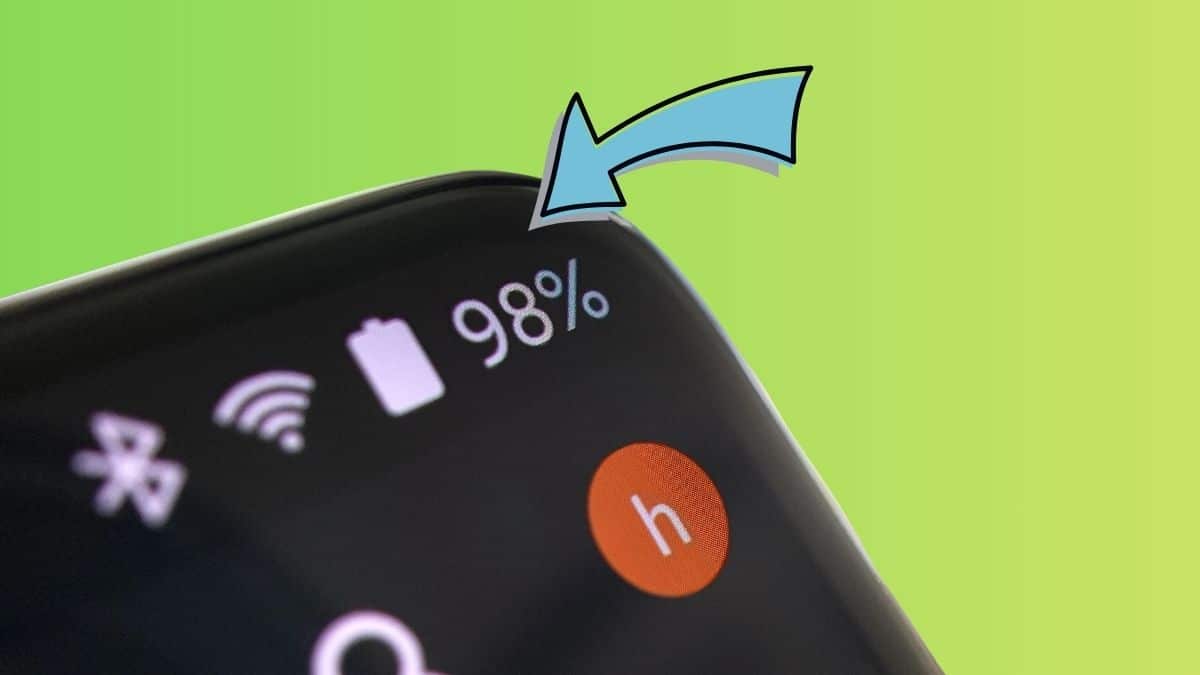
You glance at the top of your screen and see a row of tiny shapes you cannot quite place. One looks like a key. Another looks like a battery with a plus sign in it. A third just vanished, and now your phone will not ring for anyone but your favorite contacts. Android status bar icons pack a lot of information into a small space, and none of it is explained anywhere obvious on the phone itself.
Every icon up there tells you something useful: your signal type, battery status, which app just sent a notification, or whether a VPN is routing your traffic. Android 16 keeps the basic icon system most Android users already recognize, although Google’s Material 3 Expressive design has refreshed parts of the status bar experience on supported Pixel phones.
Here is what the most common Android status bar icons and symbols actually mean, along with where to look when an unfamiliar one appears.
Where Are Status Bar Icons on Android?
Android generally splits the top status bar into two zones, and understanding the difference makes identifying an unfamiliar symbol much easier.
- System status icons usually appear on the right. These include battery, cellular signal, Wi-Fi, and other connectivity information. They stay visible when relevant and update automatically as your phone’s state changes.
- Notification icons usually appear on the left. These show up when an app has something to tell you, such as a new message, missed call, download, or other notification. Pull down the notification shade to see the full notification behind an icon.
The exact layout can vary between Google Pixel, Samsung Galaxy, OnePlus, Xiaomi, Motorola, and other Android phones. Manufacturers often customize Android’s status bar, so do not be surprised if an icon looks slightly different on your device.
Note: Icon appearance, placement, and availability can vary by Android version, device manufacturer, carrier, and region.
Android Connectivity Icons: Wi-Fi, 5G, LTE, VPN, and More
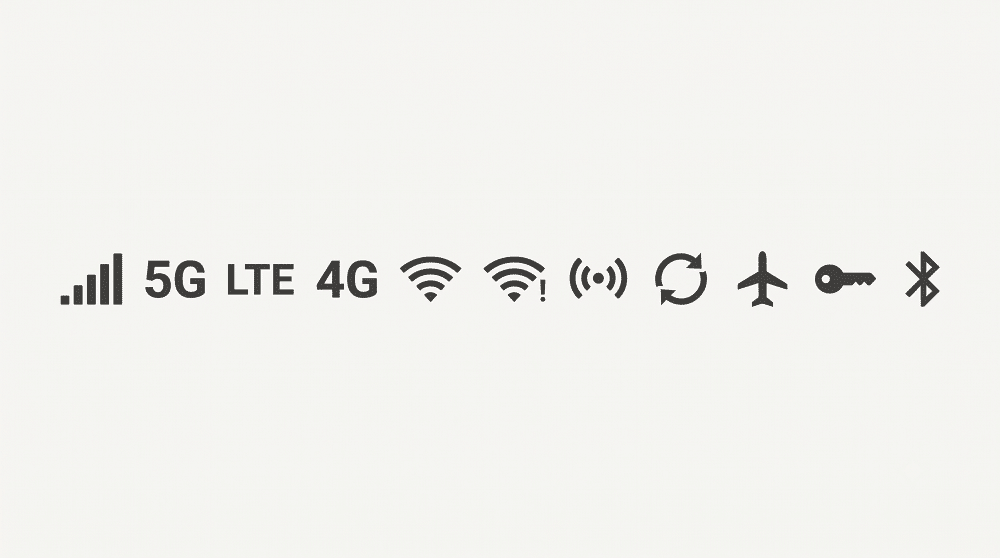
Connectivity icons usually cluster on the right side of the status bar and change frequently because your phone constantly switches between networks as you move around.
- Signal bars: The bars indicate the strength of your cellular connection. More filled bars generally mean a stronger connection to your carrier’s network.
- 5G, LTE, 4G, and other network symbols: The letters or numbers next to the signal bars tell you which type of cellular network your phone is using. You may see 5G, LTE, 4G, or occasionally older network types depending on your carrier and location.
Carriers also use their own branding for faster versions of 5G. Verizon uses 5G UW for Ultra Wideband, T-Mobile uses 5G UC for Ultra Capacity, and AT&T uses 5G+ for some of its faster 5G networks. These labels are carrier-specific, so two phones using similar underlying network technology may display different symbols.
- Wi-Fi: The familiar fan-shaped symbol indicates that your phone is connected to a Wi-Fi network. More filled sections generally indicate a stronger connection.
- No internet warning: An exclamation mark beside Wi-Fi or cellular signal can mean your phone is connected to a network but cannot reach the internet.
- Mobile hotspot: This appears when your Android phone is sharing its mobile data connection with another device.
- Data Saver: The Data Saver symbol indicates that Android is restricting some background data usage to reduce mobile data consumption.
- Airplane mode: A small airplane means Airplane mode is enabled. Cellular connectivity is disabled, although Android generally lets you manually turn Wi-Fi and Bluetooth back on while Airplane mode remains active.
- VPN: A key-shaped icon commonly indicates that a VPN connection is active. If you did not intentionally enable a VPN and this symbol appears, check Settings > Network & internet > VPN or your manufacturer’s equivalent menu to see which app or service is responsible.
- Bluetooth: Bluetooth-related indicators vary considerably between Android manufacturers. Some phones show an icon whenever Bluetooth is enabled, while others display one only when a Bluetooth accessory is connected.
Android Battery Icons and What They Mean
Next to your connection indicators sits the icon most people check first: your battery.
- Battery level: The battery icon shows approximately how much charge remains. Many Android phones can also display the exact battery percentage beside or inside the icon.
- Charging: A lightning bolt or another charging indicator means your phone is connected to power. The exact appearance may vary depending on whether you are using wired, wireless, fast, or manufacturer-specific charging.
- Battery Saver: Android displays a modified battery icon or another visual indicator when Battery Saver is enabled. The exact symbol varies by Android version and phone manufacturer.
- Low battery: When your battery becomes critically low, Android may change the battery icon or display an additional warning. The exact threshold and appearance depend on the device.
If you see a battery symbol that does not match these descriptions exactly, that does not necessarily mean something is wrong. Samsung, Google, OnePlus, Xiaomi, and other manufacturers frequently use slightly different battery indicators.
Android Sound Icons: Do Not Disturb, Silent, Vibrate, and Alarm
Battery and connectivity symbols tell you about your phone’s state. Sound and alert icons tell you what your phone will, and will not, let through.
- Do Not Disturb: A circle with a horizontal line is commonly used for Do Not Disturb. Calls, messages, and other alerts may be silenced depending on the exceptions you have configured.
- Silent mode: A crossed-out speaker or bell generally means calls and notifications will not make a sound.
- Vibrate mode: A phone, speaker, or vibration-related symbol indicates that your phone will vibrate instead of playing a ringtone or notification sound.
- Alarm: A small alarm clock indicates that an alarm has been scheduled. Whether it remains permanently visible depends on your Android version and phone manufacturer.
If your phone suddenly stops ringing but the volume appears normal, checking these status bar symbols is a good first troubleshooting step.
Call, Location, Screen Recording, and Casting Icons
Some Android status bar icons appear only while a specific feature is actively being used.
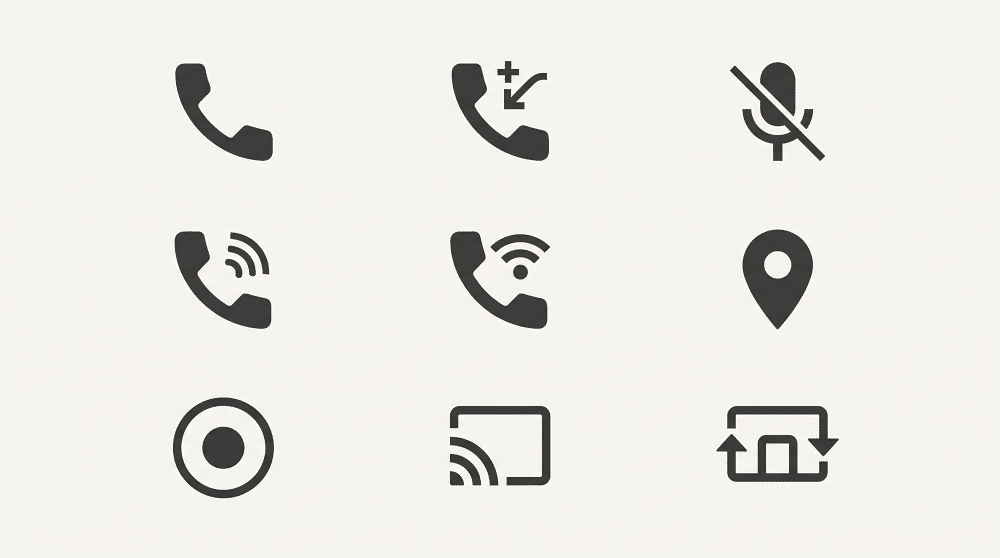
An active call may display a phone-related indicator, while missed calls normally appear as notification icons on the left side. Depending on the phone and calling app, you may also see indicators for muted calls, speakerphone, or Wi-Fi calling.
The location icon typically looks like a pin or another location-related symbol. It can appear when an app is actively accessing your location. If it appears unexpectedly, open your phone’s privacy or location settings to see which apps recently accessed your location.
Android’s Privacy Dashboard is particularly useful here because it lets you review recent access to sensitive permissions such as location, microphone, and camera.
A screen recording icon appears when Android is recording your screen. Similarly, a casting or screen-sharing icon can appear while your phone is sending its display or media to another screen, such as a television.
These indicators are particularly important from a privacy perspective. If you see one when you are not intentionally using the associated feature, check which app is responsible.
What Do the App Icons on the Left Side Mean?
Most of the symbols covered so far appear on the right side and tell you about the phone itself. The left side works differently.
Apps that send notifications can display their own small icons on the left side of the status bar. Gmail, WhatsApp, Telegram, Slack, banking apps, social networks, and countless other apps use different symbols.
These are essentially condensed notification indicators. Swipe down from the top of the screen and the notification shade will tell you exactly which app generated each one and what it wants your attention for.
If you are trying to identify symbols inside an app rather than Android’s status bar, our Instagram icons and symbols guide and Telegram icons and symbols guide explain two of the most common sets in detail.
If too many app notification icons are cluttering your status bar, you can control them through Android’s notification settings. The exact menu varies by manufacturer, but you can usually start with Settings > Notifications and adjust notifications on an app-by-app basis.
Less Common Android Status Bar Icons You Might See
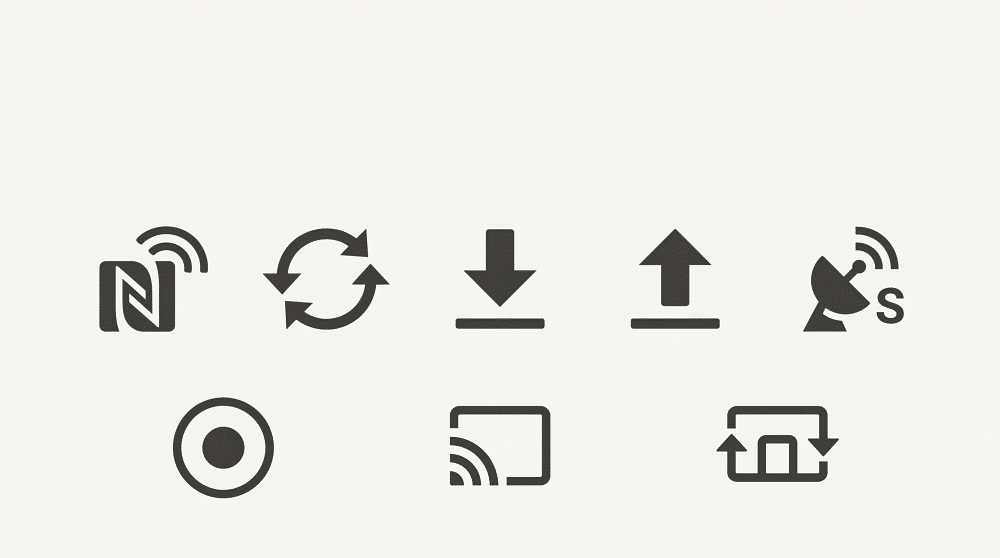
A few Android symbols appear rarely enough that it is easy to forget what they mean.
- NFC: Some Android phones display an NFC indicator when Near Field Communication is enabled. NFC powers features such as contactless payments and certain quick-pairing interactions. Many newer phones do not show a persistent NFC icon even when NFC is enabled.
- Sync: Circular arrows or a similar symbol can indicate that accounts, files, or app data are being synchronized in the background.
- Download or upload: An arrow pointing down or up can indicate that data or a file transfer is in progress. Depending on your Android version, these may appear as app notification icons rather than permanent system indicators.
- Satellite connectivity: Newer Android phones with satellite capabilities can display satellite-related indicators when a satellite connection or emergency satellite feature is being used. Availability depends heavily on your phone model, carrier, country, and Android version.
You may also encounter manufacturer-specific symbols that are not part of standard Android. Samsung, for example, can display icons for features that do not exist on a Pixel, while Xiaomi, OnePlus, and other brands add their own system indicators.
Why Does My Android Status Bar Icon Look Different?
There is no single universal set of Android status bar icons that looks identical on every phone.
Google defines much of Android’s underlying system behavior, but manufacturers customize the interface through software such as Samsung One UI, OnePlus OxygenOS, Xiaomi HyperOS, and Motorola’s Android skin. Carriers can also influence certain network indicators.
That means the same feature may use a slightly different icon depending on your phone. A VPN, Battery Saver mode, hotspot, Wi-Fi calling, or 5G connection can look different on a Samsung Galaxy than it does on a Google Pixel.
If an icon does not exactly match the examples you see online, check your phone manufacturer’s support documentation or pull down the notification and Quick Settings panels. Android often gives you enough context there to identify what triggered it.
Final Thoughts
Most Android status bar icons are easier to understand once you know how the bar is organized. The right side primarily tells you about your phone’s current state, including battery, network, Wi-Fi, and other system features. The left side primarily tells you which apps have notifications waiting for you.
Android’s appearance continues to evolve, and manufacturers add their own variations, but the basic purpose remains the same: giving you a quick, glanceable view of what your phone is doing without requiring you to open Settings.
If you are unsure which Android release your phone is running, check our guide to the latest Android version before assuming an icon is missing, broken, or unsupported.