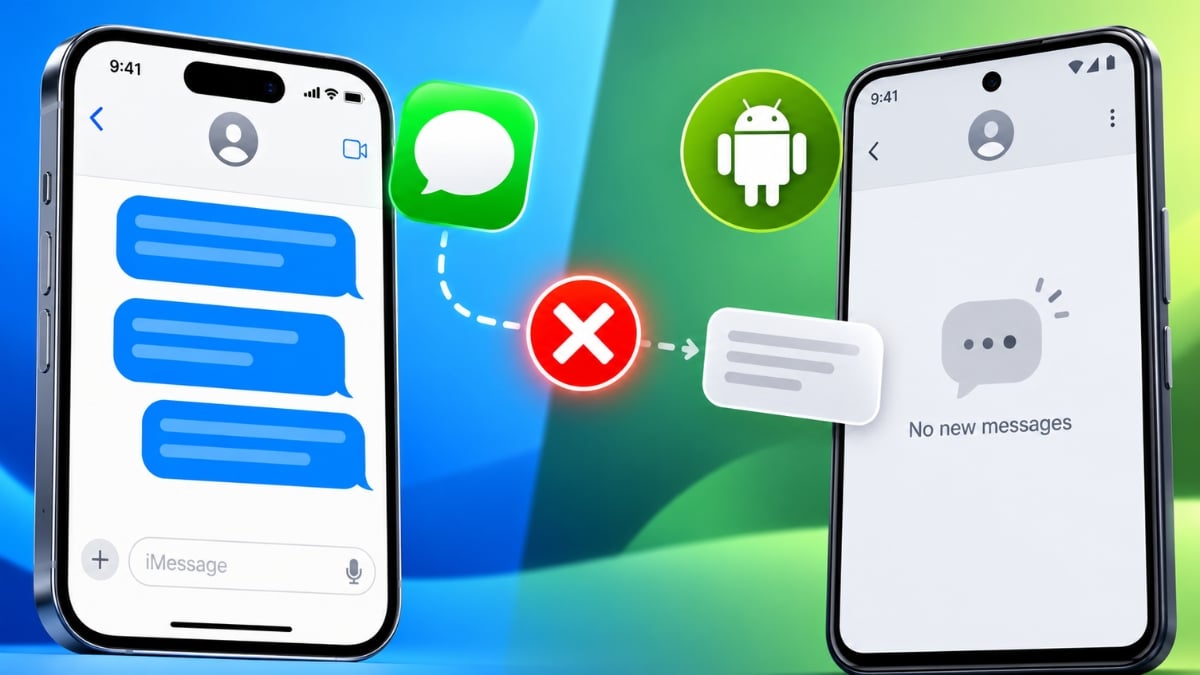
Your friend swears they texted you. Their iPhone even says “Delivered.” Your Android phone shows nothing: no notification, no thread, no failed-message warning.
Here’s the part most guides skip. Your Android phone is rarely the problem. In most cases, the iPhone sends the message through the wrong channel (usually iMessage), and it never leaves Apple’s servers. The rest come down to RCS registration, group MMS settings, or a carrier outage.
You can figure out which one you’re dealing with in under a minute. Start there.
First, Find Out How the iPhone Is Sending Your Texts
Ask the iPhone owner to open your conversation and check the bubble color and the gray label inside the text field. Apple’s own support page confirms what each one means:
- Blue bubbles, “iMessage” in the text field. The iPhone thinks your number belongs to an Apple device. Messages go to Apple’s servers and never reach you. Skip to the deregister fix below.
- Green bubbles, “Text Message • RCS.” The iPhone uses RCS. If texts still don’t arrive, look at RCS status on both phones or the carrier.
- Green bubbles, “Text Message • SMS.” Plain SMS or MMS. Failures here point to blocking, MMS settings, or the carrier.
That ten-second check saves you from working through every fix on the internet.
Switched From iPhone to Android? Deregister iMessage
Blue bubbles to an Android phone almost always mean one thing: you used this number on an iPhone, and Apple still has it linked to iMessage. Other iPhones keep sending iMessages to it. Sometimes they even show “Delivered” because a Mac or iPad signed in to your old Apple ID picked the message up.
If you still have the old iPhone:
- Put your SIM back in it (or move your eSIM back) and connect to cellular data.
- Go to Settings > Apps > Messages and turn off iMessage.
- Go to Settings > Apps > FaceTime and turn off FaceTime.
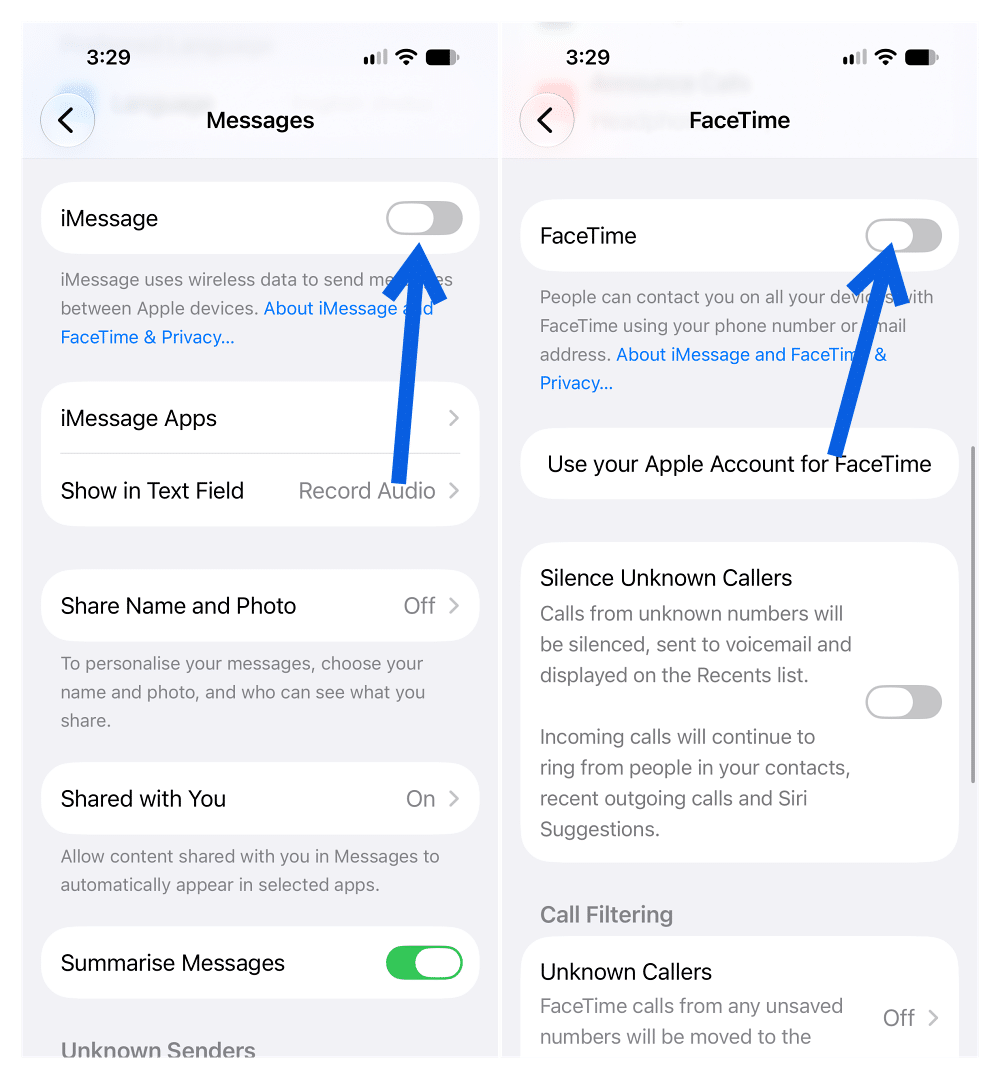
If you no longer have it, use Apple’s Deregister iMessage page (selfsolve.apple.com/deregister-imessage). Enter your phone number, type in the confirmation code Apple texts to your Android phone, and submit.
Apple says you should get texts right away, but other Apple devices can take a few hours to notice you’ve left iMessage. If one friend’s iPhone still shows blue bubbles a day later, ask them to delete your old thread and start a new one. Also remove your number from Messages on any Mac or iPad still signed in to your old Apple ID.
Check RCS Status on Both Phones
Once the iPhone shows green bubbles, the next suspect is RCS. iPhones have supported RCS with Android since iOS 18, but Apple requires a carrier that supports RCS on iPhone. If registration stalls on either side, messages can hang instead of falling back to SMS cleanly.
On your Android phone (Google Messages): tap your profile picture, then Messages settings > RCS chats. Google lists four statuses:
- Connected: RCS works.
- Connecting: verification is still running.
- Trouble connecting. Awaiting retry: if this lasts more than 30 minutes, Google asks you to send feedback from the app.
- Not supported: check your data connection. Your carrier may not support RCS.
On the same screen, set the resend option to fall back to SMS/MMS. If an RCS message fails, it goes out as a regular text instead of vanishing. Your Google Messages check marks also tell you whether RCS delivery worked on your end.
On the iPhone: go to Settings > Apps > Messages and confirm RCS Messaging is on. Apple notes activation can take a few hours after enabling it or changing carriers.
One caution before you start toggling. Google warns that switching RCS chats off and on removes you from group chats. Toggle it once, restart the phone, and give it time.
Group Texts From iPhones Missing? Fix MMS
Maybe one-on-one texts arrive fine, but you’re missing the group chat. When a group mixes iPhones and Android phones and RCS isn’t available for every member, the group falls back to MMS. That needs two things.
On every iPhone in the group: go to Settings > Apps > Messages, then turn on MMS Messaging and Group Messaging. If either is off, the iPhone can’t send to a mixed group properly.
On your Android phone: keep mobile data on. Most carriers deliver MMS over cellular data, so a phone sitting on Wi-Fi with mobile data off often stalls group messages and photos. Glance at the Android status bar icons to confirm mobile data is active.
Samsung Galaxy Owners: Make Google Messages Your Default
This one is new for 2026. Samsung shut down Samsung Messages on July 6, 2026, and it can no longer send messages on Galaxy phones running Android 12 or later. Samsung now points users to Google Messages, which handles RCS with iPhones.
If your Galaxy phone still uses the old app or a third-party texting app, set Google Messages as default: Settings > Apps > Choose default apps > SMS app > Messages (the Google one). Then check RCS status as described above. Our guide to the Samsung Messages shutdown and its replacement app covers the migration in detail.
Rule Out Spam Filtering and Blocked Numbers
Google Messages filters suspected spam quietly, and a new iPhone contact can land there without a notification. Open Google Messages, tap your profile picture or the menu, and select Spam & blocked. If you find the missing thread, open it and mark it as not spam or unblock the number.
Also check your phone’s system block list in the Phone app. A number blocked there stays blocked in Messages.
When Nothing Works, Suspect the Carrier
If both phones look correct, the fault may sit outside your control. In August 2026, Fido iPhone customers in Canada couldn’t send RCS messages to Android users. Their RCS status got stuck on “Waiting for Activation” due to a carrier backend failure, and network resets didn’t help. One user fixed it by turning RCS off, restarting, and turning it back on.
It isn’t only carriers, either. In January 2025, Google told Android Authority that an Apple-side bug pushed iPhone RCS chats back to SMS.
Work through these last steps in order:
- Update both phones. iOS 27 launched on September 14, 2026, and iOS 27.0.1 followed on September 28. Update Google Messages from the Play Store.
- Reset network settings on the iPhone: Settings > General > Transfer or Reset iPhone > Reset > Reset Network Settings. This erases saved Wi-Fi passwords.
- Test with other contacts. If no Android user gets texts from that iPhone, the problem is on the iPhone’s side or its carrier. If only you’re affected, focus on your phone.
- Call the carrier and ask them to reprovision RCS and MMS on the affected line.
Does Encrypted RCS Change Anything?
No. Since May 11, 2026, RCS chats between iPhones on iOS 26.5 or later and Android phones running the latest Google Messages can be end-to-end encrypted. You’ll see a lock icon when it’s active. Google calls the rollout a beta, and it depends on carrier support.
Encryption turns on automatically and needs no setup. Apple says RCS chats are encrypted only when both carriers support it, so an unsupported carrier leaves the chat unencrypted rather than blocked. If texts aren’t arriving, encryption isn’t the cause.
Signing Off
Missing iPhone texts feel like an Android problem, but the fix usually lives on Apple’s side: a phone number still tied to iMessage, an RCS registration stuck halfway, or MMS switched off on someone’s iPhone.
Check the bubble color first, deregister if you’ve switched, and confirm RCS shows Connected. If everything looks right and texts still vanish, push your carrier. Settings can’t fix a backend outage.
Don’t miss these related reads: