Your phone buzzes face-down on the table. Do you flip it over to check who’s calling, or let it ring out so you don’t break eye contact with whoever you’re with? Google built a feature specifically for that moment.
At its Made by Google event, Google introduced HiLight alongside the Pixel 11 lineup. It’s a ring of color-coded LEDs built into the back of select Pixel 11 phones, and it’s designed to answer one question without you ever picking up the phone: is this worth interrupting what you’re doing?
HiLight was one of several announcements from that keynote. If you want the full picture, our recap of everything Google announced at the event covers the rest of the lineup. Here’s what HiLight actually does, how the hardware behind it works, and which Pixel models get it.
What Is Pixel HiLight?
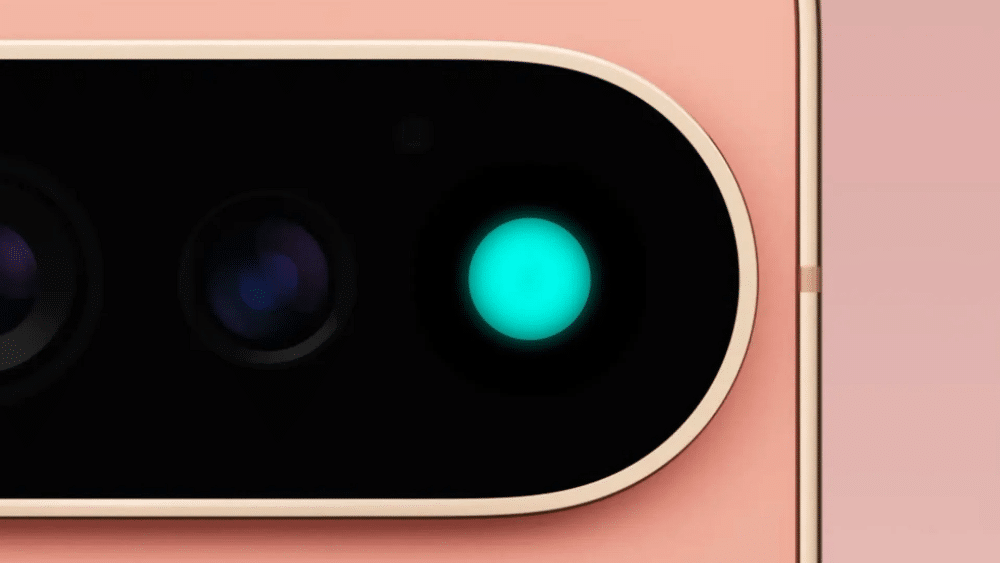
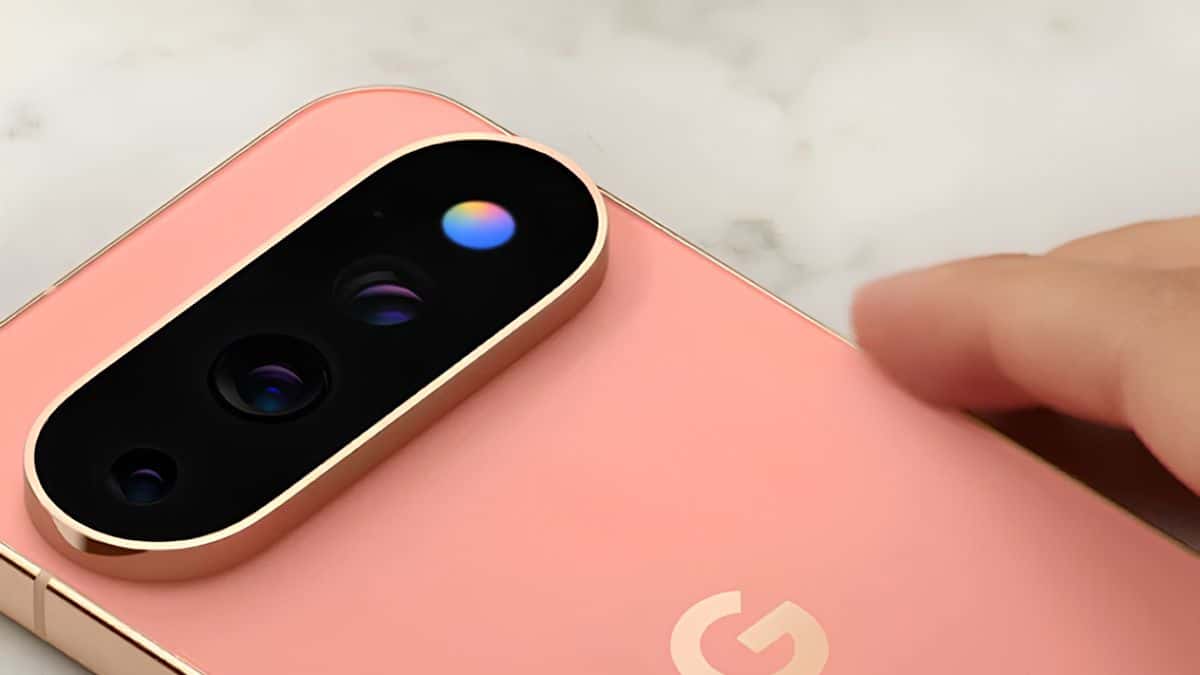
HiLight is a set of ambient LEDs wrapped around the camera flash on the back of the phone. When the phone lies face-down, the lights glow in custom colors to signal specific events, an incoming call from a favorite contact, or Gemini actively listening to a voice command.
Google marketed the feature with the line “Attention-grabbing. Not attention-seeking.” That framing matters: HiLight isn’t trying to replace your lock screen. It’s trying to give you enough information to decide whether you need your lock screen at all.
The feature also went through a name change before launch. Early leaks referred to it internally as “Pixel Glow.” Google confirmed the official “HiLight” branding just days before the announcement, a detail we covered in our earlier report on the Pixel 11’s release date and leaked features.
How Pixel HiLight Works
HiLight relies on a dedicated LED array, not a software trick layered on top of the display. On the Pixel 11 Pro and Pro XL, the lights sit to the right of the camera bar. On the Pixel 11 Pro Fold, they’re positioned in the top-left corner of the back panel.
The array only activates when the phone is face-down, since that’s the entire point: you get a glanceable signal without touching or turning over the device. Two functions trigger it at launch. Favorite contacts calling through Phone by Google or WhatsApp light the array in a color you’ve assigned to that person. And when you talk to Gemini hands-free, the lights pulse in different patterns to show whether it’s listening, thinking, or responding.
Press the power button and the glow dismisses. HiLight also works alongside Flip to Shhh, the older Pixel feature that silences notifications when you turn your phone screen-down, so the two are built to complement rather than conflict with each other.
Which Phones Support HiLight
HiLight ships only on the three Pro models from the Pixel 11 line:
- Pixel 11 Pro ($1,099)
- Pixel 11 Pro XL ($1,299)
- Pixel 11 Pro Fold ($1,899)
The standard Pixel 11 doesn’t get it. That’s a hardware limitation, not a software one. HiLight needs the physical LED array built around the flash, and Google reserved that component for the Pro tier. If you’re deciding between the standard and Pro models, our breakdown of what actually separates the Pixel 11 from the Pixel 11 Pro covers the other differences worth knowing before you buy. Preorders opened August 13, 2026, and all three phones became available at retail on August 20, 2026.
What HiLight Can Actually Do Right Now
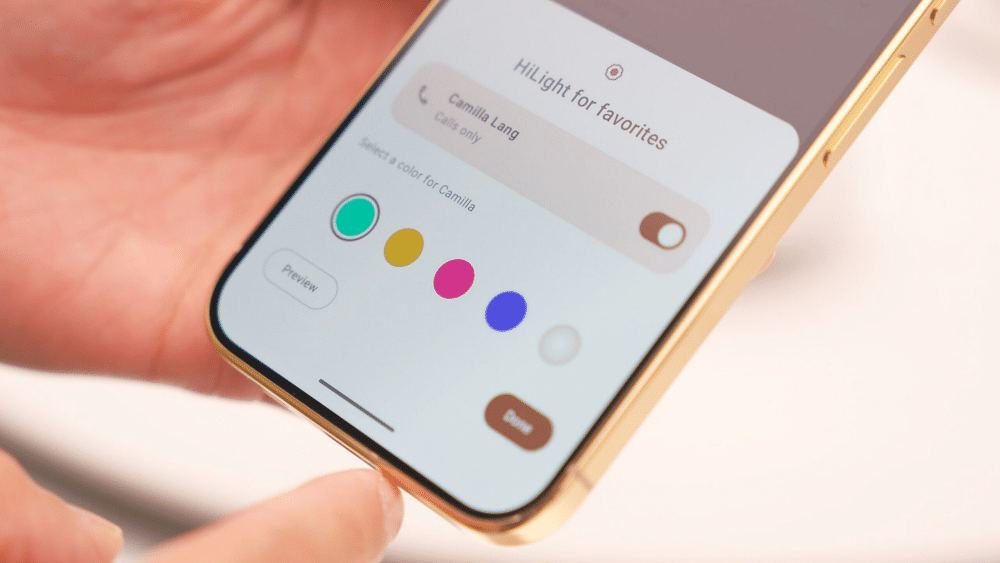
Two features ship at launch, and both center on the same idea: information without a screen.
- Custom colors for favorite contacts. Open the Contacts app, pick a contact, and assign one of five available colors. Reviewers who tested it describe assigning a single color per family member or grouping close friends under one hue. It works with calls through Phone by Google and WhatsApp specifically, not every calling app.
- A Gemini status light. When you talk to Gemini without looking at your screen, HiLight pulses to confirm it heard you, is processing your request, or is about to respond. You can turn this off independently in system settings if you’d rather Gemini stay silent.
That’s the full feature set at launch. It’s a narrow start for a piece of dedicated hardware.
Where HiLight Falls Short at Launch
Here’s something worth knowing before you buy a Pro model specifically for this feature: HiLight doesn’t work with text messages yet, even though Google seemed to acknowledge on stage that it should. Reviewers who covered the launch pointed out the gap directly, and 9to5Google called the rollout half-baked, comparing it to the Pixel’s temperature sensor, another hardware feature that shipped with a fraction of its promised usefulness.
Google has confirmed that favorite-contact colors “will also work for messaging in the future,” but gave no firm timeline. There’s also no way yet to assign colors by notification source, so an Instagram DM and a calendar reminder look identical if they ever get added to HiLight at all. For now, this is a calling and Gemini feature, not the broader notification system the marketing implies.
Want the HiLight Effect on a Non-Pro Phone?
If you don’t own a Pixel 11 Pro, you can get a similar effect through aodNotify, a third-party Android app. It lights up the area around your camera cutout or draws a glowing border around your screen edge for incoming notifications.
It’s arguably more capable than Google’s own feature at this stage. AodNotify works with the phone face-up, works whether the screen is on or off, and triggers on any notification type instead of just calls and Gemini. Setup takes a few minutes: assign colors per contact or let the app auto-match colors to app icons. It’s available for Pixel, Samsung, OnePlus, and most other Android phones.
How to Turn On and Customize HiLight
If you own a supported Pixel 11 Pro model:
- Open the Contacts app and select a contact you want to highlight.
- Assign one of the five available colors to that contact.
- Go to Settings to toggle the Gemini indicator on or off independently.
- Press the power button any time to dismiss an active glow.
Final Thoughts
HiLight is a real piece of hardware with a genuinely useful idea behind it: information you can act on without unlocking your phone. Right now, it only covers two situations, calls from people you’ve flagged and Gemini’s status, which makes it feel more like a preview than a finished feature.
If Google follows through on adding text messages and broader notification support, HiLight could become one of the more distinctive reasons to choose a Pro Pixel. Until then, it’s a nice extra, not a reason on its own to upgrade.