You get a text with a delivery address buried in the middle of a paragraph. You long-press to copy it, and Google Messages grabs the whole message. Then you paste, delete the extra words, and hope you didn’t clip a digit. Checking when a text arrived wasn’t much better: tap one bubble, read the time, tap the next.
Google fixed both this week. A new floating long-press menu with precise text copying began rolling out widely on September 24, 2026, and swipe gestures for timestamps and replies followed on September 25. Coverage ties both to Messages version 20260910_03_RC02, but Google controls the switch server-side, so your phone may get them a few days after someone else’s.
The catch: one of these gestures reverses a swipe you’ve used for years. Here’s how each one works and what to relearn.
What Changed in Google Messages at a Glance
- Swipe left: Shows timestamps and encryption status for every message in the chat at once.
- Swipe right on a bubble: Starts a reply to that message.
- Tap a message: Shows delivery and read status only.
- Long-press a message: Opens a floating menu next to the bubble, with an option to copy part of the text.
The two gestures matter most day to day. The menu is the bigger design change.
How to See Timestamps for a Whole Conversation in Google Messages
Previously, tapping a bubble showed its timestamp, delivery status, and encryption details. That worked for one message. It was tedious when you wanted to scroll back and see when a whole exchange happened.
- Open any conversation in Google Messages.
- Swipe left anywhere in the chat.
- Timestamps and encryption status slide in beside every visible message.
Seeing encryption status across the full thread is the underrated part. If a group chat or a contact drops from RCS to SMS partway through, you can spot it in one swipe instead of tapping messages one by one. It also helps when you need proof of when something was sent, like a delivery confirmation or a work instruction.
Tapping a message still works, but it now shows only delivery and read status. If you’re not sure what those ticks mean, our guide to Google Messages check marks explains each one.
How to Reply to a Specific Message With a Swipe in Google Messages
This is where muscle memory will trip you up. Swipe-to-reply used to be a left swipe. Google moved it to the right to make room for timestamps.
- Find the message you want to answer.
- Place your finger on the bubble itself and swipe right.
- The message attaches above the text field as a quoted reply. Type and send.
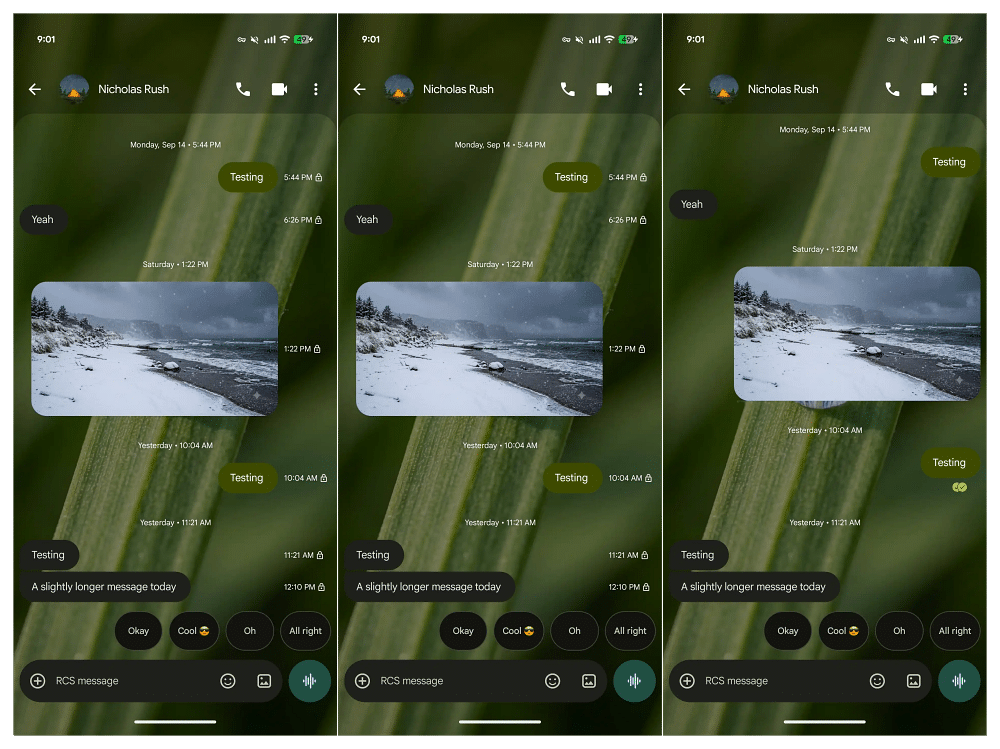
Start the swipe on the bubble, not the empty space beside it. Reports from 9to5Google note the gesture needs some precision, so a sloppy swipe may just scroll the chat.
Expect a few days of left swipes pulling up timestamps when you meant to reply. Google adds a hint to ease the switch: tap a message and timestamps briefly peek in from the side.
How to Copy Only Part of a Message in Google Messages
The long-press menu is the upgrade behind the copy fix. The old version put actions in a toolbar at the top of the screen, showing three and hiding the rest in an overflow menu. On a big phone, that meant stretching your thumb for every copy or forward.
Now the menu floats beside the bubble with the background blurred. It lists Reply, Forward, Copy, Star, Delete, Select more, and Info, with Save and Remix added for photos. The emoji reaction row and Photomoji shortcut stay where they were.
To copy part of a message:
- Long-press the message bubble.
- Long-press again on the text you want.
- Drag the selection handles over the exact words, number, or code.
- Tap Copy.
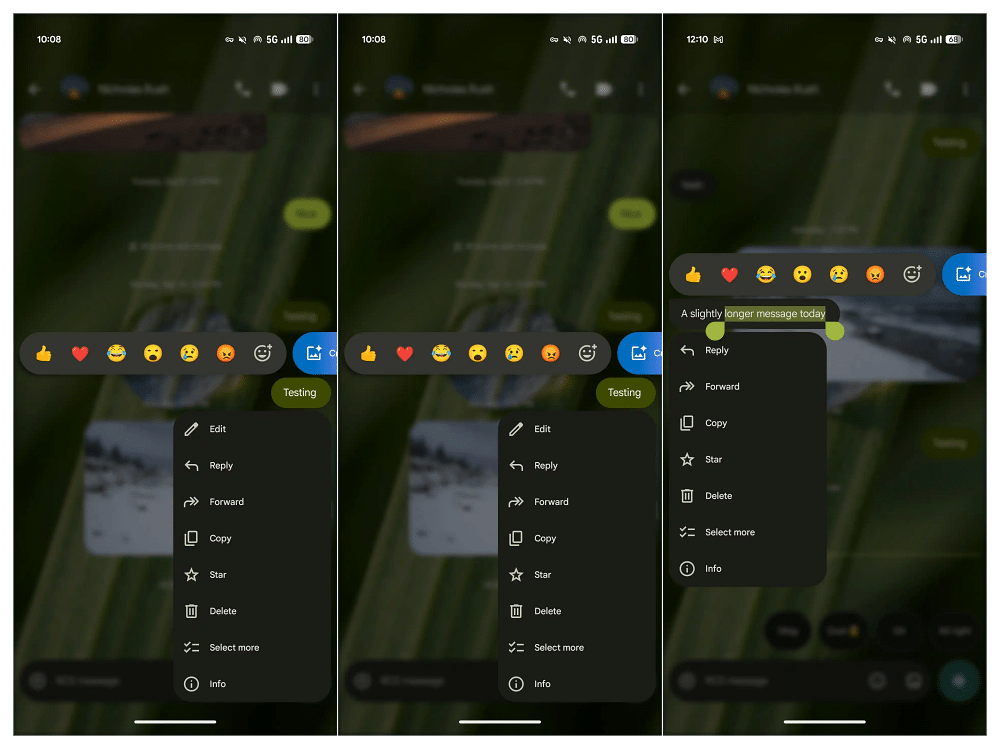
Before this, Messages only copied the full message. For tracking numbers, booking codes, or an address inside a long text, this removes the paste-and-trim step. The menu works on text, images, videos, links, files, locations, and contact cards.
Who Benefits Most From the New Gestures
Anyone who scrolls back through long chats will feel the timestamp swipe first. It turns a dozen taps into one motion.
Samsung users should pay attention too. Samsung Messages was discontinued in July 2026, and many Galaxy owners moved to Google Messages for the first time. If that’s you, you have no old swipe habit to unlearn. Our explainer on the Samsung Messages shutdown covers the move if you haven’t made it yet. Early reports confirm the new menu on the Galaxy S23 Plus and Galaxy S25 Ultra, not just Pixels.
Longtime Google Messages users get the steepest adjustment. The reply gesture flipped direction, and none of the early reports mention a setting to switch it back.
Not Seeing the New Gestures Yet? Try This
Because Google activates these features server-side, updating the app doesn’t guarantee you’ll see them right away. Sources also differ on the exact build. 9to5Google ties the rollout to 20260910_03_RC02, while Android Authority confirmed the menu on 20260903_04, so the flag matters more than the version number.
- Open the Play Store, search for Google Messages, and tap Update if it appears.
- Go to Settings > Apps > Messages and tap Force stop.
- Reopen Messages and try a left swipe in any chat.
9to5Google recommends the force stop specifically, since it prompts the app to check for new server-side flags. If nothing changes, wait a few days.
The gestures cover the practical side of texting. If you want the fun side, see the full list of Google Messages screen effect trigger phrases.
Signing Off
Google tested these changes for most of 2026 before shipping them, and the result is small but useful. You can copy just the part of a text you need, check timestamps and encryption for a whole thread in one swipe, and reach every message action without stretching your thumb.
The only real cost is retraining your hand to swipe right for replies. Give it a week and the old way will feel slow.
Worth checking on Amazon: