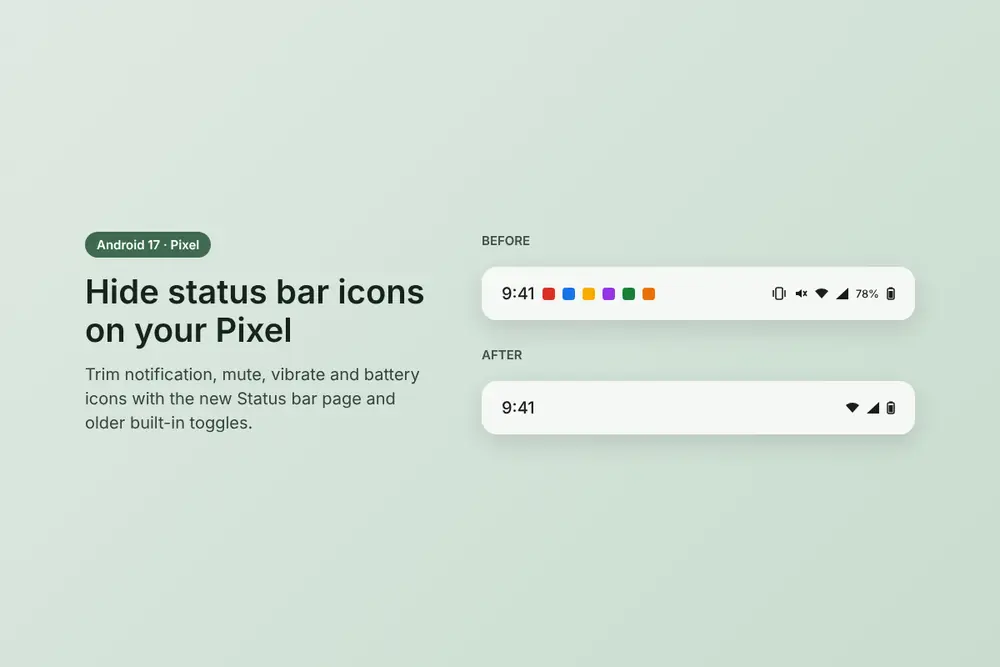
Glance at the top of your Pixel and count the icons. A Gmail envelope, two Slack badges, a shopping app reminder, the vibrate symbol, and the battery percentage, all crammed next to the camera cutout. On Samsung and OnePlus phones you could trim that clutter years ago. On a Pixel, you couldn’t.
That changes with Android 17 QPR2. Google added a dedicated Status bar page in QPR2 Beta 4 on August 28, 2026, and the stable release is scheduled for December 2026. The catch: as of November 3, 2026, most Pixel owners are still on Android 17 QPR1, which doesn’t have it.
Here’s how to hide status bar icons on whichever Android 17 build you’re running, plus the honest limits of each method.
Which Android 17 Version Has the New Status Bar Controls?
Check your build first. Open Settings > About phone > Android version to see what you’re on.
- Android 17 QPR1 (stable, September 2026): No Status bar page. You get older, scattered toggles (covered below).
- Android 17 QPR2 Beta 4 or later: The full Status bar page is live. The latest QPR2 build is Beta 7.1, released October 16, 2026.
- Android 17 QPR2 stable: Expected in December 2026, alongside that month’s Pixel update.
- Supported phones: Pixel 6a through the Pixel 11 series, including the Pixel Tablet and Pixel Fold. The Pixel 6 and 6 Pro stop at QPR1, so they won’t get this page.
If you’re unsure where Google’s release cycle stands, our explainer on the current Android version breaks down QPR builds in plain terms.
How to Hide Status Bar Icons on Android 17 QPR2
Google put the new page in two places, and both open the same screen.
- Open the Settings app.
- Tap System, then Status bar. (You can also reach it through Notifications > Status bar.)
- Under Notification icons, pick All, Priority only, or None.
- Under System icons, turn off Mute, Vibrate, or Battery percentage to hide them.
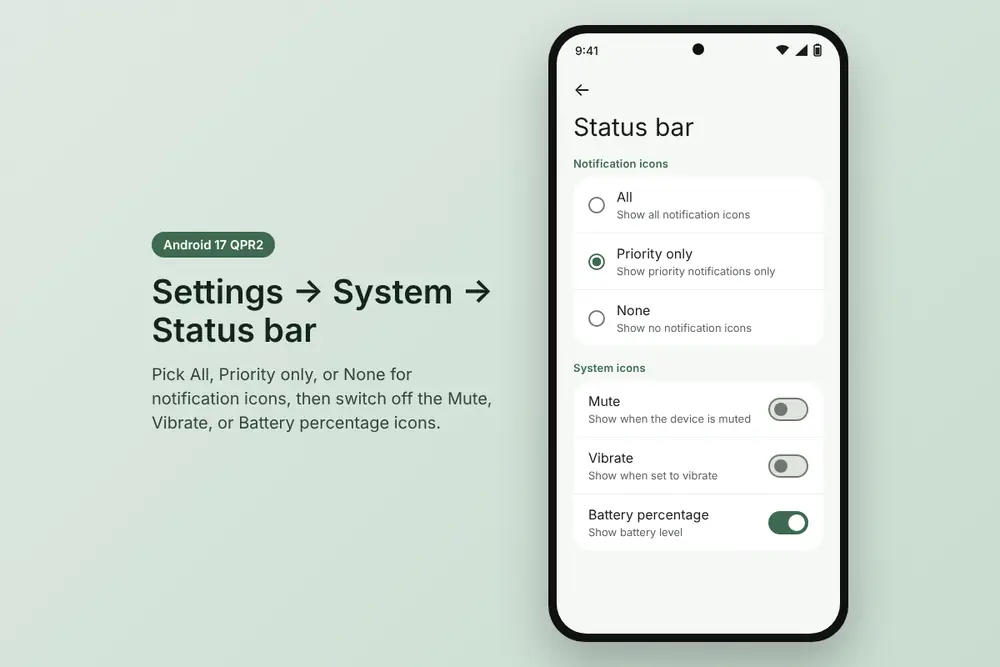
Pick None and the left side of your status bar goes blank except for the clock. New messages still arrive in the notification shade, so you lose nothing except the preview icons. It’s a surprisingly calm look, though you’ll start checking the shade by habit.
What “Priority only” actually hides
This is the option most people should use, and Google set it as the default, according to 9to5Google’s hands-on. The label is vague, but the underlying code is clear. In an APK teardown of Android Canary build 2608, Android Authority found the internal name for “Priority only” is status_bar_notification_icons_hide_silent.
In practice, “Priority only” hides icons for silent notifications and keeps icons for alerting ones (messages, calls, anything that makes a sound or vibration). That means you control what counts as “priority.” Long-press any notification, tap Silent, and that app’s icon disappears from the status bar under this setting.
On Stable Android 17? Use These Toggles Today
You don’t need the beta to clean up most of the clutter. Three settings already exist on Android 17 QPR1, they’re just spread across different menus. QPR2 mostly gathers them in one place.
Hide silent notification icons
- Go to Settings > Notifications.
- Under General, turn on Hide silent notifications in status bar.
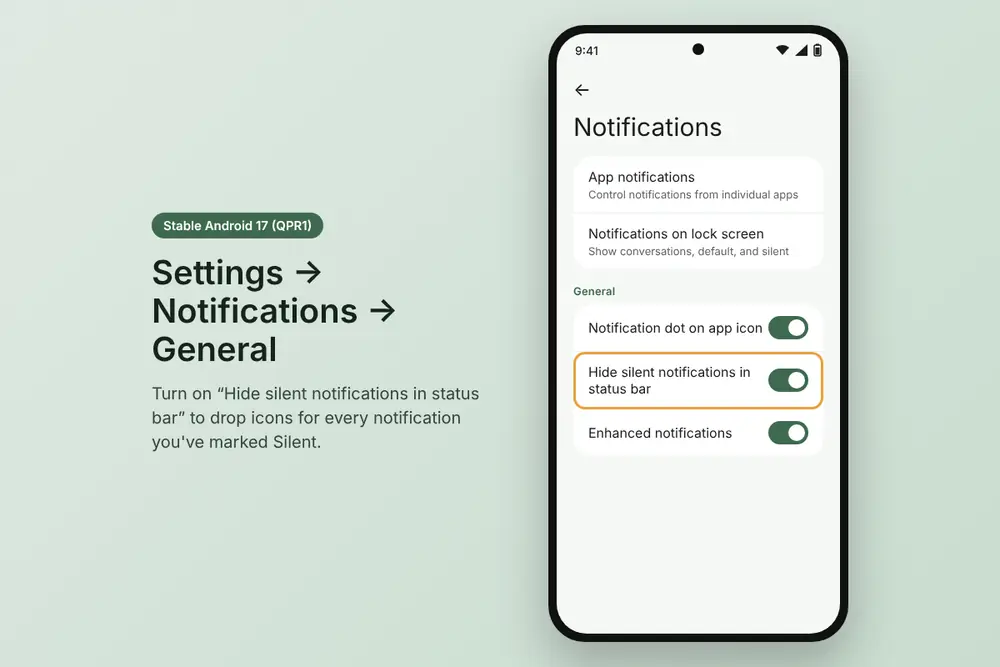
This does the same job as QPR2’s “Priority only” option. Silent notifications still appear in the shade.
Hide the battery percentage
- Go to Settings > Battery.
- Turn off Battery percentage.
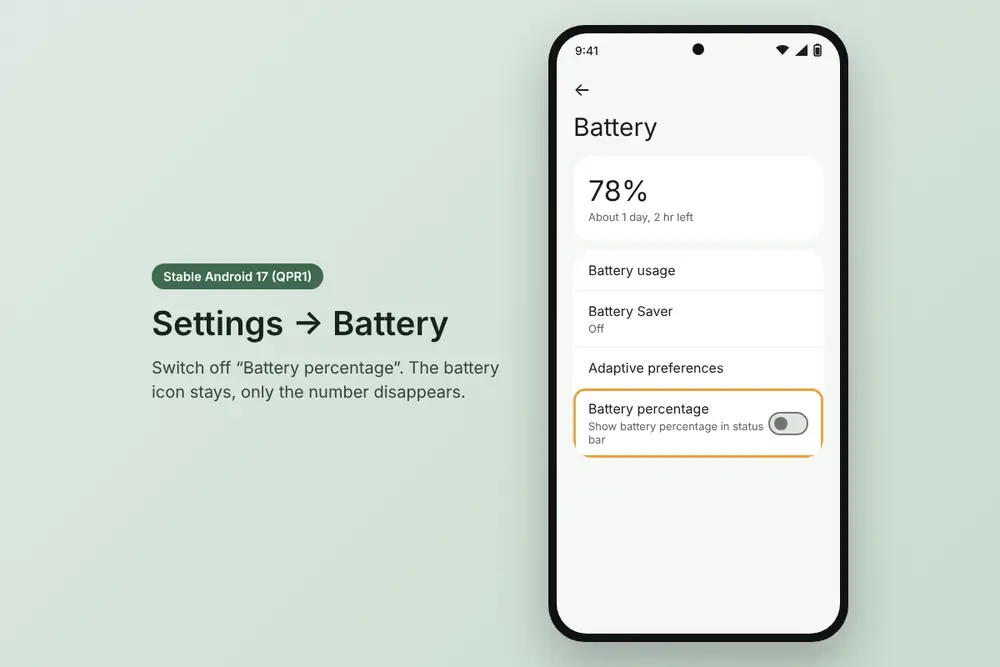
The battery icon stays. Only the number goes away.
Hide the vibrate icon
- Go to Settings > Sound & vibration.
- Turn off Always show icon when in vibrate mode.
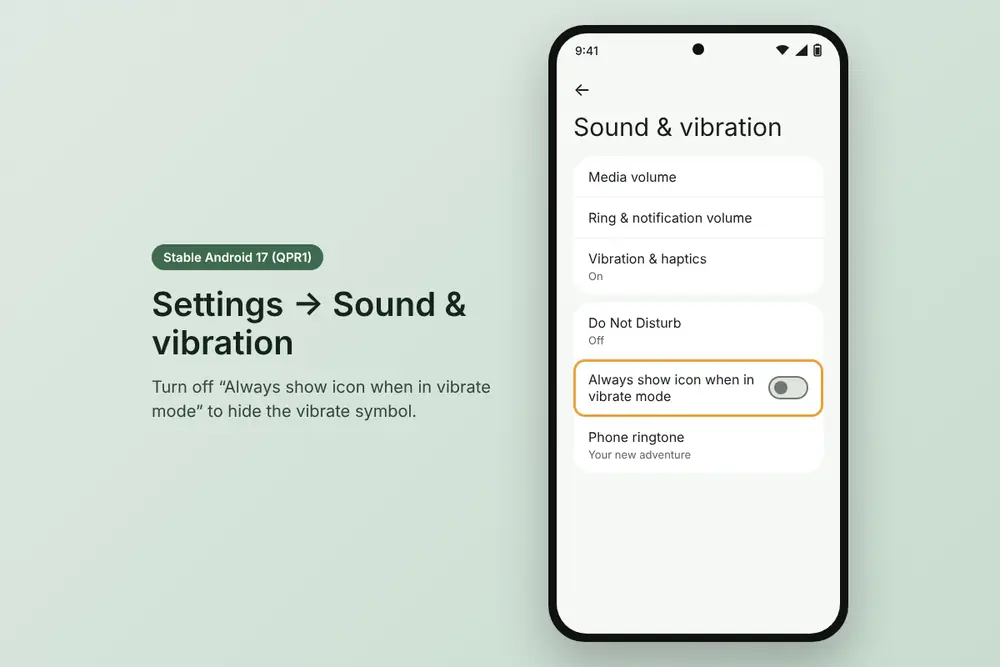
Google added this toggle back in Android 12 QPR3, and it’s still the only built-in way to hide the vibrate icon on QPR1.
Silence the apps that create clutter
Combine the silent-notification toggle with per-app control. Long-press a notification from a chatty app (shopping, news, social), then tap Silent. For finer control, open Settings > Notifications > App notifications, pick the app, and set individual categories to silent or turn them off.
One thing QPR1 can’t do on its own: hide the mute icon or remove all notification icons at once. Those two options are new to QPR2.
What You Still Can’t Hide on a Pixel
Even QPR2’s page has limits. Google gives you notification icons plus three system icons. Wi-Fi, mobile signal, Bluetooth, alarm, hotspot, and VPN icons stay put, and you can’t change how any icon looks. Android Authority notes that Samsung and OnePlus have offered broader control for years.
Third-party tools fill that gap, with trade-offs:
- SystemUI Tuner (Play Store): Taps into Android’s hidden System UI Tuner menu to toggle individual icons. It needs elevated permissions granted through ADB, and a How-To Geek reader report from October 2026 says the app hasn’t been updated for Android 17, so expect rough edges.
- Essentials (GitHub, sideloaded): Offers a Display > Statusbar icons section and a “Smart WiFi” toggle that hides mobile bars while you’re on Wi-Fi. It requires advanced permissions, typically through Shizuku or a tool like ShizuWall.
Both use ADB-level access. Install only from the developer’s official page, and expect hidden icons to return after a major update resets System UI settings.
Should You Install the QPR2 Beta Just for This?
Probably not. The QPR1 toggles above cover hiding silent notifications, battery percentage, and vibrate. QPR2 only adds the mute toggle and the “None” option, and the stable build lands in roughly a month.
Beta 7.1 did fix multi-second freezes that Pixel owners reported in earlier QPR2 builds, but betas still carry bugs. Our Android 17 QPR2 Beta 7 coverage lists what’s fixed and what’s still broken. If you want it anyway, the install steps in our Android 17 QPR1 Beta 7 guide work the same way for QPR2.
Final thoughts
Google’s new Status bar page isn’t as powerful as what Samsung offers, and it doesn’t need to be. Most Pixel clutter comes from silent notifications, and you can hide those today on stable Android 17 with one toggle. QPR2 in December tidies the controls into one screen and adds the mute and “None” options. Set your noisy apps to silent now, and your status bar will look clean before the update even arrives.
Want more Pixel cleanup? Try our guide to hiding app names on your Pixel home screen.