You open Google Photos and spot a tiny cloud with a line through it on one thumbnail, a folder icon you never noticed in the top bar, and a sparkle next to the search button. None of them have labels, and a few of them change meaning depending on your settings.
These symbols are not decoration. They tell you whether a photo is safe in the cloud, where a shortcut leads, and which tools use Gemini. Misreading one can mean deleting a photo you thought was backed up.
This guide explains every Google Photos icon and symbol by where it appears in the app: the top bar, the photo grid, the floating navigation bar, the photo viewer, the editor, and the Collections and Create tabs. It reflects Google Photos version 7.97, the build rolling out in late October 2026.
Top Bar Icons
The top bar is your control strip. It shows backup progress on the left and account, sharing, and creation shortcuts on the right.
 Backup status pill (left side): Shows the state of your library backup at a glance.
- Preparing backup: Google Photos is getting ready to upload.
- Backing up photos: Uploads are in progress.
- Backup complete (cloud with a check mark): Every eligible item is backed up.
- Backup paused: Uploads stopped, usually because of Wi-Fi, battery, or data settings.
- Backup is off: Nothing new is uploading to your Google account.
- Folder icon: Opens the “On this device” page with local folders such as Screenshots, Quick Share, and Movies. Google added this shortcut in version 7.64 (February 2026) so you no longer need to dig through Collections.
 Plus icon (Create new): Starts a new album, collage, highlight video, cinematic photo, animation, or remix. It also holds partner sharing and importing from other places.
 Bell icon (Updates): Opens the Updates feed with shared albums, conversations, and shared links. It replaced the old people-shaped Sharing icon in late 2024, so if you are hunting for “Sharing,” this is it.
 Profile picture: Opens your account menu with backup status, storage, Photos settings, “Free up space,” and account switching. A small crossed-out cloud on your picture means backup is off.
 Google Photos logo: Tap it to jump back to the top of your photo grid. The pinwheel got a subtle gradient glow in version 7.55 (November 2025); only the logo changed, not the app.
Backup Status Icons on Photo Thumbnails
Small badges on thumbnails show the backup state of each photo. This is the most misread part of the app, because the same icon means different things depending on whether backup is on or off.
| Icon | When backup is ON | When backup is OFF |
|---|---|---|
| No icon | Backed up | Not backed up |
| Cloud with check mark | Appears for 3 seconds after a fresh backup | Backed up |
| Uploading | Backing up now | Backing up now |
| In queue or paused | Will back up later | Will back up later |
| Cloud with slash | Not backed up, no backup pending | Not shown |
| Permanent failure | Upload failed and will not retry | Upload failed and will not retry |
A cloud with a slash usually means the file sits in a device folder you have not added to backup, such as WhatsApp or Telegram downloads. Turn that folder on in backup settings to clear it. On Android, you can also control which apps back up to your Google account; see our guide to Android per-app backup controls.

Other thumbnail symbols you will see in the grid:
- Double-square icon (top-right corner): A photo stack. Google groups similar shots and bursts under one thumbnail. Stacks appear only in the Photos tab and only for photos saved on the device.
 Video duration (bottom corner): The item is a video, with its length shown in minutes and seconds.
- Floating date pill: Appears at the top while you scroll and then fades. Prefer the old centered dates? Turn on “Show dates in grid” in the Photos view options.
Floating Navigation Bar Icons
The bottom bar now floats above your photos as a pill instead of sitting flush with the screen edge. It arrived on iPhone in February 2026 (version 7.63) and reached most Android phones in July 2026 (version 7.82).
 Photos: Your main timeline of every photo and video.
 Collections: Albums, people, places, folders, and utility spaces like Archive and Trash.
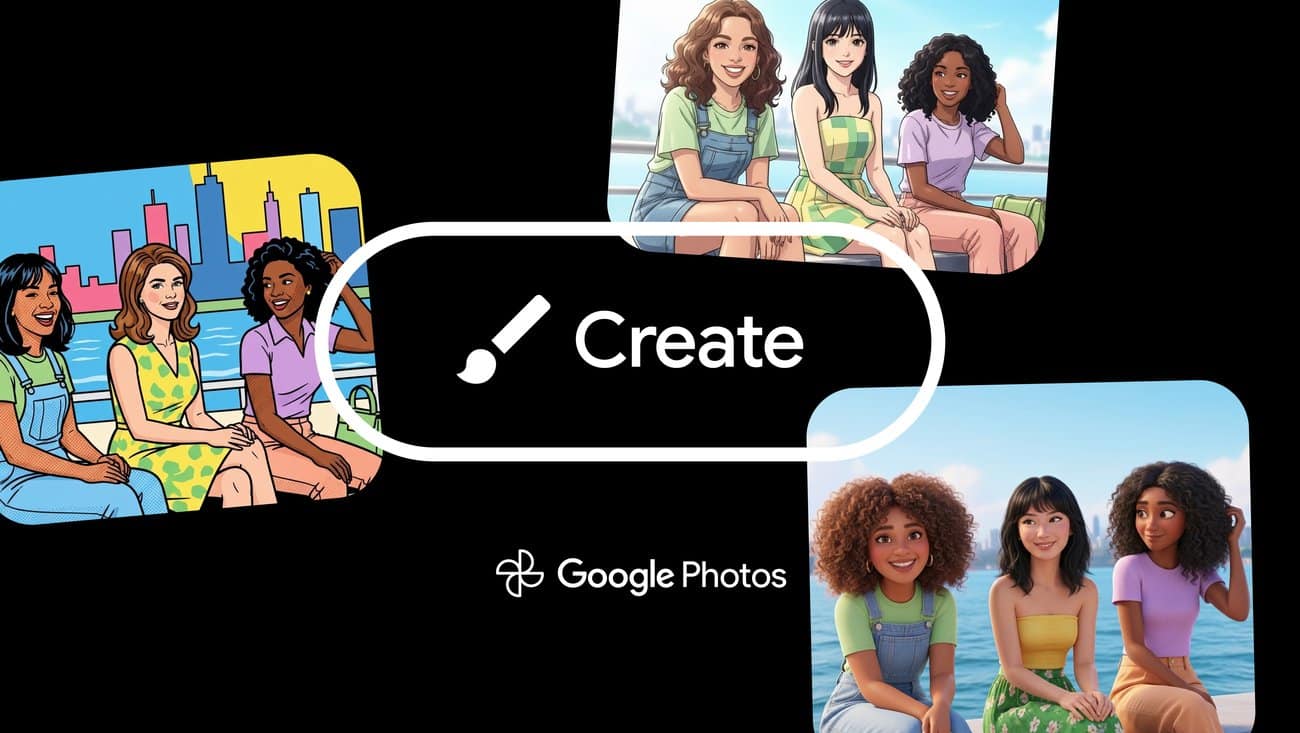
 Create: AI and creative tools such as remixes, collages, and photo-to-video.
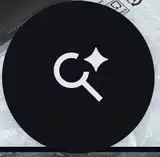 Circle with magnifying glass and sparkle (right side): Opens search and Ask Photos, the Gemini-powered assistant. The sparkle signals AI; the magnifying glass covers classic keyword search.
Only the selected tab shows an icon next to its name. The others show text alone, so a missing icon does not mean a tab is broken.
Ask Photos is off by default. If its answers miss photos you know exist, use the toggle on the search screen to switch back to classic results. Google added that toggle in March 2026 after user complaints.
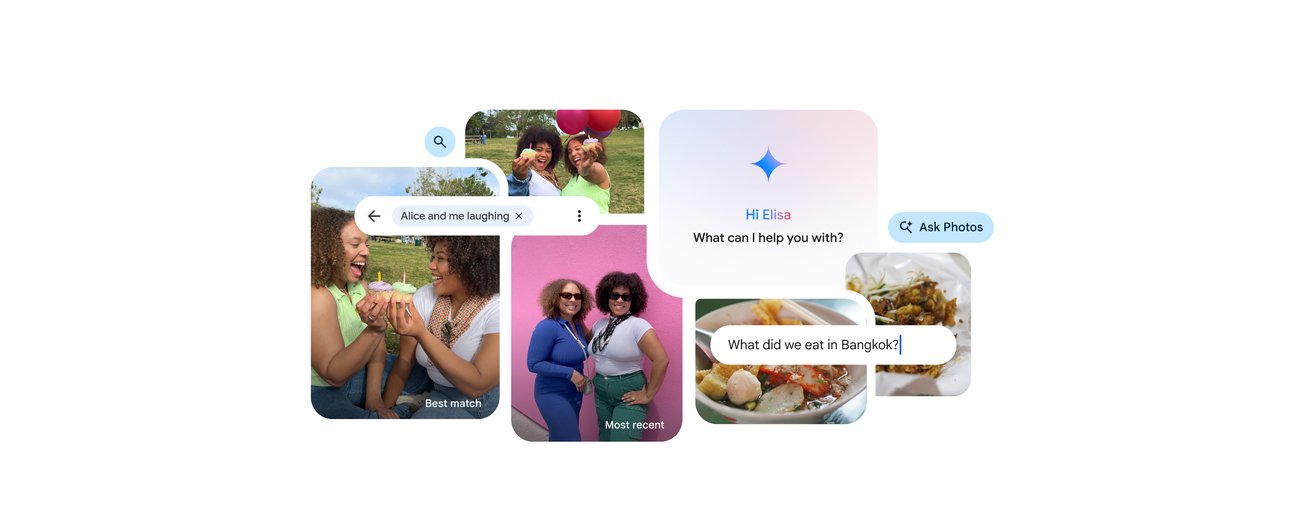
Photo Viewer Icons
Tap any photo to open the viewer. Google reorganized it in 2025, so older guides list buttons that have moved.
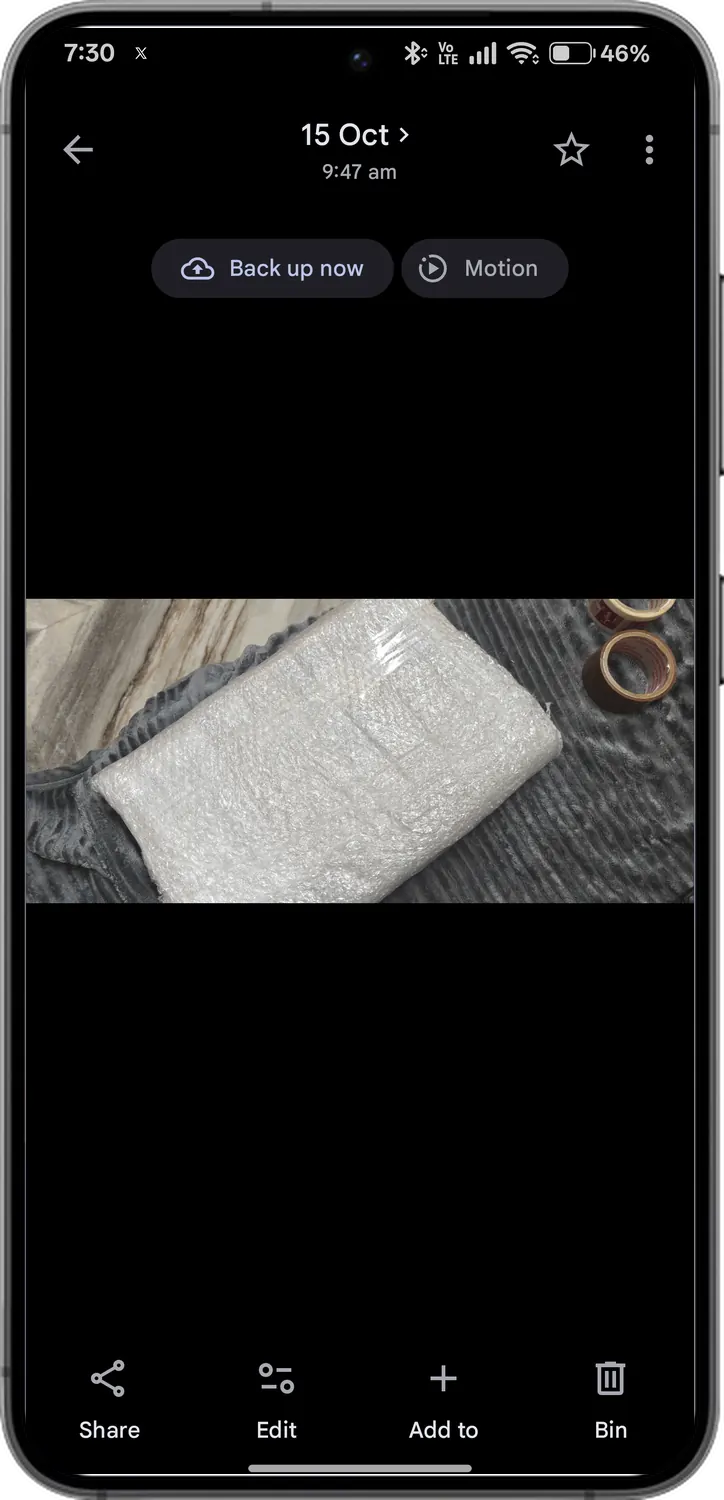
Top of the Viewer
 Back arrow: Returns to the grid.
- Date, time, and location: Plain text, not buttons. Swipe up to see full details, including backup status and file size.
 Star: Adds the photo to Favorites. A filled star means it is already a favorite.
 Three-dot menu: Opens extra actions (covered below).
- Pill badges (appear only when relevant):
 Motion: Plays or pauses a Motion photo or Live Photo.
- Save: Copies a photo someone shared with you into your own library.
 Back up: Uploads this item now, or opens storage options when you are out of space.
Bottom of the Viewer
 Share: Sends the photo by link, app, or directly to a Google Photos contact.
 Edit: Opens the editor.
- Ask (sparkle): Lets you ask Gemini about the photo you are viewing. It shows only when Ask Photos is turned on.
 Add to: Moves the photo into an album, Archive, or the Locked folder.
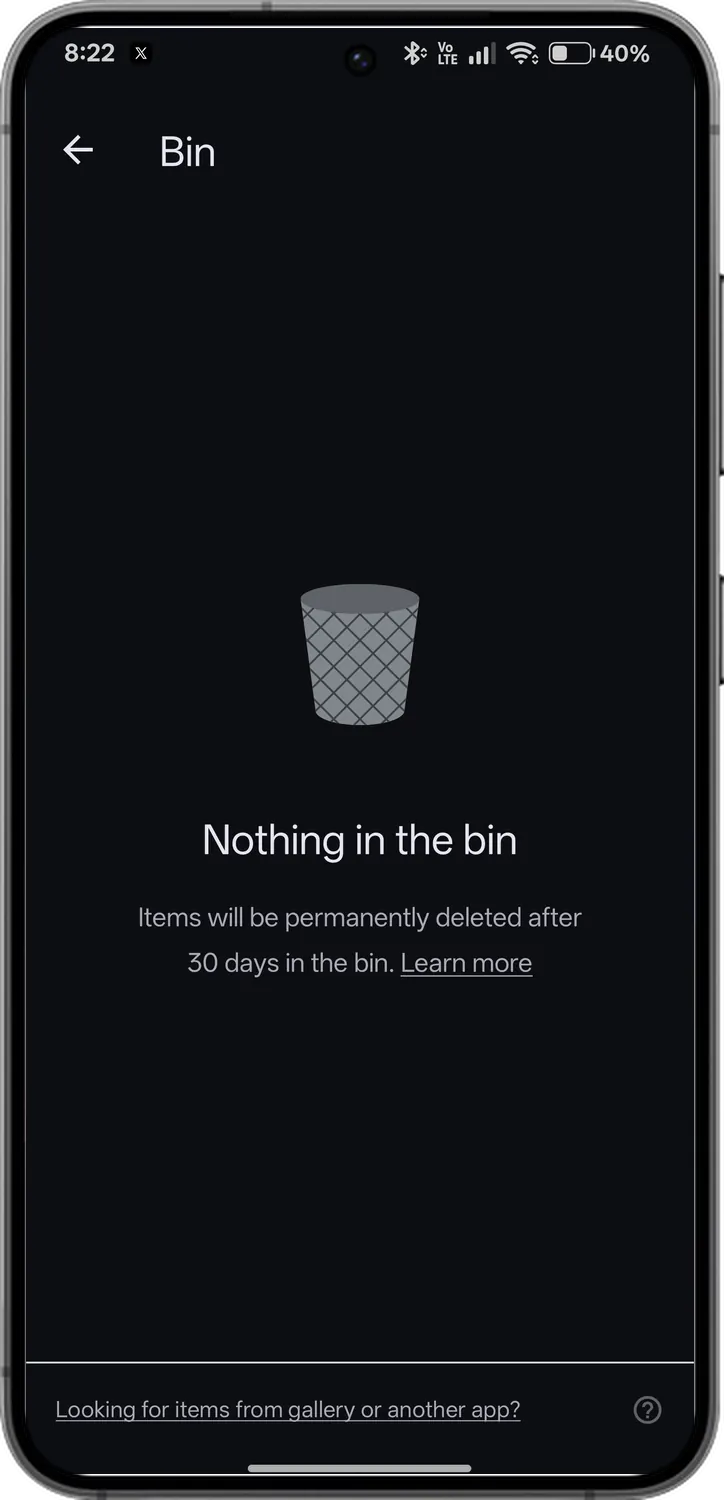
 Trash: Deletes the photo from your phone and from Google Photos. Deleted items stay in Trash for 30 days. Google recently cut this from 60 days for backed-up items, so do not count on the old two-month window.
Inside Trash, each item shows a deletion countdown with the days left before it disappears for good.
Three-Dot Menu
Here you will find Create (movie, collage, cinematic photo, photo to video), Slideshow, Cast, Use as, Print, Order photo, plus these easy-to-miss options:
 Google Lens: Identifies objects, copies text, or translates what is in the photo. It moved here from the bottom bar in the 2025 redesign.
 Delete from device: Removes only the phone copy. The backed-up copy stays in Google Photos.
 Archive: Hides a photo from your main grid but keeps it in search and albums.
 Locked folder (via Add to): Hides the photo behind your screen lock.
Easy to confuse: Trash removes the photo everywhere. Delete from device frees phone storage only. Archive declutters the grid. Locked folder is for privacy.
Photo Editor Icons
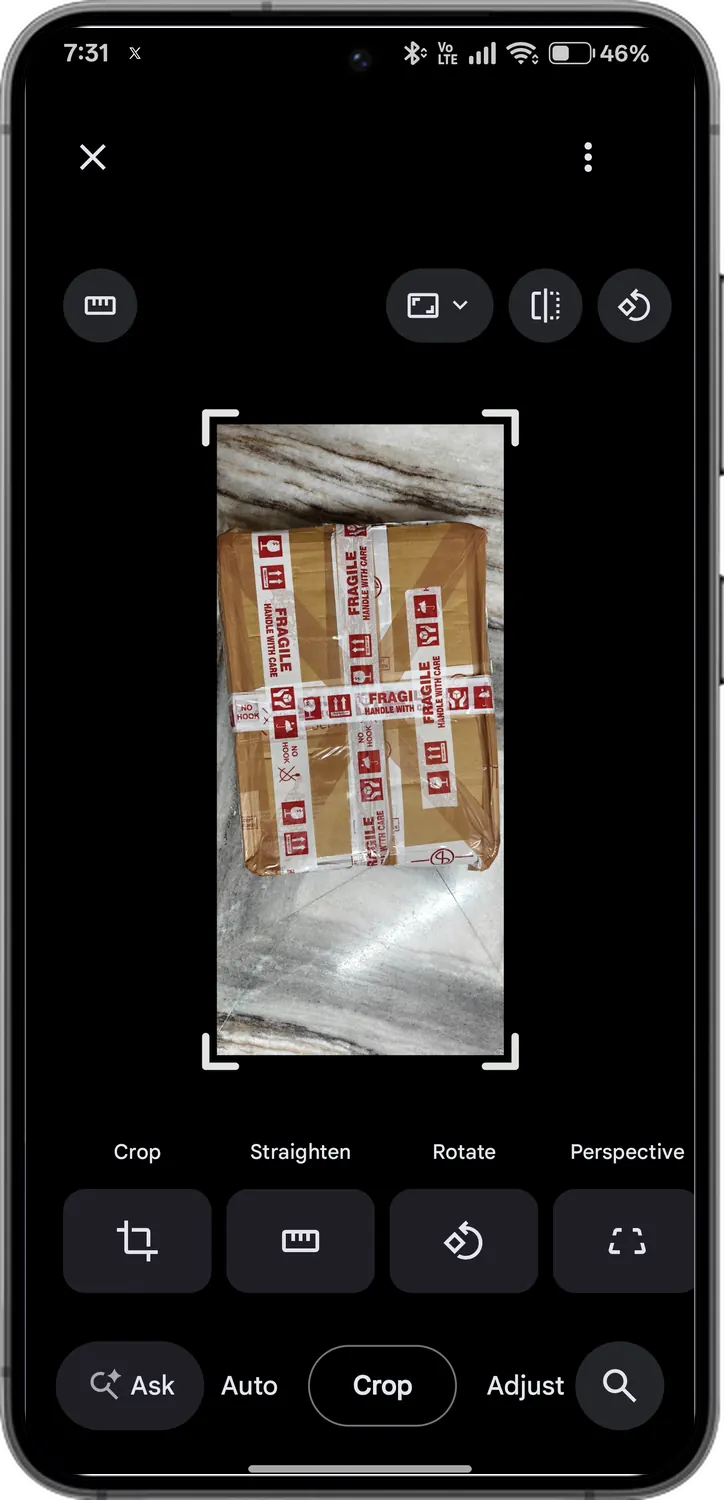
Tap Edit to open the editor. Google has tested several editor layouts in 2026, so your screen may show tools in a scrollable row or behind a Tools button. The icon meanings stay the same.
 Enhance, Dynamic, and AI Enhance: One-tap suggested edits. AI Enhance adjusts color, lighting, and clarity together.
 Ask: Type or speak an edit (“brighten the sky,” “remove the person on the left”) and let Gemini apply it. Newer builds replace the large “Help me edit” box with this compact Ask button.
 Search: Finds a tool by name, such as Brightness or Unblur.
 Crop: Crop, Straighten, Rotate, Perspective, Aspect ratio, Mirror, and Auto frame, which suggests AI-generated crops.
- Adjust: Brightness, Contrast, Saturation, Warmth, HDR effect, and Portrait light.
 Filters: Preset color looks plus Sky styles.
 Markup: Pen, Highlight, Text, and Redact, which blacks out sensitive details such as addresses or card numbers.
- Actions: AI cleanup tools.
 Magic Eraser: Removes unwanted objects. Tap or circle the object, then tap Erase.
 Unblur: Sharpens blurry photos, especially old ones with motion blur.
- Best Take: Swaps faces from similar group shots so everyone looks good.
- Check mark (Done): Applies the current tool. You still need to tap Save (overwrite) or Save as copy (keep the original).
Tap and hold the preview to compare your edit with the original. To undo all edits on a saved photo, open Edit and tap Revert. Some tools, like Reimagine and Move, need a Pixel phone or a Google AI Pro plan. Magic Eraser is free on any phone; see how to use Google Magic Eraser on any phone.
Collections Tab Icons
Google redesigned the Collections tab in version 7.97 (rolling out from October 27, 2026). It now works like a customizable dashboard.
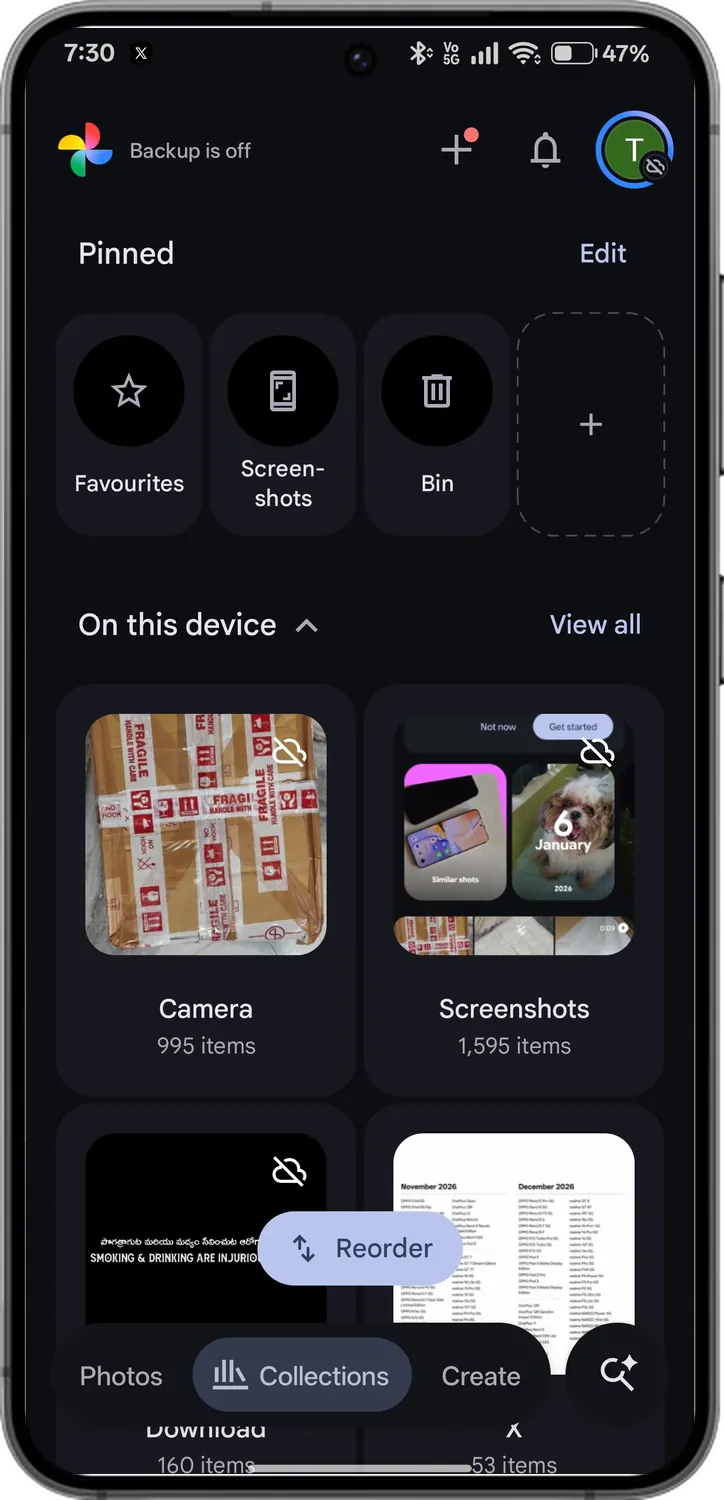
 Pinned shortcuts (top carousel): Favorites, Screenshots, and Trash by default. Tap Edit pinned to swap them or add your own album.
 Section carousels: Albums, People & pets, Places, Documents, and (on some accounts) Wardrobe. Each has View all plus options to hide or rearrange it.
- Other Collections grid: Moments, Videos, Recently added, Stickers, Creations, Archive, Locked, and Trash.
 Reorder button (bottom of the page): Drag sections into the order you want.
 Cloud with slash on a device folder: That folder is not backing up. It is the same warning as the thumbnail badge, applied to the whole folder.
 Padlock (Locked): Your Locked folder. Photos here do not show in the grid, search, or albums.
 View map (Places): Shows where your photos were taken on a map. If map pins confuse you, our Google Maps icons and symbols guide explains the same pin language.
Create Tab Icons
The Create tab collects Google Photos creative and AI tools in one place.
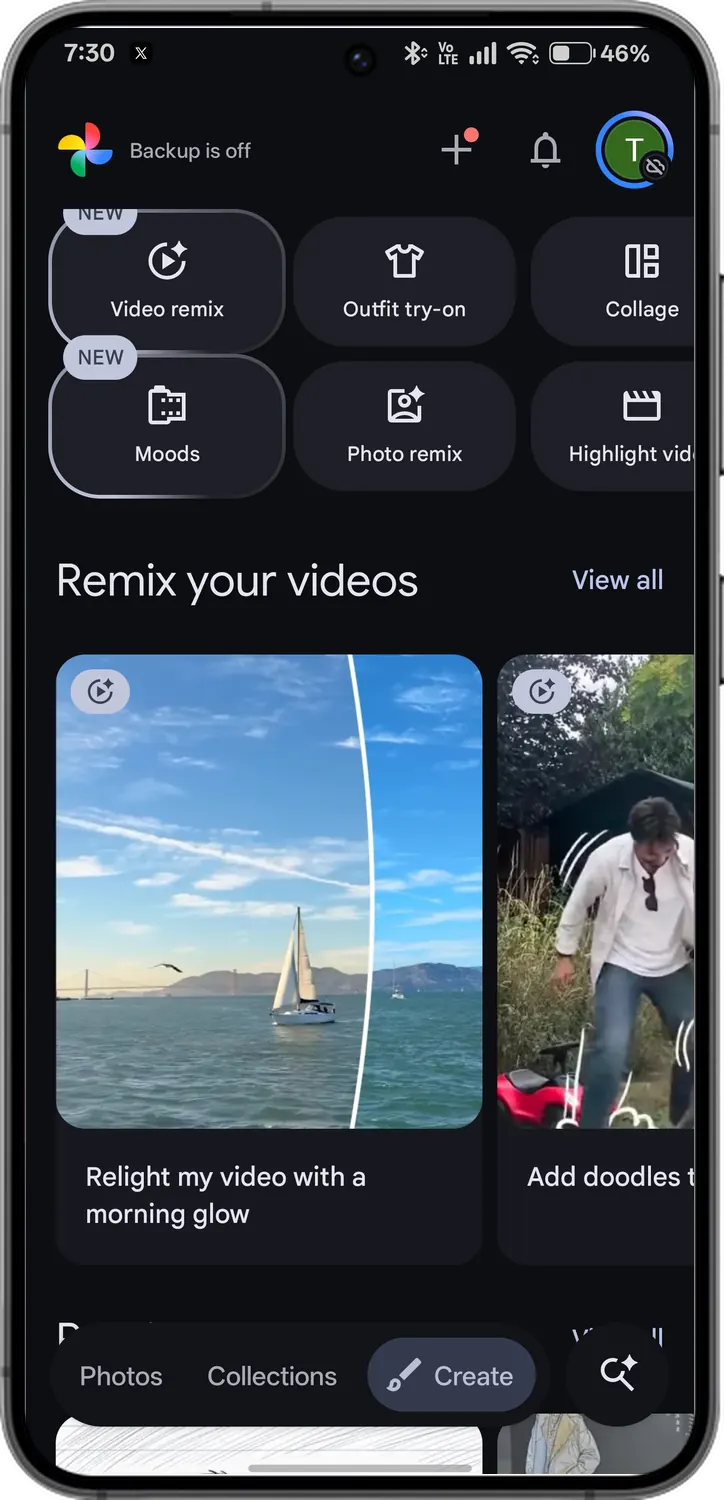
 Photo remix: Restyles a photo in an art style, such as anime or sketch.
- Photo to video: Turns a still photo into a short animated clip, powered by Google Veo.
 Cinematic photo: Adds a 3D camera-pan effect to a still image.
- Collage, Highlight video, and Animation: Combine several photos into one layout, a video montage, or a looping GIF-style clip.
- “New” badge: Marks a tool Google added recently. It disappears after you try it.
Tool availability varies by country, language, and account age requirements, so your Create tab may show fewer options.
Memories Icons
Memories play like stories at the top of the Photos tab. The controls are minimal:

- X (Close): Exits the memory.
- Volume icon: Mutes or unmutes the background music.
- Share: Sends the whole memory to people you choose.
- More (three dots): Edit the memory, rename it, view that day, or Hide it. Hide also lets you hide dates, people, or pets from all future memories.
There is no pause button. Touch and hold a photo to pause, then swipe up or down to jump between memories.
Final Thoughts
Google Photos packs a lot into small, unlabeled symbols, and the 2026 redesigns moved several of them. Once you know where each icon lives, the app stops feeling like a puzzle.
The icon that matters most is the backup badge, because it tells you whether a photo exists anywhere other than your phone. Check it before you delete, free up space, or switch phones, and you will never lose a memory to a misread cloud.