You tap a contact to call them, and a small RTT button sits right next to the green call icon. One wrong tap and you’re in a text-based call your friend never expected, staring at a keyboard instead of hearing a ring.
RTT (real-time text) is an accessibility feature for people who are deaf, hard of hearing, or have speech difficulties. It sends each character the moment you type it, so the other person reads your message as you write it. If you don’t need it, you can hide or disable it in under a minute. Here’s how on iPhone, Pixel, and Samsung Galaxy phones, plus the one thing no setting can turn off.
What RTT Actually Does on Your Phone
RTT replaced the old TTY (teletypewriter) standard on mobile networks. The FCC approved the switch on December 16, 2016, and required RTT to work with 911 and stay backward-compatible with TTY devices.
Three facts matter before you turn it off:
- It uses call minutes, not messaging. Google’s support page confirms RTT counts as a voice call.
- It works only in your home country. RTT isn’t available while roaming abroad.
- Your carrier controls it. If your carrier doesn’t support RTT, the option won’t appear, and you have nothing to switch off. Google Fi, for example, doesn’t support RTT.
How to Turn Off RTT on iPhone
Apple keeps both RTT and TTY in one menu, so a single trip to Settings handles everything.
- Open Settings.
- Tap Accessibility.
- Under Hearing, tap RTT/TTY.
- Turn off Software RTT/TTY.
- Turn off Hardware TTY if it’s on.
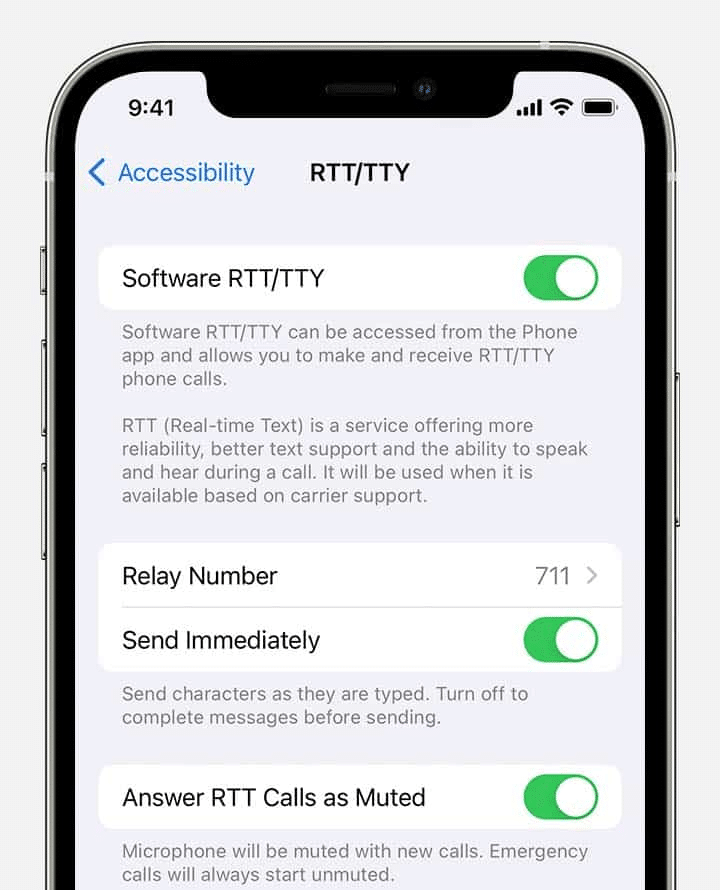
Once both toggles are off, the RTT Call option disappears when you tap a phone number, and incoming calls ring as normal voice calls.
Worth knowing: menu names change by region. In the UK and some other countries, the menu reads RTT/Textphone, with toggles called Software RTT/Textphone and Hardware Textphone. Same feature, different label.
If you leave Software RTT/TTY on but only want to stop accidental RTT answers, turn off Answer All Calls as RTT/TTY inside the same menu instead.
How to Turn Off RTT on Google Pixel and Other Android Phones
On Pixel and any phone using the Google Phone app, RTT lives inside the dialer, not system Settings.
- Open the Phone app.
- Tap the three-dot menu in the search bar.
- Tap Settings, then Accessibility.
- Tap Real-time text (RTT).
- Select Not visible.
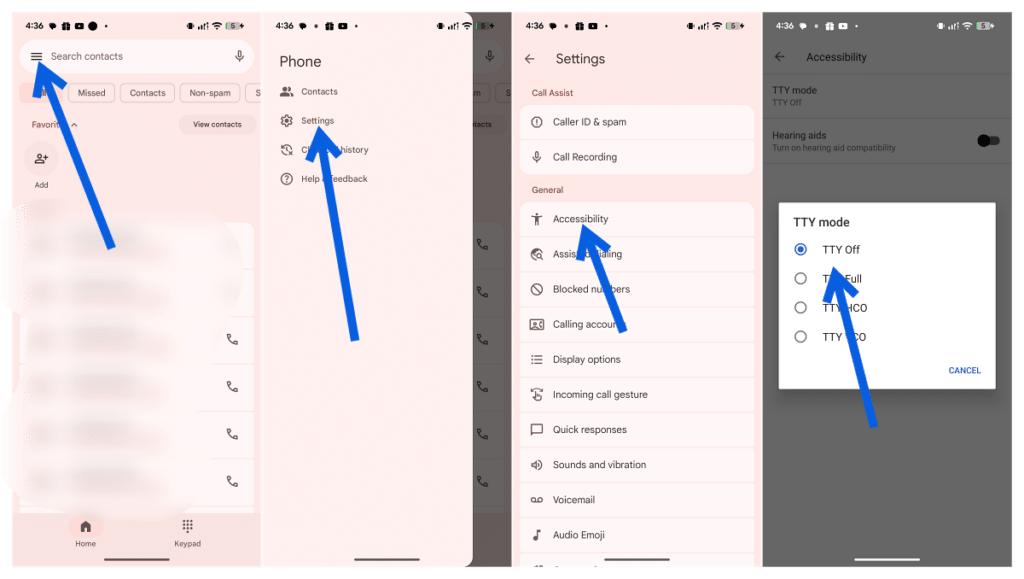
The other two options explain what you’re choosing between. Always visible shows the RTT button on every call. Visible during call hides it from the dialer but keeps it available once a call starts.
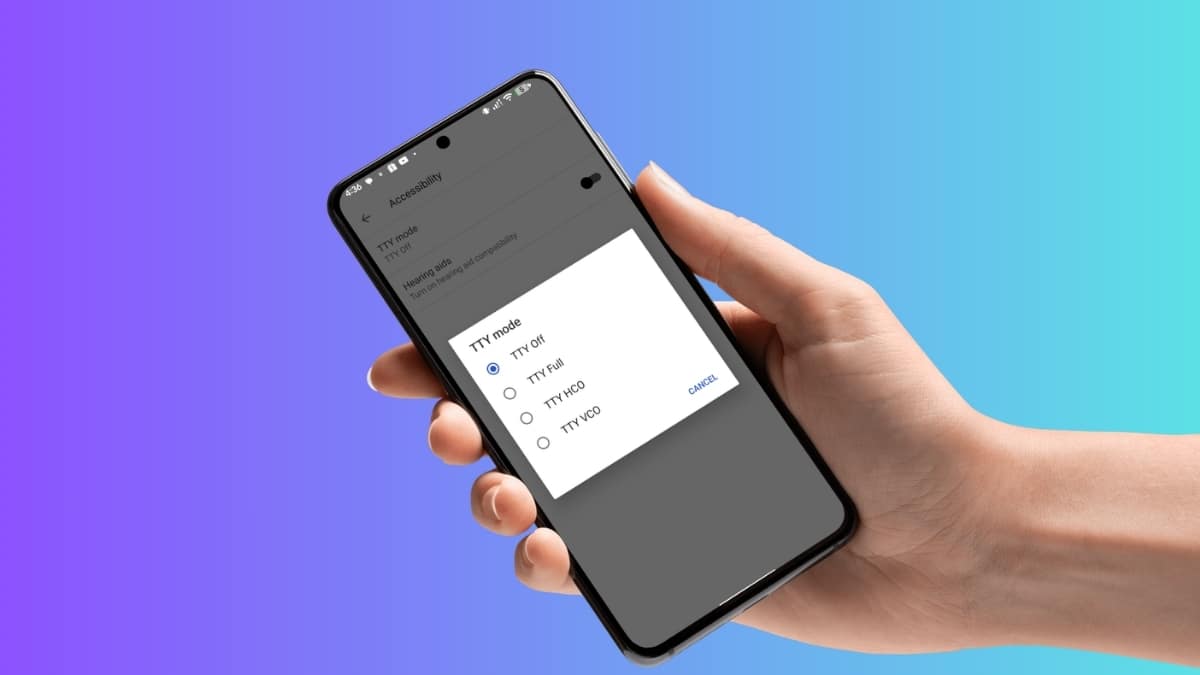
While you’re in Accessibility, check TTY mode too. Set it to TTY Off unless you use a physical TTY device.
Labels vary slightly by phone maker and Android version, so look for “RTT” or “Real-time text” if your menu doesn’t match exactly. If you’re unsure which version you’re on, our guide to the current Android version shows how to check.
Samsung Galaxy Phones Don’t Offer a Full “Off” Switch
Samsung handles RTT differently, and this trips up a lot of Galaxy owners searching for an off toggle that doesn’t exist.
- Open the Phone app and tap the three-dot menu.
- Tap Settings.
- Scroll to Real Time Text (on some models: Settings > Accessibility > Hearing enhancements > Real Time Text).
- Tap RTT call button.
- Choose Visible during calls.
Galaxy phones give you two choices, not three. Always visible puts the RTT button on every incoming and outgoing call screen. Visible during calls removes it from the dialer and contact screens, which is the closest Samsung gets to off.
If you picked up a Galaxy from a US carrier and the RTT button showed up on day one, that’s usually carrier configuration, not something you enabled by accident.
Why RTT Shows Up Again After You Turn It Off
You can hide the RTT button, but you can’t stop people from sending you RTT calls. In the US, incoming RTT calls connect even with the button hidden, because carriers must support RTT for accessibility and emergency access.
That’s by design. A deaf caller, or someone texting 911 dispatch through RTT, needs that call to land on any phone. Google also notes that some carriers keep RTT available for emergency calls even when you set it to Not visible.
So if an RTT session appears after you’ve hidden the button, nothing broke. The other person started it. Answer normally, and the call works as voice plus text; you can talk while ignoring the text panel.
Should You Turn RTT Off at All?
For most people, hiding the button is the right call. It prevents pocket dials and mistaken taps without removing anything you’d miss.
Keep it on if you:
- Have hearing or speech difficulties and prefer typing during calls.
- Call someone who relies on RTT, such as a deaf family member.
- Spend time in loud places where reading a call beats hearing it.
On Android, Visible during call is a useful middle ground. The dialer stays clean, but you can switch any call to text when you need it.
Signing Off
RTT matters for the people who rely on it, and phones ship with it ready because the law requires carriers to support it. If that button keeps catching your thumb, two minutes in Settings fixes it on iPhone and Pixel, and Visible during calls gets Samsung owners most of the way there. Just know that incoming RTT calls will still reach you, and that’s a feature worth keeping.
No. Voice calls, Wi-Fi Calling, and VoLTE work exactly the same.
It means the current call supports or is using real-time text. For other symbols, see our breakdown of Android status bar icons and what they mean.
Your carrier or region doesn’t support it. The feature is effectively off already.
Worth checking on Amazon: