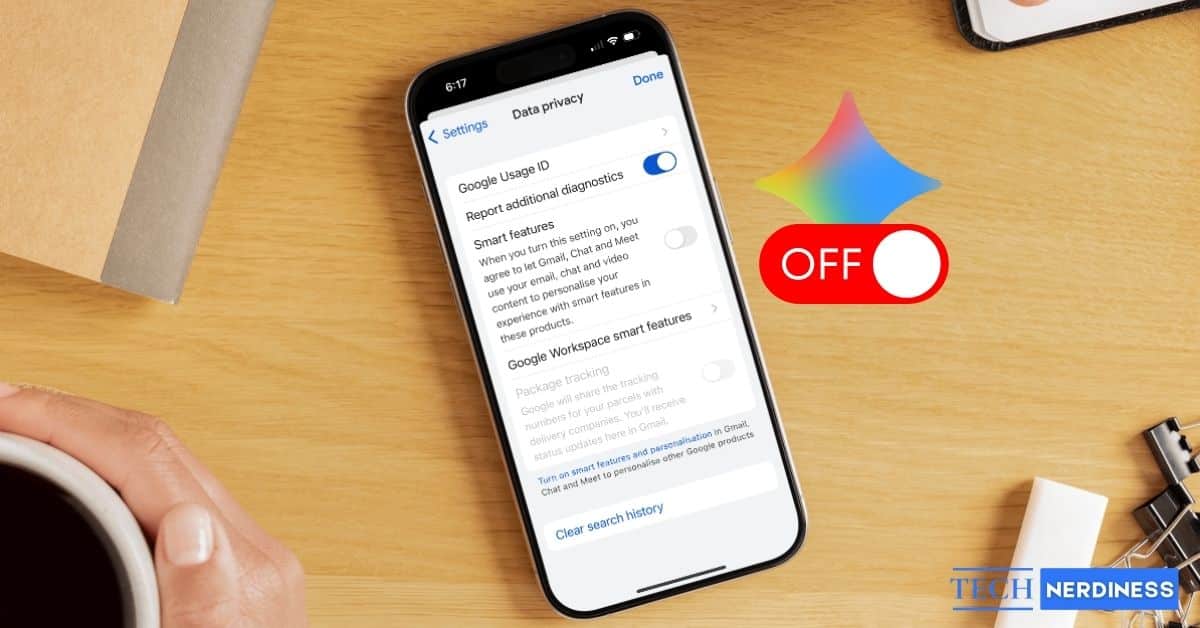
Artificial intelligence (AI) has indeed become ubiquitous, and I can’t deny that it’s helpful. However, it’s only helpful when it remains an option that I can choose to engage with on my own terms. When I can decide whether to use it, control how I use it, and limit it to specific tasks, it’s a really useful tool. If it doesn’t offer that level of control, I’d rather turn it off and rely on my usual workflow.
I’ve used Gemini in Gmail a few times, and more often than not, it was more of a bother than a help. Most of the time, I’d already composed my email before even opening Gmail, so the prompts and suggestions only got in the way instead of helping me work faster. That interference made it clear that I didn’t want Gemini integrated into my email by default, which is why I took the time to figure out how to turn it off.
Why You Might Want to Turn Off Gemini in Gmail
Gemini isn’t for everyone. While Google promotes its ability to draft emails and summarize threads, many people find it more distracting than helpful in practice. The most common issue is Gemini popping up whenever you try to compose an email. Using Gmail on my phone is even more frustrating because the Gemini icon sometimes displaces essential controls like the account switcher. I’ve also noticed issues like autocorrect suggesting irrelevant words or unexpectedly duplicating text while I’m typing.
Privacy is another important factor. It’s natural to feel uncomfortable with AI systems looking through and studying your emails, even when Google vows to handle your data with care. It’s even more uncomfortable knowing that you never explicitly asked for that level of involvement.
For Google Workspace subscribers, the frustration can be even greater, since Gemini was added to paid plans as an add-on, leaving some feeling they had little control over whether they wanted it in the first place.
Related: How to Delete Your Google Gemini Chat History
How to Turn Off Gemini in the Gmail App on iPhone and Android
If you’re accessing Gmail on your phone, you should be able to disable Gemini by adjusting the app’s settings.
- Open the Gmail app.
- Tap Settings.
- Select the specific email account you want to modify. This step matters because each account has its own settings. Disabling features for one account won’t automatically apply to others.
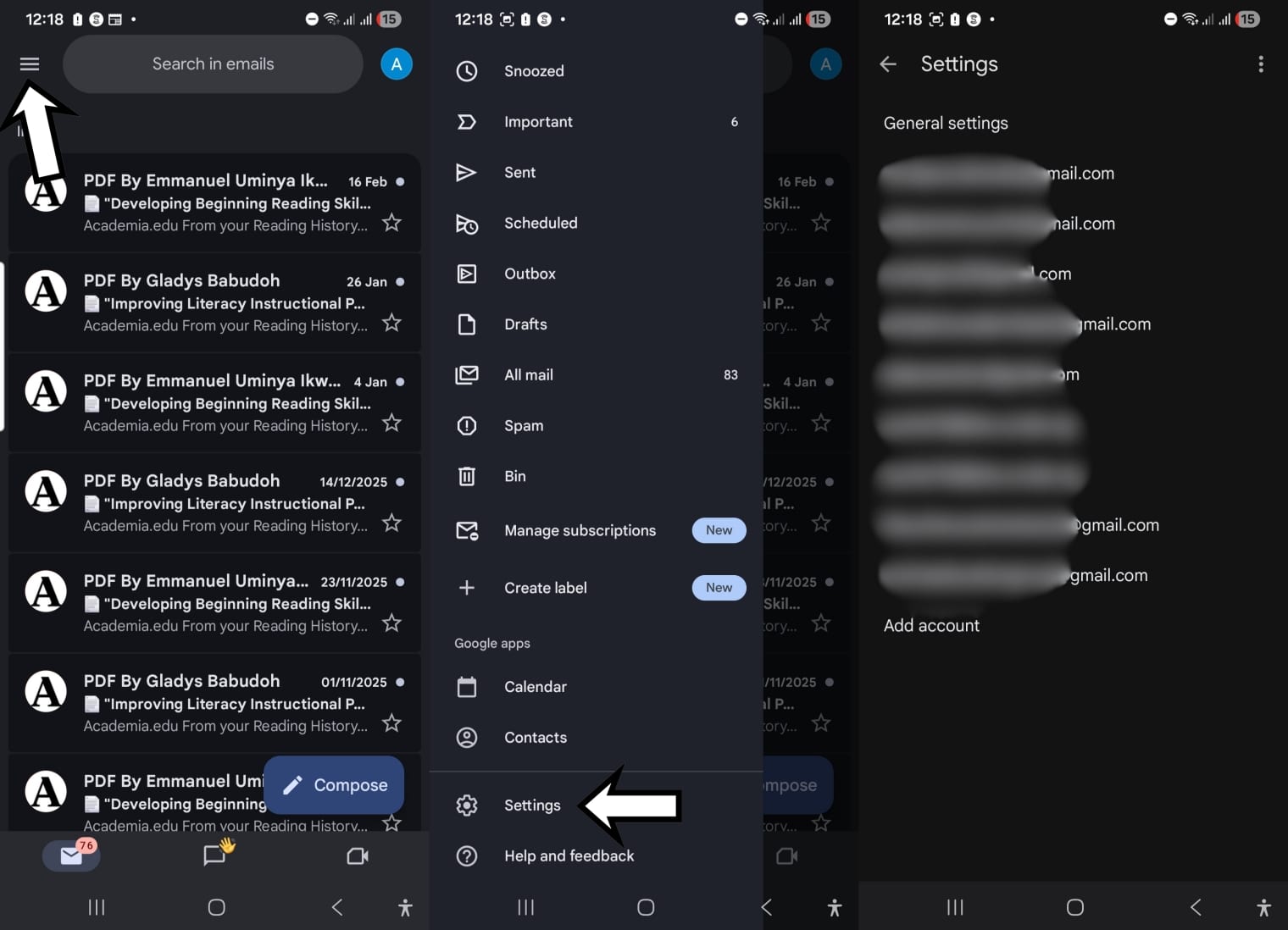
- Once you open the account settings, look for either the Data Privacy or General section, depending on which version you’re using.
- Find Smart features and turn it off. In some cases, you may need to disable multiple smart feature toggles to fully remove Gemini prompts and icons.
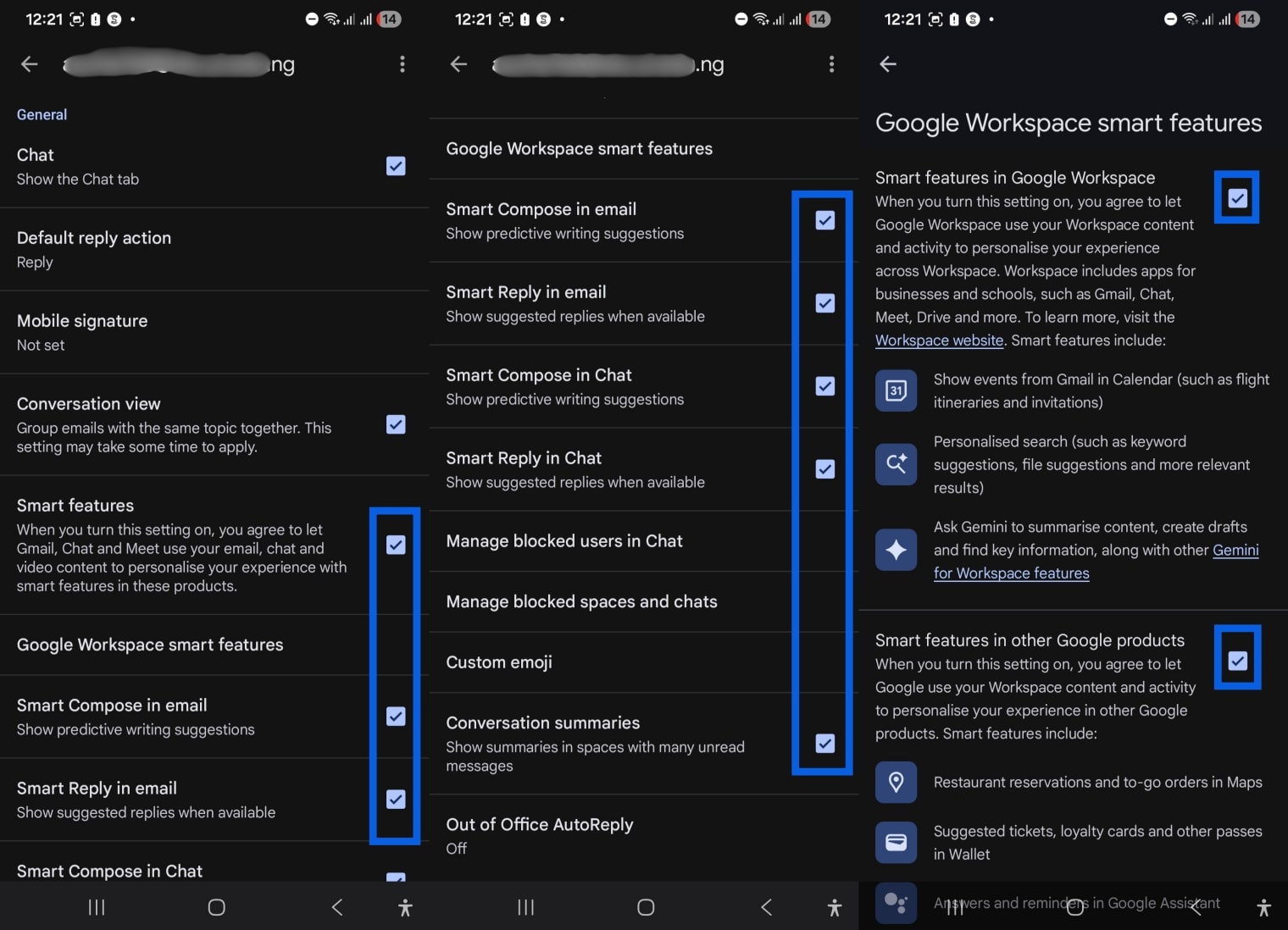
After making these changes, restart the app to ensure the settings apply properly and the interface updates.
How to Turn Off Gemini in Gmail on Desktop (Web Browser)
There’s no official desktop app for Gmail, so you have to access it through a web browser or an email client, like Blue Mail or Microsoft Outlook. However, Gemini’s Help me write and summary features do not appear inside third-party email clients because Gemini is built directly into Gmail itself. That means you’ll typically only encounter these features when you use Gmail in a web browser, which is where they can become disruptive if you don’t want them.
Fortunately, turning them off is a simple process.
- Open Gmail in your browser.
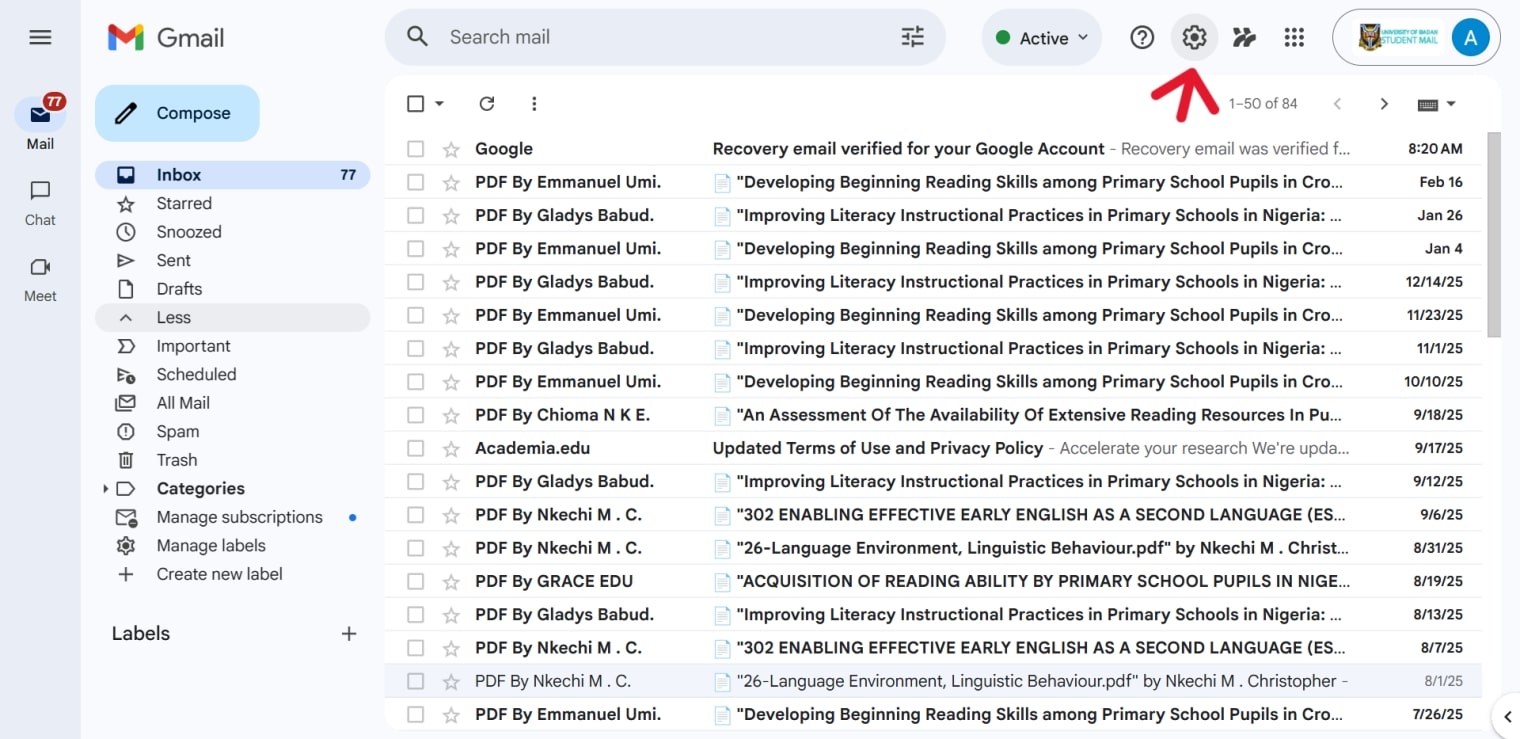
- Click the Settings gear icon in the top right corner.
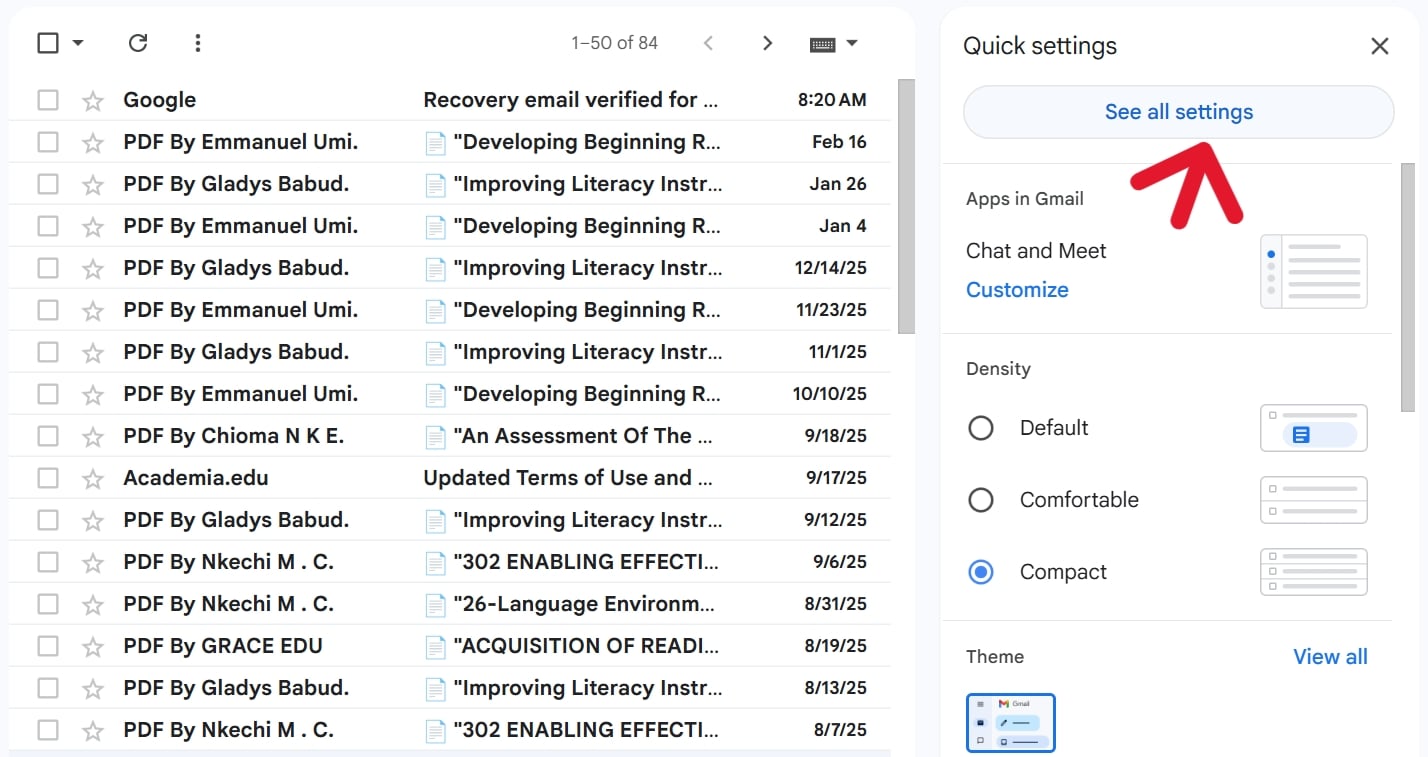
- Select See all settings to open the full settings page. The quick settings panel does not include the controls you need.
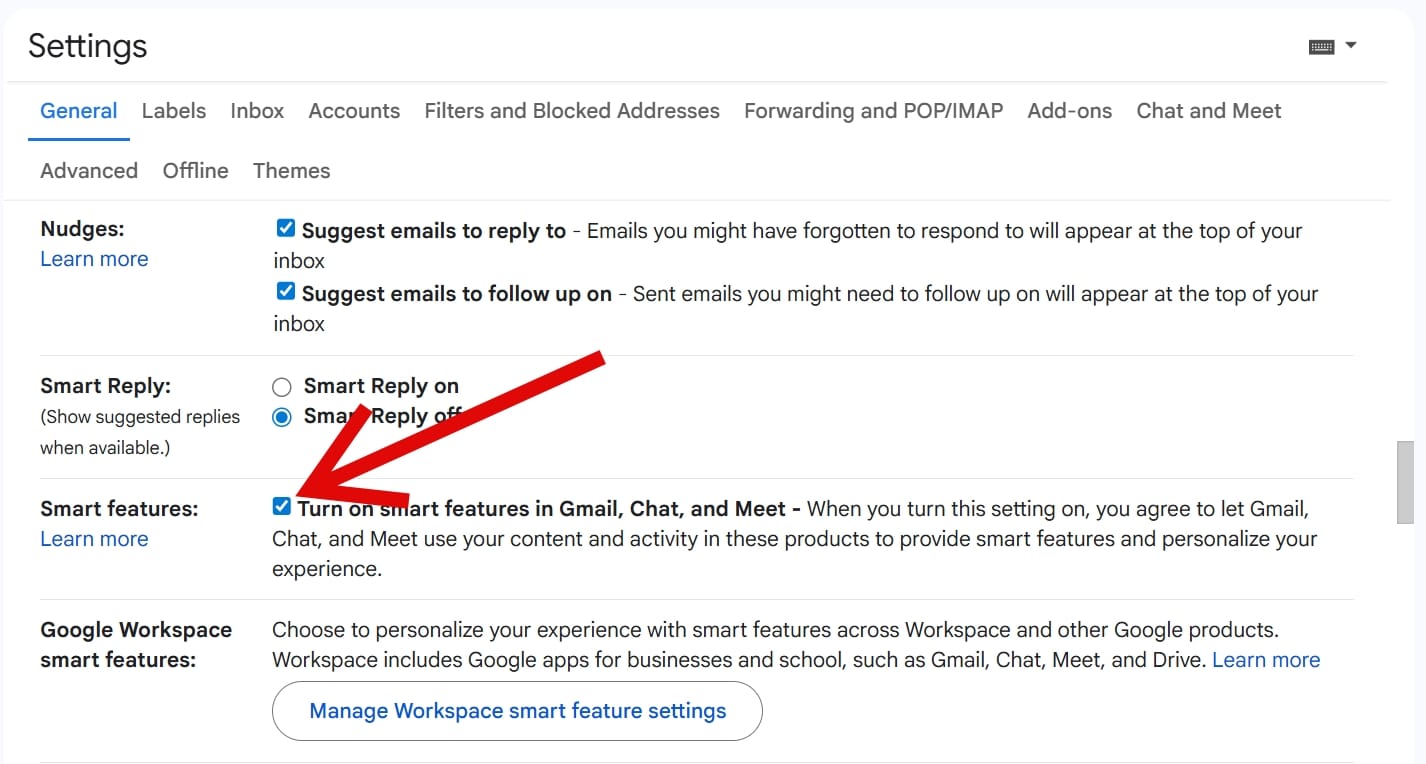
- In the General tab, scroll down until you find the Smart features section or any specific Gemini-related toggles. What appears here may vary depending on when Google enabled the feature for your account.
- Turn off every smart feature toggle listed.
- Scroll to the bottom and click Save Changes.
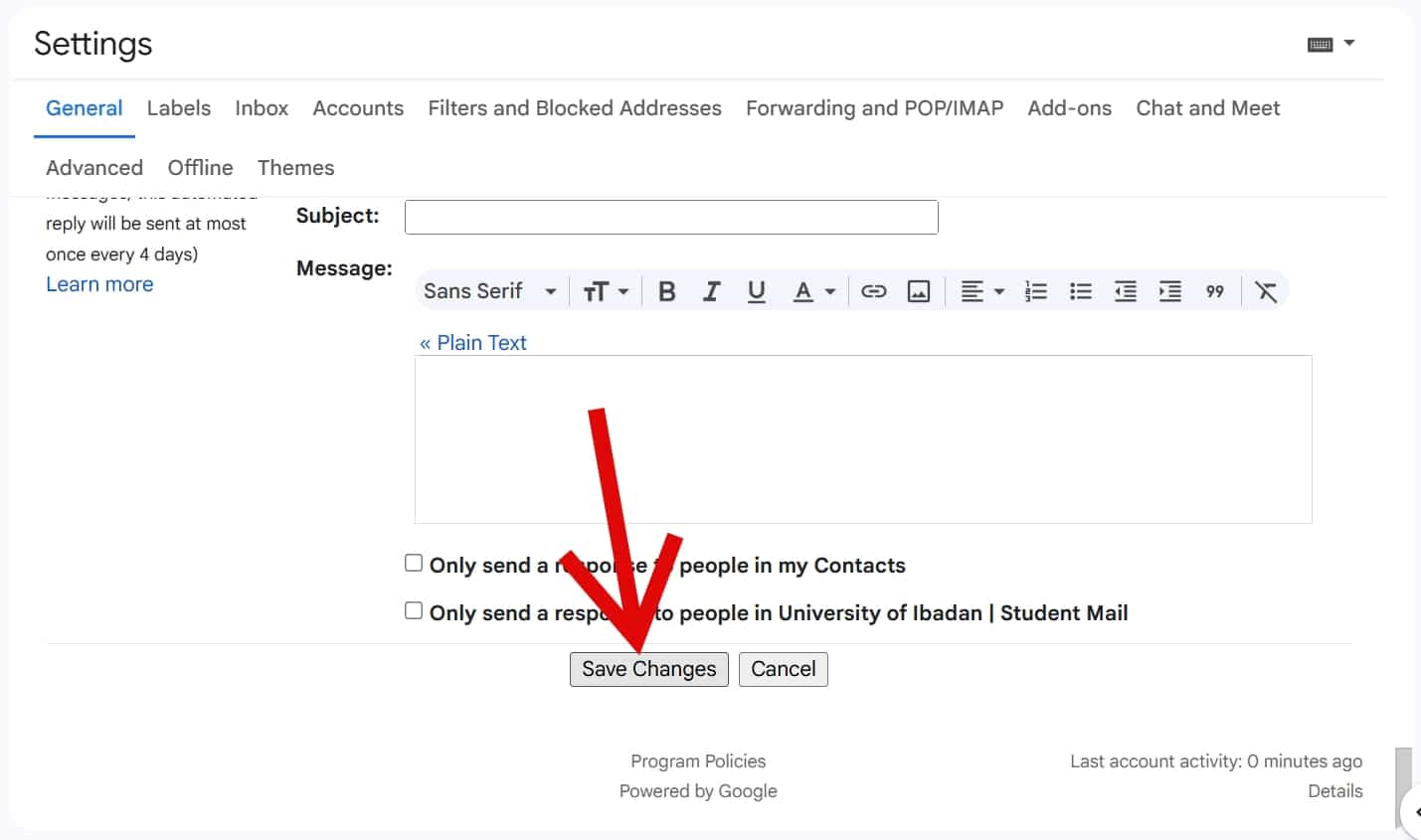
If you skip this final step, Gmail will not apply your changes, and the Gemini features will remain active.
How to Disable Gemini in Gmail for Google Workspace
If you manage a Google Workspace account, you can disable Gemini for everyone in your organization.
- Sign in to the Google Admin Console at admin.google.com.
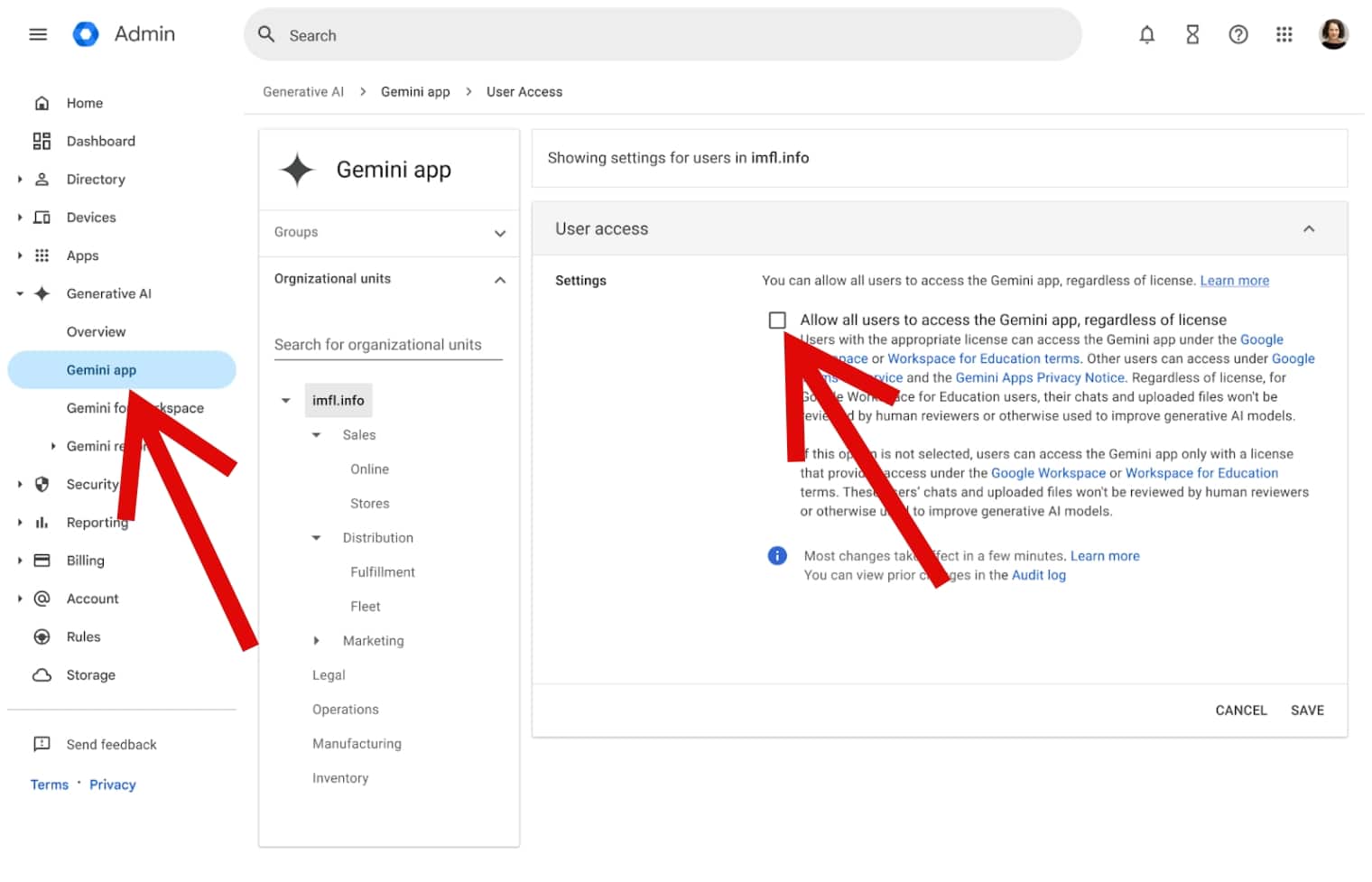
- Once you’re in, navigate to Generative AI > Gemini App, and set the service status to Off for your entire organization.
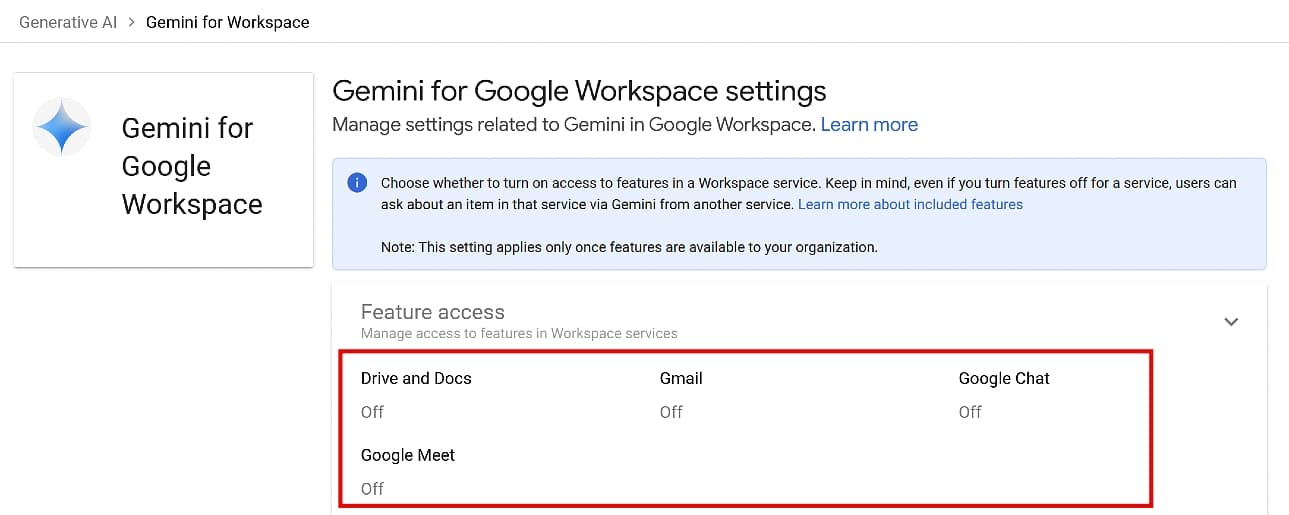
- After that, go to Generative AI > Gemini for Workspace > Feature Access. This option may appear as a simple label, but it is clickable and links to more detailed controls.
- When you open it, you’ll see individual toggles for Gmail, Google Docs, Google Chat, and other Workspace apps.
- Turn off the features you don’t want, and click Save to apply the changes.
- You may also need to visit Billing > Subscriptions and manually remove Gemini from individual user accounts.
This last step may seem tedious, but it ensures Gemini is fully disabled and prevents your organization from paying for features you don’t intend to use.
What Happens When You Turn Off Gemini in Gmail
Google has bundled Gemini with several other smart features, so disabling AI assistance may affect tools you actually want to keep. For example, when you turn off Smart Features, you may also lose useful functions like autocorrect improvements and grammar suggestions. This creates an all-or-nothing situation where you have to choose between removing AI entirely or keeping features that are now tied to it.
Even after disabling Gemini, you might still notice some visual remnants. The star icon or side panel can remain visible in Gmail even when the underlying functionality is disabled. It won’t actively assist you anymore, but its presence can still feel intrusive.
Gemini Toggle Missing or Grayed Out? Here’s How to Fix It
If you can’t find the option to turn off Gemini, the issue may not be user error. In many cases, it comes down to rollout timing or account permissions. Workspace administrators, in particular, may discover that the Gemini controls were never visible in the first place. When this happens, you may need to contact Google Support through the Admin Console and request access to the Gemini management settings. Once a support agent enables these controls, the missing toggles should appear, which would allow you to turn off Gemini.
If you’re using a personal account enrolled in a Gemini trial, the process will likely be different. You may need to locate the opt-out link included in your trial notification email instead of editing your settings menu.
Meanwhile, people using legacy free G Suite accounts may also encounter an older interface that doesn’t match newer instructions, which can make the process less straightforward and require additional digging through account and subscription settings.
Final Thoughts
The battle for control over your Gmail interface is real, but it’s one you can win. There are multiple ways to banish Gemini from your inbox, whether that’s adjusting the settings on your phone, navigating the Admin Console for your organization, or even contacting Google Support to unlock hidden options.
By following these steps, you can reclaim your Gmail experience and ensure that AI remains a tool you use intentionally. When AI fits into your workflow on your terms, it can be helpful. When it doesn’t, you should be able to turn it off and move on without any issues.