Every app you use leaves a trail, and Snapchat is no exception. Despite its reputation as a disappearing-message platform, your data doesn’t fully disappear. Photos, videos, conversations, and behavioral patterns are quietly collected in the background, long after you’ve moved on from the app.
Maybe you’re tired of the distraction. Maybe you’re rethinking how much of your life lives on someone else’s server. Or maybe you just don’t open it anymore and it’s taking up mental space. Whatever brought you here, if you’re ready to delete your Snapchat account for good, this guide walks you through everything, including what actually happens after you hit delete.
Why People Choose to Delete Snapchat
Before diving into how to delete your Snapchat account, it helps to know you’re not alone in making this decision. People step away from Snapchat for a variety of reasons:
- They’re pulling back from social media to protect their mental health.
- They’ve grown concerned about data privacy and app tracking.
- They’ve switched to other platforms and Snapchat just isn’t part of their routine anymore.
- They want a clean slate with a fresh account.
- They simply stopped using it and want to close it properly.
None of these reasons need justification. If any of them resonate, you’re in the right place.
How to Delete Your Snapchat Account Permanently
Here’s the exact process to delete your Snapchat account, whether you’re on iOS or Android:
Method 1: Through the Snapchat App (Easiest for Mobile)
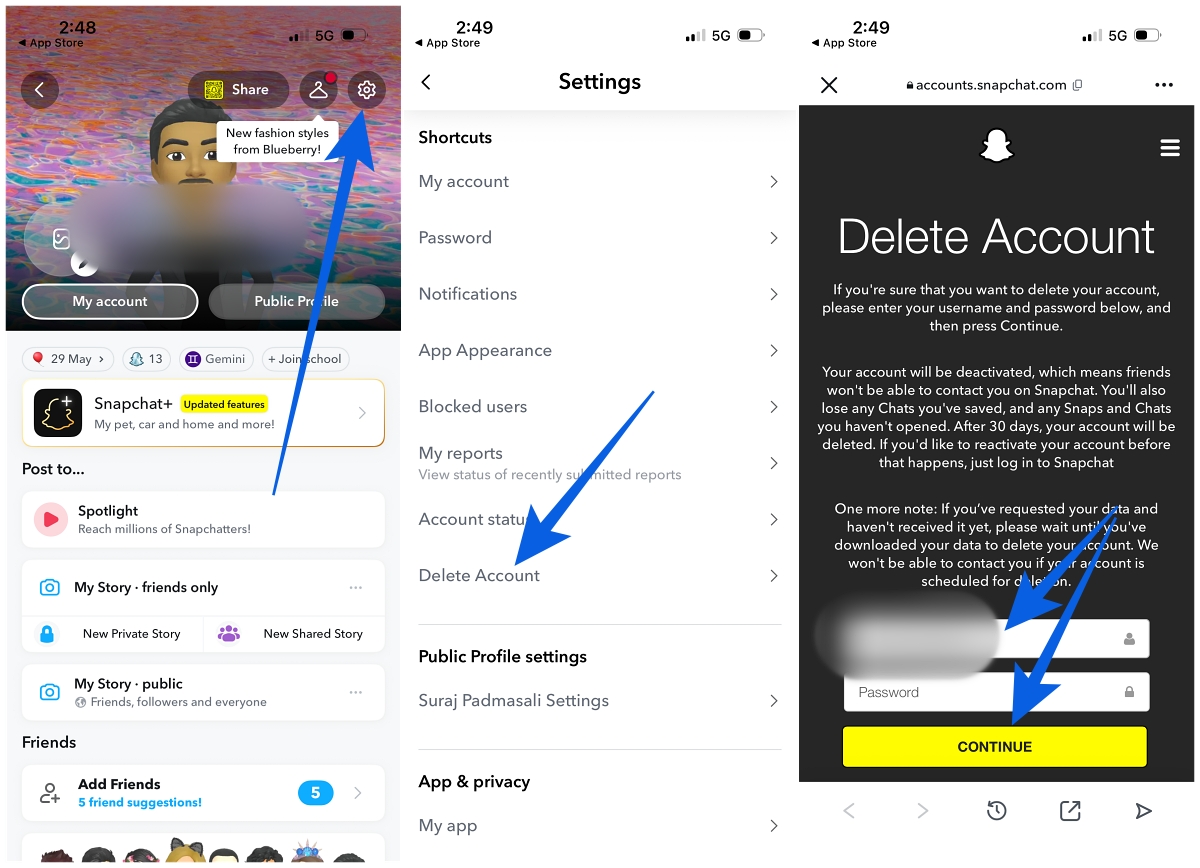
- Open the Snapchat app and tap your profile icon in the top-left corner.
- Tap the gear icon in the top-right corner to open Settings.
- Scroll down and Select Delete Account.
- You’ll be redirected to Snapchat’s web portal.
- Enter your username and password, then tap Continue to confirm.
That’s it. Your account is now scheduled for deletion, but there’s an important waiting period to understand.
Method 2: Directly via Web Browser (Works on Any Device)
- Go to the Snapchat Accounts Portal in any browser.
- Log in with your Snapchat username/email/phone and password.
- Select Delete my account.
- Enter your password again and tap Continue to confirm.
The 30-Day Waiting Period: What Actually Happens
Once you complete the steps above, Snapchat doesn’t delete your account immediately. Instead, it enters a 30-day deactivation period.
During this time:
- Your account is temporarily disabled
- Friends won’t be able to find you
- Your Snaps and messages won’t be accessible
- You won’t be able to log in normally
Snapchat states your data becomes inaccessible during this period, although some data may still be retained internally.
After 30 days, your account is permanently deleted.
One important detail: if you log back in at any point during those 30 days, the deletion process is cancelled and your account is restored. So if you’re serious about deleting your Snapchat account permanently, stay logged out.
Save Your Memories First: How to Download Your Snapchat Data
Before deleting your account, it’s worth downloading your data, especially if you have memories, streaks, or conversations you want to keep.
- Go to accounts.snapchat.com and log in.
- Click My Data.
- Select the data you want and choose your file format, then click Next.
- (Optional) Set a date range and enter your email address, then click Submit.
- Snapchat will prepare your data.
- You’ll receive a download link via email. The file will be a .zip containing your selected data.
Make sure to do this before deleting your account so you don’t lose anything important.
Changed Your Mind? How to Reactivate Your Snapchat Account
If you’re still within the 30-day window, reactivating your account is simple:
- Open Snapchat and log in using your username (not email).
- Tap Yes when prompted to reactivate your account.
- Wait a few minutes while your account is restored.
- Log in again to access your account normally.
Your friends, data, and settings will be restored as they were.
Final Thoughts on Deleting Snapchat
Choosing to delete your Snapchat account is a personal decision, and for many, it’s the right one. It’s a small but meaningful step toward taking control of your digital footprint instead of letting it grow passively over time.
Deleting the app alone isn’t enough. Going through the full account deletion process ensures your data isn’t sitting on Snapchat’s servers indefinitely.
If you’re taking a broader approach to cleaning up your digital presence, it might also be worth reviewing how to deactivate or delete your Facebook account, or even permanently delete your Telegram account. Handling these platforms together can make a noticeable difference in how much of your data stays online.
Yes. The process begins with a 30-day deactivation period. If you log back in during that time, your account will be restored.
Snapchat waits 30 days after you initiate deletion. If you stay logged out during that period, your account is permanently removed.
Yes. Once the account is permanently deleted, your messages, Snaps, and memories are removed from Snapchat’s servers. Download your data beforehand if you want a copy.
Yes. Once your account is permanently deleted, you can sign up again using the same email or phone number.
You might also like: