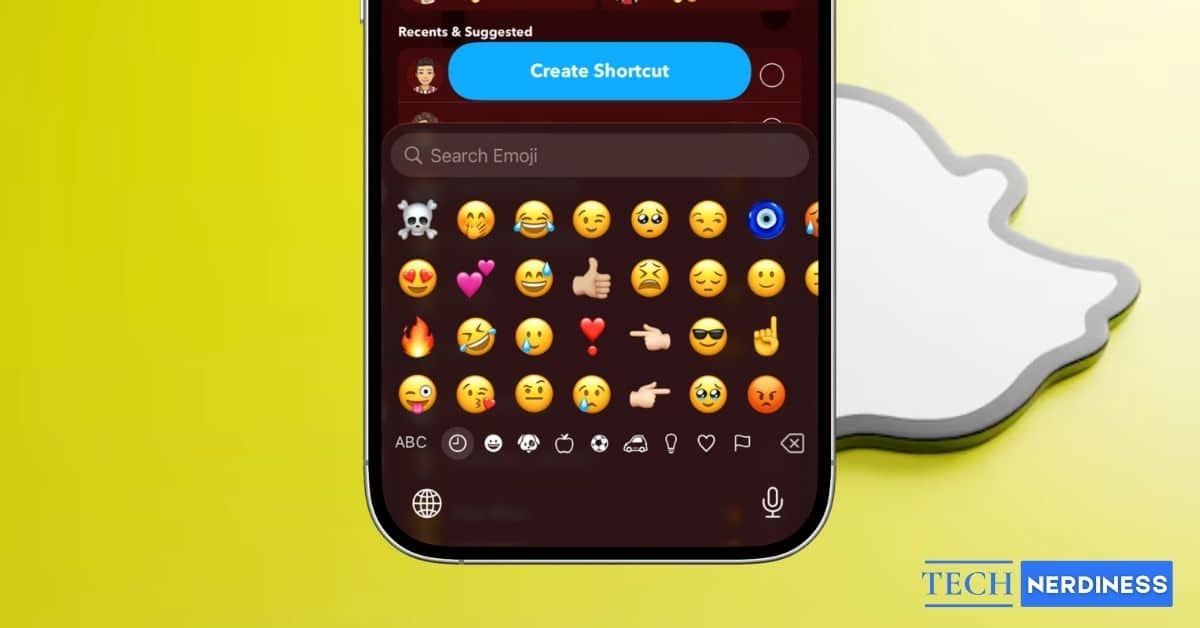
Do you ever feel overwhelmed when you want to send a Snap to the same set of people every time, but still have to select each person manually? If so, like many Snapchat users, you’re missing out on one of the app’s most time-saving features: Shortcuts. These let you send Snaps to multiple friends at once with just a single tap, instead of scrolling through your friend list every time.
This post details what Shortcuts are on Snapchat and how to create, edit, and delete them.
What Are Shortcuts on Snapchat?
Shortcuts are custom friend groups you create inside Snapchat. Each shortcut appears as an emoji at the top of the “Send To” screen after you capture a Snap or at the top of your Chat Feed, along with pre-existing shortcuts. You can add multiple friends to a shortcut and choose any emoji to represent it. These shortcuts are private, and only you can see them. They make sending Snaps to frequent contacts or streak partners quick and effortless.
Not sure what each Snapchat emoji represents? Here’s a complete explainer on all Snapchat emojis and symbols.
How to Create a Shortcut on Snapchat
Creating shortcuts on Snapchat is pretty straightforward and can be done in just a few seconds:
- Open the Snapchat app, capture a Snap, and tap the Send To button.
- Here, tap New+ (New Shortcut).
- Now, choose your preferred emoji for the new shortcut and select the friends you want to include.
- Finally, tap the Create Shortcut button.
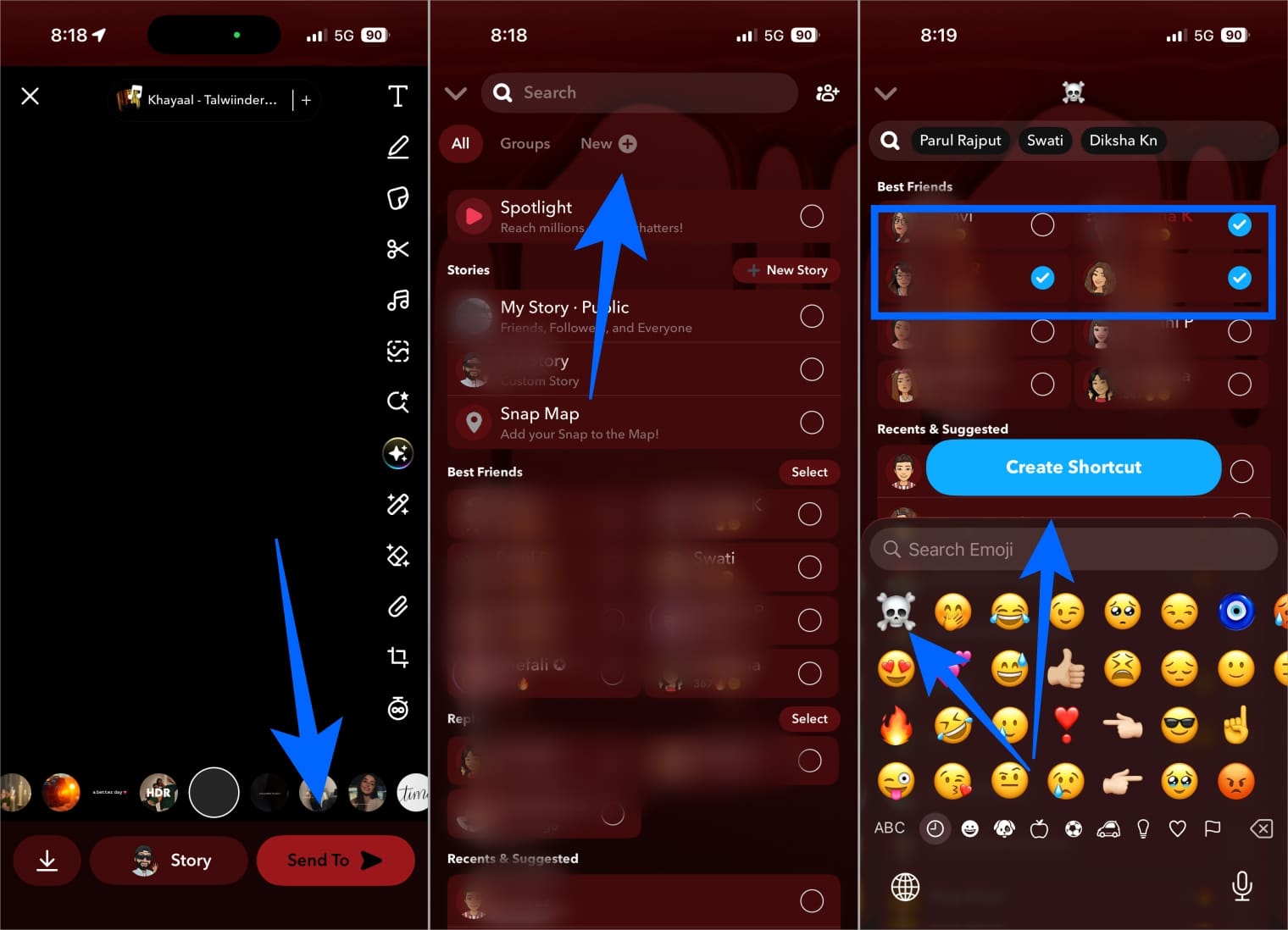
Once created, the emoji for that shortcut appears at the top whenever you send a Snap. Tap it, and all selected friends receive the Snap instantly.
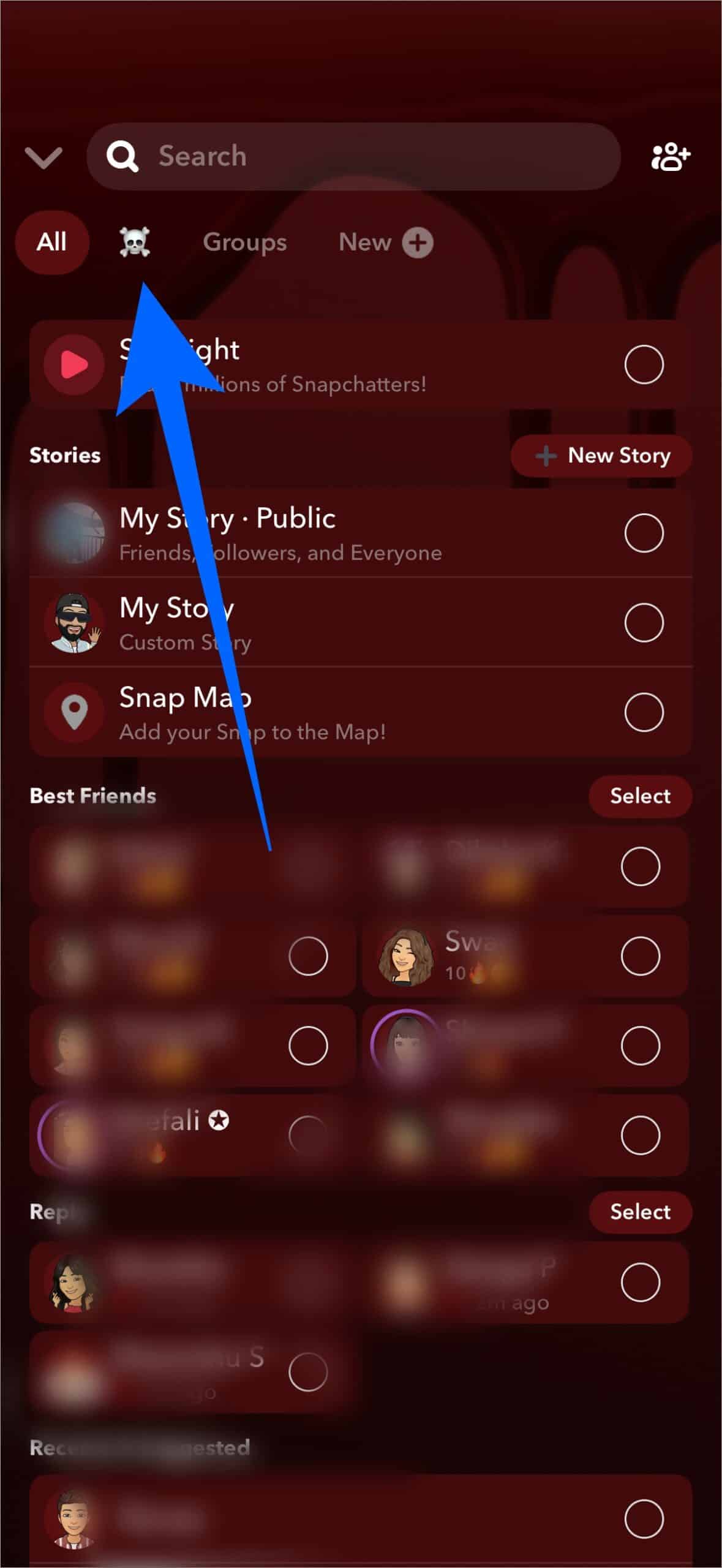
Note: Shortcuts do not support text labels; they rely only on emojis.
How to Edit or Delete a Shortcut on Snapchat
Online friendships can change at any time. Therefore, there may come a time when you no longer want to share Snaps with certain friends, or when you want to update who appears in your shortcut. In such cases, you can easily edit or delete shortcuts to keep your sharing list accurate, relevant, and aligned with the people you interact with most. Here’s how:
- Open Snapchat and head to your Chat Feed.
- Locate the shortcut you want to edit in the top vertical menu bar.
- Long-press the shortcut emoji.
- Now, add or remove friends as needed.
- Change the emoji if you want.
- Tap the Save button.
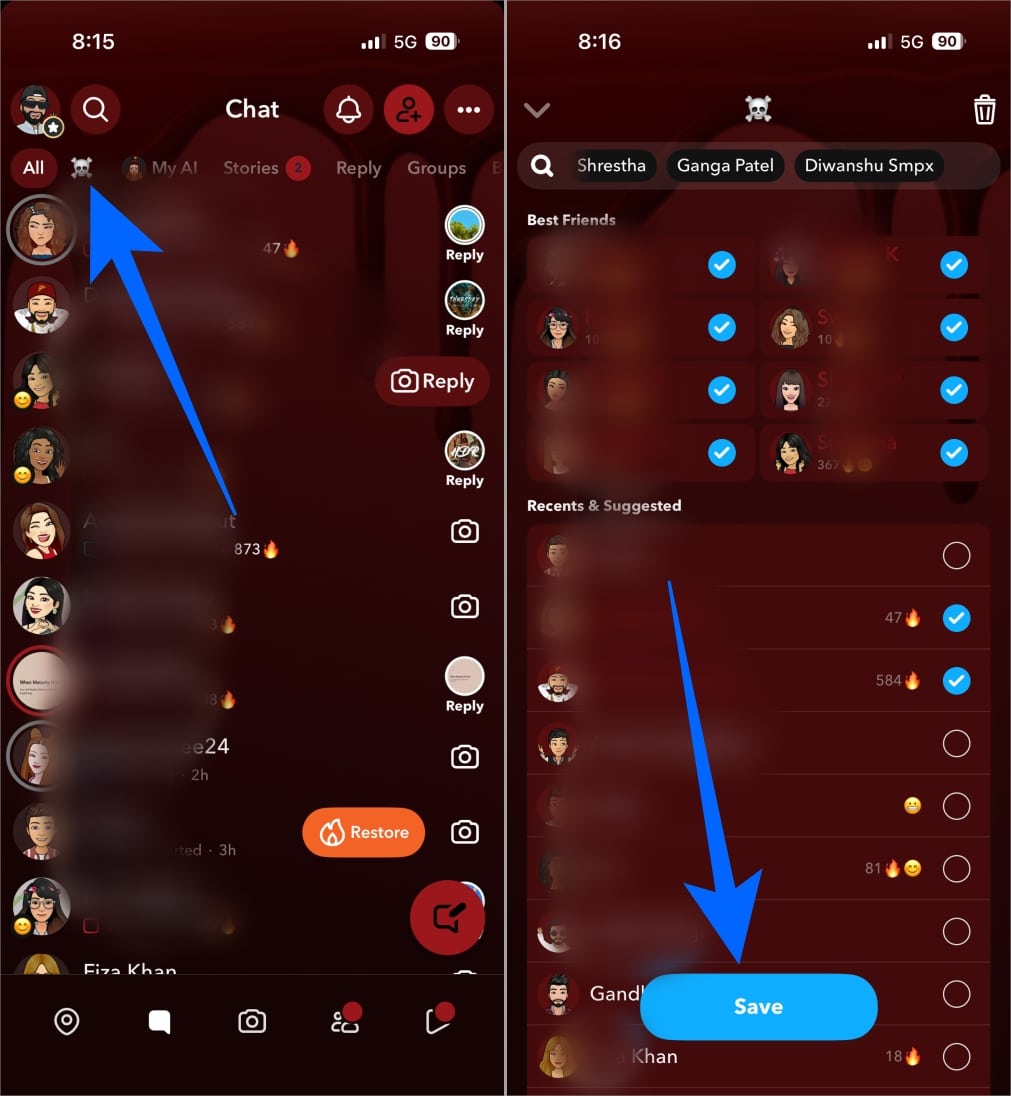
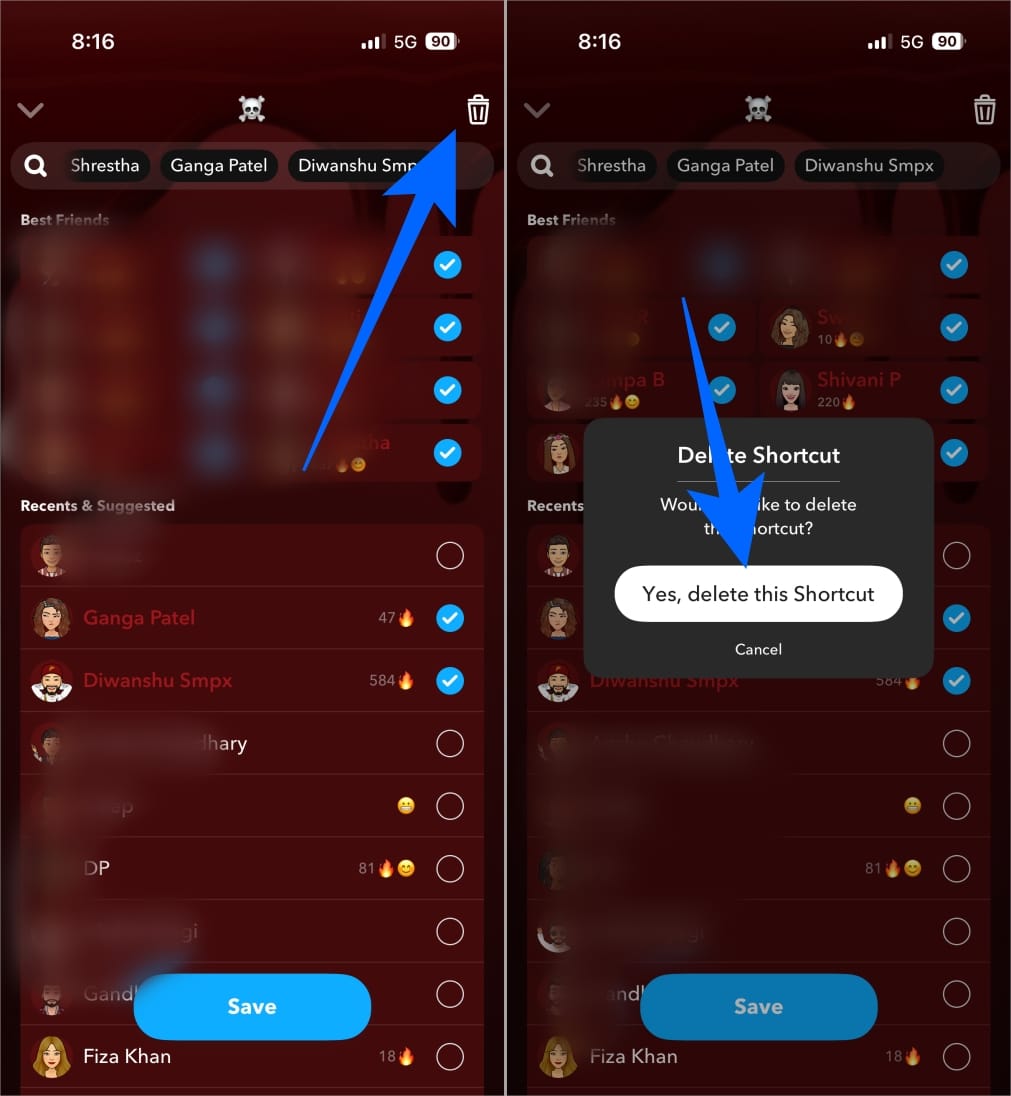
To delete the shortcut:
- Tap the trash bin (Delete) icon in the top-right corner.
- Next, tap the “Yes, Delete this Shortcut” button on the confirmation prompt that appears.
Tips for Better Shortcut Management on Snapchat
A little organization ensures that each shortcut stays relevant and easy to identify, especially when you rely on them daily.
Here are some tips to keep your shortcuts efficient and well-structured:
- Pick familiar emojis that clearly represent your group or purpose so you never tap the wrong one.
- Keep your shortcuts limited to the people you frequently exchange Snaps with.
- Review your shortcuts regularly to keep them up to date.
- Create separate shortcuts for different groups, such as friends, colleagues, or family.
A Smarter Way to Snap…
Shortcuts, hands down, are Snapchat’s most underrated and time-saving feature. They let you organize your most important friends and send Snaps quickly without scrolling through your friend list every time. Once you start using them, sharing updates becomes faster, smoother, and far more convenient.