There’s a small but genuinely frustrating quirk that iPhone users have lived with for years: turn down your notifications before bed, and you’ve quietly turned down your alarm too. Wake up late. Blame the phone. Repeat.
Apple addressed this at WWDC 2026 with one of the most practical changes in the new Sound & Haptics controls in iOS 27: the ability to set alarm, ringtone, and notification volumes independently. No more choosing between a quiet notification and a reliable 7 AM wake-up call.
Why This Actually Matters (And Why It Took So Long)
Think about what these sounds actually do in your life. An alarm gets you to work. A kitchen timer saves dinner. A keyboard click is purely cosmetic. Treating all three as the same type of audio, controlled by one slider, never really made sense. It simply became something iPhone users learned to live with.
Android has offered granular volume controls for years, and the lack of this feature on iOS became a common complaint among Apple users. With iOS 27, Apple finally closes that gap.
I HAVE BEEN BEGGING FOR THIS
APPLE FINALLY LETS YOU ADJUST RINGTONE, ALARM, AND MEDIA VOLUME SEPARATELY 😍 pic.twitter.com/Zz1lS5ShNV
— Noah Cat (@Cartidise) June 9, 2026It’s worth noting that not every alarm is affected. Apple says the Alarms and Timers control does not apply to Wake-Up alarms created through Sleep Focus in the Health app or certain alarms that already have separate volume settings. If you rely on a Sleep schedule alarm, its volume behavior remains unchanged.
What’s Changed in Sound & Haptics
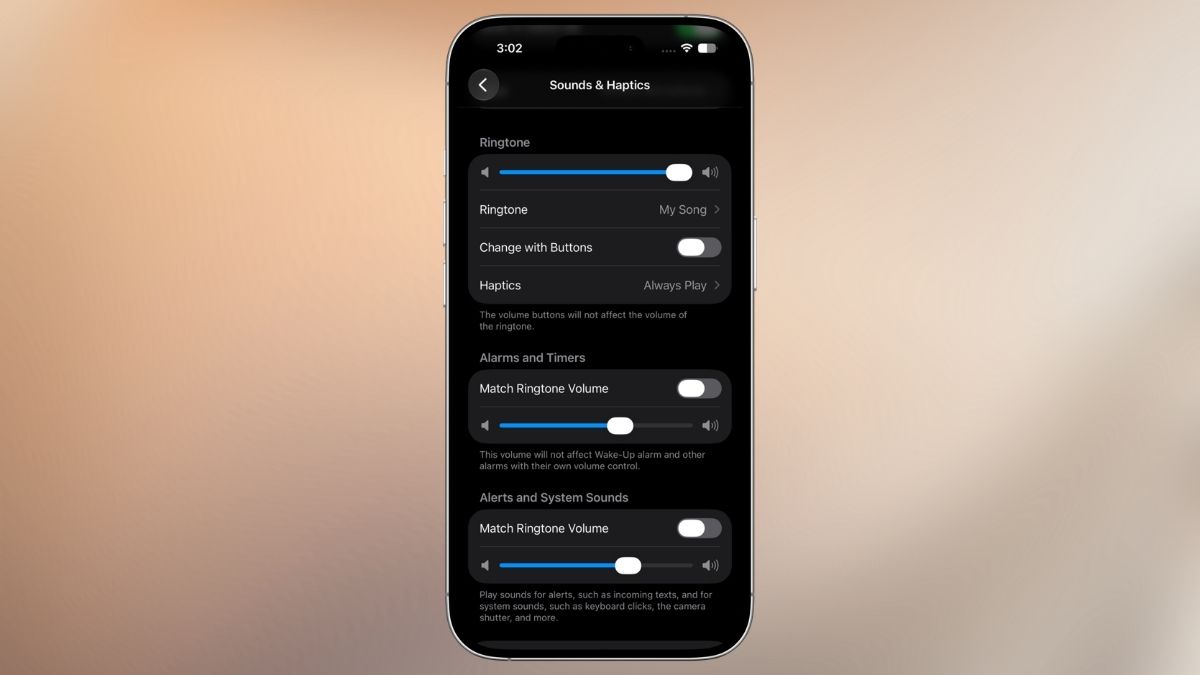
The new controls live where you’d expect: Settings → Sounds & Haptics. Apple has reorganized this section into three audio categories:
- Ringtone: Incoming calls
- Alarms and Timers: Clock app alarms and countdown timers
- Alerts and System Sounds: Message notifications, keyboard clicks, camera shutter sounds, and other system audio
Each category now has its own volume slider.
However, there’s one important detail. By default, they’re still connected through a Match Ringtone Volume toggle. It’s enabled by default, so the experience feels familiar when you first update. Users who want independent controls can simply turn it off.
This approach keeps things simple for most people while offering greater customization for those who need it.
How to Set Separate Alarm and Notification Volumes in iOS 27
If you’re running the iOS 27 beta, here’s how to enable separate volume controls:
- Open Settings on your iPhone.
- Tap Sounds & Haptics.
- Select Alarms and Timers or Alerts and System Sounds.
- Turn off Match Ringtone Volume.
- Adjust the slider for that category.
- Repeat for any additional categories you want to customize.
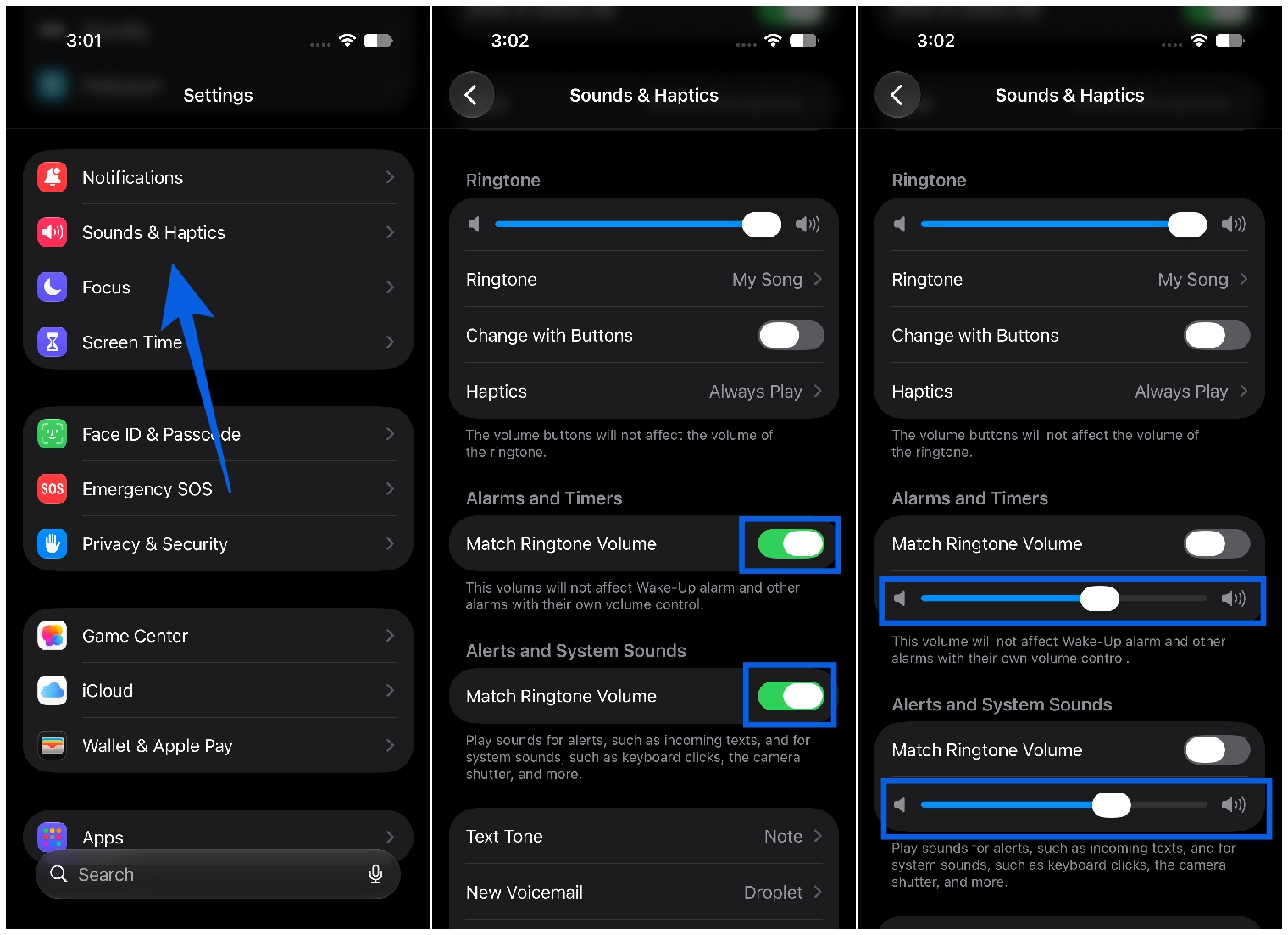
Once Match Ringtone Volume is disabled, that category becomes completely independent. Adjusting your ringtone volume will no longer affect alarms or notifications.
This means you can keep alarms loud enough to wake you up while reducing notification sounds throughout the day or night.
Related: How to Set Any Song as a Ringtone on iPhone for Free
What Else Is New in the Same Update
Independent volume controls are part of Apple’s broader push toward personalization in iOS 27.
The update also introduces a dedicated Liquid Glass transparency slider, allowing users to customize interface effects, along with a redesigned Siri powered by expanded AI capabilities on supported devices.
For a complete overview of everything announced at WWDC 2026, including interface changes, AI features, and performance improvements, check out the full iOS 27 features guide.
For anyone who’s ever missed an alarm after lowering notification volume the night before, this small change may end up being one of the most useful iOS 27 features.
You might also like: