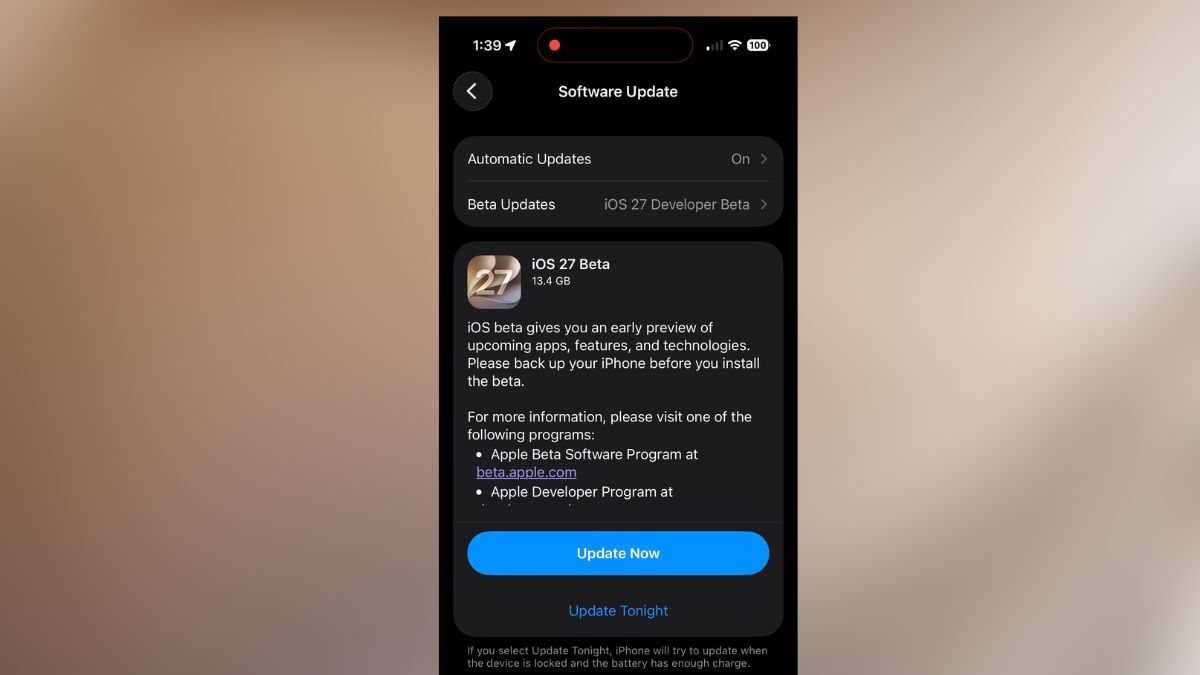
Apple dropped the iOS 27 developer beta the same afternoon as the WWDC 2026 keynote on June 8, 2026, and if you’ve been curious about how to get the iOS 27 beta on your iPhone, there’s genuinely good news: you don’t need to spend a cent. Since 2023, Apple quietly opened up developer beta access to anyone with a free Apple ID, killing the old $99 iOS 27 beta developer program paywall for good.
That said, “free and available right now” doesn’t mean “safe for everyone.” Before you tap that download button, here’s what you actually need to know.
What the iOS 27 Beta Timeline Looks Like
- Developer Beta 1: Available now (June 8, 2026)
- Public Beta: Expected July 2026 (more stable and recommended for most people)
- Stable iOS 27 Release: September 2026, likely alongside iPhone 18
If you’re wondering about the iOS 27 beta release time, Apple typically seeds developer betas in waves throughout the afternoon following the keynote. If it’s not showing up for you yet, give it an hour or two.
Be Honest With Yourself Before Installing
Developer Beta 1 is the roughest cut Apple ships all year. It’s built for developers stress-testing their apps, not for the phone you depend on to navigate, pay for coffee, or take calls. Expect crashes, battery drain that’ll make you wince, and apps that either misbehave or refuse to open entirely.
If this is your only iPhone, wait for the public beta in July. It’s a much smoother experience, and you’ll still get early access to iOS 27’s biggest features well before the general public.
If you have a spare device sitting in a drawer, this is exactly what it was made for.
Does Your iPhone Support iOS 27 Beta?
iOS 27 runs on the iPhone 12 and newer, including the iPhone 12 mini, Pro, and Max, the iPhone SE (3rd generation), and every model up through the iPhone 17 series. Unlike some years, Apple didn’t cut any devices from the iOS 26 lineup, so if your phone ran iOS 26, it’ll run iOS 27.
One nuance worth knowing: the headline AI features, including the redesigned Siri and AI Photo editing in iOS 27, require an iPhone 15 Pro or later. You can absolutely install the beta on an iPhone 12, but you’ll be testing the OS without the most talked-about capabilities. Check the full iOS 27 compatible devices list if you want to see exactly which features your model unlocks.
Step 1: Back Up First. This Part Is Non-Negotiable
Once you install the iOS 27 developer beta, you cannot restore a beta backup onto a device running standard iOS. That means if things go sideways and you need to roll back, you’ll be wiping your phone and restoring from a pre-beta backup. If that backup doesn’t exist, you lose everything.
Take five minutes and do this now:
Via iCloud: Go to Settings → [Your Name] → iCloud → iCloud Backup → Back Up Now. Wait for it to finish completely.
Via Mac or PC (the better option): Connect your iPhone, open Finder on Mac or the Apple Devices app on Windows, and create a local backup. Then right-click the backup and hit Archive. This prevents iOS from overwriting it automatically when you update later. That archived backup is your escape hatch.
Step 2: Enroll in the Apple Beta Program (Free and Takes Two Minutes)
You need a free Apple Developer account linked to your Apple ID. You do not need the paid membership, just the free tier.
- Open Safari and go to developer.apple.com.
- Sign in with your Apple ID (or create one if needed).
- Accept the Apple Developer Agreement when it appears.
That’s genuinely it. Your Apple ID is now enrolled and eligible to receive the iOS 27 developer beta build. Restart your iPhone once you’ve completed this step. It helps the beta option register properly.
Step 3: Enable the iOS 27 Developer Beta on Your iPhone
Go to: Settings → General → Software Update → Beta Updates.
Tap Beta Updates and select iOS 27 Developer Beta from the list.
If nothing appears, confirm that the Apple ID signed into your iPhone (Settings → [Your Name]) matches the account you enrolled in Step 2. If they match and it’s still not showing, wait 15 to 20 minutes and check again. Apple rolls out access in waves, and it may not have reached your account yet.
Step 4: Download and Install iOS 27
Head back to the main Software Update screen. The beta should now appear as an available update. Tap Download and Install, enter your passcode, and let it run.
A few things to set yourself up for a smooth install:
- Stay on Wi-Fi throughout. This is a large download.
- Keep your iPhone plugged in, or at minimum above 50% battery.
- Make sure you have at least 5 to 6GB of free storage.
- Update to the latest iOS 26.x beforehand if you haven’t already. It reduces installation friction.
The full process takes anywhere from 10 to 30 minutes, and your phone will restart at least once. When it comes back up, you’re on iOS 27.
After you’re in, open the Feedback Assistant app and use it. Apple actually reads those reports, and they shape what gets fixed before the public beta drops.
How to Uninstall the iOS 27 Beta and Go Back to iOS 26
Fair warning: this isn’t a one-tap undo. Rolling back requires connecting your iPhone to a computer, putting it into Recovery Mode, and performing a full restore, which wipes the device. You then restore from the archived backup you created in Step 1.
It works, but it takes time and effort. That’s the real reason Step 1 matters so much.
So, Should You Install It Today?
Install it if: You have a spare iPhone, you’re a developer with apps to test, or you’re the kind of person who genuinely enjoys living on the edge and can tolerate quirks.
Wait if: This is your primary phone, you can’t afford downtime, or you’re mainly just curious about the new features. The public beta in July will give you most of the same experience with a fraction of the frustration.
The stable iOS 27 release lands in September. If you can hold out, that version is everything the developer beta promises to be, without the rough edges.
For the most current beta availability and any last-minute changes to the enrollment process, check developer.apple.com or beta.apple.com directly.