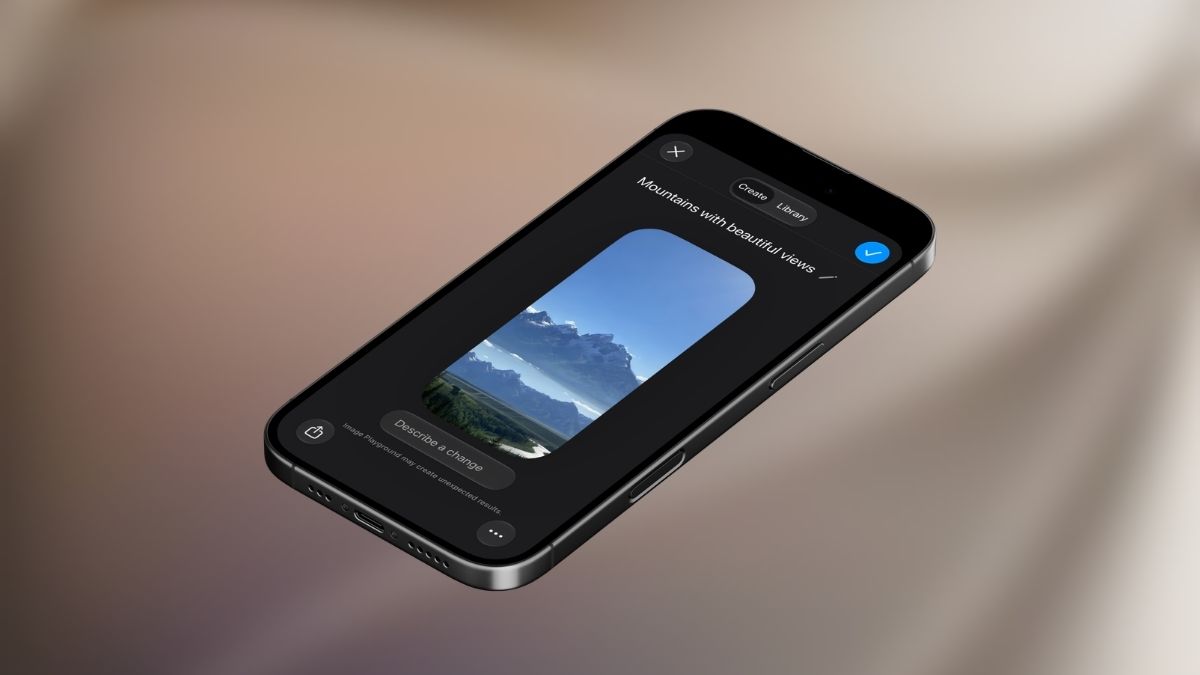
Every year, Apple ships a fresh set of wallpapers with iOS, and iOS 27 is no different. But this update does something genuinely new: it hands the creative control over to you. Instead of scrolling through Apple’s curated gallery hoping something clicks, you can now generate wallpapers that actually feel personal, right from the wallpaper picker, with no third-party app needed.
Here’s everything you need to know to make it work, and how to get results that don’t look like AI slop.
The Fastest Way: Generate Wallpapers Directly From the Wallpaper Picker in iOS 27
This is where most people will want to start because it requires zero setup and zero extra apps.
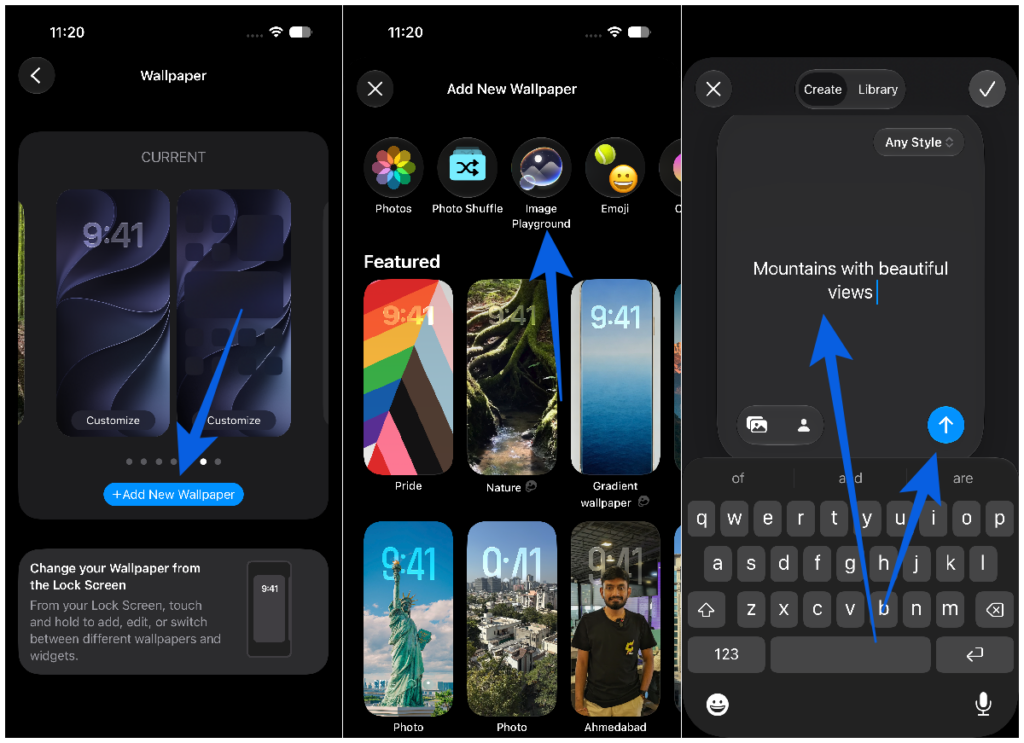
Go to Settings → Wallpaper → Add New Wallpaper, or long-press your Lock Screen and tap the + button. You’re now inside iOS 27’s updated wallpaper gallery, and if you look at the top row, you’ll see Image Playground sitting right there.
Something else worth noticing: iOS 27 will have already done some work for you. Apple automatically surfaces AI-generated wallpapers in the Featured section, including stylized versions of your own photos. During the iOS 27 beta, my iPhone quietly prepared beautifully remixed versions of photos from my library that I hadn’t touched in years. Moody, stylized, and honestly kind of impressive, all without me asking for it.
Any AI-generated wallpaper in the gallery gets a small Image Playground icon next to it, so you always know what you’re looking at. If one of Apple’s suggestions already fits, just tap it and you’re done.
But if you want to build something from scratch, tap the Image Playground button in the top row. You’ll be prompted to describe what you want, choose a style, and optionally ground it in an existing photo or a specific person from your library. The image that comes out is automatically sized perfectly for iPhone with no cropping and no guesswork.
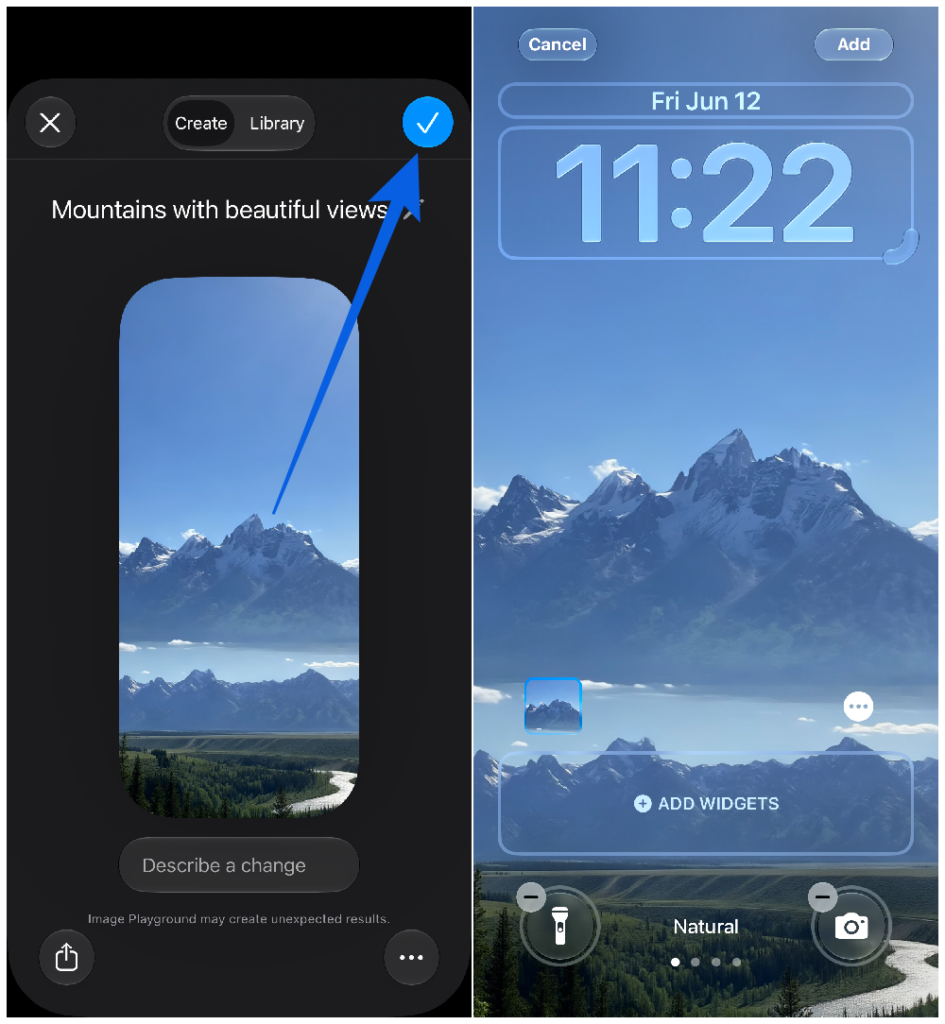
This generation runs through Apple Intelligence, which means it’s happening on-device or through Apple’s Private Cloud Compute, not being sent to a third-party server. That’s worth knowing if privacy matters to you.
More Control: Use the Image Playground App Directly on iPhone
If you want to iterate more carefully before committing to a wallpaper, going through the Image Playground app itself gives you a tighter feedback loop.
- Open Playground and tap the + icon at the bottom.
- Type your description and select a style.
- Tap the resize icon and choose Wallpaper. This locks the output to the right dimensions from the start.
- Let it generate.
- Happy with it? Tap Set Wallpaper in the top right.
- Not quite there? Tap Describe a change and refine your prompt. You don’t have to start over from scratch.
- Tap Add to apply it to your Lock Screen, Home Screen, or both.
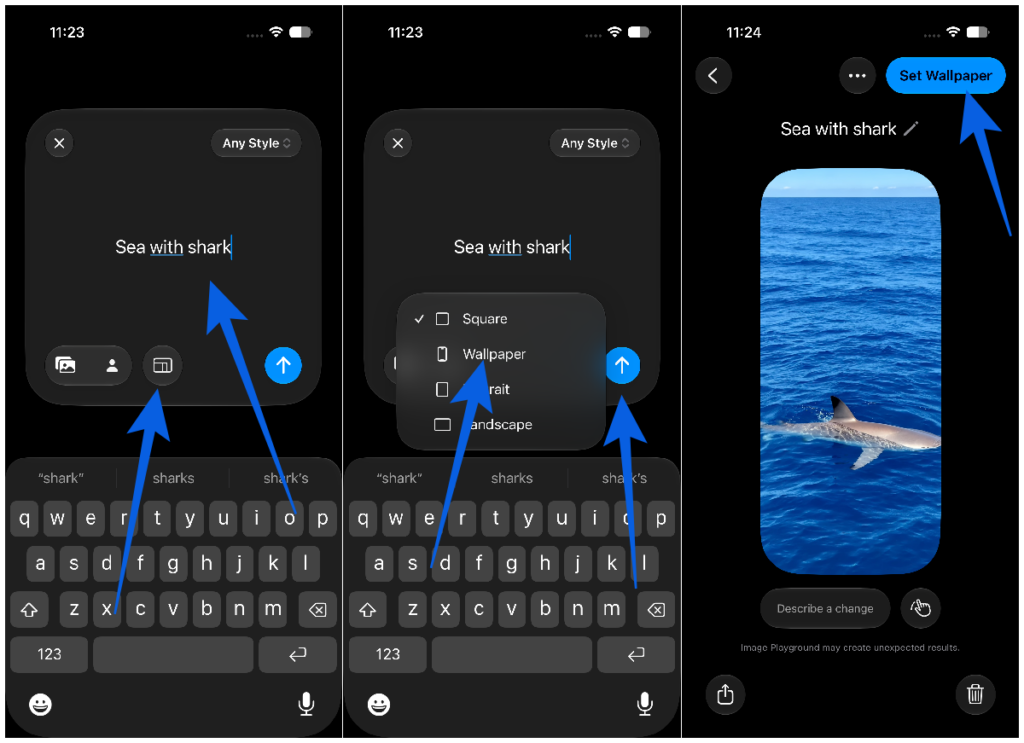
This approach is especially useful when you’re chasing something specific, such as a particular color palette, a style that takes a couple of attempts to dial in, or when you want to compare a few variations side by side before deciding.
Worth knowing: Image Playground in iOS 27 has significantly expanded capabilities compared to previous versions, with fewer content restrictions and sharper output quality than when it first launched.
How to Write Prompts That Actually Get Good Results
This is the part most guides skip, but it’s the difference between a wallpaper you’ll use for six months and one you delete after ten seconds.
AI image generation rewards specificity. “A forest” gets you a generic forest. “A foggy pine forest at dusk with warm orange light filtering through the trees” gets you something worth looking at.
A few things that consistently improve results:
- Anchor it with a subject. One clear focal point, such as a lighthouse, a single tree, or a geometric shape, works better than a busy scene.
- Describe the light. Words like golden hour, overcast, neon-lit, or soft morning light do a surprising amount of heavy lifting for mood.
- Name a visual style. Photorealistic, minimalist, watercolor, or ink illustration steer the output in a meaningful direction. Don’t assume the AI will guess what aesthetic you want.
- Go shorter for abstract or pattern-based designs. If you want something like a background texture or gradient, a tight prompt like “deep blue gradient with soft geometric shapes” tends to outperform an overly detailed one.
- Run it more than once. Each generation gives you a handful of variations. If the first batch isn’t working, adjust one element of your prompt and try again rather than scrapping everything.
Other Wallpaper Options Worth Knowing About in iOS 27
AI generation is the headline feature, but iOS 27 also expands the native wallpaper categories:
- Photos / Photo Shuffle: Use your own images or set them to rotate on a schedule.
- Weather & Astronomy, Emoji, Color: Still here, still useful.
- Celosia gradients and new dynamic styles: New in iOS 27 and worth browsing if you want something polished without building it from scratch.
- Spatial / 3D scenes: Available on newer iPhone models for compatible photos.
A Few Things to Keep in Mind
iOS 27’s wallpaper tools are tied to Apple Intelligence, which requires a compatible device. If you’re running the beta and haven’t set up Apple Intelligence yet, some of these options may not appear. Check out our guide on how to install the iOS 27 beta to make sure you’re set up correctly before you start.
And if you’re interested in what else Apple Intelligence can do with your photos beyond wallpapers, including the new Reframe and Extend tools that intelligently reshape and expand images, AI photo editing in iOS 27 with Reframe and Extend is worth reading next. The same underlying technology powers both features, and knowing how one works makes the other feel a lot more intuitive.
iOS 27 brings AI-generated wallpapers to the iPhone in a way that actually fits into how people use their phones. It’s not tucked inside a separate app or hidden in a settings submenu, but right in the wallpaper picker where you’d naturally look. Whether you spend ten seconds picking a suggested design or ten minutes crafting the perfect prompt, the tools are genuinely good. Use them.
You might also like: