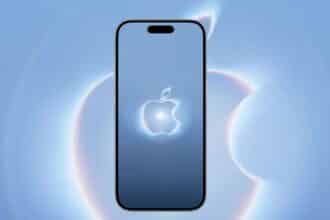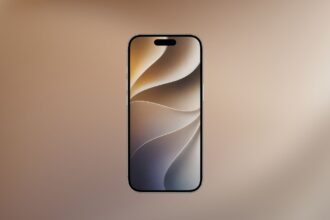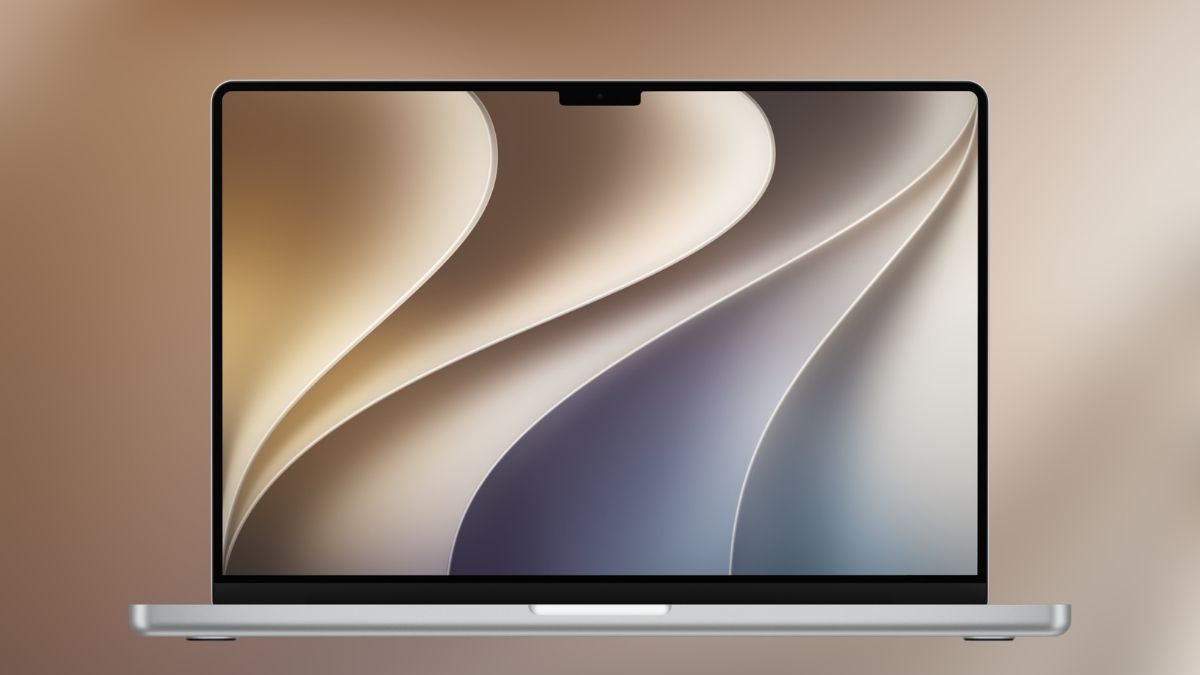
Apple officially unveiled macOS 27 Golden Gate at WWDC 2026, and as usual, the wallpaper quietly stole the show for a lot of us. If you’ve been hunting for the official macOS Golden Gate wallpapers in both light and dark mode, you’re in the right place. Grab them below, no beta installation required.
What Makes This Year’s Wallpaper Worth Talking About
The new macOS 27 Golden Gate wallpapers aren’t just a background. They’re a design statement. Apple’s team built them around abstract, flowing curved shapes that pay subtle tribute to both the Golden Gate Bridge and the numeral “27.” The result is something that feels dynamic without being loud: organic lines, soft gradients, and a composition that actually looks intentional whether you’re running light mode at 9 AM or dark mode at midnight.
These are the static light and dark wallpaper variants, extracted from the developer beta. The originals clock in at approximately 4480 × 3088 pixels, large enough to look sharp on even the largest Pro Display XDR setups and commonly upscaled further for multi-monitor rigs.
Worth knowing: Apple includes a dynamic version in macOS Golden Gate that subtly shifts with your system time and display settings, but that one lives inside the beta itself and can’t be extracted as a standalone file. What you’re downloading here are the full-resolution static versions.
The WWDC 2026 Keynote: Honest Take
The keynote itself was… measured. Apple’s AI and Siri updates were significant on paper, but for many watching, they felt more like the fulfillment of promises made over a year ago rather than genuinely new ground. The headline capability, an AI engine that pulls contextual information from your installed apps to deliver relevant, personalized responses, is genuinely useful once it works as advertised. The corresponding updates to iOS and iPadOS bring the same AI layer across Apple’s ecosystem, so it’s a platform-wide shift, not a Mac-only story.
On the interface side, macOS Golden Gate finally addresses some long-standing UI inconsistencies that designers and power users have been vocal about. Corner radii on app windows now match across the board, and the stoplight buttons (close, minimize, fullscreen) are back with enough visual distinction to tell at a glance which window is active. These feel like changes driven by actual user feedback: small on paper, genuinely satisfying in daily use.
The Liquid Glass design language introduced earlier also gets readability refinements, dialing back some of the more aggressive transparency effects that made text harder to read in certain contexts.
My honest read: the AI features will need real-world beta testing before anyone should form a firm opinion. The potential is there. Whether the execution matches the demo stage is a different question entirely.
The wallpapers, though, delivered immediately.
Download the New macOS 27 Golden Gate Wallpapers
Click each image to open the full-resolution version, then save it directly to your machine.
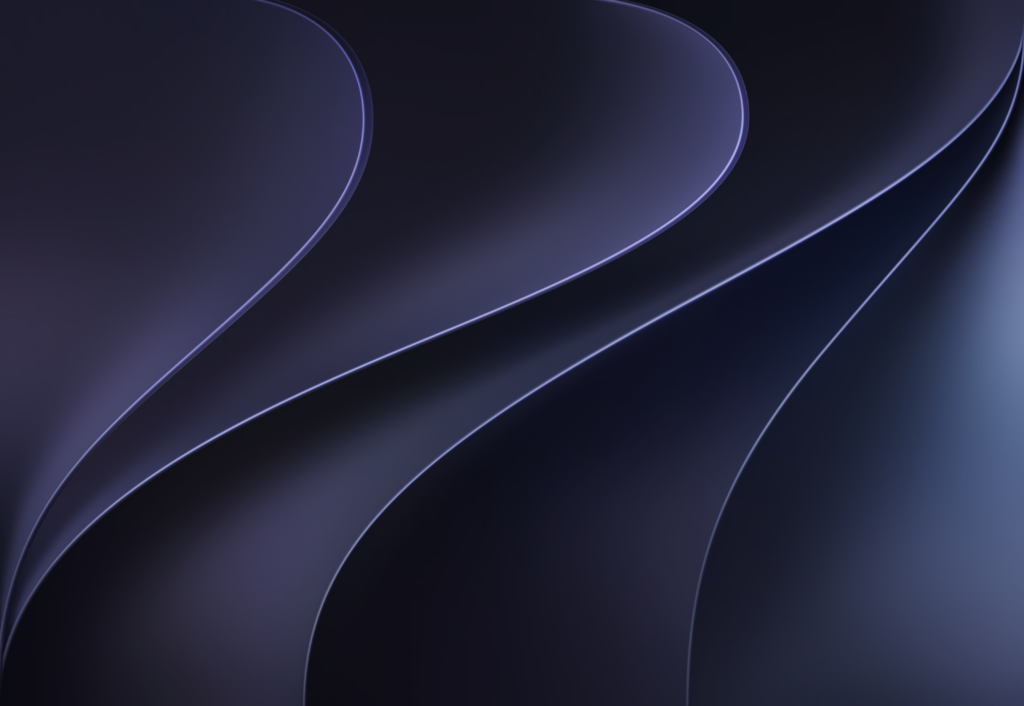
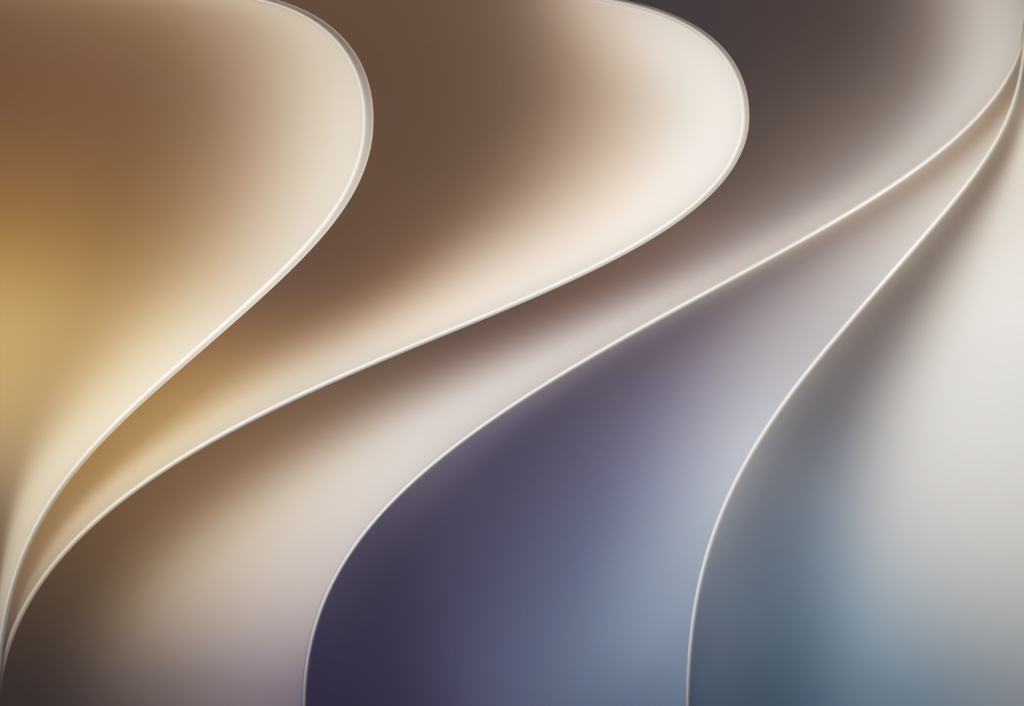
These are the same files circulating from the developer beta: full resolution, uncompressed, and ready to use.
How to Set a Custom Wallpaper on macOS Golden Gate
Once you’ve saved your preferred version, here’s the quickest path to getting it on your desktop:
Go to System Settings → Wallpaper, scroll down to Your Photos, and click Add Photo. From there, you’ve got a few options depending on where the file lives:
- From your Photos library: Click Choose from Photos and select the image.
- From a file: Click Choose File, locate your downloaded wallpaper, and click Open. You can also drag the image directly onto the thumbnail at the top of the Wallpaper panel.
- From a folder: Click Choose Folder and point it to wherever you keep your wallpaper collection.
- From a Photos album: Select an album or folder listed under Photo Sets.
For a deeper walkthrough on wallpaper customization options in macOS, follow this link.
Also Grabbed iOS 27? Don’t Miss the iPhone Wallpapers
If you’re updating across devices, the official iOS 27 wallpapers follow a similar design language and are worth downloading at the same time so your iPhone and Mac stay visually cohesive.