You open Settings, scroll past Copilot, past Recall, past yet another AI panel you never asked to see, and there’s still no single switch that turns any of it off. That’s been one of the biggest complaints about Windows 11’s AI push for months, and it’s the issue Microsoft is finally starting to address with this update.
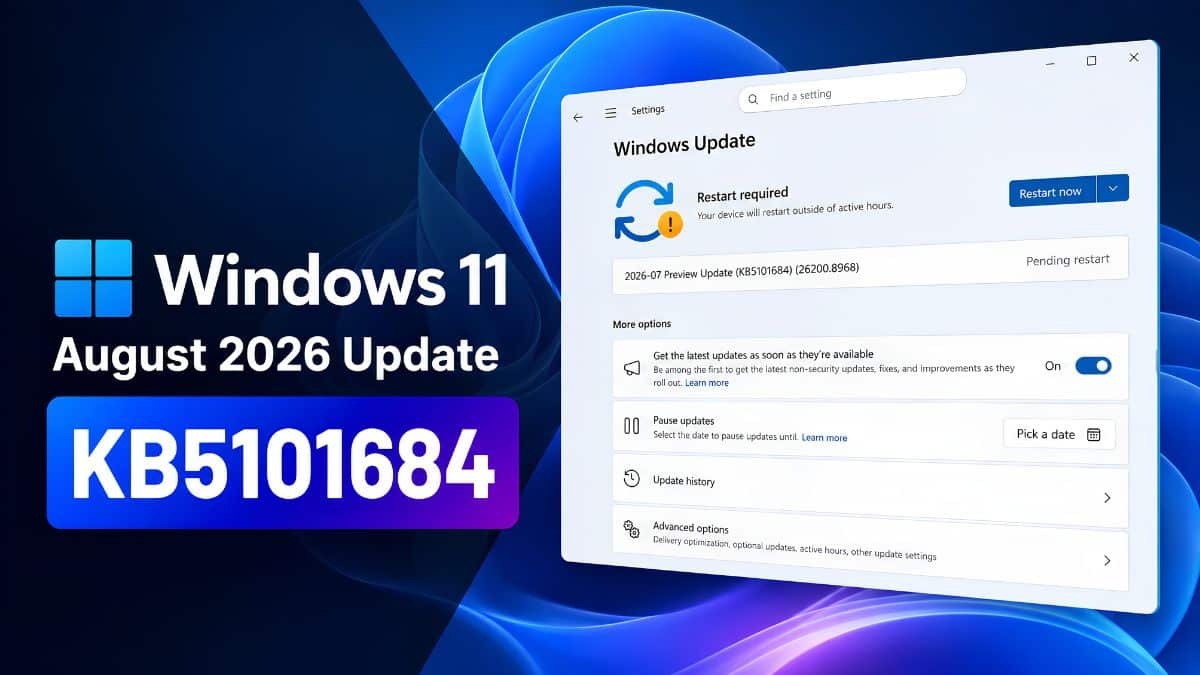
The update itself is KB5101684, and Microsoft released it as an optional preview on July 28, 2026, ahead of its full rollout on Patch Tuesday, August 11, 2026. It arrives on both current versions of Windows 11: build 26100.8973 for 24H2 and build 26200.8973 for 25H2. Nothing here is a flashy keynote feature. Instead, it’s the kind of release that fixes the smaller annoyances people have been complaining about for months rather than introducing an entirely new Start menu.
Think of it as Microsoft giving you the AI feature’s off switch one component at a time, alongside a handful of long-overdue security, accessibility, and quality-of-life improvements. Here’s what’s actually included and what it means for you.
Windows 11 August 2026 Update Release Date and Availability
- Preview release: July 28, 2026 (optional, non-security update)
- Broad rollout: August 11, 2026, as part of the regular Patch Tuesday cumulative update
- Available for: Windows 11 24H2 (build 26100.8973) and 25H2 (build 26200.8973), all editions
- How to get it early: Go to Settings > Windows Update > Check for updates, enable Get the latest updates as soon as they’re available, or join the Release Preview Channel through Windows Insider Program settings.
One thing worth knowing is that this is a Controlled Feature Rollout (CFR). That means not every feature listed below will appear immediately after you install the update. Microsoft rolls these features out gradually, so some changes may take several weeks to reach your PC. A handful of options are also hidden behind feature flags that can only be enabled with tools like ViVeTool.
As of the preview release, Microsoft hasn’t listed any known issues with KB5101684, which is a good sign ahead of the wider rollout.
Windows 11 Finally Lets You Remove an AI Model
This is the biggest change in the update, even if it sounds smaller than many people hoped.
On Copilot+ PCs, you can now go to: Settings > System > AI Components.
From there, you can completely uninstall the Image Generation AI model.
It’s the first time Microsoft has allowed users to remove an individual AI component instead of simply hiding its shortcut or disabling a feature.
That matters because on-device AI models aren’t free. They consume storage, and depending on your hardware, they can quietly occupy system resources even when you’re not actively using them. If you’ve never touched Windows Studio Effects’ image-generation tools, that storage has simply been sitting there until now.
Removing the model gives you that space back.
Who benefits most?
- Copilot+ PC owners who never use Windows’ image-generation features
- Users trying to reduce storage usage or clean up unnecessary AI components
Who won’t notice it?
- Anyone using a non-Copilot+ PC
- Users who regularly use Windows’ AI image-generation features
That said, this still isn’t the master AI switch many users have been asking for. Windows 11 still doesn’t let you disable Copilot, Recall, Click to Do, and every AI feature from one place. This update removes one AI component, not the entire AI experience.
If you’ve already followed our guide on debloating Windows 11, this new setting feels like a welcome extension of that process, except now it’s built directly into Windows instead of relying on third-party utilities.
Windows Hello Gets Better Security for External Fingerprint Readers
The biggest security improvement in KB5101684 is aimed primarily at desktop users.
Windows Hello’s Enhanced Sign-in Security (ESS) now supports external USB fingerprint readers, not just the fingerprint sensors built into laptops.
ESS protects biometric information by processing fingerprint data inside isolated secure memory instead of normal system memory, making it significantly harder for malware to access.
Laptop users with built-in fingerprint readers have benefited from this protection for years. Desktop users relying on USB fingerprint readers haven’t.
That changes with this update.
Microsoft is also expanding the device-targeting data used during Secure Boot certificate deployment, continuing its gradual rollout of updated Secure Boot certificates across Windows 11 devices.
It’s not the sort of feature you’ll ever notice, but it’s the kind of infrastructure update that quietly keeps Windows more secure behind the scenes.
One important clarification: KB5101684 itself is a feature and quality update. The specific security vulnerabilities fixed during August’s Patch Tuesday won’t be published until the full cumulative update arrives on August 11. If you’re primarily interested in security fixes, install the August cumulative update as soon as it’s available.
Voice Access Gets Better Background Noise Filtering
Voice Access receives one of the most practical improvements in this release.
Microsoft has introduced a new Voice Isolation option that filters out background conversations and environmental noise, making Voice Access much more reliable outside perfectly quiet rooms.
There are three different filtering modes depending on how noisy your surroundings are.
The feature requires Voice Access to be set up beforehand, and Microsoft has also added Korean to the list of supported languages.
Voice Typing gets its own update as well.
Fluid Dictation now ships disabled by default on new Windows installations, accompanied by clearer explanations that help users understand when and why they might want to enable it.
If you’ve already turned Fluid Dictation on, this update won’t change your existing preference.
The practical benefit here extends beyond accessibility. Better voice isolation makes Voice Access much more usable in open offices, classrooms, coffee shops, or homes with constant background noise.
Other Windows 11 Improvements in KB5101684
Not every change deserves its own headline, but several smaller improvements make Windows feel noticeably more polished.
File Explorer improvements
- File sizes now display using proper units such as KB, MB, and GB instead of reporting everything in kilobytes.
- Middle-clicking folders in the address bar or Home page now opens them in new tabs, matching the behavior users already expect from web browsers.
Windows Search improvements
- Windows Search now understands two-character searches.
- Search results handle typos and partial application names more accurately.
Touchpad improvements
- Scroll speed and pinch-to-zoom sensitivity can now be adjusted independently.
- Accelerated scrolling has been added, allowing scrolling speed to increase naturally the longer you scroll.
Power management improvements
- Power settings now behave consistently across every power plan.
- The Energy Saver activation threshold, which disappeared in an earlier release, has returned.
Visual improvements
- Notification badges now use your Windows accent color instead of the default red.
- New Windows installations now ship with a simplified lock screen widget layout that only includes the Weather widget by default.
None of these changes individually justifies installing the update early, but together they make Windows 11 feel more polished and consistent.
If you’re someone who likes customizing Windows even further, tools like Winaero Tweaker still offer far more control than Windows provides out of the box.
Should You Install the Windows 11 August 2026 Update?
If you’re already enrolled in the Release Preview Channel, or you’re comfortable installing optional updates before they’re pushed to everyone else, KB5101684 looks like a relatively safe install. Microsoft hasn’t listed any known issues with the preview build released on July 28.
If you prefer waiting for stable releases, there’s little reason to rush. Every feature in this preview will arrive automatically with the August 11 Patch Tuesday update.
Once you’ve installed it, it’s still worth going through your usual post-update checklist. Our guide covering the first things to do after installing Windows 11 remains just as relevant, especially when it comes to verifying your privacy settings and Windows Update preferences.
The Bottom Line
KB5101684 isn’t the major Windows overhaul many people have been waiting for, and Microsoft’s broader plans to simplify Windows (including its long-term Windows K2 project) remain a much bigger effort than any monthly update can deliver.
What this update does bring is a collection of practical improvements that solve real annoyances. You get more control over the AI components installed on your PC, stronger protection for desktop fingerprint authentication, and a Voice Access experience that’s finally usable outside a perfectly quiet room.
It’s not a headline-grabbing release, but it’s the kind of cumulative update that makes Windows 11 a little more polished with every install.
Related articles worth reading: