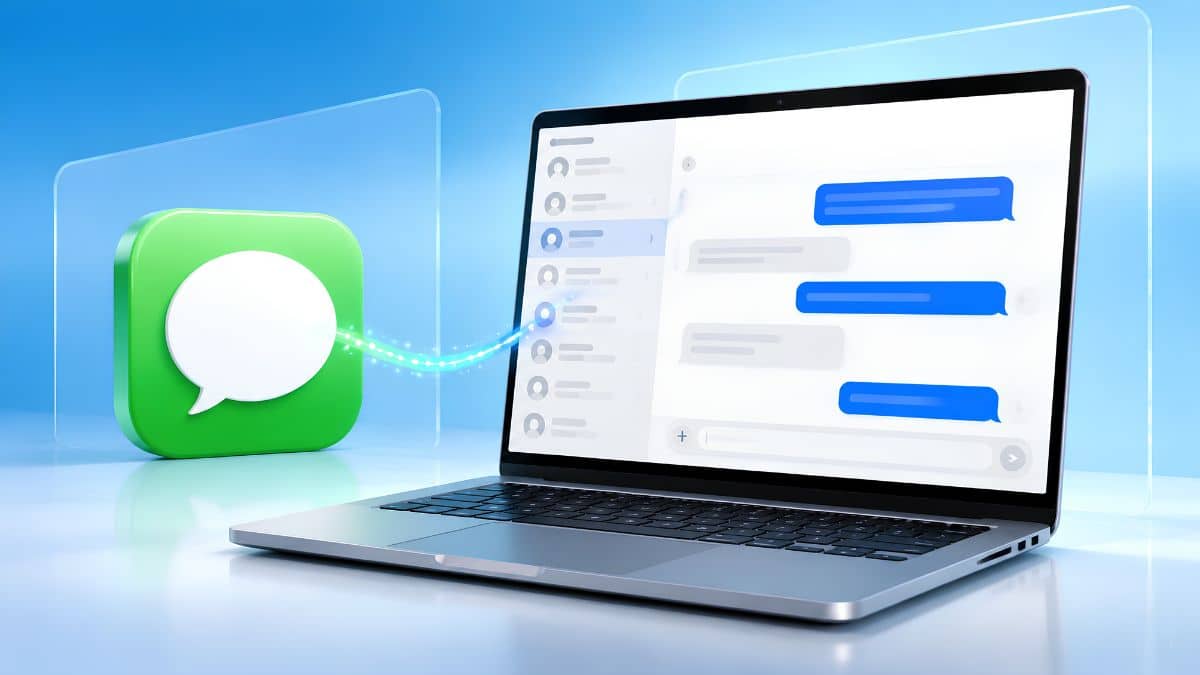
You switch to a Windows laptop, and one of the first things you miss is Messages. Your conversations, group chats, photos, and years of iMessage history are still sitting on your iPhone, but there is no Messages app waiting for you on Windows.
Apple still doesn’t offer a native iMessage app for Windows. That doesn’t mean you’re completely locked out, though. Microsoft’s Phone Link can handle basic messaging through your iPhone, while third-party tools such as BlueBubbles can provide a much more complete experience if you have a Mac available to act as a server.
The important part is knowing what each method can actually do before you spend an afternoon setting it up. Here’s how to use iMessage on Windows in 2026, what features you’ll lose with each method, and which option makes the most sense.
Can You Get iMessage on Windows?
Yes, but not through an official Apple Messages app. Apple doesn’t currently offer iMessage for Windows, so every available method relies on another Apple device somewhere in the chain.
The two practical approaches are:
- Connect your iPhone to Windows using Microsoft Phone Link for basic messaging.
- Use a Mac as an iMessage server with software such as BlueBubbles for a more complete Messages experience.
The first option is much easier. The second gives you considerably more functionality.
Microsoft Phone Link Is the Easiest Option
For most people, Phone Link should be the first method to try. Microsoft’s Phone Link is built into Windows 11 and can connect to an iPhone over Bluetooth. Once paired, it allows certain messages and notifications from your iPhone to appear on your PC.
You still need the iPhone nearby because Windows isn’t signing directly into Apple’s iMessage service. Your phone remains the bridge between the two platforms.
How to Set Up iMessage With Phone Link
Download Microsoft Phone Link from the Microsoft Store on your Windows 11 PC, then install the Link to Windows app on your iPhone.
- Open Phone Link on your Windows 11 PC.
- Choose iPhone when asked which phone you’re connecting.
- Sign in with your Microsoft account if prompted.
- Scan the QR code displayed on your PC using your iPhone.
- Follow the prompts to pair your iPhone and Windows PC over Bluetooth.
- Approve the requested Bluetooth and notification permissions on your iPhone.
- Return to Phone Link and open the Messages section.
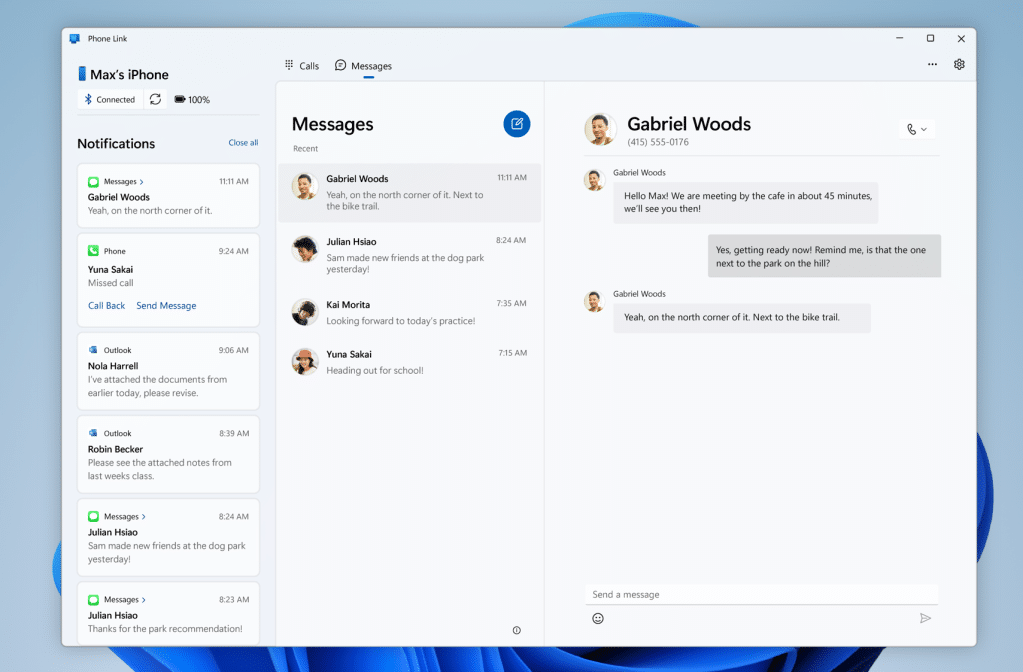
Once everything is connected, you can read supported incoming messages and reply without picking up your iPhone.
If messages aren’t appearing, make sure Bluetooth remains enabled on both devices and that Phone Link has the permissions it needs.
What Phone Link Can and Can’t Do With iMessage
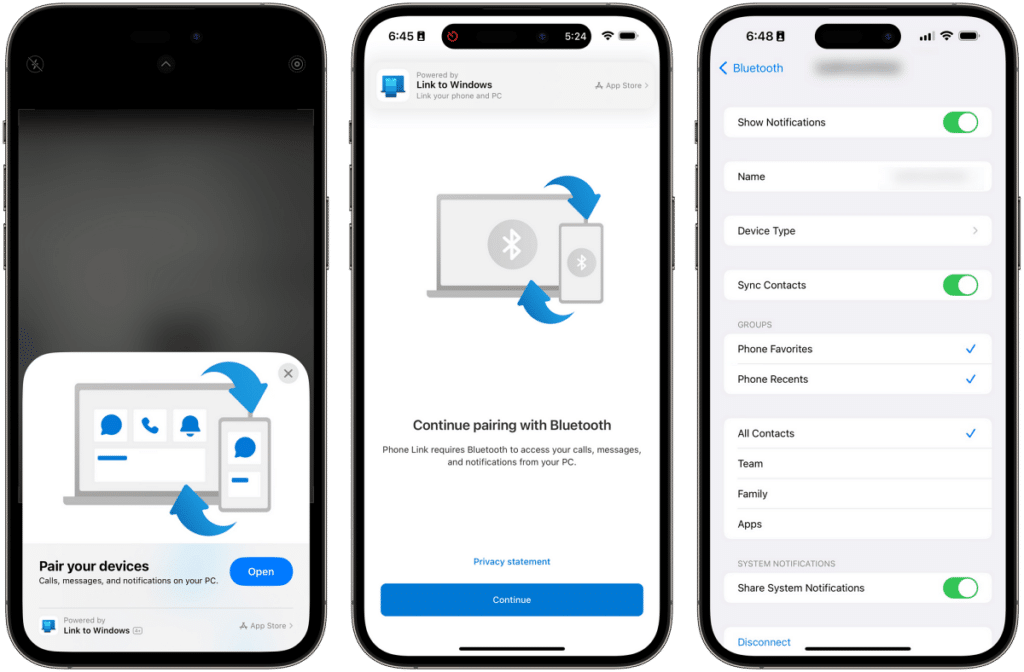
This is where expectations matter. Phone Link isn’t Messages for Mac running on Windows. Think of it as a Bluetooth bridge that gives you access to some messaging functions.
You can use it for basic one-to-one conversations and quick replies, which is enough if your main goal is answering messages while working at your PC. However, you don’t get the complete Messages experience.
Depending on the current Phone Link version and Microsoft’s supported feature set, limitations can include restricted conversation history and missing iMessage-specific functionality. Features such as rich media, effects, apps, and other Apple-exclusive Messages features aren’t equivalent to what you get on an iPhone, iPad, or Mac.
You also shouldn’t rely on the familiar blue and green bubbles to tell you how every message was delivered. On Apple devices, those colors communicate whether you’re using iMessage or another messaging protocol. Our guide to iMessage symbols and icons explains what those indicators mean.
If Phone Link suddenly stops receiving iMessages altogether, check your iPhone before troubleshooting Windows. An iMessage activation problem on the phone can prevent the bridge from working correctly. Here’s what to do if you see the iMessage needs to be enabled error.
BlueBubbles Gets Much Closer to Real iMessage
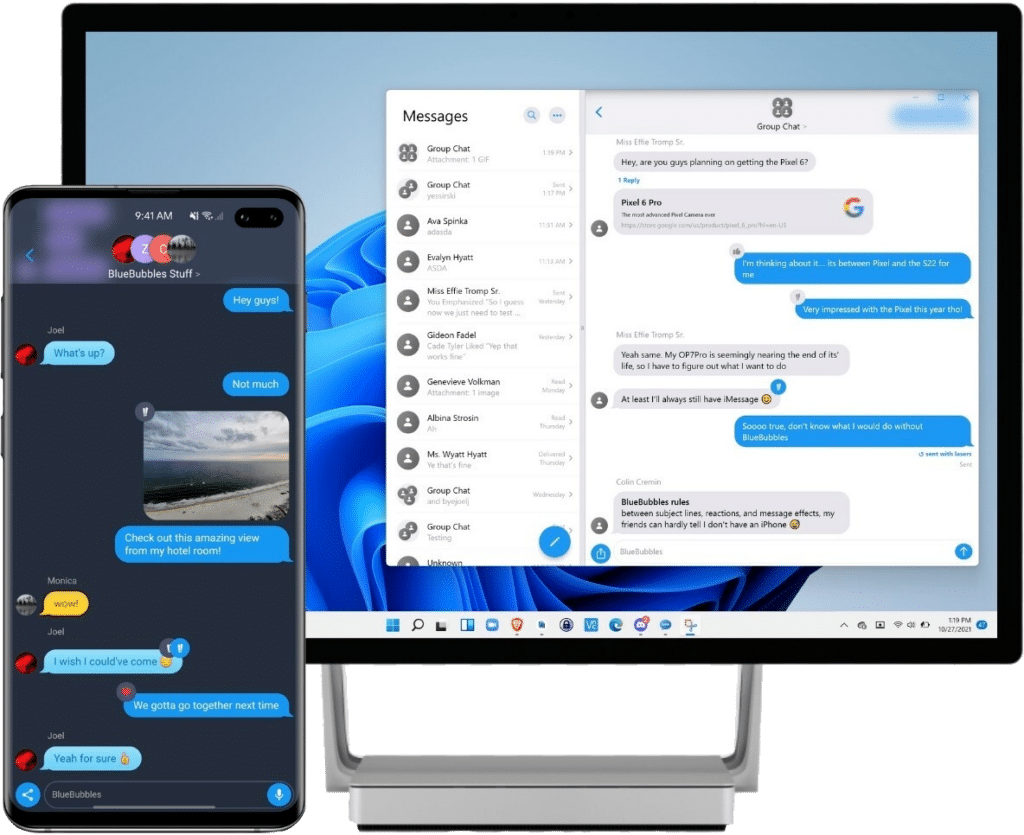
If Phone Link feels too limited, BlueBubbles takes a completely different approach. Instead of using your iPhone as the bridge, BlueBubbles uses a Mac.
You install the BlueBubbles server on a Mac that’s signed into Messages with your Apple Account. That Mac communicates with Apple’s Messages service normally, while the BlueBubbles client lets you access those conversations from your Windows PC.
In other words: Apple’s servers → your Mac → BlueBubbles → your Windows PC
Because a real Mac remains involved, BlueBubbles can provide significantly more of the iMessage experience than Phone Link.
Depending on your configuration, that can include richer conversations, group messaging, attachments, reactions, replies, and other functionality that isn’t practical through Phone Link.
What You Need for BlueBubbles
The big requirement is obvious: you need a Mac.
It doesn’t necessarily have to be your main computer. An older Mac mini can work well as a dedicated server if it’s compatible with the software you need.
The Mac also needs to:
- Stay powered on
- Remain connected to the internet
- Stay signed into your Apple Account
- Have Messages configured correctly
- Run the BlueBubbles server
- Have the necessary macOS permissions enabled
That makes BlueBubbles considerably more involved than Phone Link. For someone who already owns a Mac and spends all day on a Windows gaming PC or work machine, the extra setup may be worthwhile. Buying a Mac solely to get iMessage on Windows makes much less sense.
What About AirMessage?
AirMessage follows broadly the same concept. A Mac acts as the bridge between Apple’s Messages service and another device. Instead of somehow turning Windows into a native Apple Messages client, you’re remotely accessing messaging capabilities provided by Apple hardware you already own.
That means the same fundamental limitation applies: the Mac needs to remain available for the service to work. If you’re choosing between Mac-based solutions, check which projects are actively maintained and support your current macOS and Windows setup before investing time in configuration. Third-party iMessage tools can change considerably as Apple updates Messages and macOS.
What About Beeper?
Beeper is worth mentioning because it became closely associated with attempts to bring iMessage outside Apple’s ecosystem. Beeper Mini briefly offered an approach that didn’t depend on keeping a Mac running as a traditional relay. Apple subsequently made changes that disrupted that method, leading to a back-and-forth between the companies.
The episode demonstrated an important limitation of unofficial iMessage solutions: a workaround that functions today isn’t guaranteed to continue working indefinitely.
That’s another reason Phone Link is the safer choice for casual users. It may offer fewer features, but it doesn’t depend on trying to reproduce Apple’s messaging protocol on unsupported hardware.
Can You Use iMessage on Windows Without an iPhone?
Not realistically through Phone Link. Phone Link’s iPhone integration requires an iPhone because the phone provides the connection Windows uses for messaging. Mac-based solutions provide another route, but then you’re replacing the iPhone requirement with a Mac requirement.
So if you own only a Windows PC and no Apple hardware, there still isn’t a straightforward way to sign into your Apple Account and start using iMessage as though you were opening WhatsApp Web. That’s the fundamental limitation behind virtually every “iMessage for Windows” workaround.
Which Method Should You Use?
For most people, the decision is straightforward.
- Use Phone Link if you already have an iPhone and mainly want to read and answer messages while working on your Windows PC. It’s the easiest option and doesn’t require additional hardware.
- Use BlueBubbles if you already own a Mac, rely heavily on iMessage, and want something closer to the full Messages experience on your Windows computer.
- Consider AirMessage or another Mac-based solution only after checking that it’s actively maintained and supports your current devices.
If you don’t own an iPhone or Mac, there isn’t currently a good solution that gives Windows direct access to Apple’s iMessage network.
Final Verdict
There’s still no official iMessage app for Windows in 2026, so every working solution involves a compromise. Microsoft Phone Link is the easiest option. It connects your iPhone to Windows and gives you enough messaging functionality to handle quick conversations without constantly reaching for your phone.
BlueBubbles goes considerably further, but it requires a Mac running in the background to act as the bridge between Apple’s Messages service and your Windows PC. If you simply want to answer messages from your desk, start with Phone Link. If iMessage is a major part of how you communicate and you already own a Mac, BlueBubbles is the more capable route.