The Windows clipboard shortcut most people never learn fixes one of the most common annoyances in daily computer use: you copy a line of text, copy something else before pasting the first one, and suddenly the original is gone. Windows has quietly had a solution to this problem for years, yet plenty of people still don’t know it exists.
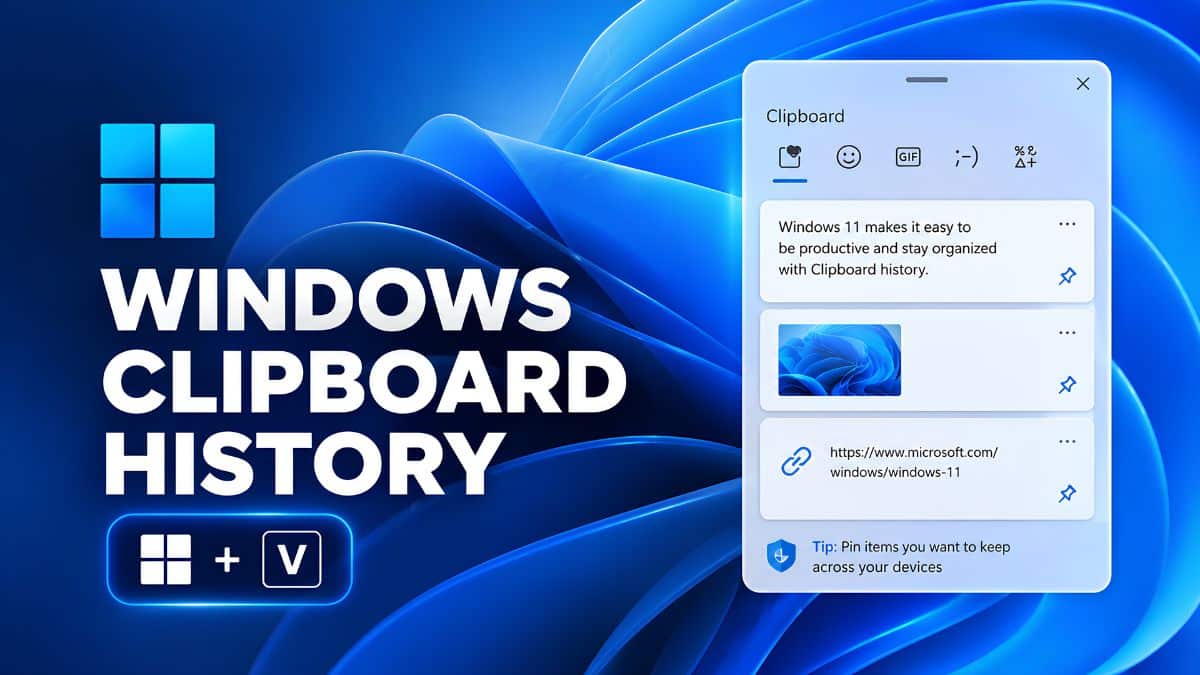
The fix is a single shortcut: Windows key + V. It opens Clipboard history, a panel that keeps your recent copied items, lets you pin the ones you reuse constantly, and can even sync supported clipboard content across Windows devices signed in with the same Microsoft account. Microsoft first introduced Clipboard history with the Windows 10 October 2018 Update and carried it forward into Windows 11.
Here’s what Win + V actually does, how to enable it, and how to get the most out of Windows Clipboard history.
How to Turn On Clipboard History in Windows 11
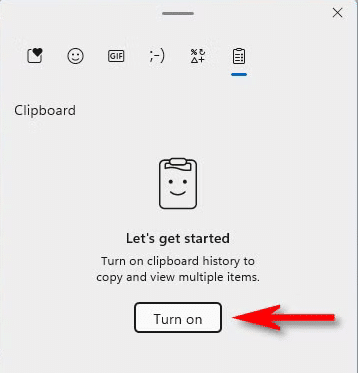
Clipboard history may not already be enabled on your PC. The quickest way to check is to press Windows key + V. If it’s disabled, Windows will show an option to turn it on directly from the Clipboard panel. Click Turn on, and you’re ready to go without restarting your PC.
You can also enable it manually:
- Open Settings.
- Go to System > Clipboard.
- Turn on Clipboard history.
Same result, different route. Once enabled, supported text, links, HTML content, and small images you copy can appear in your Clipboard history instead of immediately disappearing when you copy something else.
How to Use Win + V to See Your Clipboard History
Normal Ctrl + C and Ctrl + V effectively give you one active clipboard item at a time. Copy something new, and that’s what Ctrl + V will paste next.
Clipboard history changes that workflow.
Press Win + V, and Windows opens a panel containing your recent clipboard items. Windows supports up to 25 clipboard entries, with individual items limited to 4 MB. Supported content includes text, HTML, and bitmap images.
To use an older item, place your cursor where you want it, press Win + V, and select the clipboard entry you want. Windows pastes that item into the active app or text field.
That’s the entire workflow: copy several things in a row, press Win + V, and choose the one you actually need. You no longer have to return to another webpage, email, or document because you accidentally copied something else in between.
One limitation is worth remembering: regular Clipboard history items are cleared when you restart your PC. If there’s something you want Windows to keep around, you’ll need to pin it.
How to Pin Frequently Used Clipboard Items
This is the feature that can turn Win + V from a nice convenience into a genuinely useful productivity tool.
Open Clipboard history with Win + V, find an item you regularly reuse, open its options, and pin it. Pinned clipboard entries are retained even when you restart your PC, so you don’t need to copy them again every time you start Windows.
Think about the things you repeatedly paste: an email signature, a standard support response, a frequently used code snippet, a business address, or a template you use several times a day. Instead of keeping a separate document open just to retrieve them, you can pin frequently used snippets to Clipboard history.
To remove one later, press Win + V, open the options for the relevant entry, and choose to unpin or delete it.
It’s a small feature, but once you’ve built up a few genuinely useful pinned entries, going back to a single-item clipboard feels unnecessarily restrictive.
How to Sync Clipboard History Across Windows PCs
If you regularly switch between a desktop and laptop, Windows can also sync supported clipboard content between devices. That means you can copy text on one PC and retrieve it on another without emailing it to yourself, saving it to a note, or dropping it into a messaging app first.
To configure clipboard syncing:
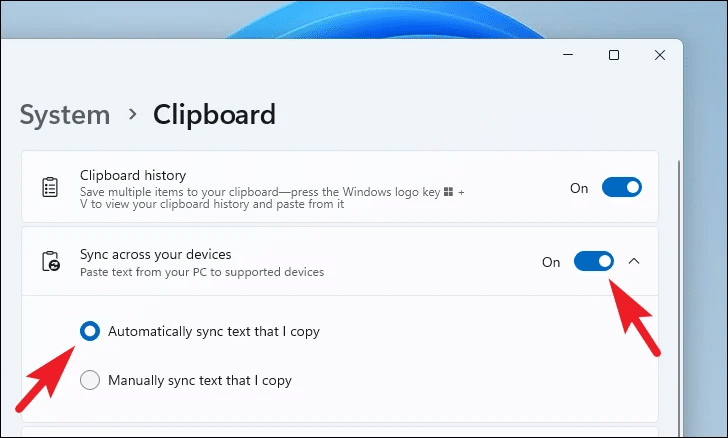
- Open Settings > System > Clipboard.
- Find the cross-device Clipboard history or sync setting.
- Enable it and follow the account prompts if required.
- Choose the available synchronization behavior that suits you.
You’ll need to use an eligible Microsoft or work account on the devices involved, and organizational policies can affect whether the feature is available on managed PCs.
This is especially handy if you have a desktop at your desk but regularly move to a laptop. Copying a URL, paragraph, or other supported text on one machine and having it available on another removes one of those tiny workflow interruptions you otherwise stop noticing because you’re so used to working around it.
How to Clear Clipboard History in Windows 11
Clipboard history is convenient precisely because Windows remembers what you’ve copied. But that’s also a reason to pay attention when copying sensitive information.
If you’ve copied a password, API key, recovery code, financial information, or anything else you don’t want hanging around in Clipboard history, remove it when you’re finished.
You can press Win + V and delete an individual entry, or go to Settings > System > Clipboard and use the option to clear your Clipboard data.
Keep in mind that pinned entries are designed to persist, so check those separately if you’re trying to remove everything you’ve deliberately saved.
A better habit is to avoid leaving sensitive information in Clipboard history any longer than necessary. If your PC stays running for days at a time, waiting for a restart isn’t a particularly good cleanup strategy.
Who Should Use Windows Clipboard History?
If you mostly copy one thing at a time and immediately paste it, Clipboard history probably won’t transform how you use your PC. Ctrl + C and Ctrl + V already handle that workflow perfectly well.
But if you regularly fill out forms, write emails from standard replies, move information between spreadsheets and documents, or juggle code snippets, links, and notes across several apps, Win + V can save a surprising amount of repetitive work.
It’s also one of the features I’d enable after setting up a fresh PC, alongside the other things worth doing after installing Windows 11.
Clipboard history sits alongside other useful built-in tools, including several Windows accessibility features everyone can use, that are easy to overlook simply because Windows doesn’t do much to teach you they exist.
Is Windows Clipboard History Safe to Use?
For everyday text, links, and reusable snippets, Clipboard history is incredibly convenient. But I wouldn’t treat it as a secure place to permanently store passwords, authentication codes, private keys, or other sensitive information.
Anything you deliberately pin is particularly worth reviewing from time to time because the whole point of pinning is to keep that item around. For passwords and other credentials, a proper password manager remains the better place to store information you need repeatedly.
Clipboard history works best as a productivity feature, not as a secure storage vault.
Final Thoughts
Win + V isn’t a flashy Windows feature. It’s simply a small fix for a problem almost every Windows user has experienced: copying something new and realizing you’ve lost what was on the clipboard before.
Turn Clipboard history on once, pin the handful of snippets you paste regularly, and use cross-device syncing if you work across multiple Windows PCs. After a while, going back to copying and pasting one item at a time starts to feel surprisingly limiting.