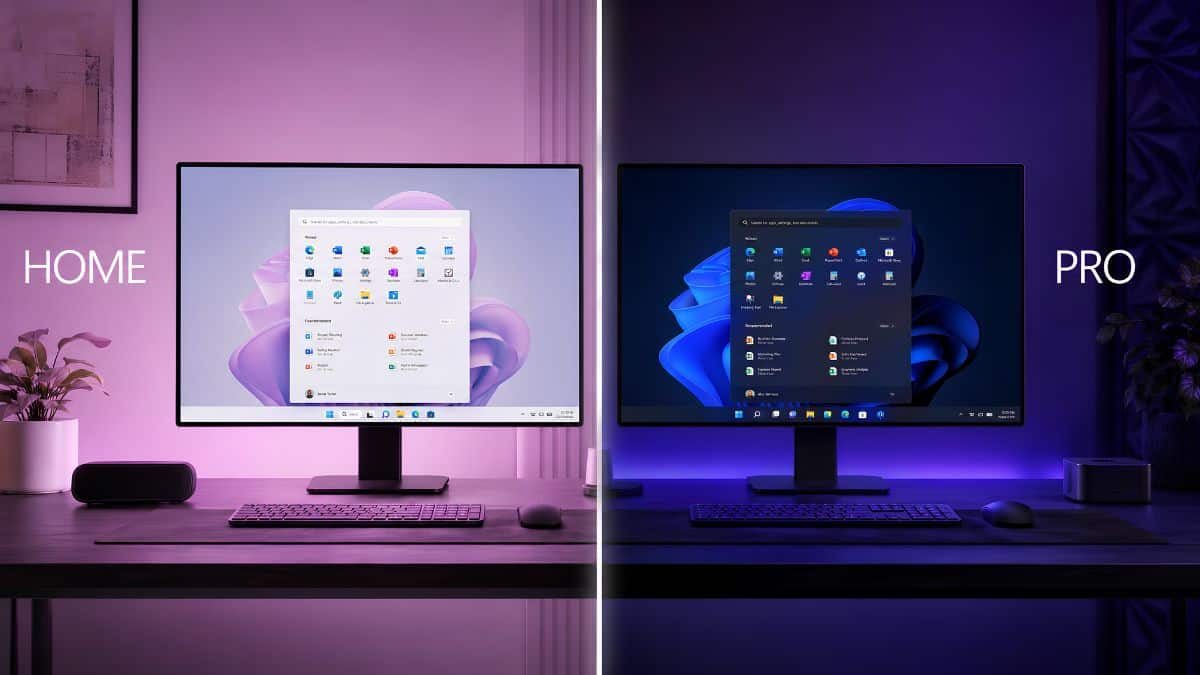
If you’ve ever reached the checkout page for a new laptop and found yourself choosing between Windows 11 Home and Windows 11 Pro without a clear explanation of the differences, you’re not alone. Most people simply choose whichever option is cheaper and move on. For many, that’s the right decision. For others, it means discovering months later that a feature they suddenly need isn’t available on their PC.
The important thing to understand is that Windows 11 Home and Pro are built on the exact same operating system.
As of mid-2026, that means Windows 11 version 25H2 for most existing PCs, while version 26H1 has shipped on new hardware since February 10, 2026. Home and Pro aren’t separate operating systems with different performance or stability. Instead, Microsoft enables or disables certain security, management, and virtualization tools depending on which edition you purchase.
A good way to think about it is like buying two trim levels of the same car. They share the same engine, design, and driving experience. The higher trim simply includes features that don’t seem important until the day you actually need them.
Here’s what really separates Windows 11 Home from Windows 11 Pro and which edition makes the most sense for the way you use your PC.
Windows 11 Home vs. Pro at a Glance
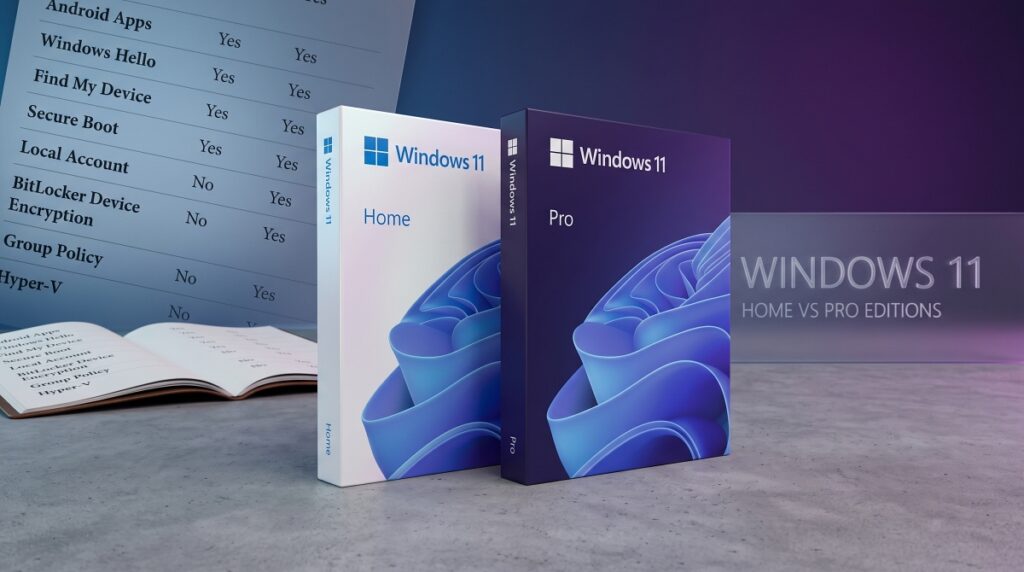
Before comparing individual features, it’s worth covering the fundamentals.
Price
Windows 11 Home costs $139 when purchased as a standalone license through the Microsoft Store.
Windows 11 Pro costs $199 as a standalone license. If you’re already running Windows 11 Home, Microsoft also offers an in-place upgrade to Pro for $99 through the Activation settings page.
System Requirements
Both editions share identical hardware requirements.
You’ll need:
- A 1 GHz or faster processor with 2 or more cores
- A supported processor from Microsoft’s compatibility list
- At least 4 GB of RAM
- 64 GB of storage
- TPM 2.0
- UEFI Secure Boot
- A DirectX 12-compatible graphics device
Choosing Pro doesn’t reduce hardware requirements or provide a lighter operating system.
Microsoft Account Requirement
Many people still assume Windows 11 Pro lets you bypass a Microsoft account during setup.
For most consumers, that’s no longer true.
Microsoft’s current setup process requires both Windows 11 Home and Windows 11 Pro to be connected to the internet and signed in with a Microsoft account during the initial setup process.
The older local-account workaround generally only applies when a PC is joining a business domain or Microsoft Entra ID environment rather than being configured as a personal computer.
Once those basics are out of the way, the real differences fall into five main categories:
- Security and encryption
- Business management tools
- Virtualization
- Hardware limits
- S mode support
The Real Security Difference: BitLocker vs. Device Encryption
Security is one of the biggest reasons businesses choose Windows 11 Pro, but the difference isn’t always obvious.
Both editions encrypt your data if your laptop is stolen—but they don’t do it the same way.
Windows 11 Home: Device Encryption
Windows 11 Home includes Device Encryption, a simplified version of Microsoft’s encryption technology.
Device Encryption:
- Works only on supported modern hardware
- Requires signing in with a Microsoft account
- Encrypts the internal system drive
For many home users, that’s perfectly adequate.
However, it doesn’t automatically protect external drives like USB flash drives or portable SSDs.
Windows 11 Pro: Full BitLocker
Windows 11 Pro includes the complete BitLocker Drive Encryption feature.
BitLocker offers several important advantages:
- Supports a much wider range of hardware
- Doesn’t depend on a Microsoft account
- Encrypts both internal and external drives through BitLocker To Go
- Supports centralized management through Group Policy
That last capability is especially important for businesses that need to manage dozens or even hundreds of employee laptops from a central IT department.
Who Actually Needs BitLocker?
Full BitLocker makes the most sense if your laptop regularly stores:
- Client information
- Financial records
- Confidential company documents
- Source code
- Sensitive data copied to USB drives
If your laptop rarely leaves home and mostly stores personal files, streaming apps, photos, and documents, Windows 11 Home’s Device Encryption is usually more than sufficient.
Remote Desktop, Group Policy, and Joining a Work Network
This is where Windows 11 Pro begins to justify its name.
Most businesses specifically request the Pro edition because it includes management tools that simply aren’t available in Home.
Remote Desktop
One of the biggest differences is Remote Desktop.
Windows 11 Pro can function as a Remote Desktop host, allowing you to remotely access your PC from another Windows device.
Windows 11 Home can only act as the client initiating a connection—it can’t receive incoming Remote Desktop sessions.
Group Policy Editor
Windows 11 Pro also unlocks the Local Group Policy Editor (gpedit.msc).
Instead of modifying the Windows Registry manually, Group Policy lets administrators configure hundreds of Windows settings through an organized interface.
It’s one of the most commonly used tools in professional IT environments.
Domain Join and Microsoft Entra ID
Another major advantage is support for:
- Microsoft Entra ID (formerly Azure Active Directory)
- Traditional Active Directory domains
Joining a company domain allows an organization’s IT department to:
- Deploy software remotely
- Apply company security policies
- Configure Windows Autopilot
- Enroll devices in Microsoft Intune and other mobile device management platforms
Windows 11 Pro also supports Assigned Access, which locks a computer to a single application—a feature commonly used for kiosks, retail terminals, digital signage, and public computers.
Who Actually Needs These Features?
If your employer requires your computer to join a company network or Microsoft Entra ID environment, Windows 11 Pro is essential.
Likewise, IT professionals, managed businesses, and organizations that rely on centralized device management should choose Pro without hesitation.
For freelancers, students, gamers, and most home users managing only one or two personal computers, these enterprise management tools will likely never be used.
Hyper-V and Windows Sandbox: Built-In Virtualization
The next major difference primarily benefits developers, IT professionals, and power users.
Windows 11 Pro includes Hyper-V, Microsoft’s built-in virtualization platform. It allows you to create and run virtual machines without installing third-party virtualization software. Whether you’re testing a different version of Windows, experimenting with Linux, or evaluating software in an isolated environment, Hyper-V is already built into the operating system.
Windows 11 Pro also includes Windows Sandbox, one of its most underrated security features.
Sandbox launches a completely isolated copy of Windows that disappears the moment you close it. Any files, apps, or changes made inside the Sandbox are automatically deleted, making it an excellent place to:
- Test unfamiliar software
- Open suspicious files
- Verify installers before running them on your main PC
- Experiment without affecting your primary Windows installation
Windows 11 Home users aren’t completely locked out of virtualization. Applications such as Oracle VirtualBox and VMware Workstation Player provide similar functionality, although they require separate installation and generally don’t integrate with Windows as seamlessly as Hyper-V.
Who Should Care About Hyper-V?
Hyper-V and Windows Sandbox are most valuable for:
- Software developers
- System administrators
- IT professionals
- Security researchers
- Enthusiasts who regularly test different operating systems
For everyday users who primarily browse the web, stream videos, edit documents, or play games, these features are unlikely to become part of their daily workflow.
Hardware Limits You’ll Probably Never Reach
On paper, Windows 11 Pro supports significantly more powerful hardware than Windows 11 Home.
Here’s the comparison:
| Feature | Windows 11 Home | Windows 11 Pro |
|---|---|---|
| Maximum RAM | 128 GB | 2 TB |
| Maximum CPU sockets | 1 | 2 |
| Maximum CPU cores | 64 | 128 |
Those numbers sound dramatic, but for the overwhelming majority of users, they’re largely theoretical.
Most consumer laptops and desktops ship with 8 GB, 16 GB, or 32 GB of memory. Even high-end gaming systems rarely exceed 64 GB. Reaching Home’s 128 GB RAM limit requires workstation-grade hardware that most consumers will never own.
Similarly, support for dual processors and 128 CPU cores primarily benefits enterprise workstations, engineering systems, scientific computing, virtualization servers, and other specialized workloads.
Unless you’re building an extremely high-end workstation, Windows 11 Home’s hardware limits are unlikely to affect you.
Everything Else Is the Same Including Accessibility
Outside the features we’ve already discussed, Windows 11 Home and Pro are remarkably similar.
Both editions include:
- Windows Hello
- Microsoft Defender Antivirus
- Windows Security
- Voice Access
- Narrator
- Live Captions
- Magnifier
- Voice Typing
- The full Windows accessibility toolkit
There are no Pro-exclusive accessibility features.
Whether you rely on accessibility tools daily or simply want to take advantage of productivity features like Voice Access and Live Captions, both editions provide the exact same experience.
One small but important distinction is Windows 11 S mode.
Only Windows 11 Home is available in S mode on certain budget laptops. S mode limits software installation to apps downloaded from the Microsoft Store, improving security and battery life at the expense of flexibility.
Windows 11 Pro is not offered in S mode, so if a laptop advertises Windows 11 in S mode, it’s running the Home edition underneath.
Should You Buy Windows 11 Home or Pro?
For most people, the answer is surprisingly simple.
If your PC is mainly used for:
- Web browsing
- Streaming
- Gaming
- Schoolwork
- Office documents
- Photo management
- General productivity
Windows 11 Home is more than enough.
It offers the same interface, the same performance, the same Windows updates, and the same everyday experience as Pro.
Windows 11 Pro becomes worthwhile when your workflow depends on features Home simply doesn’t include.
Choose Windows 11 Pro if you:
- Need to join a company domain or Microsoft Entra ID
- Require full BitLocker encryption, including USB drives
- Frequently run virtual machines
- Want Windows Sandbox
- Manage multiple business devices through Group Policy or Intune
- Regularly work with sensitive business or client information
Small business owners, IT professionals, developers, and remote employees are the groups most likely to benefit from Pro’s additional capabilities.
Another advantage is that you don’t have to decide forever.
If you buy a PC with Windows 11 Home today and later discover you need Pro features, Microsoft allows an in-place upgrade directly through: Settings → System → Activation
The upgrade currently costs $99 and keeps your installed apps, files, and settings intact.
If you’re instead planning a fresh installation or building a custom PC, Microsoft’s Windows 11 Media Creation Tool lets you create bootable installation media for either edition.
Final Thoughts
Windows 11 Home and Windows 11 Pro deliver the same core Windows experience. They run the same operating system, receive the same feature updates, and offer identical performance for everyday tasks. The difference isn’t speed—it’s the collection of advanced tools that Microsoft reserves for Pro.
For most home users, students, and gamers, Windows 11 Home is the smarter purchase because it includes everything needed for everyday computing without the additional cost.
However, if your work involves BitLocker encryption, Remote Desktop hosting, Microsoft Entra ID, Group Policy, Hyper-V, or Windows Sandbox, the extra investment in Windows 11 Pro quickly pays for itself.
Rather than asking which edition is “better,” the better question is which one matches how you actually use your PC. If your workflow never touches enterprise management or virtualization, Windows 11 Home will likely do everything you need. But if those advanced tools are part of your daily routine or even likely to become important in the near future Windows 11 Pro is well worth the upgrade.