Windows 11 arrived with a visually unified redesign that divided opinion, largely because it removed many of the customization options power users had come to rely on. In Microsoft’s push to simplify the interface, a good number of useful features were either buried deep in the system or removed from view altogether.
Winaero Tweaker steps into that gap to restore access to those sidelined options and gives you precise control over how Windows behaves. It doesn’t mess with system files or do anything reckless either. Instead, it neatly surfaces legitimate registry tweaks and hidden settings Microsoft decided not to include in the Settings app. Below are five changes you can make right away that genuinely transform the Windows 11 experience.
1. Restore the Classic Context Menu in Windows 11
One of the most discordant changes in Windows 11 is the new right-click context menu. While visually cohesive with the new design language, it buries essential functions, such as 7-Zip, specialized file tools, or advanced properties—behind a superfluous “Show more options” button. This adds an unnecessary click to hundreds of interactions every week.
Winaero Tweaker resolves this with a single toggle.
- Open Winaero Tweaker and navigate to Windows 11 > Classic Full Context Menus.
- Check the “Enable classic full context menus” box.
- Click the Restart Explorer button that appears at the bottom of the window.
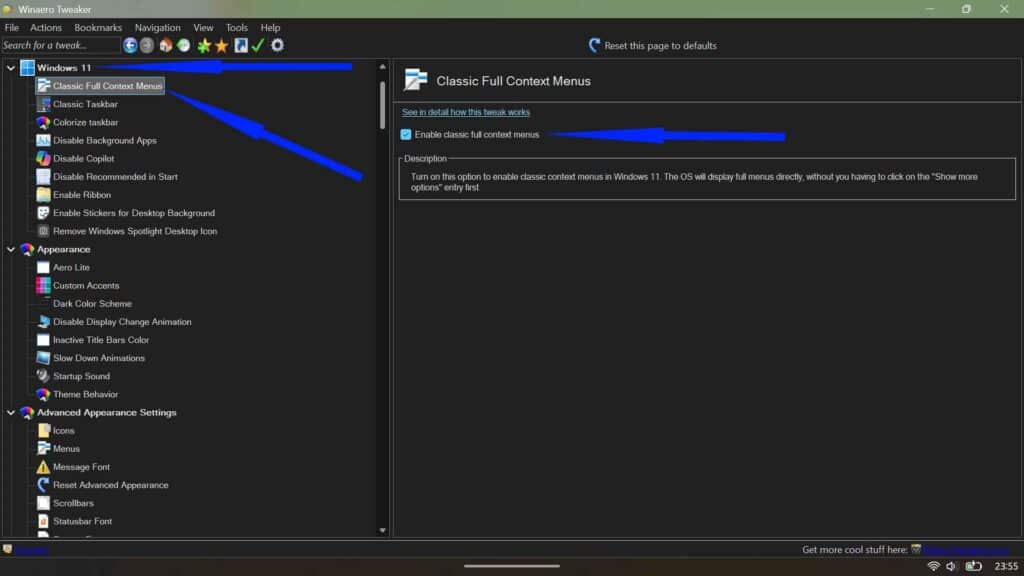
Once Explorer restarts, your right-click menu will immediately revert to the dense, function-rich list you were used to in Windows 10, eliminating that double-click fatigue entirely.
2. Banish System-Wide Ads and Unwanted Apps
Microsoft has become increasingly aggressive about injecting “suggested content” into the user interface. You might spot these as “tips” on the Lock Screen, “suggested apps” in the Start Menu, or even prompts to set up OneDrive in the Settings app. For a clean, professional environment, this visual noise is distracting.
Winaero Tweaker aggregates these disparate ad settings into one kill switch.
- Go to Behavior > Ads and Unwanted Apps.
- Tick the box for Disable ads and unwanted apps and check all the boxes under it that apply.
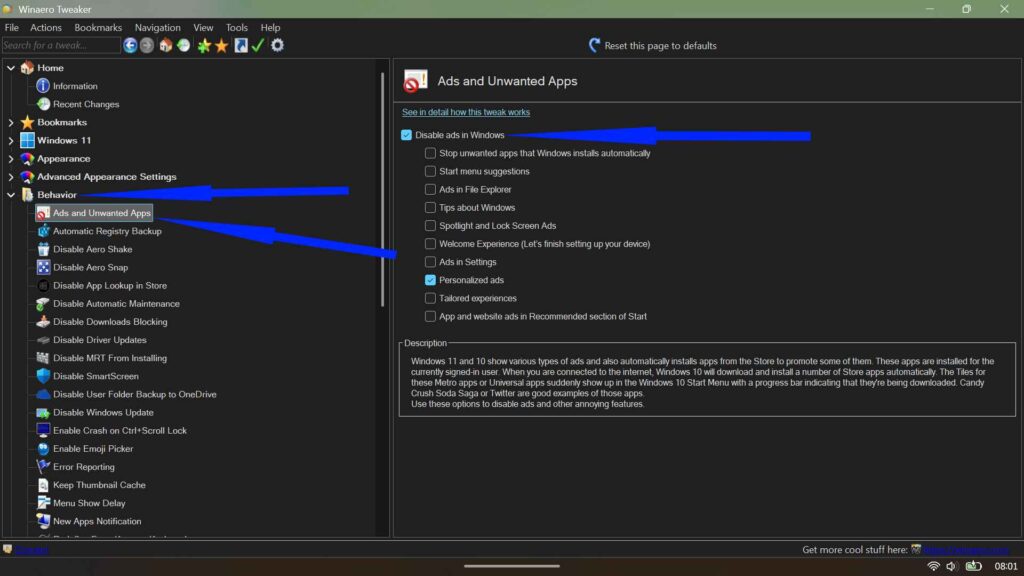
This setting creates a comprehensive blockade against the OS’s attempts to install bloatware (such as Candy Crush derivatives) or to serve you promotional content. It silences the operating system’s commercial chatter, restoring it to a usable state.
Related: 10 Windows Accessibility Features Everyone Can Benefit From
3. Disable Web Search Results in the Start Menu
When you hit the Windows key and type “Notepad,” you want the application, not a Bing search result for “Notepad download.” Windows 11’s insistence on blending local file results with web queries often leads to accidental browser launches and a cluttered search pane. It blurs the line between your personal file system and the public internet.
To enforce a strict separation of church and state between your files and the web:
- Navigate to Desktop and Taskbar > Disable Web Search.
- Check Disable Web Search in Taskbar and Cortana.
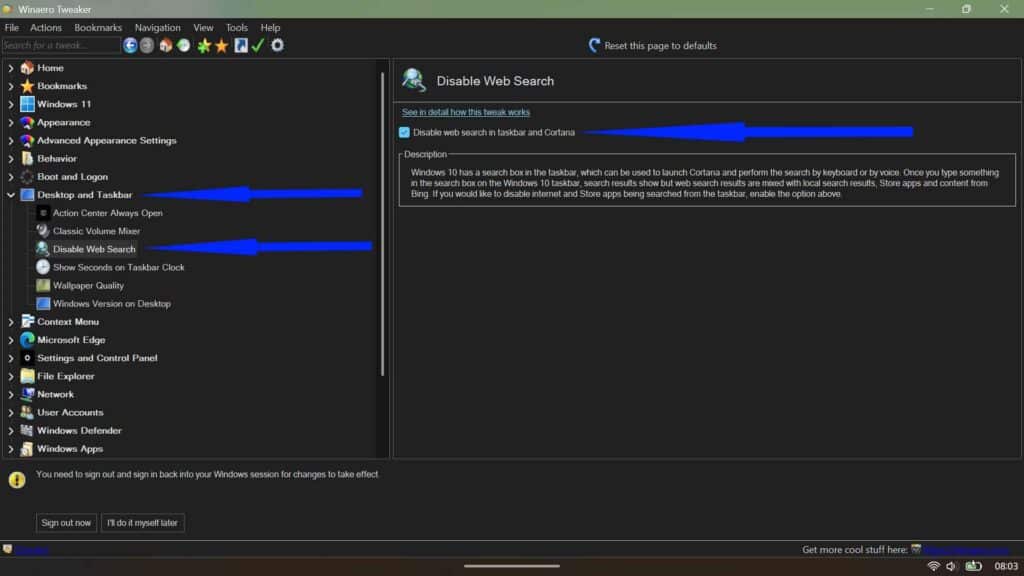
This forces the Start Menu to focus exclusively on your local index: your apps, your documents, and your settings. The search experience becomes snappier and far more predictable.
4. Prevent Automatic Driver Updates via Windows Update
For most people, automatic driver updates are a nice little convenience. For PC enthusiasts and gamers, though, they can turn into a full-blown headache. Windows Update has a bad habit of steamrolling a perfectly stable, manufacturer-tuned GPU or audio driver and replacing it with a generic Microsoft version that’s missing features—or worse, stability.
Instead of wrestling with the Group Policy Editor, you can shut this behavior down directly in Winaero Tweaker.
- Head to Behavior > Disable Driver Updates.
- Check Turn off driver updates via Windows Update.
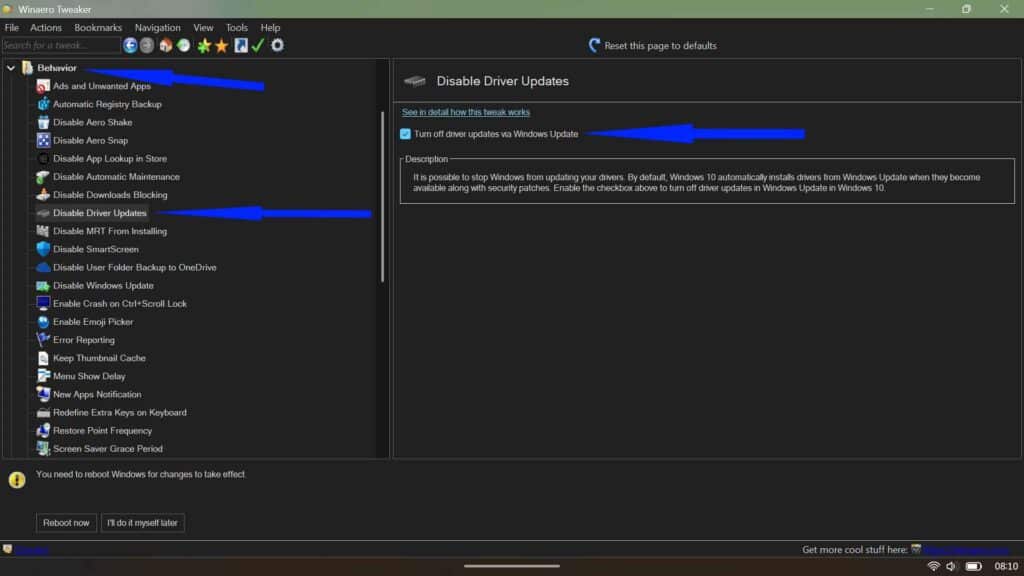
From that point on, Windows Update sticks to what it should be doing: delivering security patches and OS improvements. Your drivers stay exactly where you left them, under your control. If you’re running specialized hardware or care about keeping a finely balanced setup intact, this tweak is less of a nice-to-have and more of a safety net.
5. Disable Windows Copilot
Microsoft’s big AI push has left Copilot sitting permanently on the taskbar, soaking up prime screen space whether you asked for it or not. If you prefer a focused, distraction-free workflow, or you just want that space back, this tweak is an easy win.
- Go to Windows 11 > Disable Copilot.
- Check the box for Disable Copilot.
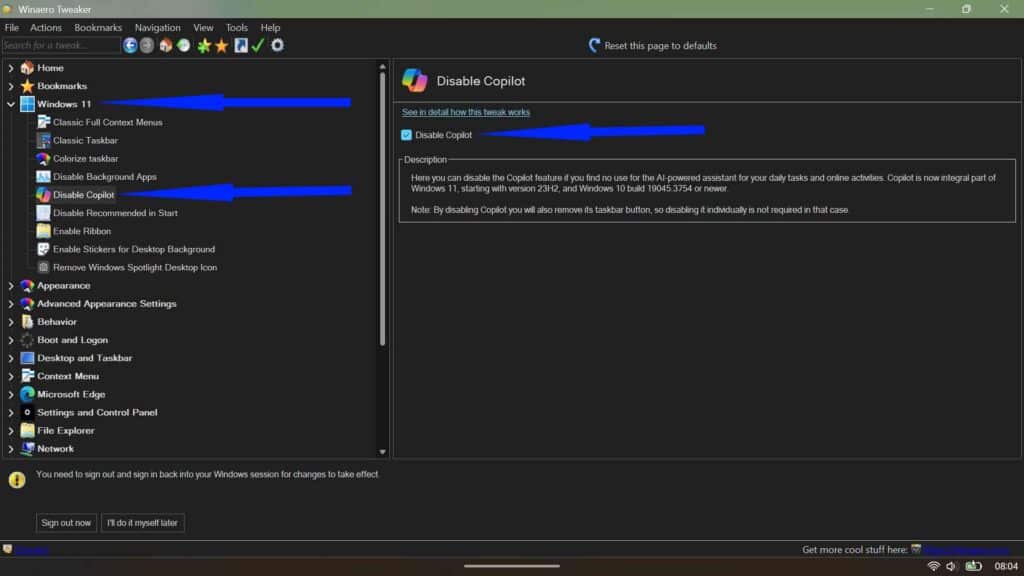
This goes well beyond simply hiding the icon in Taskbar settings. It actually shuts down Copilot’s integration, disables the Win + C shortcut, and stops the background processes that keep it lurking in the wings.
Conclusion
Winaero Tweaker is best understood not as a hacking tool or a source of instability, but as a gateway to settings Microsoft chose to hide from everyday view. Each tweak reflects an intentional choice about how your system behaves, gradually shifting control back into your hands. Spend some time exploring its extensive options, and you might just be able to get the Windows of your dreams.
You may like to read: