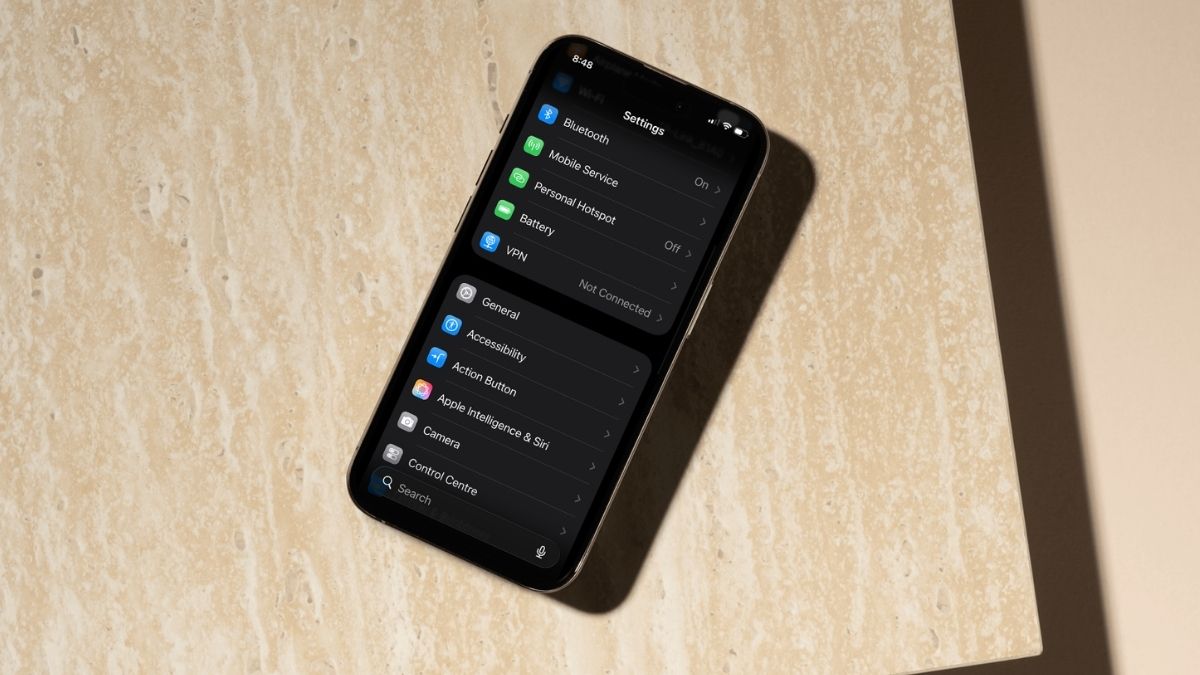
Personal Hotspot is one of those iPhone features you don’t think about until you desperately need it, sitting in a café with spotty Wi-Fi, trying to get your iPad or laptop online. I use it constantly when I’m traveling or working remotely, and it works brilliantly. But there’s one small frustration that trips people up: finding your hotspot in a list of ten networks all named “iPhone” by default.
If you’ve ever been in a crowded airport or coffee shop trying to spot your own hotspot among a sea of identical default names, you already know exactly why changing it matters. This guide walks you through exactly how to change your iPhone hotspot name and the password while you’re at it.
Why Your iPhone Hotspot Name Is Different From Android
Before jumping into the steps, it’s worth understanding something that catches a lot of people off guard, especially those switching from Android.
On Android, your hotspot name is a completely independent setting. You can name it whatever you want without it affecting anything else on the device. iPhone works differently.
Apple ties your Personal Hotspot name directly to your iPhone’s device name. Head into Settings → General → About, and whatever shows up next to “Name” is your hotspot’s Wi-Fi network name (SSID). There’s no separate hotspot name field anywhere in the Personal Hotspot settings. Apple hasn’t added one, even in iOS 18 or the newly released iOS 26.
This isn’t a bug or an oversight. It’s just how Apple designed the ecosystem to stay consistent across AirDrop, iCloud, Bluetooth, and Find My. Once you understand that, the fix is simple.
How to Change Hotspot Name on iPhone
Since your hotspot name is your iPhone’s name, changing it is done through the About section, not the Personal Hotspot menu. Here’s how:
- Open the Settings app and go to General → About.
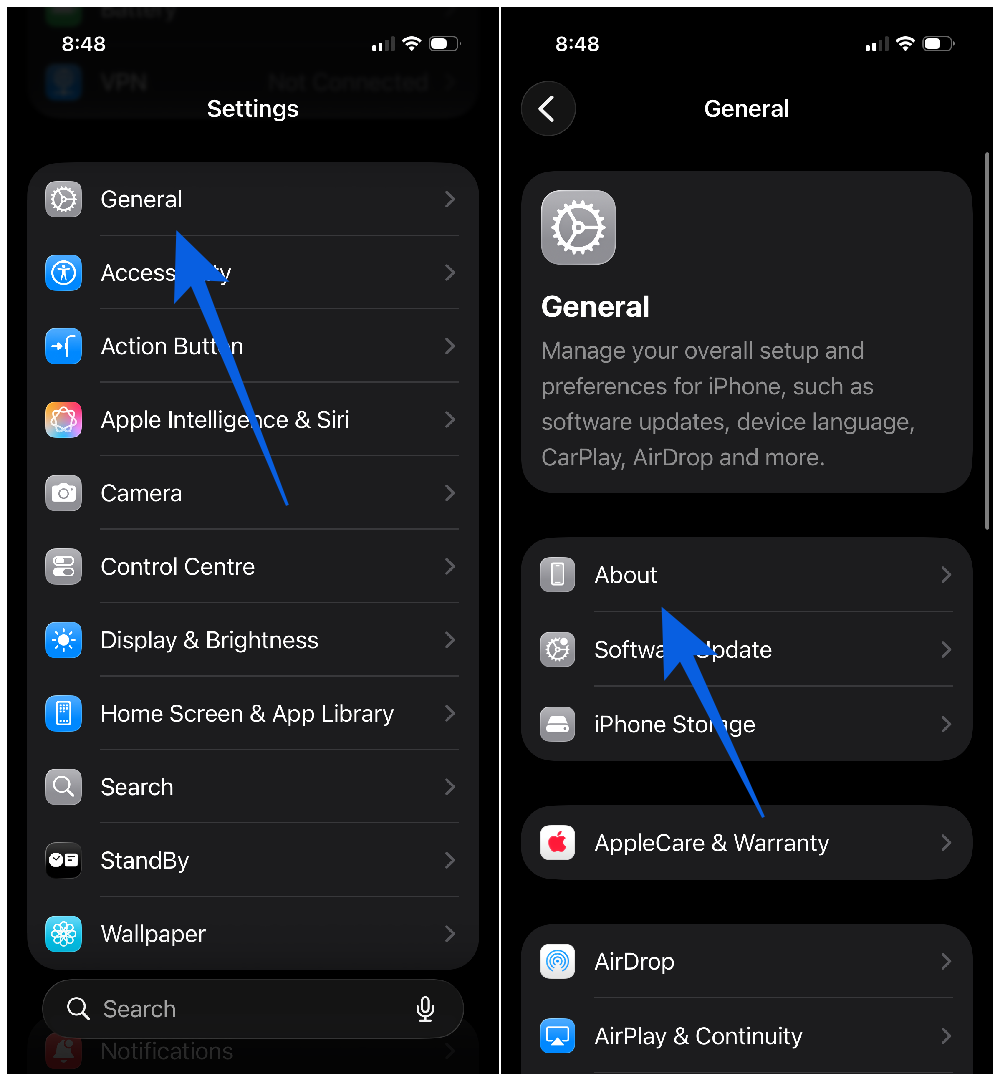
- Tap the field next to Name at the top of the screen.
- Clear the existing name and type your new hotspot name.
- Tap Done on the keyboard to save.
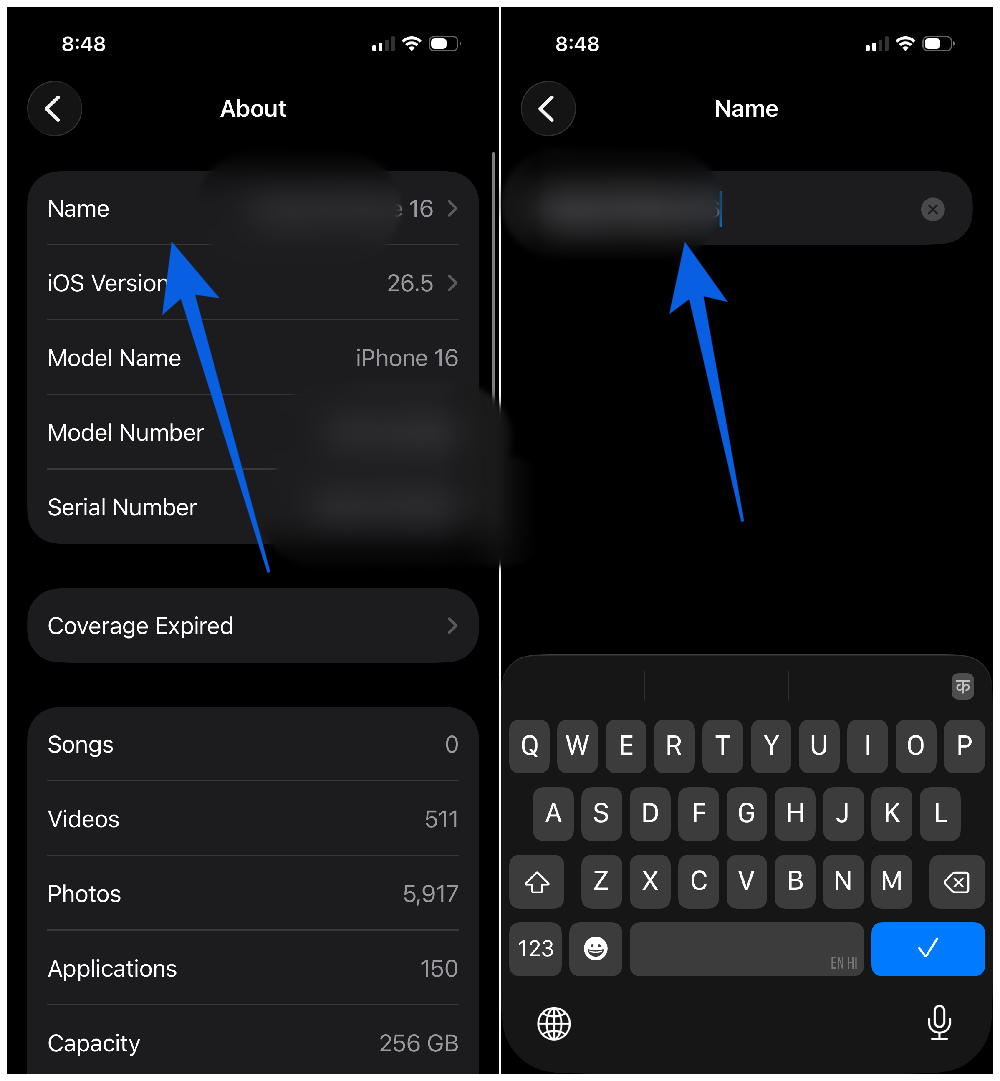
That’s it. Your hotspot name updates immediately. No toggle needed in most cases.
One thing to be aware of: if you already have devices connected to your hotspot when you rename it, they’ll be dropped from the network automatically. They won’t reconnect on their own either. You’ll need to go into the Wi-Fi settings on each device, find the new network name, and reconnect manually.
Also worth noting: this change ripples across your entire Apple ecosystem. Your new name will now appear everywhere your iPhone shows up: AirDrop, Bluetooth pairing lists, iCloud, and Find My. So pick something you’re comfortable with showing publicly. (More on that below.)
How to Change Hotspot Password on iPhone
While you’re in here, it’s a good idea to change your hotspot password too. The default is a randomly generated string that’s genuinely painful to type on another device. Swapping it for something memorable makes connecting your other devices far less frustrating.
- Open Settings and tap Personal Hotspot.
- Tap Wi-Fi Password.
- Clear the existing password and type a new one.
- Tap Done in the top right corner to save.
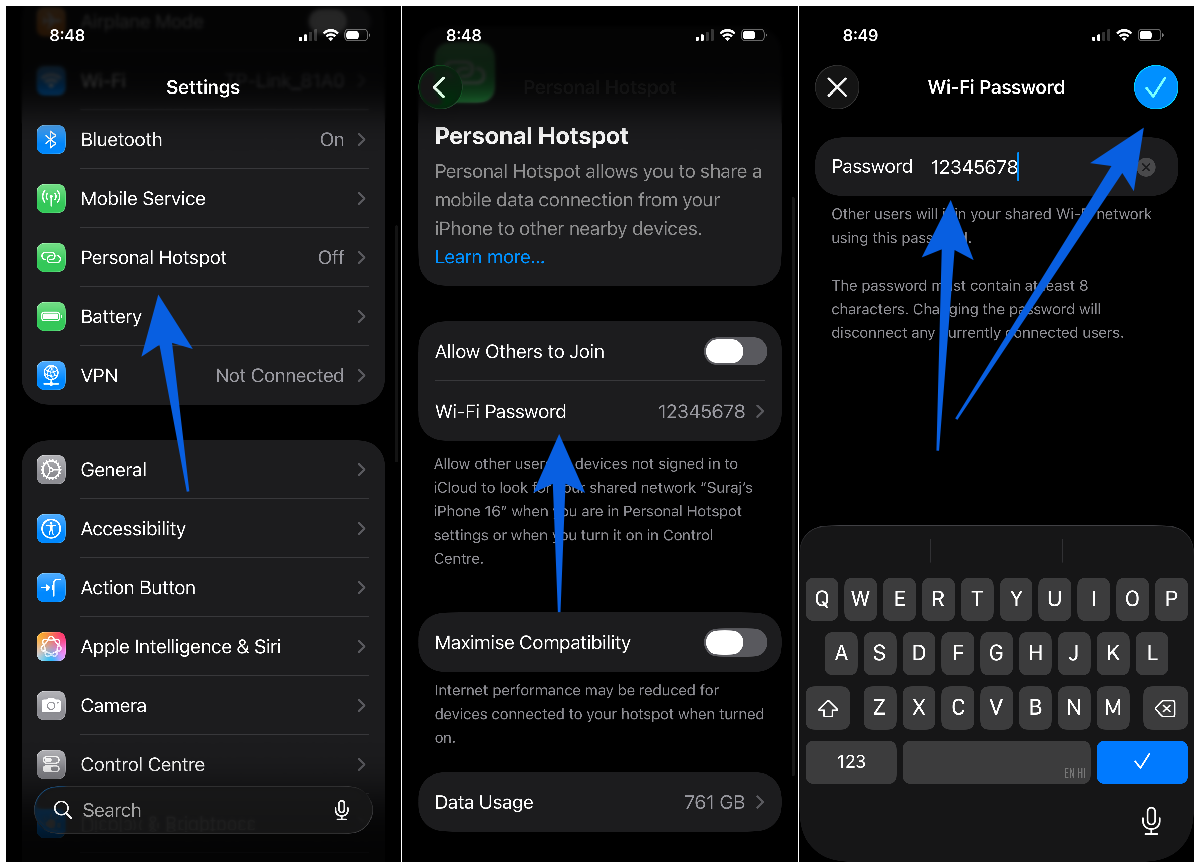
Your new password takes effect immediately. Anyone who was connected before will need to re-enter it.
A quick tip on password security: don’t make it so simple that anyone nearby could guess it. A short phrase with a number mixed in (like coffee2026) strikes a decent balance between memorable and secure. If you’re regularly sharing your hotspot in public places, you might also want to look at best free VPN apps for iPhone. Using a VPN alongside your hotspot adds an extra layer of protection, especially on untrusted networks.
Smart Naming Tips Before You Commit
A few things worth thinking through before you lock in a new name:
- Keep it short and recognizable. Somewhere between 10–20 characters hits the sweet spot. Long names get cut off in Wi-Fi menus on other devices, which defeats the purpose.
- Skip the personal details. Your hotspot name broadcasts to every device in the area, even ones not trying to connect. Avoid using your full name, address, phone number, or anything that identifies you personally.
- Stick to standard characters. Letters, numbers, and basic punctuation work reliably across all devices. Special characters or emoji can occasionally cause connection issues on older or non-Apple hardware.
- Remember it shows up everywhere. Because this changes your iPhone’s name system-wide, it’ll appear in AirDrop requests, Bluetooth menus, and iCloud device lists too. If you’ve ever noticed the little symbols next to device names and wondered what they mean, All iPhone icons and symbols explained is a handy reference.
Hotspot Name Still Not Showing Up? Try These Fixes
Followed the steps but the new name isn’t appearing on other devices yet? This happens occasionally, and it’s almost always a simple fix.
- Toggle the hotspot off and back on. This is the first thing to try. Go to Settings → Personal Hotspot and flip the toggle off, wait a few seconds, then turn it back on. The name refresh sometimes needs a prompt.
- Restart your iPhone. A soft restart clears minor software glitches that can cause the rename not to propagate properly. Hold the side button plus the volume button, slide to power off, then turn it back on.
- Confirm the name actually saved. Easy to overlook. Go back to Settings → General → About → Name and verify your new name is actually there. If you navigated away before tapping Done, it may have reverted.
- Reconnect previously connected devices manually. They won’t auto-reconnect after a name change. Go into the Wi-Fi settings on each device, find your iPhone’s updated name in the list, and reconnect fresh.
- Reset Network Settings as a last resort. If your hotspot is greyed out entirely or behaving strangely, go to Settings → General → Transfer or Reset iPhone → Reset → Reset Network Settings. Fair warning: this clears all saved Wi-Fi passwords and resets Bluetooth and cellular settings to defaults. It’s a nuclear option, but it reliably fixes stubborn hotspot issues.
Final Thought
Changing your iPhone hotspot name is one of those small quality-of-life tweaks that makes daily use noticeably smoother, especially if you’re regularly connecting multiple devices or working in shared spaces. The fact that it’s tied to your device name throws people off at first, particularly if you’re coming from Android where the two are separate. But once you know where to look, it takes about 30 seconds.
Set a name that’s easy to spot, keep the password something you can type without squinting at a screen, and you’re good to go.
You might also like: