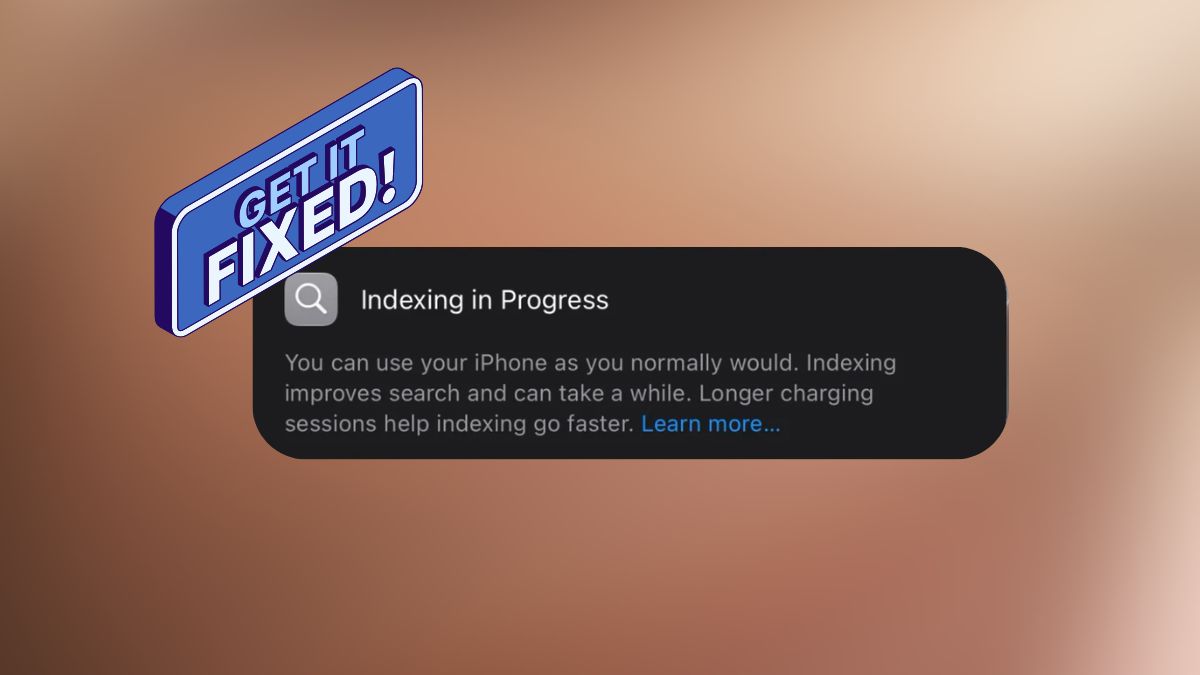
If you’ve recently updated your iPhone to iOS 27 and noticed an “Indexing in Progress” banner at the top of the Settings app, you’re not alone.
I saw the same thing shortly after installing the first iOS 27 developer beta. About an hour after the update finished, a message appeared that read:
Indexing in Progress
You can use your iPhone as you normally would. Indexing improves search and can take a while. Longer charging sessions help indexing go faster. Learn more…
Naturally, I tapped Learn more, hoping for an explanation. Instead, Apple redirected me to an older support page about rebuilding Spotlight on macOS, which wasn’t particularly useful for an iPhone.
The more noticeable issue was performance. Searching for contacts, opening Messages, and launching certain apps all felt slower than usual. If your iPhone seems sluggish after updating and you’re seeing the same banner, the two are almost certainly connected.
The good news is that this isn’t usually a bug. In most cases, it’s a normal part of the update process while iOS rebuilds its search database. Here’s what “Indexing in Progress” actually means, how long it usually lasts, and what you can do to speed things up.
What Does “Indexing in Progress” Mean on iPhone?
After installing iOS 27, your iPhone rebuilds the Spotlight search index, the database that powers searches across:
- Messages
- Photos
- Notes
- Files
- Contacts
- Siri
Earlier versions of iOS performed this process silently in the background. iOS 27 simply makes it visible.
The reason is Apple’s redesigned search system, introduced alongside the new Siri experience and Apple Intelligence features announced at WWDC 2026. The updated index stores significantly more information, allowing Siri to understand far more detailed natural-language requests.
For example, instead of searching for keywords, you’ll eventually be able to ask Siri something like:
“Find the message where my wife recommended a water bottle.”
Building that richer search database naturally takes longer than previous versions.
The banner is informational, not an error message.
Why Is My iPhone Slow After the iOS 27 Update?
While indexing is running, your iPhone is constantly processing files in the background.
That means:
- Search results may be incomplete.
- Apps can feel slower to open.
- Battery drain may increase temporarily.
- Your device may feel slightly warmer during charging.
All of these are expected while indexing completes.
How Long Does iPhone Indexing Take?
This varies much more than most people expect. Some devices finish within a few hours, while others continue indexing for several days.
Surprisingly, the amount of storage on your iPhone isn’t always the deciding factor. Some users with relatively empty phones have reported indexing for more than 24 hours, while others with massive photo libraries finished overnight.
Several factors influence the process, including:
- Mail syncing
- Apple Intelligence setup
- Charging habits
- Background processing
- Beta software optimization
If your phone has been indexing for less than two or three days, it’s probably working normally.
How to Fix “Indexing in Progress” on iPhone
If the banner doesn’t disappear quickly, these are the most effective solutions.
1. Leave Your iPhone Charging Overnight
This is Apple’s own recommendation, and it’s easily the most effective solution.
Indexing runs much faster when your iPhone is:
- Plugged into power
- Locked
- Connected to Wi-Fi
- Left idle
For large libraries, it may take two or three overnight charging sessions.
2. Turn Off Low Power Mode
Low Power Mode limits background activity to preserve battery life. Unfortunately, indexing is one of the background tasks that gets slowed down.
Turn it off by going to: Settings → Battery → Low Power Mode.
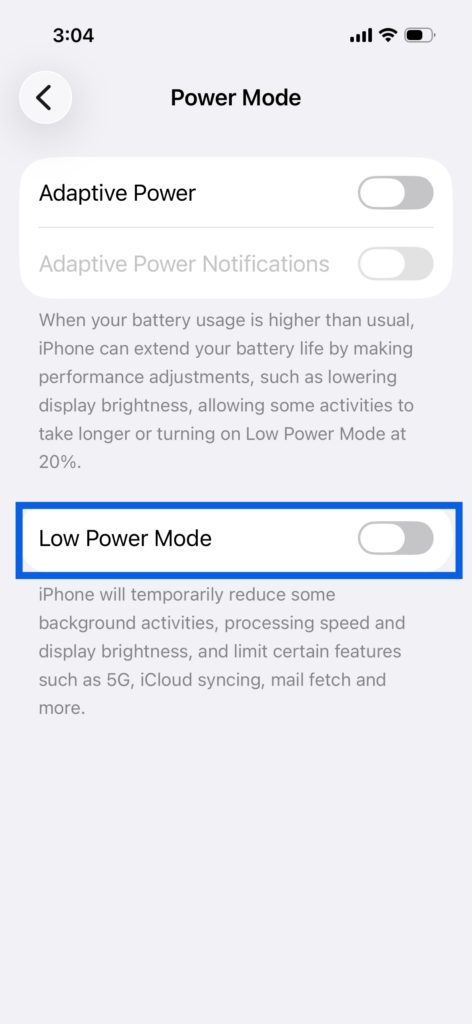
Then reconnect your iPhone to its charger and allow it to continue indexing.
3. Avoid Force Restarting Your iPhone
One mistake many people make is repeatedly force restarting their phone. A force restart can interrupt the indexing process and potentially delay completion.
A normal restart is generally safe if something feels off, but avoid forcing the device to reboot unless it’s completely frozen.
3. Reduce What Needs to Be Indexed
The more content your iPhone has to process, the longer indexing takes.
If possible:
- Delete unnecessary photos and videos.
- Remove unused Mail accounts.
- Clear old attachments.
- Delete files you no longer need.
Reducing the amount of searchable content can help shorten indexing time.
3. Check Indexing Progress from a Mac
One of the most useful tricks during the first iOS 27 beta was checking the actual indexing percentage using macOS Console.
Here’s how it worked:
- Connect your iPhone to your Mac.
- Open the Console app.
- Enable Include Debug Messages.
- Select your iPhone.
- Search for spotlight indexing progress.
- Start streaming logs.
- Open Settings on your iPhone.
- Look for PipelineCompleteness, which displays the indexing percentage.
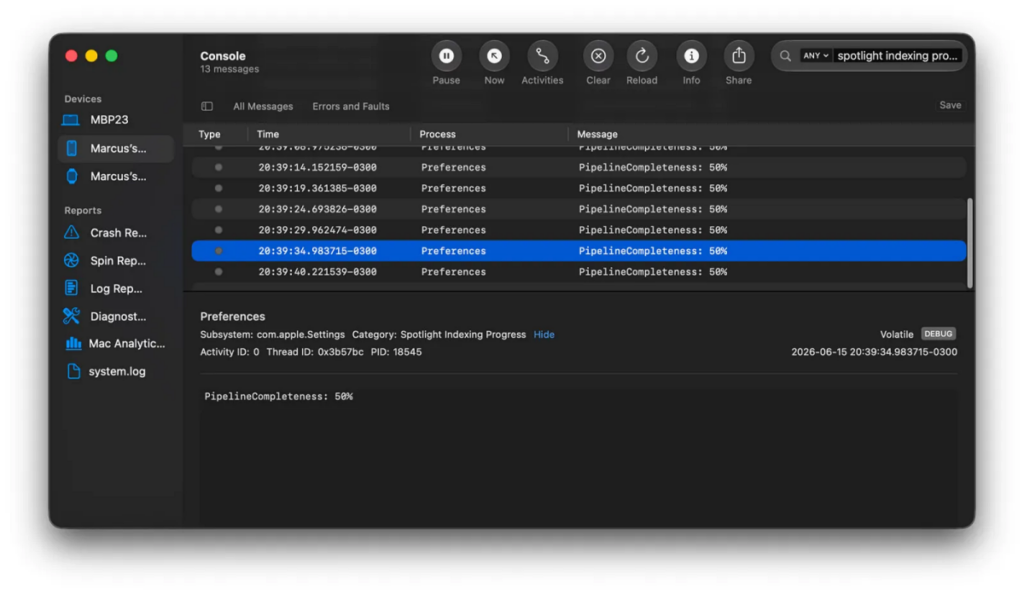
Many users found their devices sitting around 95% before finally completing after another overnight charge.
Important: Apple appears to have disabled this method in iOS 27 Beta 2. If you’re running the newer beta and don’t see the percentage anymore, you’re not doing anything wrong. Apple simply no longer exposes that information through Console.
6. If Indexing Really Is Stuck
If your iPhone has remained on “Indexing in Progress” after:
- 48 hours or more
- Multiple overnight charging sessions
- Low Power Mode disabled
Then try the following:
- Perform a normal restart.
- Continue charging overnight.
- Back up your iPhone.
- Erase and restore only as a last resort.
Completely resetting your iPhone should be the final option because it forces the entire indexing process to start again. Fortunately, very few users need to go this far.
Common Myths About iPhone Indexing
“It’s waiting for Apple Intelligence.”
No. Indexing and Apple Intelligence enrollment are separate processes. Many users have gained access to Apple Intelligence while indexing was still running.
“My iPhone barely has any data.”
Storage size doesn’t always determine indexing time. Even devices with very little content have taken more than a day to finish.
What Changed in iOS 27 Beta 2?
Several beta testers noticed something interesting after installing Beta 2. Apple appears to have removed the “Indexing in Progress” banner from the top of Settings while allowing indexing to continue quietly in the background.
The indexing process still happens exactly as before. Apple simply seems to have stopped showing the warning, likely because it confused many users during the first beta.
As with any beta software, this behavior could change again before the public release.
Final Thoughts
Seeing “Indexing in Progress” after installing iOS 27 is completely normal. Your iPhone is rebuilding a much more advanced search index to support the new Siri experience and Apple Intelligence. During this process, slower performance, increased battery usage, and occasional lag are all expected.
The fastest way to finish indexing is surprisingly simple: leave your iPhone plugged in overnight, disable Low Power Mode, avoid unnecessary restarts, and let iOS complete its work.
If the banner remains after nearly a week despite multiple overnight charging sessions, it’s worth contacting Apple Support, as that may indicate something beyond routine indexing.