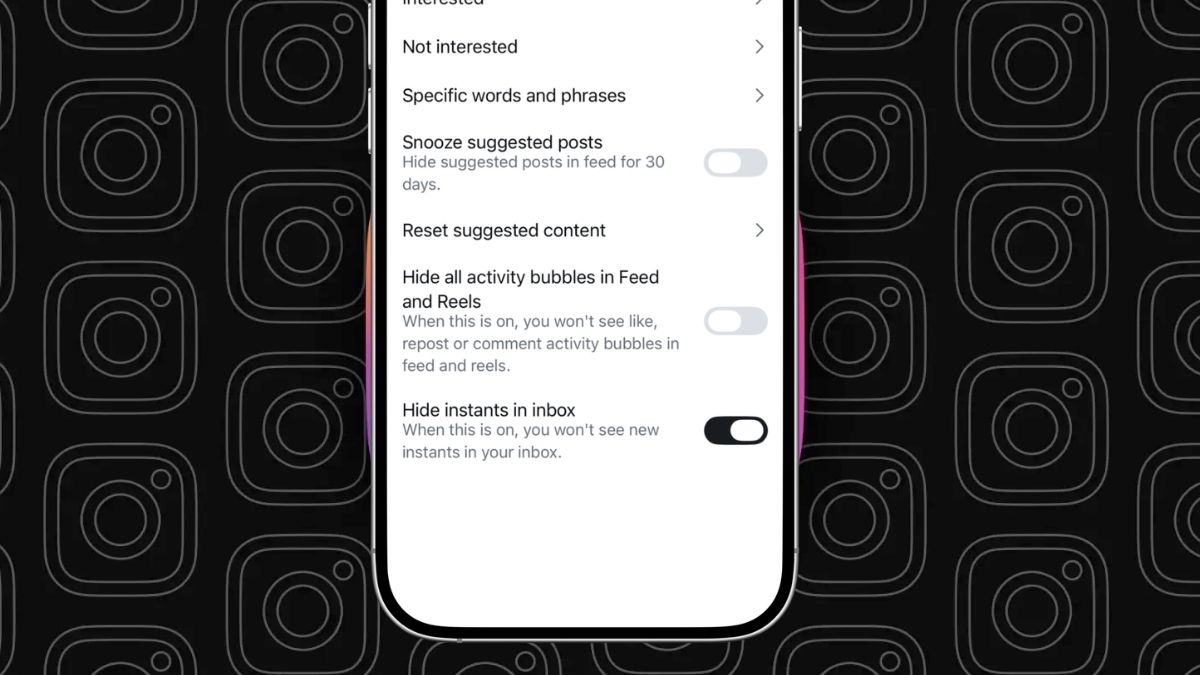
Instagram has a habit of rolling out features before most users realize what they signed up for. Instants, which launched around May 13, 2026, is the latest example. It lets you share disappearing real-time photos directly in DMs — but the problem is the shutter button sends the photo instantly, with no confirmation step. One tap and it is already gone to whoever you were chatting with.
If you want to understand the feature in more detail before disabling it, this breakdown of What is the Instagram Instants app is worth a quick read. But if you are here because your inbox is already cluttered or you accidentally sent something you did not mean to, here is everything you need to fix it right now.
How to Turn Off the Instagram Instants Feature Completely
Instagram did quietly add a setting that lets you hide Instants entirely. It will not just mute the notifications — it removes the feature from your inbox view altogether and stops you from receiving Instants from others. Here is how to get to it:
- Open Instagram and head to your Profile (bottom right corner).
- Tap the three-line menu in the top right.
- Go to Settings and Activity > Tap Content Preferences.
- Scroll to the bottom and toggle on Hide Instants in Inbox.
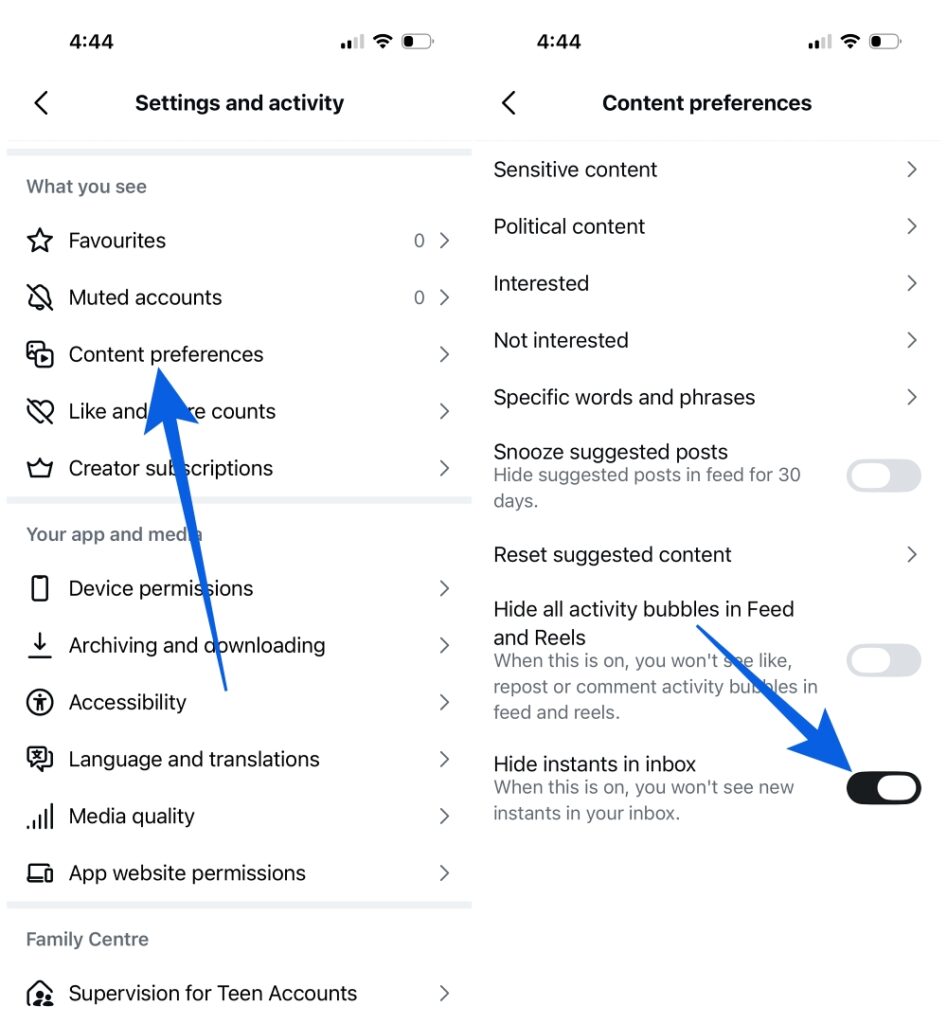
Once that toggle is on, the Instants pile disappears from your DM inbox, and the photo stack icon goes with it. Existing Instants should also clear out from view. It is one of the cleaner ways to turn off the new Instagram Instants feature without losing access to your regular DMs.
If the option is not showing up for you, your app likely needs an update. Head to the App Store or Google Play and install the latest version — the setting only appeared after a recent client update.
How to Temporarily Hide Instants Without Fully Disabling It
Not ready to turn it off completely? Instagram also gives you a softer option. In your DM inbox, press and hold the Instants pile, then swipe right. This dismisses the stack temporarily without touching your settings. It is handy if you just want to clear the visual clutter for now and revisit the feature later.
How to Undo an Instant You Already Sent
This is where things get slightly time-sensitive. Right after you send an Instant, Instagram shows an Undo button just below the shutter. Tap it fast and the photo gets pulled back before the other person ever sees it. It is the quickest way to undo an Instant when it was an accidental send.
If that window has already passed, you still have one more option through the archive:
- Open the Instants camera.
- Tap the four-box icon in the top-right corner.
- Go to your archive.
- Find the Instant you want to remove.
- Delete it.
This works as long as the recipient has not already opened the photo. Once they have viewed it, the deletion option no longer applies on their end.
How to Stop Instagram Instants Notifications
If the push alerts are adding to the frustration on top of the inbox clutter, you can mute those separately. Go to Settings → Notifications → Messages and look for any Instants-related alert options. Limiting or muting them there keeps your lock screen clean while you sort out whether you want to use the feature at all.
Why So Many People Are Trying to Remove Photos Shared in Instagram Instants
The backlash makes a lot of sense when you think about how Instagram trained its users. The platform has always been about curated, reviewed, intentional sharing. You edit the photo, write a caption, decide who sees it. Instants threw all of that out by sending the moment you press the shutter — no preview, no second look, no confirmation.
A lot of users did not realize that was how it worked until after a photo had already been delivered. Privacy concerns followed quickly, especially since Instagram did not make the behavior particularly obvious during the rollout. Meta has since added the settings above, likely in response to the volume of complaints that came in right after launch.
You are far from alone in wanting this gone. Hiding or disabling Instants has become one of the most searched things about Instagram since the feature went live, which says plenty about how the launch landed.
Don’t miss these related reads: