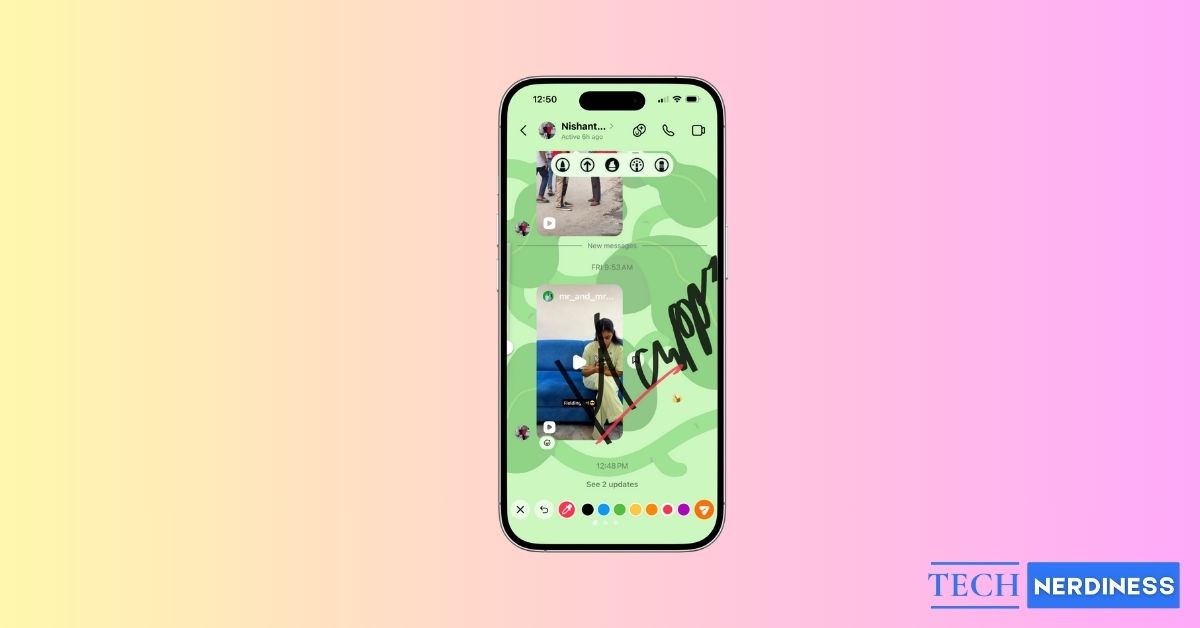
People already use voice notes, GIFs, and reactions when texting isn’t enough. The doodles feature in Instagram takes that a step further by letting you show tone instead of typing it. You can circle something important, highlight a screenshot, draw arrows, tease a friend, or just sketch a meme for fun.
You can literally draw right on the Instagram chat screen, and your sketch appears instantly in the conversation exactly where you placed it. The other person sees it the same way on their side. You can also drag stickers anywhere on the chat instead of using them as fixed reactions. And yes, you can even doodle directly on photos inside DMs.
How to Draw and Send a Doodle in Instagram Chat DMs
Before you start doodling your masterpieces on messages, make sure Instagram is updated to the latest version.
- Open Instagram and go to DMs.
- Tap any chat to open it.
- Tap the + (plus) button at the bottom right of the message bar.
- Select Draw from the pop-up menu.
- Use the toolbar at the top to pick a brush, arrow, or eraser.
- Adjust stroke thickness using the slider on the right. Choose a color from the palette at the bottom or use the color picker.
- Draw freely on the chat screen.
- Tap the paper plane icon to send your doodle.
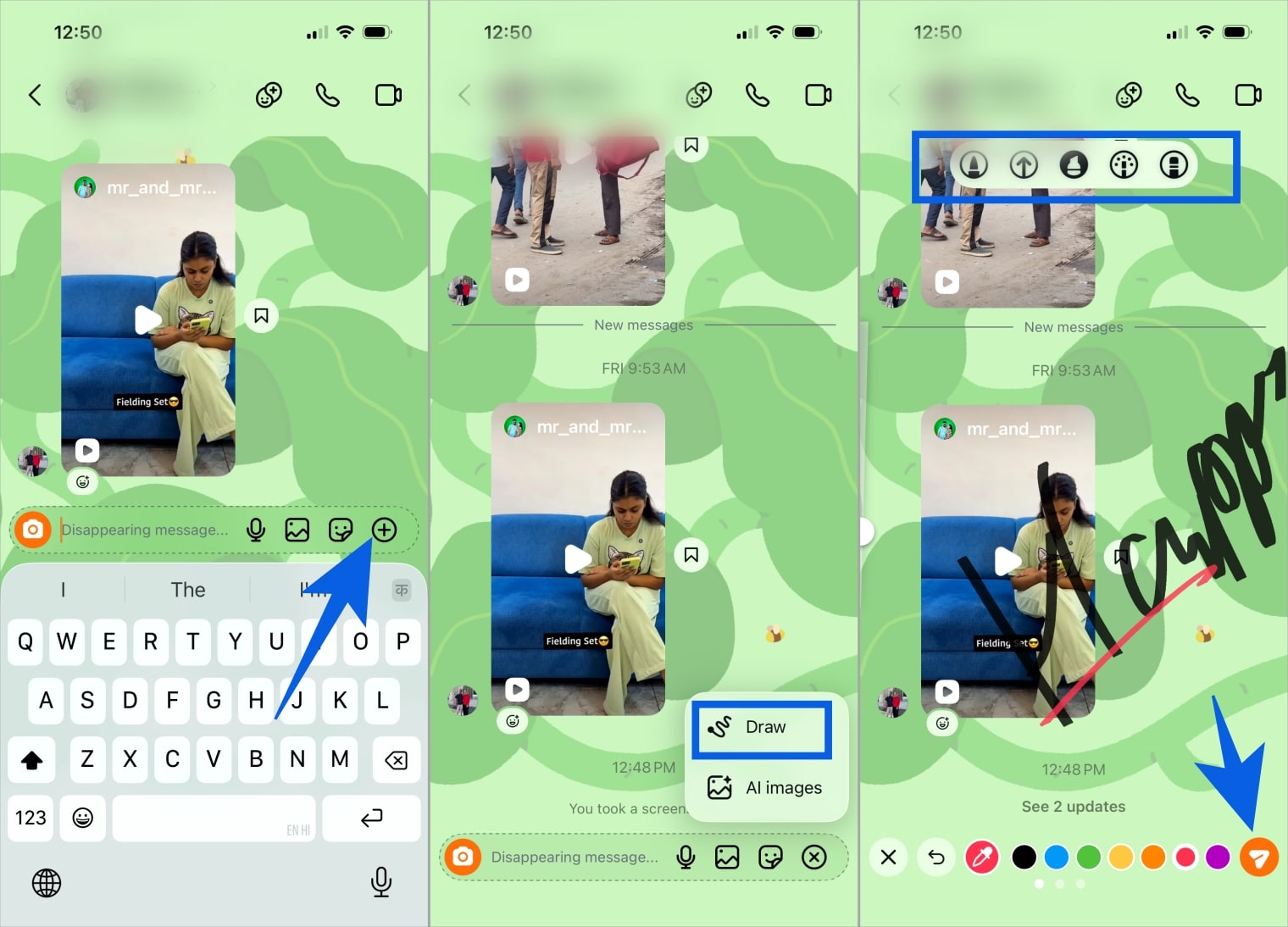
It instantly becomes part of the chat, and your friend will see your sketch placed right in the conversation. Sometimes the doodle may show up flipped or layered over text because of a small bug, but that should be polished soon.
How to Add Stickers to Messages in Instagram DMs
You can go beyond drawings and place stickers anywhere on the chat messages. It works like reactions, but instead of staying attached to a message bubble, you can drag them freely.
- Long‑press a message (yours or your friend’s).
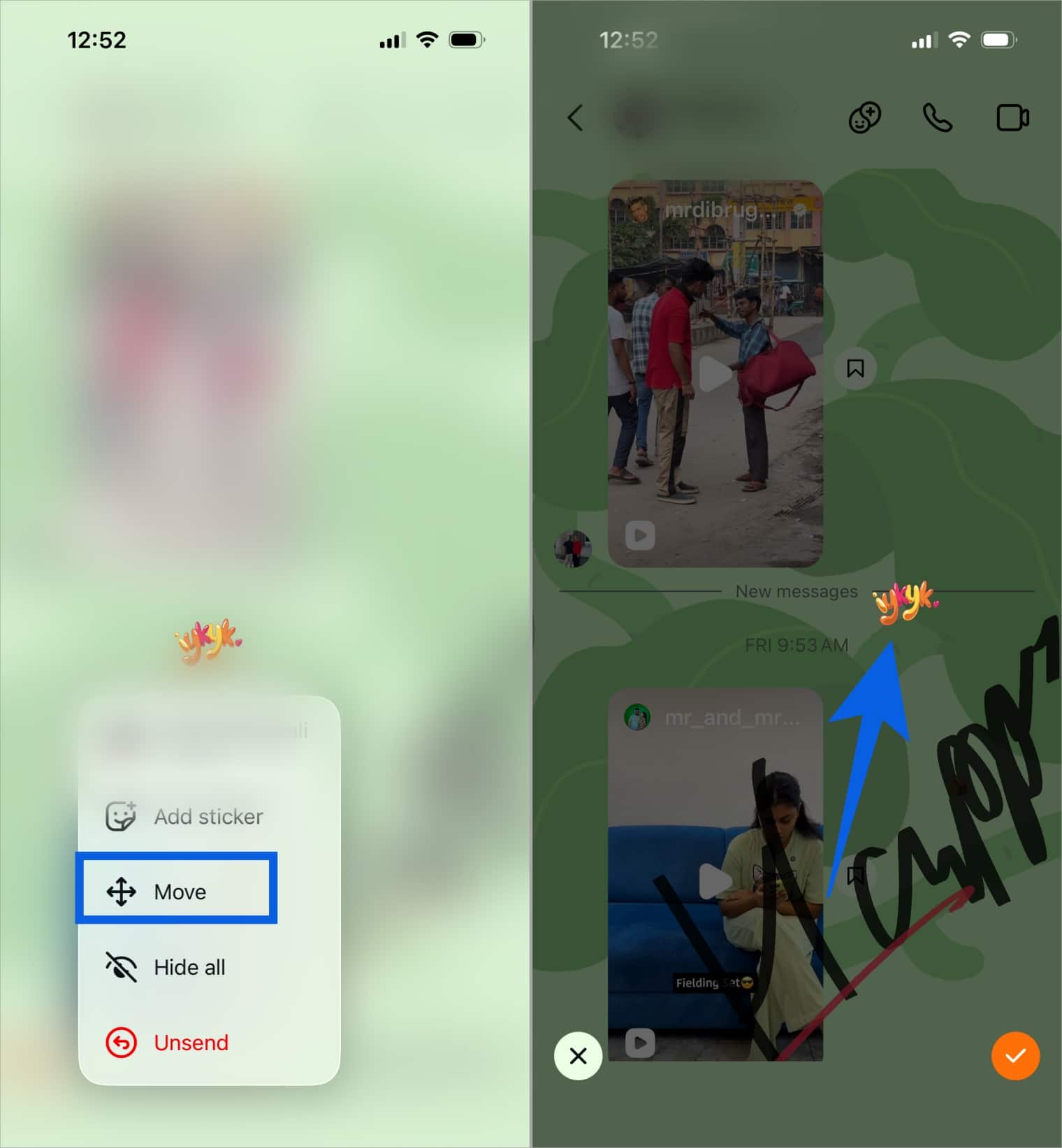
- Select Add Sticker.
- Pick a sticker from the menu. It appears over that message.
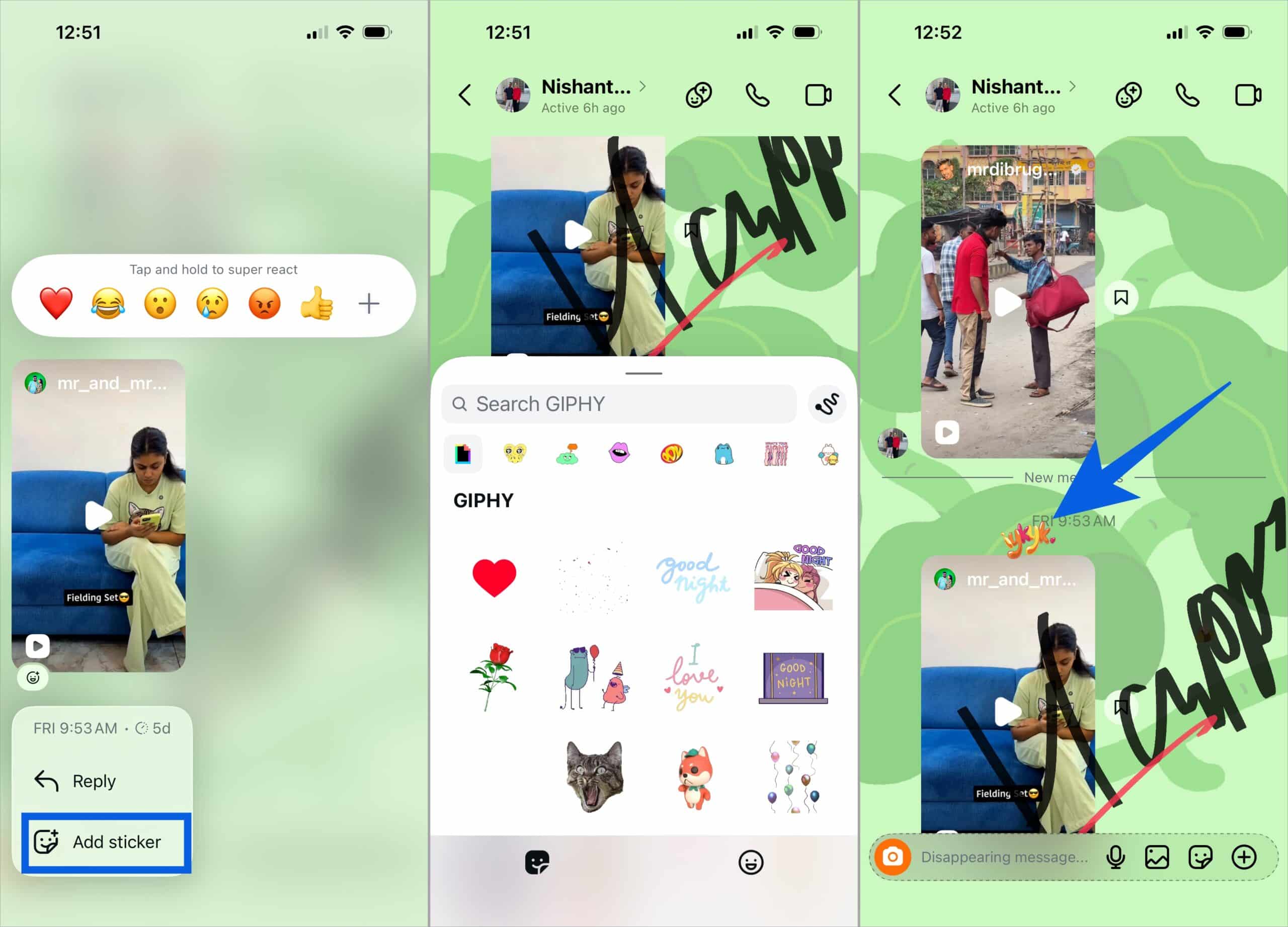
- Long‑press the sticker again and choose Move.
- Drag it to any position on the screen and tap the tick mark button to confirm.
How to Delete Doodles and Stickers in Instagram Chat
Not everyone will love having stickers and drawings all over their chat. Instagram gives control to both sides.
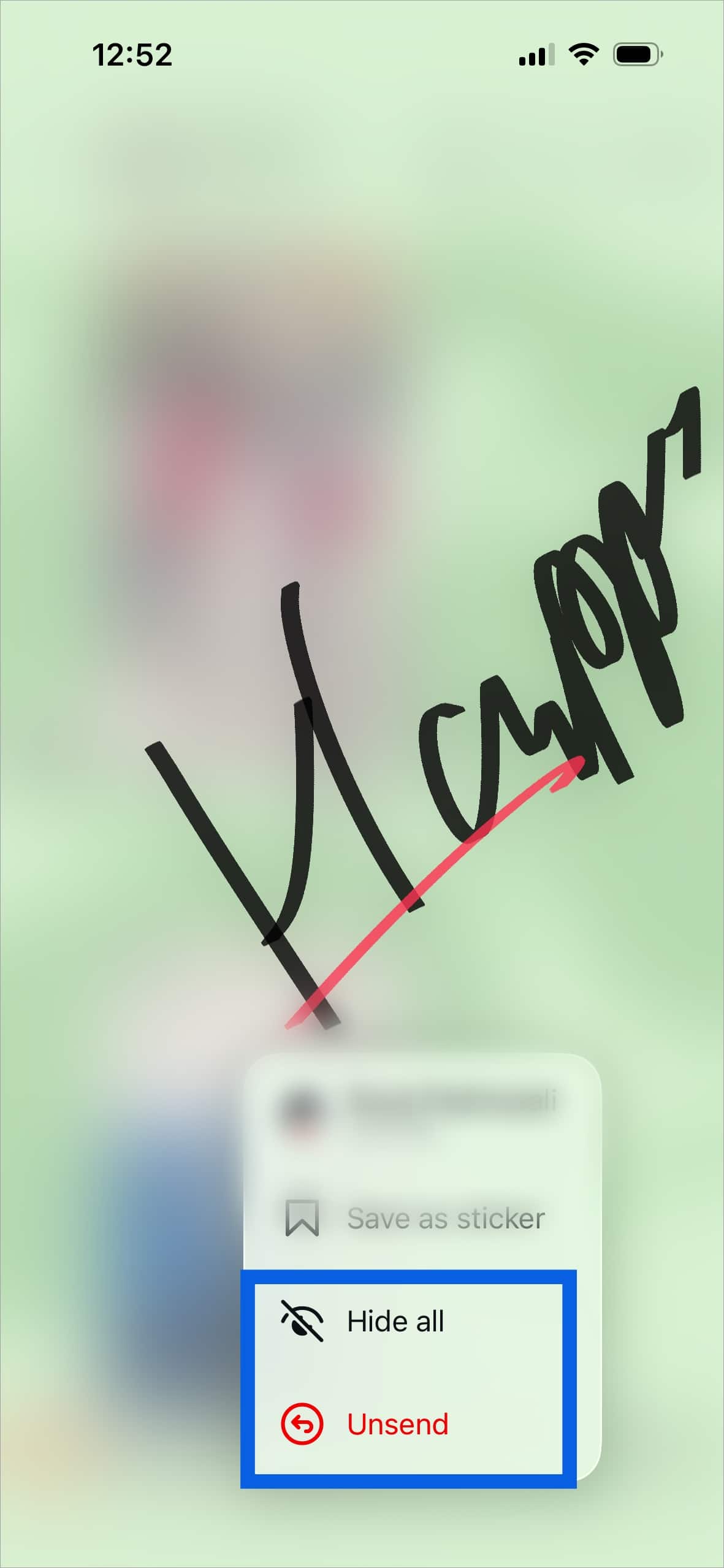
- If you received the doodle or sticker: long‑press it and tap Delete for you. It will disappear only on your side of the chat.
- If you sent it: long‑press and tap Unsend to delete it for both people.
- To remove everything at once: long‑press any doodle or sticker and choose Hide All. The chat becomes clean again.
You can bring everything back by tapping the sticker icon near the message box and selecting Show.
If you also want more control over how messages behave in DMs, you can read how to turn off Vanish Mode on Instagram.
Final Thoughts
With doodles, you no longer need to type “look here”; you can simply circle the message on the chat itself. Instead of sending a sarcastic emoji, you can draw one exactly how you feel. Reactions and stickers are fun, but they are presets. Doodles feel personal because you control what you draw and where it appears. With all the brush styles, colors, arrows, and stickers available, you can turn any Instagram conversation into something more expressive, playful, and unmistakably yours.